WooCommerce Connector
The WooCommerce connector reads products, customers, and orders from a WooCommerce store using the WooCommerce REST API v3. It supports incremental sync by filtering records modified after a stored timestamp. This connector is source-only — it does not write data back to WooCommerce.
When to use this connector
Section titled “When to use this connector”- Extract the WooCommerce product catalog to push items into EZY Portal or an ERP.
- Pull customer records from WooCommerce for synchronization with a CRM or business partner master.
- Pull order data from WooCommerce for downstream processing or reporting.
- Use WooCommerce as the source side of a WooCommerce → EZY Portal or WooCommerce → Flat File job.
Supported entity types
Section titled “Supported entity types”| Entity type | Direction | Description |
|---|---|---|
| Item (product) | Source | WooCommerce products, including product details and metadata. |
| Customer | Source | WooCommerce customer accounts. |
| Order | Source | WooCommerce orders with line items and status. |
Prerequisites
Section titled “Prerequisites”Before creating a connection profile, complete the following steps in your WooCommerce store:
- Enable the WooCommerce REST API. The REST API is included in WooCommerce by default. Confirm it is not disabled by a security plugin.
- Generate a consumer key and consumer secret.
- In your WordPress admin, go to WooCommerce > Settings > Advanced > REST API.
- Click Add key.
- Set a description, select the WordPress user, and set Permissions to Read.
- Click Generate API key.
- Copy the Consumer key (starts with
ck_) and Consumer secret (starts withcs_). These values are shown only once.
- (Optional) Create a WordPress Application Password — required only if your mapping configuration performs any media or file operations against the WordPress REST API (for example, image sync via a custom mapping).
- In your WordPress admin, go to Users > Your Profile.
- Scroll to the Application Passwords section.
- Enter a name such as
EZY Integrationand click Add New Application Password. - Copy the generated password. It is shown only once and appears as space-separated groups (for example,
xxxx xxxx xxxx xxxx xxxx xxxx).
Connection profile fields
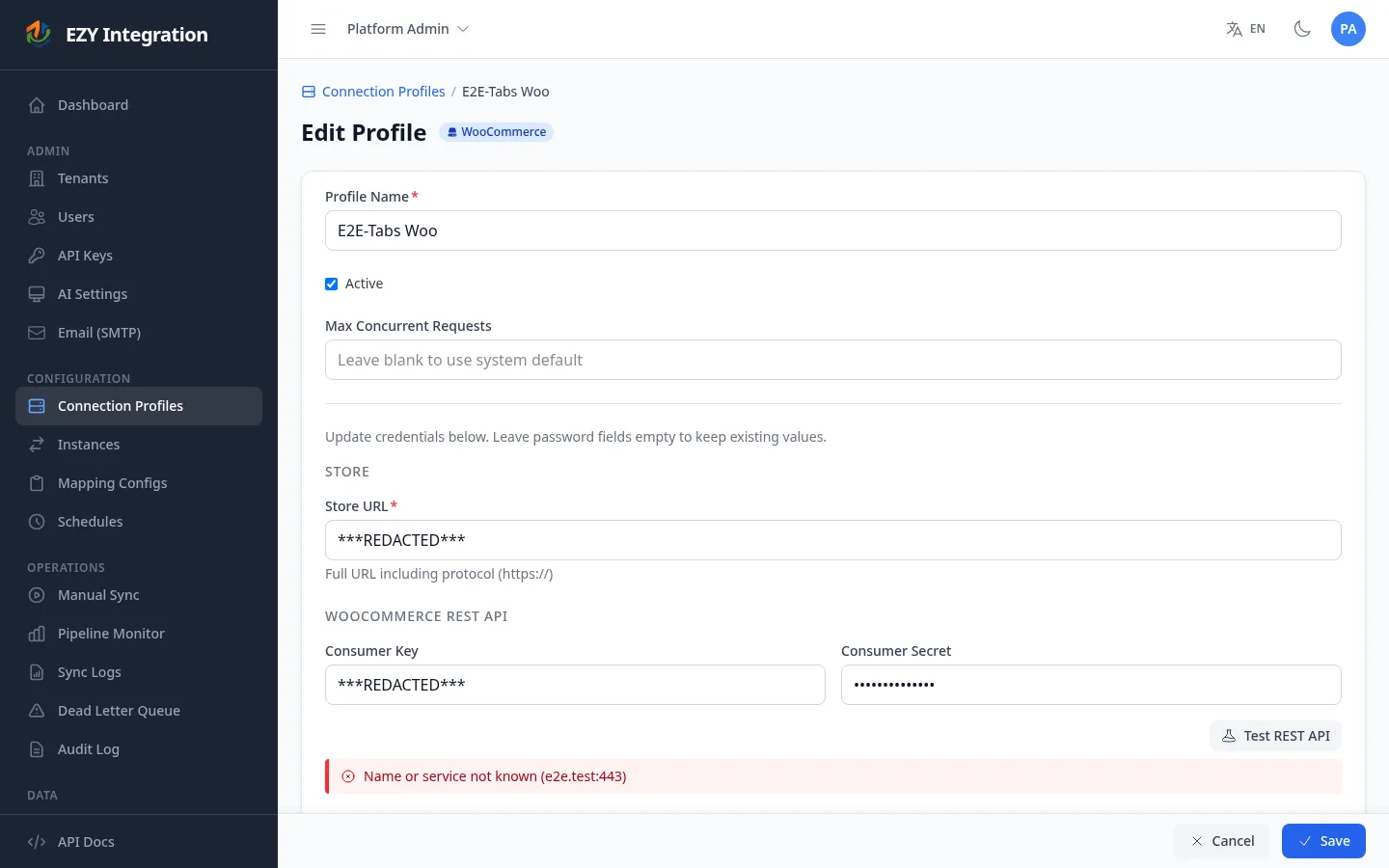
Section titled “Connection profile fields”The WooCommerce connection profile has two credential sections in the UI.
| Field | Required | Description | Example value |
|---|---|---|---|
| Store URL | Yes | Base URL of your WooCommerce store, including the protocol. | https://example.com |
REST API
Section titled “REST API”| Field | Required | Description | Example value |
|---|---|---|---|
| Consumer Key | No* | WooCommerce REST API consumer key. Starts with ck_. | ck_<YOUR_KEY> |
| Consumer Secret | No* | WooCommerce REST API consumer secret. Starts with cs_. | cs_<YOUR_SECRET> |
* At least one authentication method (REST API or WordPress Auth) must be configured. REST API credentials are used for all product, customer, and order extractions.
WordPress Auth
Section titled “WordPress Auth”| Field | Required | Description | Example value |
|---|---|---|---|
| App Username | No | WordPress username for Application Password authentication. | admin |
| App Password | No | WordPress Application Password. | <APP_PASSWORD> |
WordPress Auth credentials are optional for standard product, customer, and order extraction. They are required if your mapping configuration includes operations against the WordPress media or file API endpoints.
Setting up a connection profile
Section titled “Setting up a connection profile”- In EZY Integrations, open Connection Profiles and click Create.
- Select WooCommerce from the System Type dropdown.
- Enter a name for the profile (for example,
WooCommerce - Main Store). - Under Store, enter your store URL.
- Under REST API, enter your consumer key and consumer secret.
- (Optional) Under WordPress Auth, enter your WordPress username and Application Password.
- Click Test Connection next to REST API to verify the consumer credentials.
- (Optional) Click Test Connection next to WordPress Auth to verify the Application Password credentials.
- Click Create to save the profile.
Incremental sync
Section titled “Incremental sync”The connector supports incremental sync using a timestamp cursor. After each successful run, the highest date_modified value seen across all extracted records is saved. The next run requests only records modified after that timestamp.
On the first run (no cursor stored), the connector fetches all available records. Incremental sync reduces API load on subsequent runs.
Known limitations
Section titled “Known limitations”- Page-based pagination. The WooCommerce REST API uses page numbers, not server-side cursors. For large catalogs, the connector must fetch pages sequentially. A store with thousands of products requires many round trips, which increases sync time compared to cursor-based APIs.
date_modifiedaccuracy. Incremental sync depends on WooCommerce’sdate_modifiedfield being updated whenever a record changes. If a third-party plugin modifies records without updatingdate_modified, those changes are not picked up until a full re-sync.- Source only. Writing data back to WooCommerce is not supported by this connector.
- Rate limiting depends on hosting. WooCommerce has no built-in API rate limit. Limits are imposed by the hosting infrastructure (server, CDN, or WordPress security plugins). The connector adapts its request pace automatically based on server response times and, when available,
X-RateLimit-*response headers from the host. - No SSL skip option in the UI. Self-signed certificates are not supported for production stores. Test environments with self-signed certificates must be configured by an administrator.
Related
Section titled “Related”- Connection Profiles — How to create and manage connection profiles.
- Entity Types — Full list of supported entity types across all connectors.
- Architecture Overview — How sources, canonical entities, and targets relate.
- Pipeline Stages — What happens at each stage when a job runs.