Document Numbering
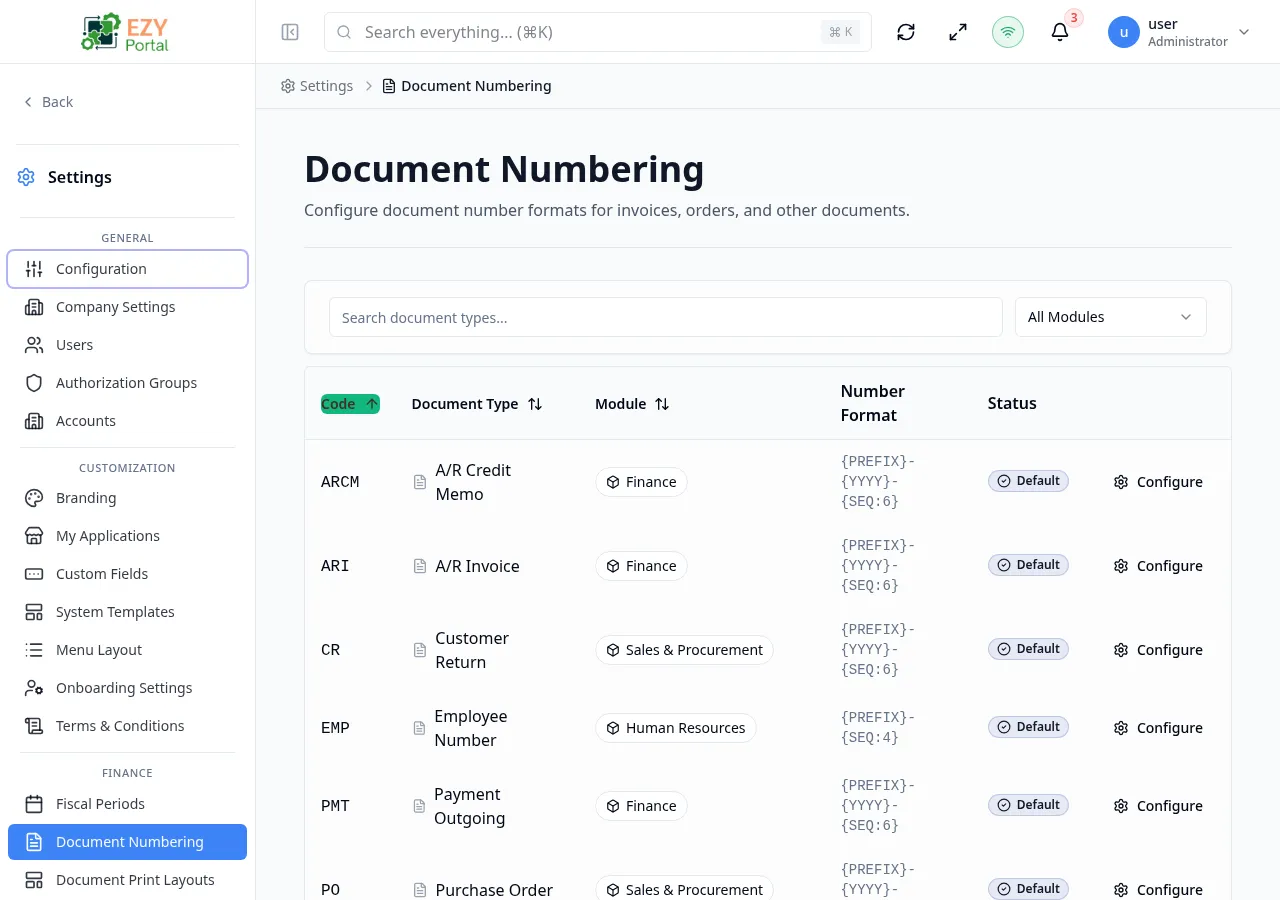
Document Numbering controls how the portal assigns unique identifiers to documents such as invoices, sales orders, purchase orders, and deliveries. Each document type registered by a portal microservice appears as a row; administrators configure the numbering format for each one independently.
Accessing the Page
Section titled “Accessing the Page”- Route:
/document-numbering - Menu Path: Settings → Finance → Document Numbering
- Primary audience: Tenant administrators (superusers). Account administrators do not have access.
What you can do here
Section titled “What you can do here”- View all registered document types and their current numbering status (Default, Custom, or Disabled).
- Configure a custom numbering format, prefix, suffix, start number, and sequence reset period for any document type.
- Enable or disable a document type for the tenant.
- Reset a document type back to its system defaults.
- Filter the list by module or free-text search.
Common tasks
Section titled “Common tasks”- Open Settings → Finance → Document Numbering.
- Find the document type to configure (for example, AR Invoice) and click Configure in its row.
- In the configuration sheet, set the Prefix (for example,
INV), adjust the Number Format, and choose a Reset Period if the sequence should restart periodically. - Click Save Configuration. The row status changes from Default to Custom.
- Create a document of that type to confirm the new numbering format is applied.
- Each document type has system-defined default settings (format, prefix, start number). Configuring a type overrides those defaults for the tenant.
- Start Number is locked once the first document has been numbered and cannot be changed through the portal.
- Changing Number Format, Prefix, Suffix, or Reset Period after documents already exist triggers a warning because it may create inconsistencies in the existing sequence.
- Resetting a configuration removes all tenant overrides and restores system defaults. This action is permanent.
- The list is filtered client-side and loads all document types at once. Pagination shows 20 rows per page.
Configuring a Document Type
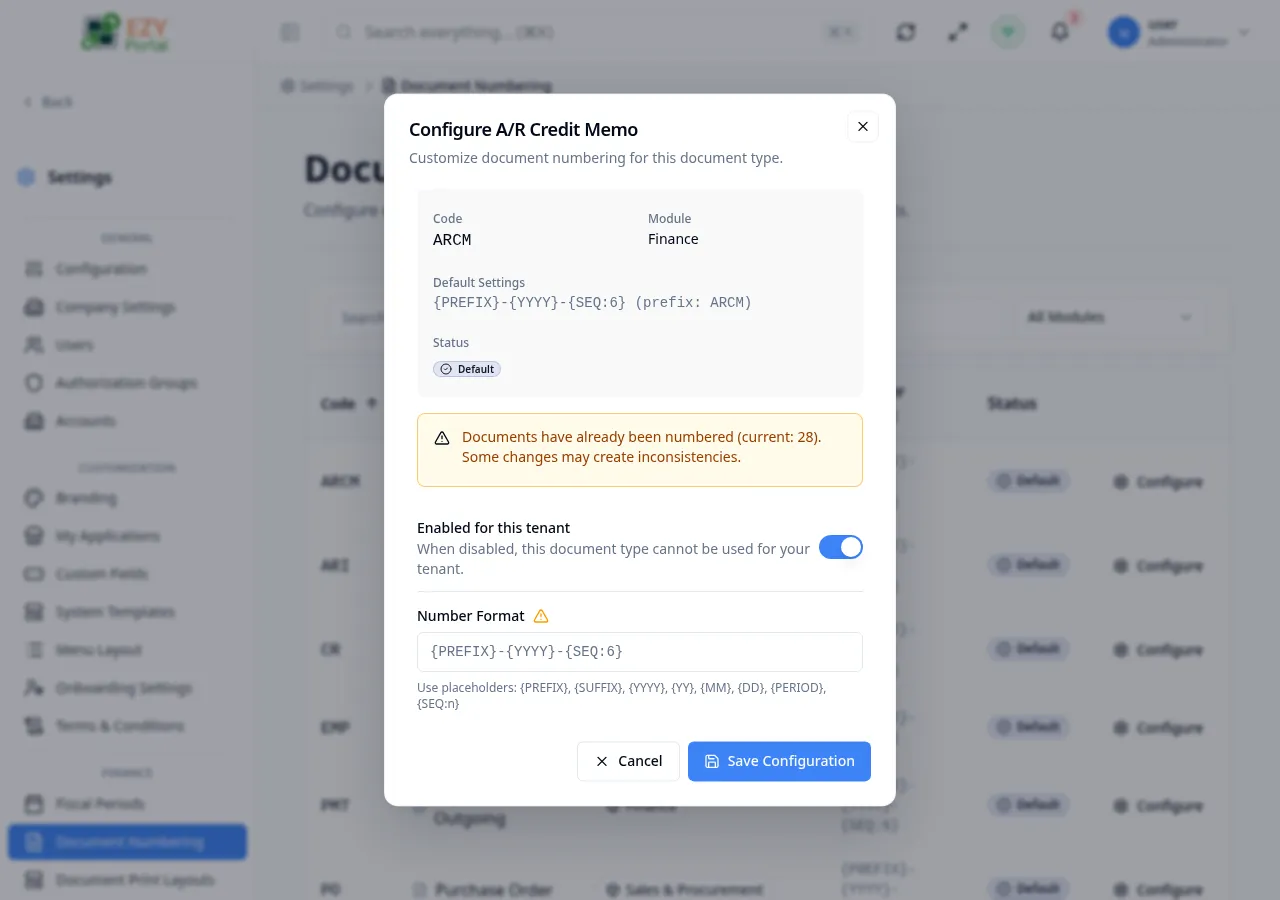
Section titled “Configuring a Document Type”Click Configure in the row actions of any document type to open the configuration sheet. If the type already has a custom configuration, the sheet opens pre-filled with the existing values.
Fields
Section titled “Fields”| Field | Required | Type | Description | Default | Validation |
|---|---|---|---|---|---|
| Enabled for this tenant | — | Toggle | When off, this document type cannot be used for the tenant | On | — |
| Number Format | No | Text | Format string using placeholders such as {PREFIX}, {SEQ:5}, {YYYY}, {MM}, {DD}, {PERIOD} | System default | Leave blank to use the system default |
| Prefix | No | Text | Text prepended to the document number (for example, INV, PO, SO) | System default | Leave blank to use system default |
| Suffix | No | Text | Text appended to the document number | System default | Leave blank to use system default |
| Start Number | No | Number | First sequence number used when no documents exist yet | System default | Locked once documents have been numbered; must be a positive integer |
| Reset Period | No | Select | Frequency at which the sequence counter resets: No Reset, Yearly, Quarterly, Monthly, or Weekly | No Reset | — |
| Reset sequence each period | — | Toggle | When on, the sequence resets at the start of each fiscal period | Off | — |
| Allow gaps in sequence | — | Toggle | When on, gaps in the number sequence are permitted; useful for high-volume systems | Off | — |
Steps:
- Click Configure in the row actions of the target document type.
- Review the Document Type Info panel (read-only) to see the system defaults.
- Toggle Enabled for this tenant if needed.
- Set Number Format, Prefix, Suffix, and Start Number as required.
- Choose a Reset Period if the counter should restart periodically.
- Use Reset sequence each period and Allow gaps in sequence toggles as needed.
- Click Save Configuration. The row status updates to Custom.
Note: The Preview panel in the sheet shows a live sample of how the next document number will appear based on current field values.
Editing a Document Type Configuration
Section titled “Editing a Document Type Configuration”Open row actions on a configured document type and click Configure to reopen the configuration sheet with the current values pre-filled. Edit any field and click Save Configuration.
Same fields as Configuring. The following fields are locked after documents have been numbered: Start Number.
Warning: If you change Number Format, Prefix, Suffix, or Reset Period while documents already exist (indicated by a warning banner in the sheet), the portal shows a confirmation dialog before saving.
Resetting a Document Type to Defaults
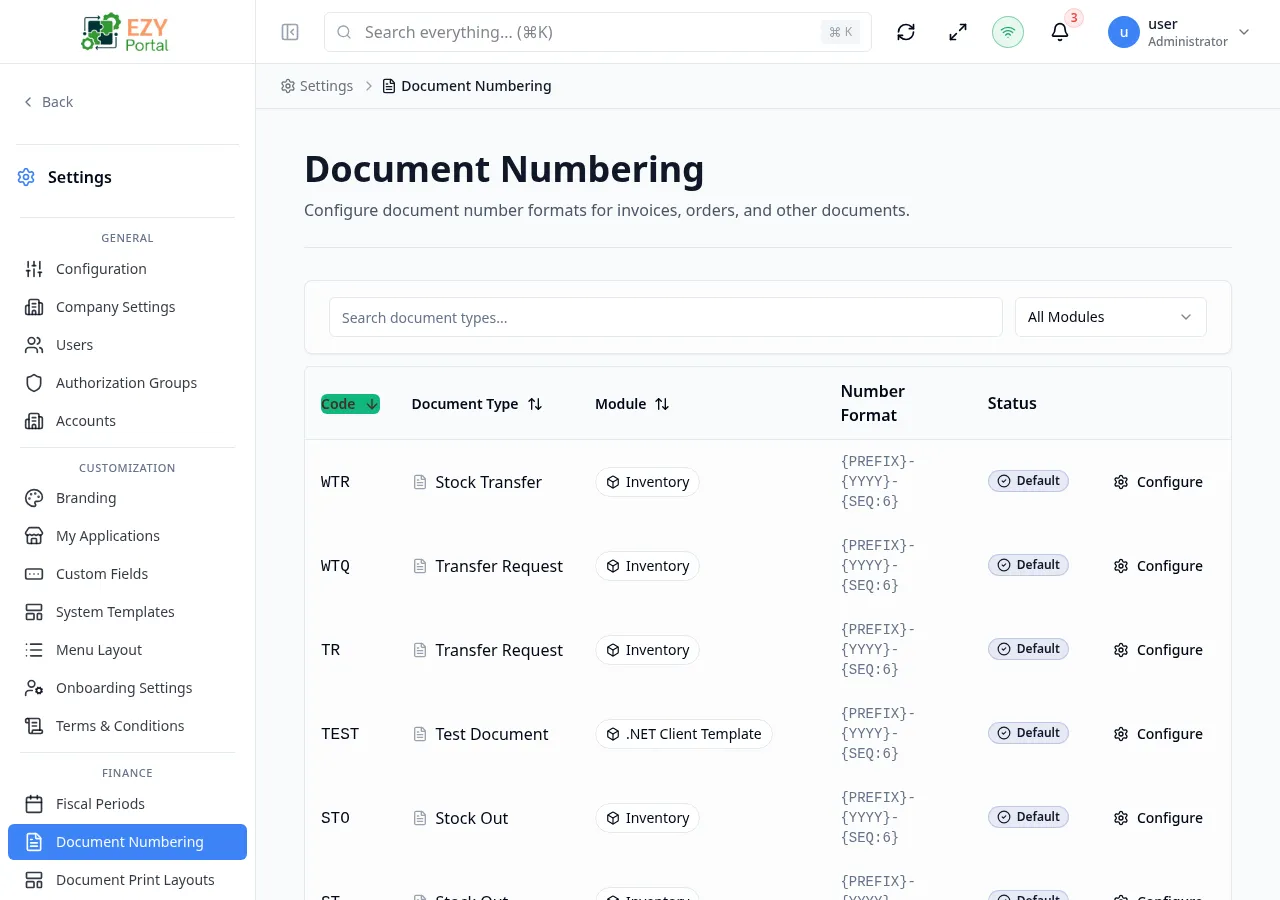
Section titled “Resetting a Document Type to Defaults”Open the configuration sheet for a document type that has a custom configuration. A Reset to Defaults button appears at the bottom of the sheet.
- Open row actions on the target document type and click Configure.
- Scroll to the bottom of the configuration sheet.
- Click Reset to Defaults.
- Confirm in the dialog. The custom configuration is deleted and the system defaults are restored.
- The row status changes back to Default.
Note: Resetting does not affect documents that were already numbered under the custom configuration. Only future documents use the restored defaults.
Related Pages
Section titled “Related Pages”- Fiscal Periods — define fiscal periods used by the Reset Period and fiscal-year-reset options