Return Deliveries
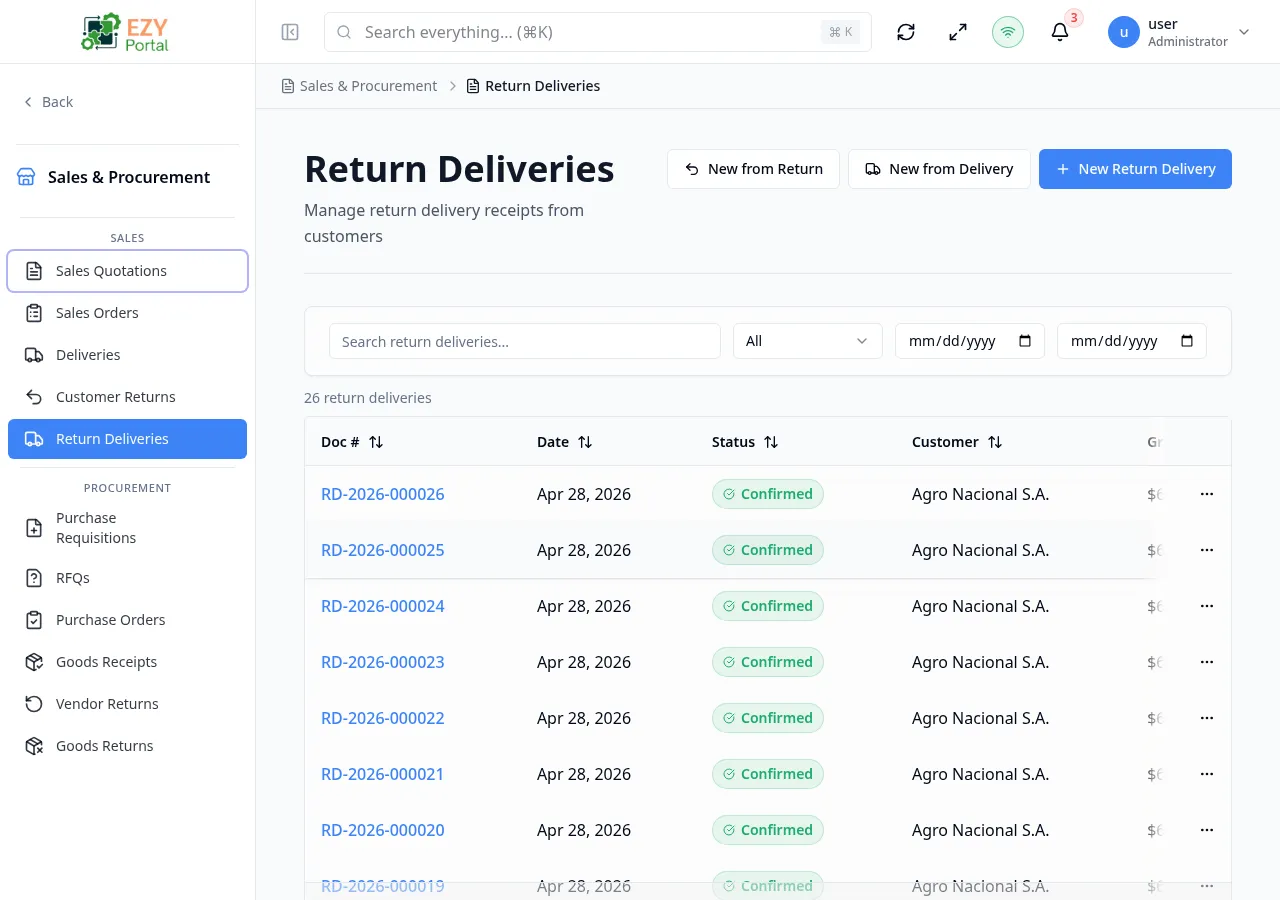
The Return Deliveries list page shows all documents that record the physical receipt of goods being returned by a customer. A return delivery can be created from a confirmed Customer Return or directly from a confirmed Delivery. Confirming a return delivery commits the inventory movement back into stock.
Accessing the Page
Section titled “Accessing the Page”Navigate to Commerce → Sales → Return Deliveries in the sidebar, or go to /commerce/sales/return-deliveries.
What you can do here
Section titled “What you can do here”- Browse all return delivery documents with filtering by status and date range.
- Search by document number or customer name.
- Create a new return delivery manually or from a Customer Return.
- View, edit, duplicate, or delete individual return deliveries.
- Confirm a return delivery to commit inventory receipt.
Common tasks
Section titled “Common tasks”- Open Commerce → Sales → Return Deliveries from the sidebar.
- Filter by Status = Draft to find return deliveries pending confirmation.
- Click a row to open the detail page and confirm receipt.
- Only Draft return deliveries can be edited and deleted.
- Confirming a return delivery commits the inventory movement, returning stock to the selected warehouse.
- Return deliveries can be created from a Customer Return (using the Create Return Delivery action on the return detail page) or directly from a Delivery.
- After a confirmed return delivery, a Create Credit Memo action may be available from the detail page.
- Return delivery lines no longer expose a batch number column — batch information is captured at the inventory level. Line-level batch entry was removed to keep the return UI focused on quantities.
- When a line references a price list different from the document header’s price list, a confirmation prompt asks whether to apply the line’s price list to the header.
- In single-currency tenants the currency field is hidden from return delivery forms.
List Columns
Section titled “List Columns”| Column | Default Visible | Sortable | Description |
|---|---|---|---|
| Doc # | Yes | Yes | System-generated return delivery number |
| Customer | Yes | Yes | Business partner name |
| Date | Yes | Yes | Document date |
| Status | Yes | Yes | Current workflow status badge |
| Grand Total | Yes | Yes | Total return value including tax |
| Currency | No | No | Document currency |
| Sales Person | No | No | Assigned sales person |
| Reference | No | No | External reference |
| Created | No | Yes | Creation timestamp |
| Updated | No | Yes | Last modification timestamp |
Status Values
Section titled “Status Values”| Status | Description |
|---|---|
| Draft | Return delivery is being prepared; editable and deletable |
| Confirmed | Goods received and inventory movement committed; terminal state |
| Cancelled | Return delivery was cancelled; terminal state |
Filtering
Section titled “Filtering”| Filter | Type | Description |
|---|---|---|
| Search | Free text | Searches across document number and customer name |
| Status | Dropdown | Filter by status; default shows all |
| Date From | Date | Show return deliveries with a document date on or after this date |
| Date To | Date | Show return deliveries with a document date on or before this date |
Sorting
Section titled “Sorting”Click any sortable column header to sort ascending, then descending, then remove. Default sort: Created descending.
Pagination
Section titled “Pagination”Load More pattern — 20 records per load.
Actions
Section titled “Actions”Page Actions
Section titled “Page Actions”| Action | Description | Permission |
|---|---|---|
| New Return Delivery | Navigate to the Create Return Delivery form | Write |
Row Actions
Section titled “Row Actions”| Action | Description | Permission |
|---|---|---|
| View | Open the Return Delivery Detail page | Read |
| Edit | Open the Edit Return Delivery form — Draft only | Write |
| Duplicate | Create a copy as a new Draft | Write |
| Confirm | Transition Draft → Confirmed; commits inventory receipt | Write |
| Cancel | Transition Draft → Cancelled (requires reason) | Write |
| Delete | Permanently delete — Draft only | Admin |
Click any row to open the detail page.
Deleting a Return Delivery
Section titled “Deleting a Return Delivery”- Locate the return delivery — it must have status Draft.
- Click the row actions menu and select Delete.
- A confirmation dialog warns that the deletion is permanent.
- Click Delete to confirm.
Deletion is only available for Draft return deliveries.
Related Pages
Section titled “Related Pages”- Create Return Delivery — Create a new return delivery
- Return Delivery Detail — View a specific return delivery
- Edit Return Delivery — Edit a draft return delivery
- Customer Returns — Source returns for return deliveries
- Deliveries — Original outbound deliveries