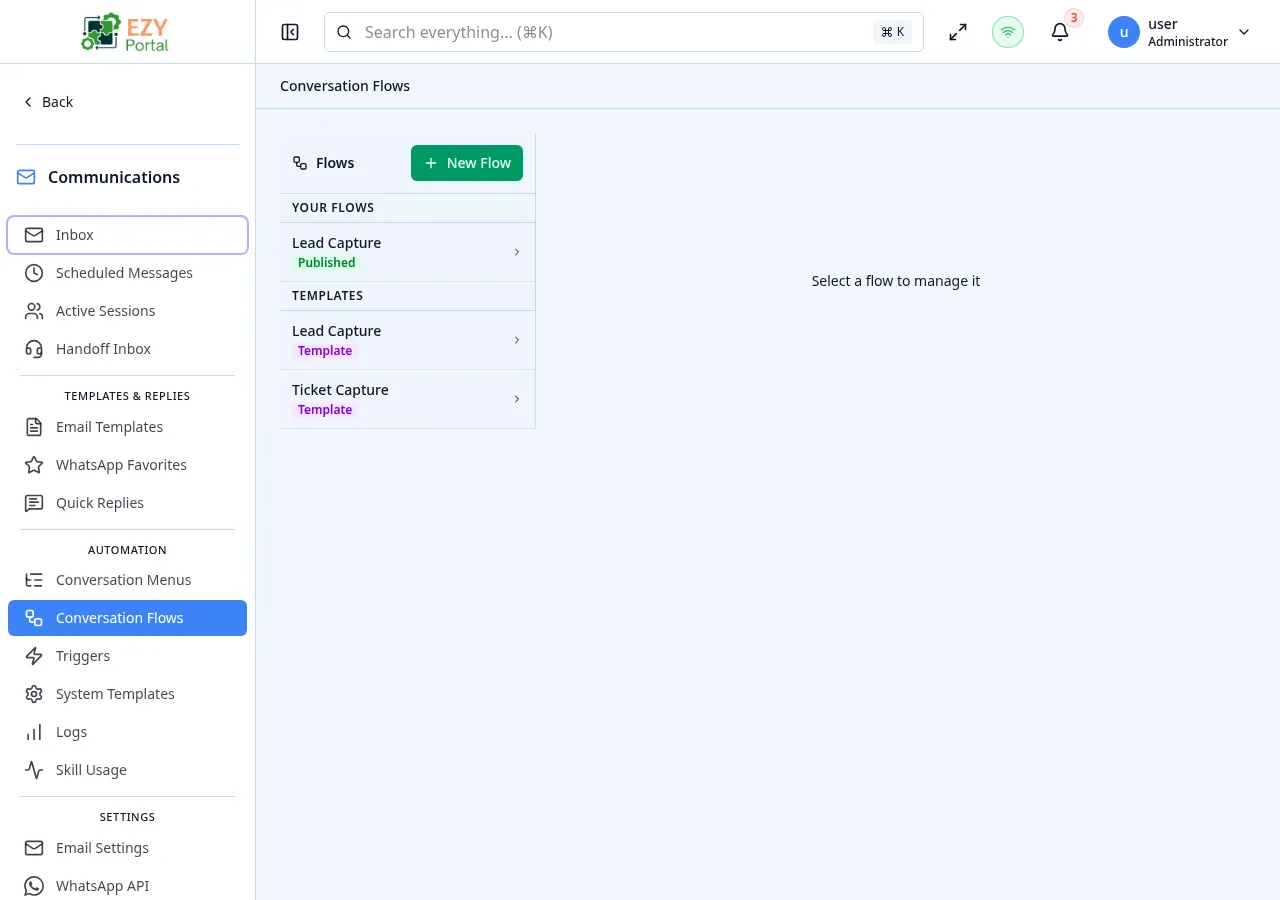
Conversation Flows
The Conversation Flows page lets tenant administrators author data-driven flows that the chatbot runs when a contact picks a Flow node from a Conversation Menu. A flow is a sequence of typed variables and ordered steps; each step can prompt the contact for input, invoke a Conversation Skill, or branch based on what the contact replied.
Accessing the Page
Section titled “Accessing the Page”- Route:
/communications/flows - Menu Path: Communications → Conversation Flows
- Primary audience: Tenant administrators building self-service conversational workflows.
Permissions
Section titled “Permissions”| Permission | Description |
|---|---|
communications.access (Read) | View flows and their steps |
communications.access (Admin) | Create, edit, clone and delete flows; add or reorder variables and steps |
Page Layout
Section titled “Page Layout”- Left rail — the list of flows for the tenant. Each entry shows the flow name and a short description.
- Right pane — three tabs for the selected flow: Variables, Steps and Settings.
Flow Status
Section titled “Flow Status”| Status | Description |
|---|---|
| Draft | The flow is being authored and is not yet attached to any menu. |
Once a flow is attached to a Flow node in a Conversation Menu it can be invoked by contacts; there is no separate “publish” step beyond saving the flow.
Variables tab
Section titled “Variables tab”Each variable declares a typed slot that the flow fills from contact input or skill output, and that subsequent steps can reference.
| Field | Description |
|---|---|
| Name | Identifier used by steps (for example, customer_phone) |
| Type | Text, number, date, boolean, BP ID or other registered types |
| Description | Internal note about how the variable is used |
| Default | Optional default value used when the contact does not supply one |
Variables can be reordered with drag and drop.
Steps tab
Section titled “Steps tab”Steps run sequentially. Each step is one of:
| Step type | Description |
|---|---|
| Prompt | Sends a message to the contact and waits for a reply, storing the reply in a variable. |
| Skill | Invokes a Conversation Skill using the current variables as parameters and writes the result to a variable. |
| Branch | Picks the next step based on a variable value. |
| Send | Sends a final message to the contact (often the formatted result of an earlier skill call). |
Steps can be reordered with drag and drop.
Settings tab
Section titled “Settings tab”| Field | Description |
|---|---|
| Name | Display name of the flow |
| Description | Internal description of what the flow does |
Actions
Section titled “Actions”Page Actions
Section titled “Page Actions”| Action | Description | Permission |
|---|---|---|
| New flow | Open the create-flow dialog | communications.access (Admin) |
Flow Actions
Section titled “Flow Actions”| Action | Description |
|---|---|
| Clone | Duplicate the flow, including its variables and steps, into a new Draft flow |
| Delete | Remove the flow. Flow nodes that pointed to it are surfaced in the menu editor with a “Flow no longer available” badge. |
| Add variable / step | Append a new variable or step to the corresponding tab |
| Reorder | Drag and drop a variable or step to a new position |
- Cloning preserves variables and steps but always creates the copy in Draft, with
"(copy)"appended to the original name. - A flow cannot be deleted while any Conversation Menu still has a Flow node pointing to it — remove the menu node first.
- Variable references in step content use
{{variable_name}}syntax, mirroring how email and WhatsApp templates render placeholders. - Skill steps fail at runtime if the target skill has been retired or the tenant has lost access to the source module. The conversation falls back to the parent menu and the failure is recorded in Conversation Logs.
Common tasks
Section titled “Common tasks”- Open Communications → Conversation Flows.
- Click New flow and name it “New customer onboarding”.
- On the Variables tab, add a
prospect_name(Text) variable and aprospect_phone(Text) variable. - On the Steps tab, add a Prompt step asking for the customer’s name and store it in
prospect_name, then a Skill step callingprospects.create_or_find. - Open Communications → Conversation Menus, edit the default menu and add a Flow node that points to this flow.
Related Pages
Section titled “Related Pages”- Conversation Menus — attach a flow to a Flow node in a menu
- Conversation Skills — the skills you can call from a Skill step
- Conversation Logs — see how a flow ran for an individual contact