Monitor
The Monitor page is the operational dashboard for Catalog Automation. It shows real-time KPI counts across all job statuses, a filterable activity table of recent jobs, and row-level actions so operations users can respond to failures without leaving the page.
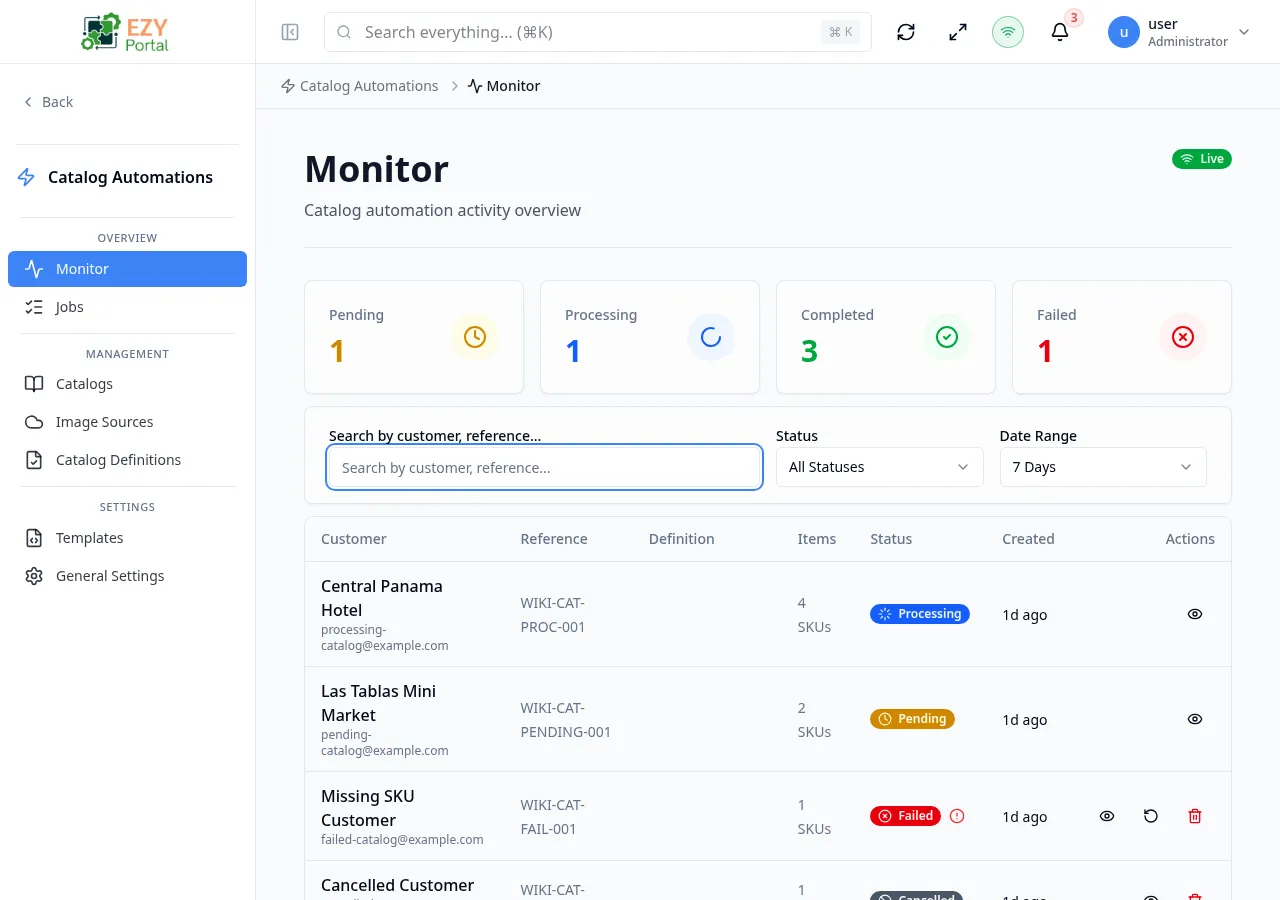
Accessing the Page
Section titled “Accessing the Page”Navigate to Catalog Automation → Monitor in the sidebar, or go to /catalog-automation/monitor. This is the default landing page for the Catalog Automation module.
What you can do here
Section titled “What you can do here”- View live KPI counts for Pending, Processing, Completed, and Failed jobs.
- Click a KPI tile to filter the activity table to that status instantly.
- Search jobs by customer name or reference number.
- Filter by status and date range to narrow the activity view.
- Open a job detail drawer by clicking any row.
- Retry a failed job directly from the activity table.
- Delete completed, failed, or cancelled jobs after confirmation.
Common tasks
Section titled “Common tasks”- Open Monitor from the Catalog Automation menu.
- Review the KPI tiles — click a tile (e.g., Failed) to filter the table to that status.
- Click a job row to open the detail drawer and inspect execution metadata and any error message.
- Use the Retry icon on a failed job row to resubmit it.
- Use Refresh to reload both the KPIs and the activity table.
- KPI counts reflect the current state of all jobs in the system, regardless of the active table filter.
- Clicking a KPI tile applies a status filter to the activity table; the tile remains highlighted while the filter is active.
- Job status updates arrive via a live connection — the table updates automatically without a manual refresh.
- The live connection indicator appears in the page header: Live (green) when connected, Disconnected (grey) when the connection is interrupted.
- The Retry action is only visible for jobs with status Failed.
- The Delete action is only available for jobs with status Completed, Failed, or Cancelled.
KPI Tiles
Section titled “KPI Tiles”Four tiles appear above the activity table. Each tile shows a running count and an icon. Clicking a tile filters the activity table to that status.
| Tile | Color | Description |
|---|---|---|
| Pending | Yellow | Jobs waiting to start |
| Processing | Blue | Jobs currently running (includes all processing sub-states) |
| Completed | Green | Jobs that finished successfully |
| Failed | Red | Jobs that ended in an error |
List Columns
Section titled “List Columns”| Column | Default Visible | Sortable | Description |
|---|---|---|---|
| Customer | Yes | No | Customer name and email for whom the catalog is being generated |
| Reference | Yes | No | Optional internal reference submitted with the job |
| Definition | Yes | No | Name of the catalog definition used |
| Items | Yes | No | Number of SKUs submitted for this job |
| Status | Yes | No | Current processing status; failed jobs show an error icon on hover |
| Created | Yes | No | Relative time since job was submitted; hover for full date |
Status Values
Section titled “Status Values”| Status | Description |
|---|---|
| Pending | Job is queued and waiting to start |
| Processing | General processing phase underway |
| Image Resolution | System is locating images for each SKU |
| Building | HTML catalog and ZIP archive are being assembled |
| Completed | Job finished successfully |
| Failed | Job encountered an error |
| Cancelled | Job was cancelled before completion |
Filtering
Section titled “Filtering”| Filter | Type | Description |
|---|---|---|
| Search | Free text | Search by customer name or reference number |
| Status | Dropdown | Filter by job status; default shows all statuses |
| Date Range | Dropdown | Filter by Today, 7 Days, 30 Days, or All; default is Last 7 Days |
The filter bar is collapsible. Click the filter toggle in the header to show or hide the filter controls.
Sorting
Section titled “Sorting”The activity table does not support column-level sorting. Records are returned in reverse-chronological order (newest first).
Pagination
Section titled “Pagination”The table uses a Load More pattern with infinite scroll:
- Page size: 10 records per load
- Scrolling near the bottom automatically loads the next batch
- A message displays the total count when all results are shown
Actions
Section titled “Actions”Page Actions
Section titled “Page Actions”| Action | Description | Permission |
|---|---|---|
| Refresh | Reloads KPI tiles and the activity table | — |
Row Actions
Section titled “Row Actions”| Action | Description | Permission |
|---|---|---|
| View | Opens the job detail drawer — also triggered by clicking anywhere on a row | catalog-automation.jobs (Read) |
| Retry | Resubmits a failed job — only visible for Failed jobs | catalog-automation.jobs (Write) |
| Delete | Removes the job and its catalog — only available for Completed, Failed, or Cancelled jobs | catalog-automation.jobs (Admin) |
Job Detail Drawer
Section titled “Job Detail Drawer”Clicking a row opens a side drawer with read-only execution metadata:
- Job details: customer name, email, phone, reference, total SKUs
- Image statistics: resolved images, missing images
- Processing information: created at, started at, completed at, processing time, retry count
- Generated catalog links: View HTML and Download ZIP (available for completed jobs)
- Retry button for failed jobs
Deleting a Job
Section titled “Deleting a Job”- Locate the job in the activity table (only Completed, Failed, or Cancelled jobs show the delete icon).
- Click the Delete (trash) icon on the row.
- A confirmation dialog warns that the job, its catalog, and all stored files will be permanently deleted.
- Click Delete to confirm.
Related Pages
Section titled “Related Pages”- Jobs — Full job management list with Create and detailed filtering
- Catalogs — View the output catalogs generated by completed jobs
- Definitions — Configure the automation rules used when creating jobs