Trash
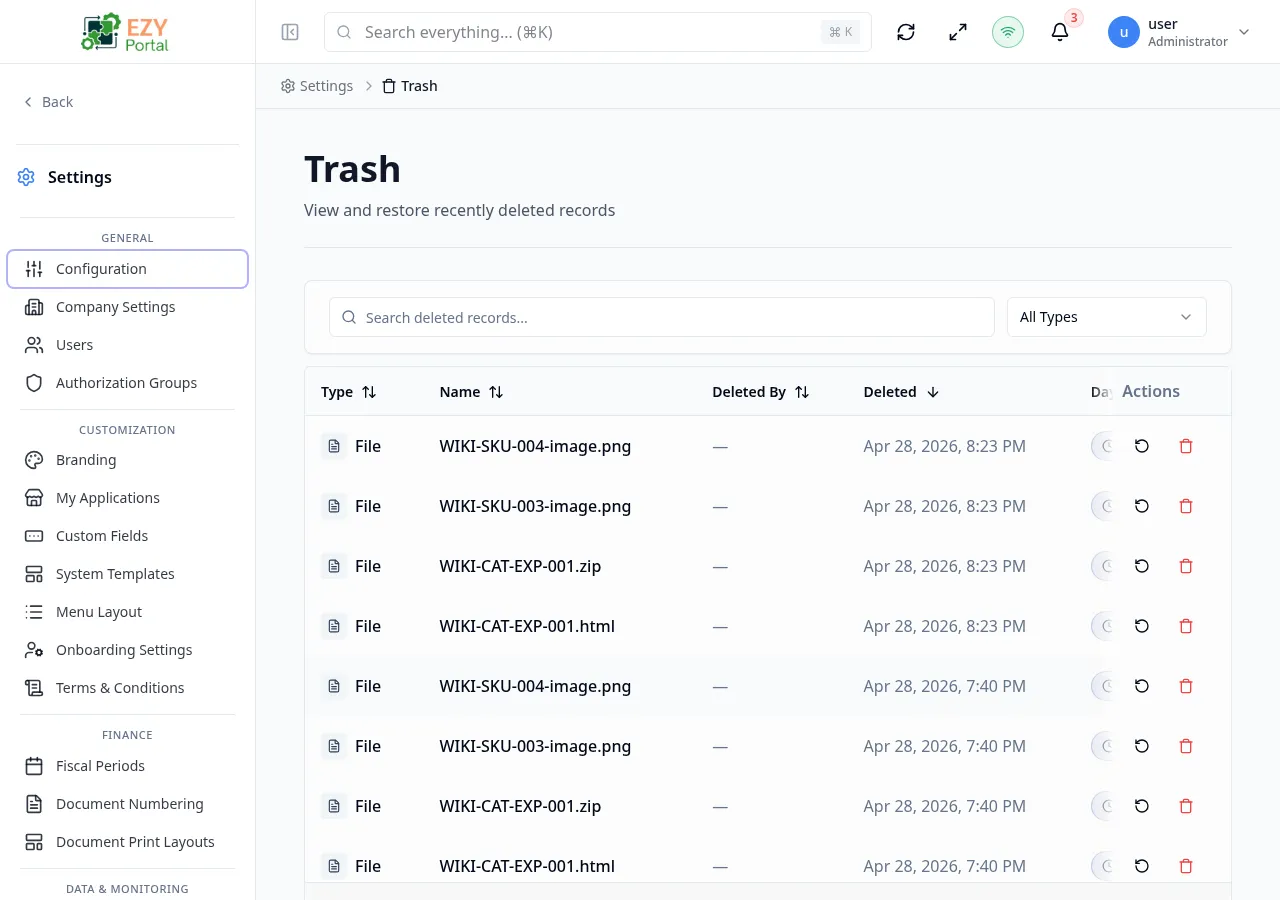
Trash is the central recovery area for soft-deleted records across the portal and registered microservices. When a record is deleted in any module that supports soft-deletion, it lands here. Tenant Super Users can restore accidentally deleted items or permanently remove them after confirming that retention requirements are met.
Accessing the Page
Section titled “Accessing the Page”- Route:
/trash - Menu Path: Settings → Data & Monitoring → Trash
- Primary audience: Tenant Super Users. Non-superusers see an access-denied message.
What you can do here
Section titled “What you can do here”- Browse all soft-deleted records from the core portal backend and every registered microservice that has trash support enabled.
- Filter the list by entity type to focus on a specific record category.
- Search deleted records by name.
- Restore a record to bring it back to its original state in the owning module.
- Permanently delete a core record after confirming that it should not be recovered.
- See how many days remain before a record is automatically purged.
Common tasks
Section titled “Common tasks”- Open Settings → Data & Monitoring → Trash.
- Use the Entity Type filter or the search box to locate the deleted record.
- Review the Days Remaining badge — records with 7 or fewer days left display an orange warning badge.
- Click the Restore icon (counter-clockwise arrow) on the row to open the restore confirmation dialog.
- Confirm the restore — the record reappears in its source module.
- If the record should be permanently removed, click the Delete icon (trash can) on the row and confirm in the dialog.
- Access is restricted to tenant Super Users. Users without the superuser role see an access-denied card.
- The list merges trash from the core portal backend (.NET) and all registered microservices (Go) that have their
trashConfig.enabledflag set totrue. Both sources are queried in parallel and results are merged and sorted by deletion date. - The Permanent Delete action (trash-can icon) is available only for core backend records. Microservice records can be restored but not permanently deleted from this page — manage them from within the owning service.
- The Days Remaining badge counts down from the configured retention period. At or below 7 days, the badge turns red with a warning icon. A value of
–1is shown for microservice items that do not track a purge date. - The page uses a Load More pattern — the list loads 20 rows at a time.
- After a restore, the record returns to its pre-deletion state. Any relationships or references that existed before deletion are restored along with it.
List Columns
Section titled “List Columns”| Column | Sortable | Description |
|---|---|---|
| Entity Type | Yes | Color-coded badge with icon identifying the type of record (e.g., Business Partner, Item, File) |
| Name | Yes | Display name of the deleted record |
| Deleted By | Yes | Name of the user who deleted the record, or — if unavailable |
| Deleted At | Yes | Date and time of deletion; shown as relative time for recent items (within 24 hours) and as a formatted date for older items |
| Days Remaining | Yes | Badge showing days until automatic purge; turns red at 7 days or fewer |
| Actions | No | Restore icon and, for core records only, a permanent-delete icon |
Filtering
Section titled “Filtering”| Filter | Type | Description |
|---|---|---|
| Search | Free text | Searches deleted records by display name |
| Entity Type | Select | Filters to a specific entity category; the dropdown is populated from all entity types currently in the trash, including both core and microservice types |
Active filters appear as removable chip tags above the list.
Sorting
Section titled “Sorting”Click any sortable column header to sort ascending. Click again to sort descending. Default sort is Deleted At descending (most recently deleted first).
Pagination
Section titled “Pagination”The page uses a Load More pattern. Scroll to the bottom of the list to load additional rows. The page size is fixed at 20 items per load.
Restoring an Item
Section titled “Restoring an Item”Restoring returns the deleted record to its active state in the owning module.
- Locate the record in the list using the search box or Entity Type filter.
- Click the Restore icon (counter-clockwise arrow) in the Actions column.
- A confirmation dialog appears: “Restore [Record Name]? This will return the item to its original state.”
- Click Restore to confirm.
- A success toast confirms the restore. The record disappears from the Trash list and reappears in its source module.
Note: If the restore fails (for example, due to a conflict in the owning service), an error toast is shown with the service’s error message.
Permanently Deleting an Item
Section titled “Permanently Deleting an Item”Permanently deleting removes a core record with no possibility of recovery.
This action is available for core portal records only. Microservice records cannot be permanently deleted from this page.
- Locate the record in the list.
- Click the Permanent Delete icon (trash can) in the Actions column.
- A confirmation dialog warns: “Are you sure you want to permanently delete [Record Name]? This action cannot be undone.”
- A second warning below the description reads: “This action is irreversible.”
- Click Permanently Delete to confirm.
- A success toast confirms the deletion. The record is removed from the Trash list and cannot be recovered.
Related Pages
Section titled “Related Pages”- Storage — tenant file storage usage and inventory
- Audit Logs — full change history including the original deletion event