Edit Transfer Request
Update an existing Transfer Request that is still in Draft status. The edit form opens with all existing values pre-filled. Approved and Cancelled requests cannot be edited directly.
Accessing the Page
Section titled “Accessing the Page”From the Transfer Request Detail page, click Edit in the Actions menu, or navigate directly to /inventory/operations/transfer-requests/:id/edit.
The Edit option is only visible when the document status is Draft.
Form Overview
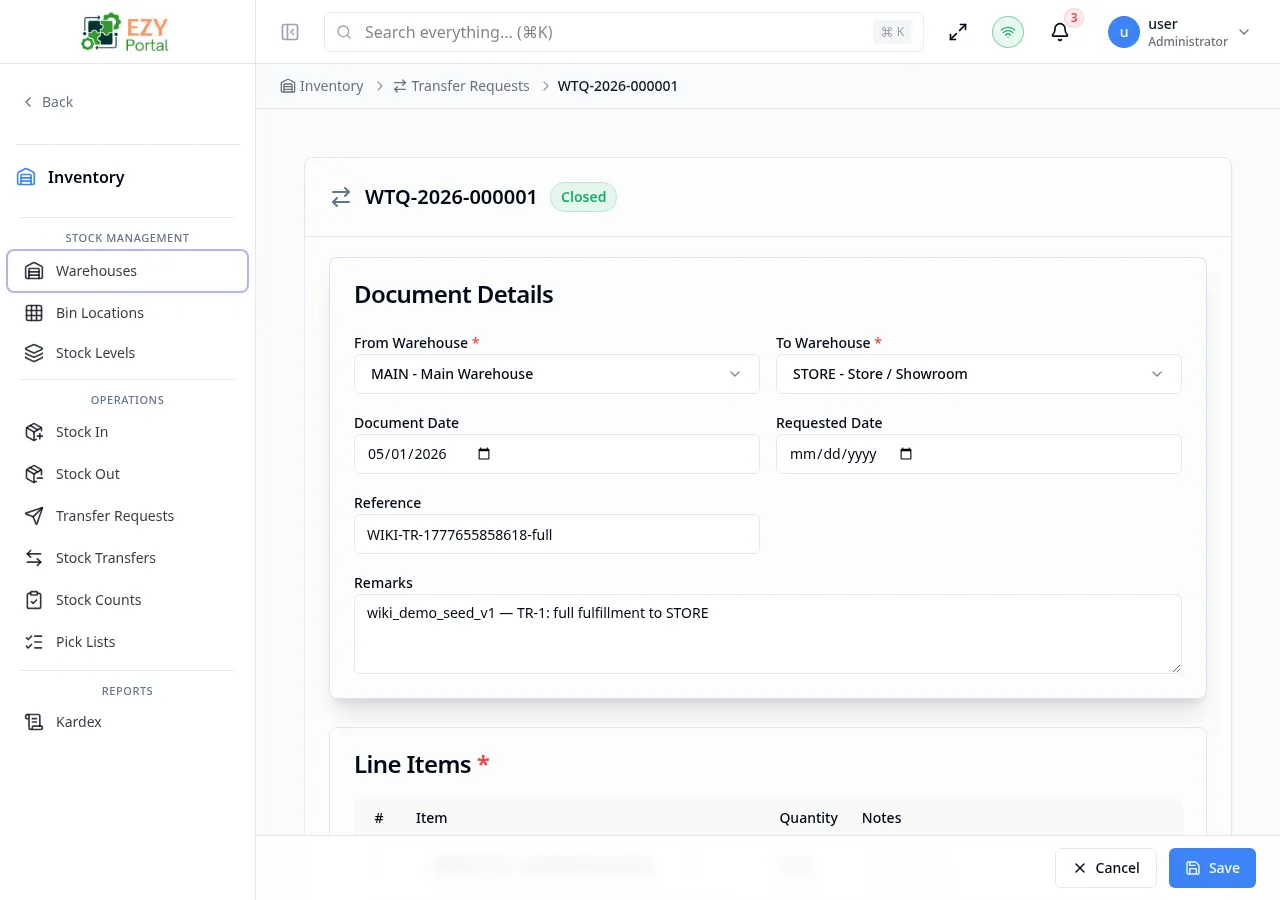
Section titled “Form Overview”The edit form uses the same structure as Create Transfer Request. The document number appears in the header as read-only. All header fields and line items are editable.
Document Details
Section titled “Document Details”| Field | Required | Type | Description | Validation |
|---|---|---|---|---|
| From Warehouse | Yes | Entity select | Source warehouse | Must differ from To Warehouse |
| To Warehouse | Yes | Entity select | Destination warehouse | Must differ from From Warehouse |
| Document Date | No | Date | Request date | — |
| Requested Date | No | Date | Target fulfillment date | — |
| Reference | No | Text | External reference | — |
| Remarks | No | Textarea | Document-level notes | — |
Line Items
Section titled “Line Items”Existing lines are pre-filled. Add new lines with Add Line. Remove lines with the delete icon.
| Field | Required | Type | Description |
|---|---|---|---|
| Item | Yes | Entity select | Stock-tracked item |
| Quantity | Yes | Number | Must be greater than 0 |
| UOM | No | Text | Auto-populated from item |
| Notes | No | Text | Line-level note |
Validation Rules
Section titled “Validation Rules”Same rules as Create Transfer Request — both warehouses required and different, at least one line with a positive quantity, item required per line.
Post-save behavior
Section titled “Post-save behavior”After saving, you are redirected to the Transfer Request Detail page. Status remains Draft.
Common tasks
Section titled “Common tasks”- Open the Transfer Request Detail for a Draft document.
- Click Edit.
- Adjust warehouses, dates, or line items and click Save.
Permissions & system behavior
Section titled “Permissions & system behavior”- Editing requires Write permission on Operations.
- Only Draft documents can be edited. If you need to correct an Approved request, cancel it and create a new one, or duplicate it.
Related Pages
Section titled “Related Pages”- Transfer Requests — List all transfer requests
- Transfer Request Detail — View and approve a request
- Create Transfer Request — Create a new request