Deal List
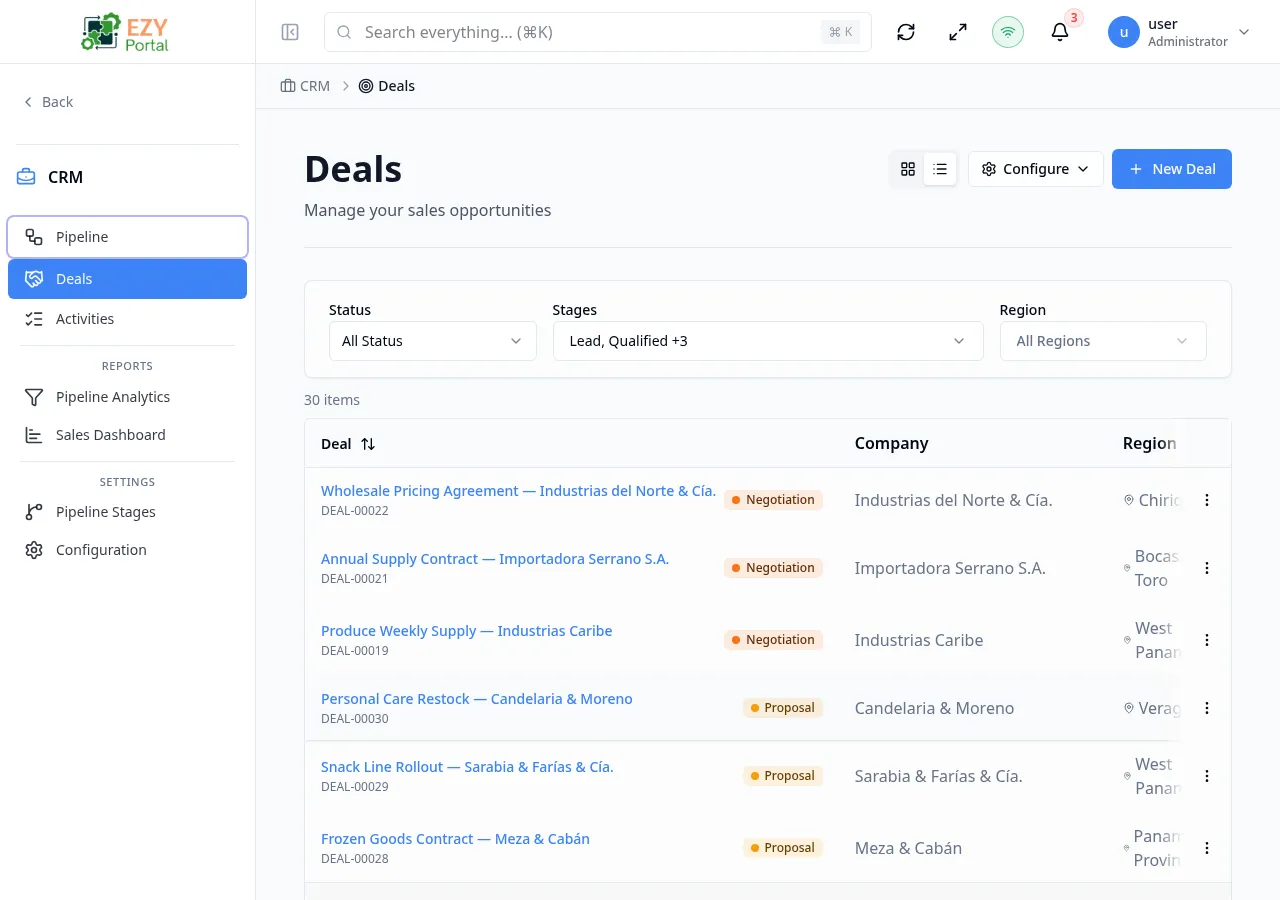
The Deal List page shows all deals in a searchable, sortable table. Filters let you narrow by status, stage, linked prospect, business partner, region, amount range, and date range. A view-toggle in the toolbar switches instantly to the Pipeline kanban board. By default the list shows only active (non-closed) deals.
Accessing the Page
Section titled “Accessing the Page”- Route:
/deals - Menu Path: CRM → Deals → Deal List
- Switch from the Pipeline page using the list-view toggle (list icon) in the toolbar.
List Columns
Section titled “List Columns”The table has configurable column visibility. Click the Configure menu to show or hide columns.
| Column | Default Visible | Sortable | Description |
|---|---|---|---|
| Deal | Yes | Yes | Deal title and system code |
| Stage | Yes | No | Stage badge with color and icon |
| Company | Yes | Yes | Company name associated with the deal |
| Region | No | Yes | Assigned geographic region |
| Amount | Yes | Yes | Deal value in the deal’s currency |
| Probability | Yes | Yes | Close probability percentage with progress bar |
| Status | Yes | Yes | Active, Won, or Lost |
| Expected Close | Yes | Yes | Target close date |
| Updated | No | Yes | Date of last update |
| Created | No | Yes | Creation date |
Status Values
Section titled “Status Values”| Status | Color | Description |
|---|---|---|
| Active | Blue | Deal is open and being worked |
| Won | Green | Deal has been marked as Won |
| Lost | Red | Deal has been marked as Lost |
Filtering
Section titled “Filtering”| Filter | Type | Description |
|---|---|---|
| Search | Free text | Searches deal title and code |
| Status | Select | Active, Won, Lost |
| Stages | Multi-select | Filter by one or more pipeline stages; defaults to all active (non-closed) stages |
| Prospect | Entity select | Filter by linked prospect |
| Business Partner | Entity select | Filter by linked business partner |
| Region | Entity select | Filter by assigned region |
| Min Amount | Number | Lower bound for deal value |
| Max Amount | Number | Upper bound for deal value |
| Expected Close From | Date | Filter deals closing on or after this date |
| Expected Close To | Date | Filter deals closing on or before this date |
| Created From | Date | Filter deals created on or after this date |
| Created To | Date | Filter deals created on or before this date |
Active filters appear as removable chips above the table. Click a chip’s X to remove that filter, or click Clear all to reset.
The filter layout is configurable per user or per tenant (superusers can set tenant-wide defaults).
Sorting
Section titled “Sorting”- First click on a column header — ascending sort
- Second click — descending sort
- Third click — removes sort
Default sort: Updated At descending (most recently updated first).
Pagination
Section titled “Pagination”The list uses Load More pagination:
- Page size: 20 records per load
- Click Load More at the bottom to fetch the next 20
- Total count is displayed above the table
Actions
Section titled “Actions”Page Actions
Section titled “Page Actions”| Action | Description |
|---|---|
| View toggle | Switch between Pipeline (board) and List view |
| Configure | Open the column/filter configuration menu |
| New Deal | Open the Create Deal form (requires create permission) |
Row Actions
Section titled “Row Actions”Click any row to navigate to the Deal Detail page. A row action menu also provides:
| Action | Permission | Description |
|---|---|---|
| Edit | Write (own scope) | Open the Edit Deal form |
| Delete | Delete | Remove the deal after confirmation |
Deleting a Deal
Section titled “Deleting a Deal”- Click the row action menu and select Delete.
- A confirmation dialog shows the deal title and warns the action is permanent.
- Click Delete to confirm — the list reloads without the deleted deal.
Deletion is permanent and cannot be undone.
Common tasks
Section titled “Common tasks”- Open CRM → Deals from the sidebar.
- Use the search field or apply filters to find the deals you need.
- Click a row to view details, or use row actions to edit or delete.
Related Pages
Section titled “Related Pages”- Pipeline — Kanban board view
- Create Deal — Create a new deal
- Deal Detail — View a single deal
- Edit Deal — Edit a deal