A/R Invoices
The A/R Invoices list displays all accounts receivable invoices in the system. Each invoice tracks amounts owed by customers from sales activities, and supports a full lifecycle from Draft through Paid and Cancelled states.
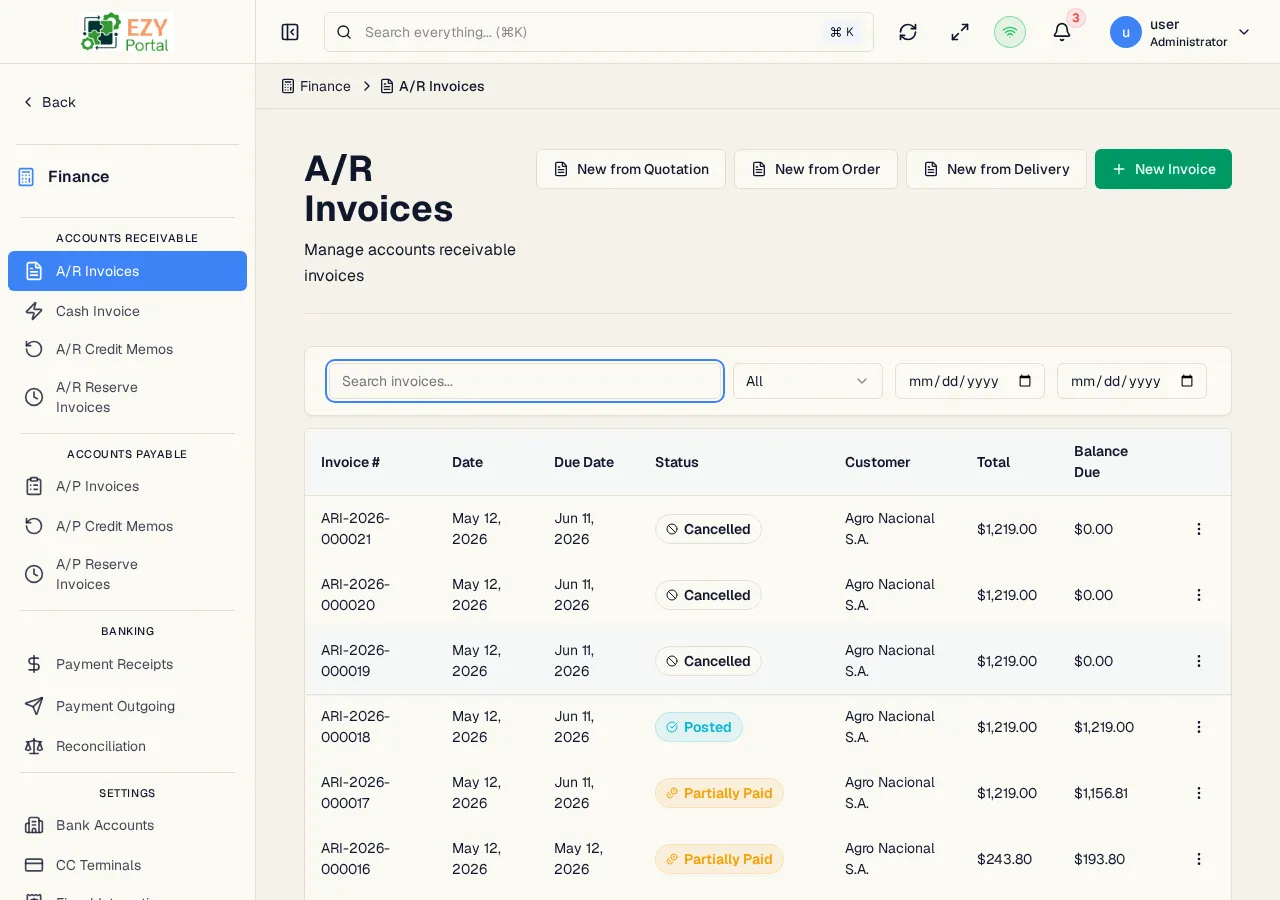
Accessing the Page
Section titled “Accessing the Page”Navigate to Finance → Accounts Receivable → A/R Invoices in the sidebar, or go to /finance/ar/invoices.
List Columns
Section titled “List Columns”| Column | Default Visible | Sortable | Description |
|---|---|---|---|
| Invoice # | Yes | Yes | System-assigned document number |
| Date | Yes | Yes | Invoice document date |
| Due Date | Yes | Yes | Payment due date, if set |
| Status | Yes | Yes | Status badge for the invoice lifecycle |
| Customer | Yes | Yes | Business partner name |
| Total | Yes | Yes | Grand total amount (currency formatted) |
| Balance Due | Yes | Yes | Remaining unpaid balance |
Status Values
Section titled “Status Values”graph LR
DRAFT -->|Post| POSTED
POSTED -->|Partial payment| PARTIALLY_PAID
POSTED -->|Full payment| PAID
POSTED -->|Credit memo applied| PARTIALLY_CREDITED
POSTED -->|Fully credited| CREDITED
POSTED -->|Cancel| CANCELLED
PARTIALLY_PAID -->|Full payment| PAID
PARTIALLY_PAID -->|Partially credited| PARTIALLY_CREDITED
PAID --> CLOSED
| Status | Description |
|---|---|
| Draft | Invoice is being prepared; not yet posted to the ledger |
| Posted | Invoice is posted and open for payment |
| Partially Paid | One or more receipts have been applied but the balance is not zero |
| Paid | Invoice balance is fully settled |
| Partially Credited | A credit memo has been applied for part of the invoice |
| Credited | The invoice has been fully offset by credit memos |
| Closed | Invoice is fully settled and closed |
| Cancelled | Invoice has been cancelled; a reason is required for posted invoices |
Filtering
Section titled “Filtering”| Filter | Type | Description |
|---|---|---|
| Search | Free text | Searches by invoice number or customer name |
| Status | Select | Filter by invoice status |
| Date From | Date | Start of the invoice date range |
| Date To | Date | End of the invoice date range |
Sorting
Section titled “Sorting”Click any sortable column header to sort:
- First click — Ascending (A→Z, oldest→newest)
- Second click — Descending (Z→A, newest→oldest)
- Third click — Remove sort
Default sort: Created date descending.
Pagination
Section titled “Pagination”The list uses a Load More pattern:
- Page size: 20 records per load
- Load More button at the bottom loads the next batch
- Total count displays above the table
Actions
Section titled “Actions”Page Actions
Section titled “Page Actions”| Action | Description | Permission |
|---|---|---|
| New from Quotation | Open a document picker to select an accepted Sales Quotation and create an invoice from it | canCreateARInvoice |
| New from Order | Open a document picker to select a released Sales Order and create an invoice from it | canCreateARInvoice |
| New from Delivery | Open a document picker to select a confirmed Sales Delivery and create an invoice from it | canCreateARInvoice |
| New Invoice | Navigate to the Create A/R Invoice form | canCreateARInvoice |
Row Actions
Section titled “Row Actions”| Action | Description | Permission |
|---|---|---|
| View | Navigate to the A/R Invoice Detail page | Any |
| Edit | Navigate to the Edit A/R Invoice form | canEditARInvoice |
| Post | Transition a Draft invoice to Posted status | canPostARInvoice |
| Cancel | Cancel the invoice (requires a reason if posted) | canPostARInvoice |
| Duplicate | Create a new Draft invoice with the same header and lines | canCreateARInvoice |
| Delete | Delete a Draft invoice permanently | canDeleteARInvoice |
Click any row to open the detail page.
Deleting an A/R Invoice
Section titled “Deleting an A/R Invoice”- Click the row actions menu and select Delete
- A confirmation dialog warns that the action is permanent
- Click Delete to confirm — the list reloads
Only Draft invoices can be deleted. Posted invoices must be cancelled first.
- Cancellation is blocked once the invoice has been fiscalized — the provider has issued a CUFE / fiscal document identifier and the document is legally binding. Issue an A/R Credit Memo against the invoice to reverse it instead.
- When an A/R Invoice was created from a commerce document (Sales Quotation, Sales Order, or Sales Delivery), the detail page shows a source-document badge linking back to the originating document.
- Vendor-side counterparts (A/P Invoices) similarly show source badges when created from a Goods Receipt.
- Stocked-item invoices must originate from a Sales Delivery before posting.
- In single-currency tenants the currency field is hidden from invoice forms.
Common tasks
Section titled “Common tasks”- Open the page from the sidebar under Finance → Accounts Receivable.
- Apply status or date filters to find the relevant invoices.
- Click a row to view details, or use row actions to post, cancel, or duplicate.
Related Pages
Section titled “Related Pages”- Create A/R Invoice — Create a new invoice manually
- A/R Invoice Detail — View, post, cancel, or apply credit memos
- Edit A/R Invoice — Edit a Draft invoice
- A/R Credit Memos — Apply credit adjustments to posted invoices
- Cash Invoice — Create an invoice and receipt in a single step
- Payment Receipts — Record customer payments and apply to invoices
- Reconciliation — Match unapplied receipts to open invoices