Sales Quotations
The Sales Quotations list page displays all quotation documents in the system. Each quotation captures pricing, line items, and terms for a specific customer. Quotations move through a defined workflow — from Draft through Sent, Accepted, and ultimately Converted to a Sales Order or Rejected — and every state transition is tracked.
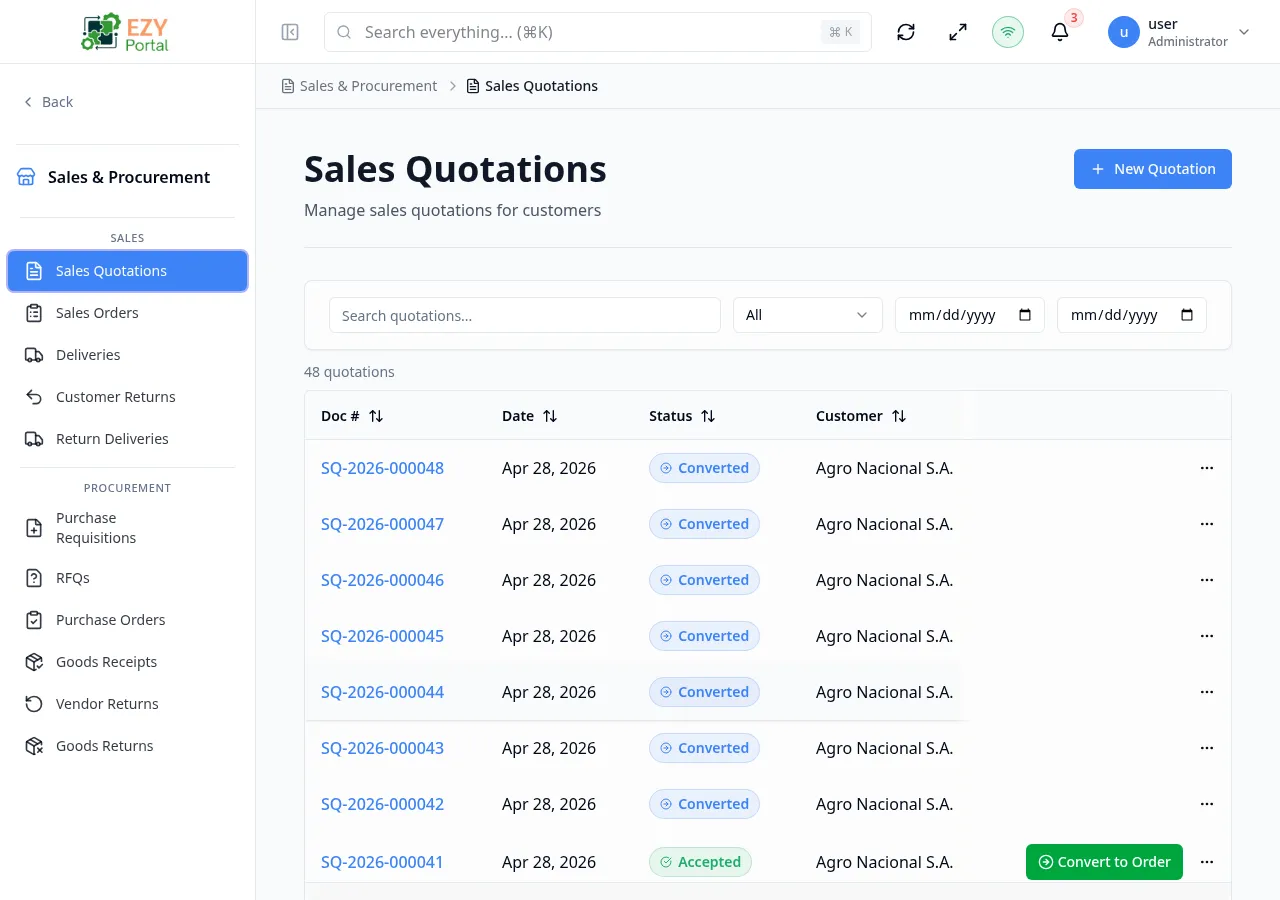
Accessing the Page
Section titled “Accessing the Page”Navigate to Commerce → Sales → Quotations in the sidebar, or go to /commerce/sales/quotations.
What you can do here
Section titled “What you can do here”- Browse all sales quotations with filtering by status and date range.
- Search quotations by document number, customer name, or reference.
- Create a new quotation for a customer.
- View, edit, duplicate, or delete individual quotations.
- Trigger workflow actions (Send, Accept, Reject, Cancel, Convert to Order) from the row menu.
Common tasks
Section titled “Common tasks”- Open Commerce → Sales → Quotations from the sidebar.
- Use the Status dropdown to filter to a specific stage (e.g., Sent).
- Click a row to open the detail page and review or act on the quotation.
- Only quotations in Draft status can be edited. All other statuses lock the form.
- Only Draft quotations can be deleted.
- A quotation in Accepted status shows a Convert to Order action that creates a Sales Order and marks the quotation as Converted.
- A rejected quotation can be reverted to Draft for revision.
- Quotations with a Valid Until date that has passed move to Expired status automatically.
- If a price list is outside your access scope, financial columns are masked.
- A sales quotation auto-closes when its fulfillment becomes complete: once all quotation lines are fully fulfilled by confirmed downstream documents, the status flips automatically.
- In single-currency tenants the currency field is hidden from quotation forms.
List Columns
Section titled “List Columns”| Column | Default Visible | Sortable | Description |
|---|---|---|---|
| Doc # | Yes | Yes | System-generated quotation number |
| Customer | Yes | Yes | Business partner name |
| Date | Yes | Yes | Document date |
| Valid Until | Yes | Yes | Expiry date of the quotation |
| Status | Yes | Yes | Current workflow status badge |
| Grand Total | Yes | Yes | Total amount including tax |
| Reference | No | No | External reference number |
| Currency | No | No | Document currency code |
| Sales Person | No | No | Assigned sales person |
| Payment Terms | No | No | Payment terms code |
| Price List | No | No | Price list applied to this quotation |
| Created | No | Yes | Creation timestamp |
| Updated | No | Yes | Last modification timestamp |
Status Values
Section titled “Status Values”| Status | Description |
|---|---|
| Draft | Quotation is being prepared; editable and deletable |
| Sent | Quotation has been sent to the customer; locked for editing |
| Accepted | Customer has accepted the quotation |
| Rejected | Customer has rejected the quotation; can be reverted to Draft |
| Cancelled | Quotation was cancelled; terminal state |
| Expired | Valid Until date has passed |
| Converted | Quotation was converted to a Sales Order; terminal state |
Filtering
Section titled “Filtering”| Filter | Type | Description |
|---|---|---|
| Search | Free text | Searches across document number, customer name, and reference |
| Status | Dropdown | Filter by quotation status; default shows all |
| Date From | Date | Show quotations with a document date on or after this date |
| Date To | Date | Show quotations with a document date on or before this date |
Sorting
Section titled “Sorting”Click any sortable column header to sort:
- First click — Ascending (A→Z, 0→9, earliest first)
- Second click — Descending (Z→A, 9→0, latest first)
- Third click — Remove sort
Default sort: Created descending (newest first).
Pagination
Section titled “Pagination”The list uses a Load More pattern:
- Page size: 20 records per load
- Load More button at the bottom loads the next batch
- Total count displays above the table
Actions
Section titled “Actions”Page Actions
Section titled “Page Actions”| Action | Description | Permission |
|---|---|---|
| New Quotation | Navigate to the Create Quotation form | canCreateSalesQuotation |
Row Actions
Section titled “Row Actions”Each row has a dropdown action menu:
| Action | Description | Permission |
|---|---|---|
| View | Open the Sales Quotation Detail page | Read |
| Edit | Open the Edit Sales Quotation form — available for Draft only | canEditSalesQuotation |
| Duplicate | Create a copy as a new Draft | canCreateSalesQuotation |
| Send to Customer | Transition from Draft → Sent | canEditSalesQuotation |
| Accept | Transition from Sent → Accepted | canEditSalesQuotation |
| Reject | Transition from Sent → Rejected (requires reason) | canEditSalesQuotation |
| Convert to Order | Transition from Accepted → Converted; creates a Sales Order | canCreateSalesQuotation |
| Revert to Draft | Transition from Rejected or Expired → Draft | canEditSalesQuotation |
| Cancel Quotation | Transition from Draft or Sent → Cancelled (requires reason) | canEditSalesQuotation |
| Delete | Permanently delete — available for Draft only | canDeleteSalesQuotation |
Click any row to open the detail page.
Deleting a Sales Quotation
Section titled “Deleting a Sales Quotation”- Locate the quotation in the list — it must have status Draft.
- Click the row actions menu and select Delete.
- A confirmation dialog warns that the deletion is permanent.
- Click Delete to confirm — the list reloads without the deleted quotation.
Deletion is only available for quotations in Draft status. Sent, Accepted, Rejected, Cancelled, Expired, and Converted quotations cannot be deleted.
Related Pages
Section titled “Related Pages”- Create Sales Quotation — Create a new quotation
- Sales Quotation Detail — View a specific quotation
- Edit Sales Quotation — Edit a draft quotation
- Sales Orders — View orders created from accepted quotations