User Accounts
User accounts control who can log in to EZY Integrations and which tenants they can access. A Platform Admin can create accounts, assign or remove tenant memberships, edit roles, and deactivate users.
Accessing the Users Page
Section titled “Accessing the Users Page”Navigate to Users in the left sidebar. This page is visible to Platform Admins only.
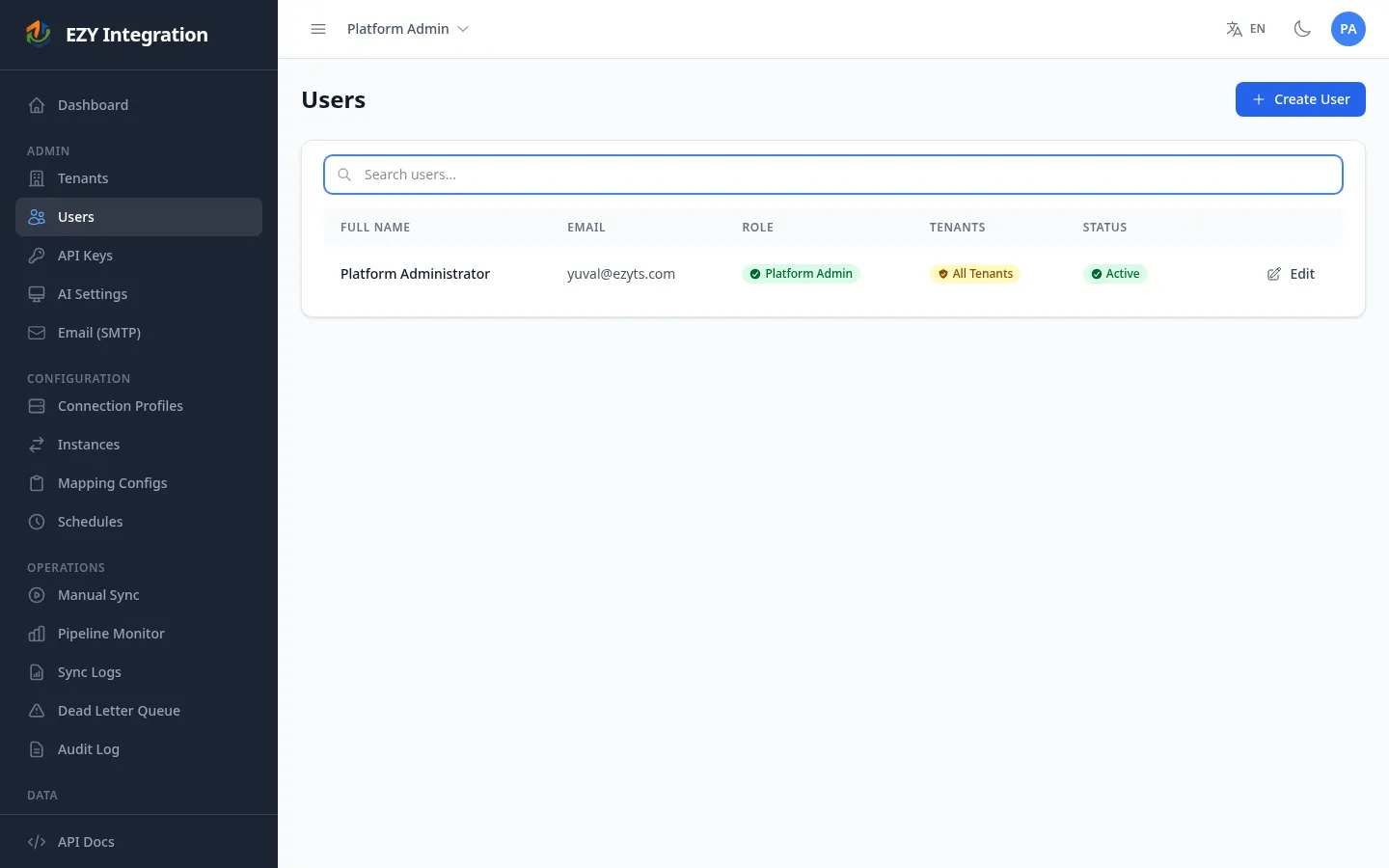
The list shows every user in the system. Use the search bar to filter by name or email address.
EZY Integrations has two roles.
| Role | Description |
|---|---|
| Platform Admin | Full access across all tenants. Can manage users, tenants, connection profiles, jobs, schedules, API keys, and all platform configuration. Automatically has access to every tenant. |
| User | Access limited to the tenants they are explicitly assigned to. Can create and manage connection profiles, jobs, mapping configurations, and schedules within those tenants. Cannot access the Users page or manage other tenants. |
Creating a User Account
Section titled “Creating a User Account”- On the Users page, click Create User.
- Enter the user’s Email address.
- Enter an initial Password (minimum 8 characters). The user can change this after first login.
- Enter the user’s Full Name.
- Select a Role: Platform Admin or User.
- If the role is User, select one or more tenants the account should have access to. Check the box next to each tenant name in the list.
- Platform Admin accounts automatically have access to all tenants — no manual selection is needed.
- Click Create User.
Editing a User Account
Section titled “Editing a User Account”- In the Users list, click Edit on the row you want to change.
- Update the Full Name or Role as needed.
- Toggle the Active checkbox to activate or deactivate the account.
- Click Save.
Only the full name, role, and active status can be changed after creation. The email address cannot be edited.
Assigning a User to a Tenant
Section titled “Assigning a User to a Tenant”A User account can be assigned to additional tenants after it has been created.
- In the Users list, find the user’s row and click the + Add button in the Tenants column.
- Search for the tenant by name in the dialog.
- Select the tenant from the filtered list.
- Click Assign.
To remove a tenant from a user’s access, click the × icon next to the tenant name in the Tenants column.
Deactivating a User Account
Section titled “Deactivating a User Account”Deactivating an account prevents the user from logging in without deleting the account record.
- In the Users list, click Deactivate on the row you want to disable.
- Confirm the action in the dialog.
A deactivated user can be reactivated at any time by editing the account and checking the Active box.
You cannot deactivate your own account from the Users list.
Password Reset
Section titled “Password Reset”If a user forgets their password, they can use the Forgot password link on the login screen to request a password reset email. No administrator action is required.
An administrator can also set a new password for a user by creating a new account if needed — the password field is only available on the create form, not the edit form.
Related Pages
Section titled “Related Pages”- Tenant Onboarding — When to create user accounts in the setup sequence.
- API Keys — Create machine-to-machine access credentials.