Applications
The Applications page tracks every job application submitted to your organization. Each application links a candidate to a job posting and moves through defined pipeline stages from Applied through to Hired, Rejected, or Withdrawn. Applications can be starred for priority tracking, evaluated with scores, linked to scheduled interviews, and annotated with internal notes.
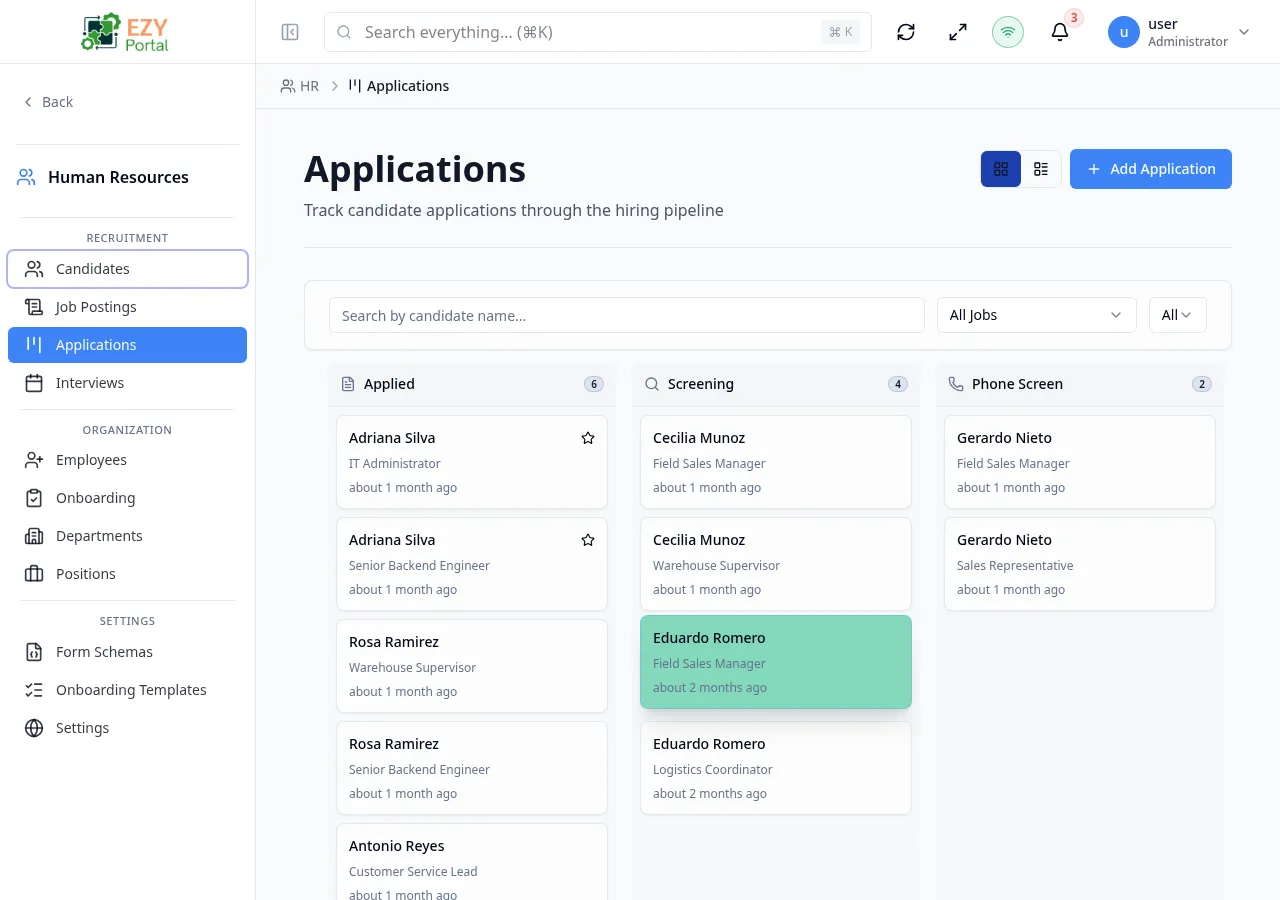
Accessing the Page
Section titled “Accessing the Page”- Route:
/applications - Menu Path: HR → Recruitment → Applications
List Columns
Section titled “List Columns”| Column | Default Visible | Sortable | Description |
|---|---|---|---|
| Candidate | Yes | Yes | Candidate name and email |
| Position | Yes | Yes | Job posting title the application is for |
| Stage | Yes | No | Current pipeline stage badge |
| Score | Yes | Yes | Average evaluation score |
| Applied | Yes | Yes | Date the application was submitted |
Pipeline Stages
Section titled “Pipeline Stages”Applications move through a sequential pipeline. Stage order is:
graph LR
    APPLIED --> SCREENING
    SCREENING --> PHONE_SCREEN
    PHONE_SCREEN --> INTERVIEW
    INTERVIEW --> ASSESSMENT
    ASSESSMENT --> REFERENCE_CHECK
    REFERENCE_CHECK --> OFFER
    OFFER --> HIRED
    OFFER --> REJECTED
    OFFER --> WITHDRAWN
| Stage | Description |
|---|---|
| Applied | Application received |
| Screening | Initial review by HR |
| Phone Screen | Initial phone conversation |
| Interview | One or more interview rounds |
| Assessment | Skills test or assignment |
| Reference Check | Reference verification |
| Offer | Offer extended to candidate |
| Hired | Candidate accepted the offer |
| Rejected | Application declined |
| Withdrawn | Candidate withdrew |
Outcome Values
Section titled “Outcome Values”A final outcome can be set on any application to close it:
| Outcome | Description |
|---|---|
| Hired | Candidate was hired |
| Rejected | Application was rejected |
| Withdrawn | Candidate withdrew their application |
| No Show | Candidate did not appear for an interview |
Filtering
Section titled “Filtering”| Filter | Type | Description |
|---|---|---|
| Search | Free text | Searches by candidate name |
| Job Posting | Select | Filter by specific job posting |
| Stage | Select | Filter by current pipeline stage |
| Starred | Select | All, Starred only, or Not Starred |
Sorting
Section titled “Sorting”Click any sortable column header to sort ascending; click again for descending; third click removes the sort.
Pagination
Section titled “Pagination”Server-side pagination with configurable page size.
Actions
Section titled “Actions”Page Actions
Section titled “Page Actions”| Action | Description |
|---|---|
| Add Application | Opens the Create Application dialog |
Row Actions
Section titled “Row Actions”Clicking a row opens the Application Detail side panel where all actions are available.
Creating an Application
Section titled “Creating an Application”Click Add Application to open the Create Application dialog.
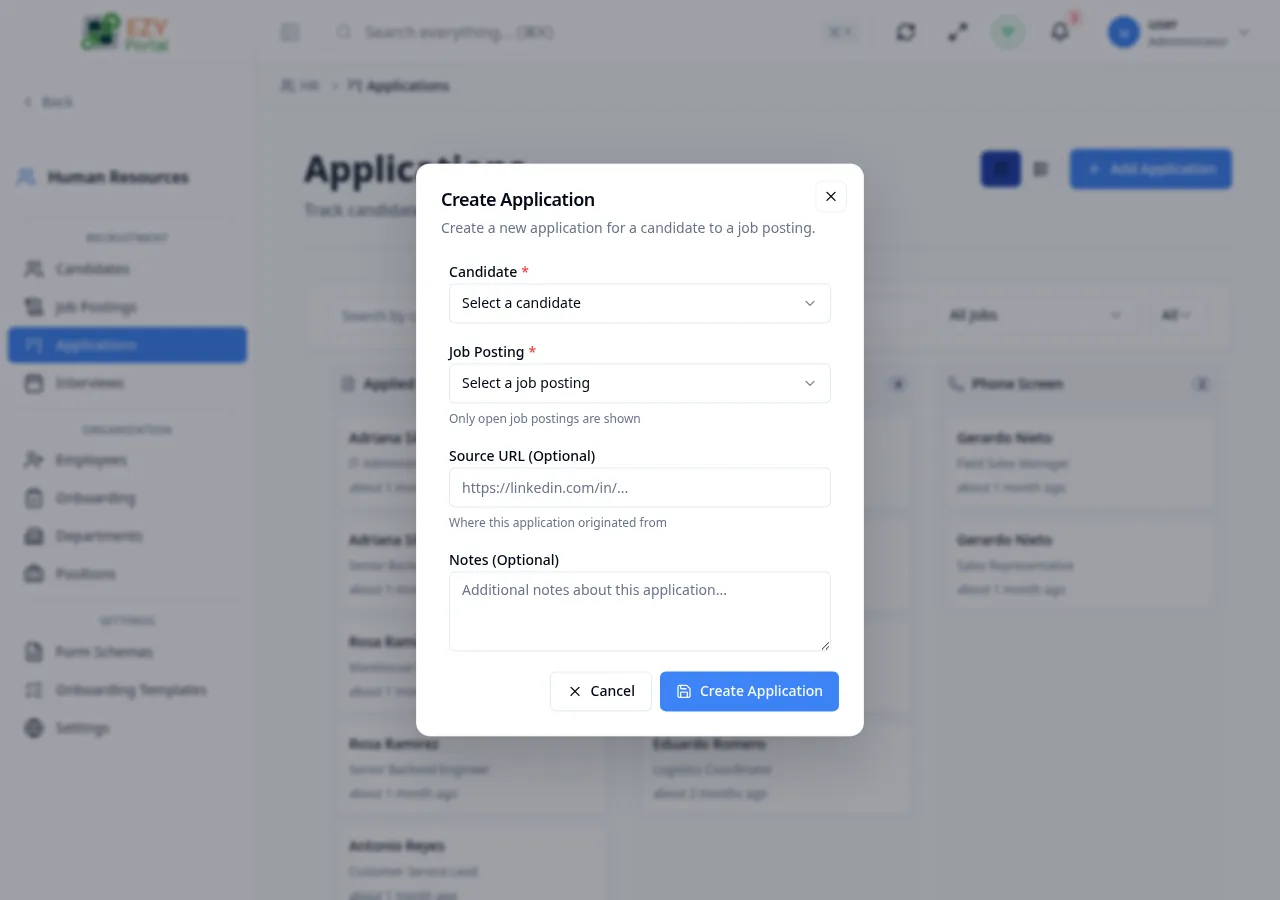
Fields
Section titled “Fields”| Field | Required | Type | Description | Default | Validation |
|---|---|---|---|---|---|
| Candidate | Yes | Entity select | The candidate applying | — | Required |
| Job Posting | Yes | Entity select | The open job posting | — | Required; only Open postings shown |
| Source URL | No | URL | Where this application originated | — | — |
| Notes | No | Textarea | Internal notes about the application | — | — |
If the selected job posting has an application form schema attached, the form fields are rendered inline and may add additional required fields.
Steps:
- Click Add Application.
- Select the candidate and the job posting.
- Optionally add a source URL and notes.
- Fill in any application form fields shown below.
- Click Create Application.
Application Detail Panel
Section titled “Application Detail Panel”Clicking any application row opens the Application Detail side panel with five tabs:
Overview tab
Section titled “Overview tab”| Section | Description |
|---|---|
| Candidate Information | Name, email, phone, and link to candidate profile |
| Move to Stage | Stage selector to advance or move the application |
| Evaluation Score | Average score from all evaluations |
| Timeline | Application date, last stage change date, outcome set date |
| Source | Source URL if provided |
| Resume | Download link if a resume is attached to the candidate |
Available actions from the Overview tab:
| Action | Description |
|---|---|
| Star / Unstar | Toggle priority flag on the application |
| Set Outcome | Open the outcome dialog to mark the final result |
| Disqualify | Immediately disqualify with a reason prompt |
| Schedule Interview | Opens the Interview scheduling dialog |
| Add Evaluation | Opens the evaluation form |
Interviews tab
Section titled “Interviews tab”Lists all interviews scheduled for this application. Each interview shows type, date/time, status, and feedback summary. See Interviews for full detail.
Evaluations tab
Section titled “Evaluations tab”Lists all evaluations submitted for this application by interviewers or recruiters. Each evaluation shows the evaluator, score, strengths, concerns, and notes. New evaluations can be submitted here.
History tab
Section titled “History tab”Shows the full stage change history with timestamps.
Notes tab
Section titled “Notes tab”Internal notes specific to this application. Notes can be added and edited here.
Setting an Outcome
Section titled “Setting an Outcome”Open the application detail panel and click Set Outcome.
| Field | Required | Type | Description |
|---|---|---|---|
| Outcome | Yes | Select | Hired, Rejected, Withdrawn, or No Show |
| Reason | No | Textarea | Additional detail about the outcome |
After an outcome of Hired is set, the application can be converted to an employee record using the Hire from Application action on the Employees page.
Common tasks
Section titled “Common tasks”- Open HR → Recruitment → Applications from the sidebar.
- Filter by job posting or stage to focus on a subset.
- Click an application row to open the detail panel.
- Advance the stage, schedule interviews, or set the final outcome.
Related Pages
Section titled “Related Pages”- Candidates — Candidate profiles
- Job Postings — Job postings that applications are submitted to
- Job Posting Detail — View applications scoped to a single posting
- Interviews — Interview records linked to applications
- Employees — Convert hired applications to employee records