System Email Templates
The System Email Templates page displays the five built-in email types that the portal sends automatically — account invitations, user invitations, password resets, general notifications, and demo-expiry notices. Each type shows as a card. By default, the portal uses its built-in template. Administrators can create a custom override for any type, edit it, and activate it to replace the default.
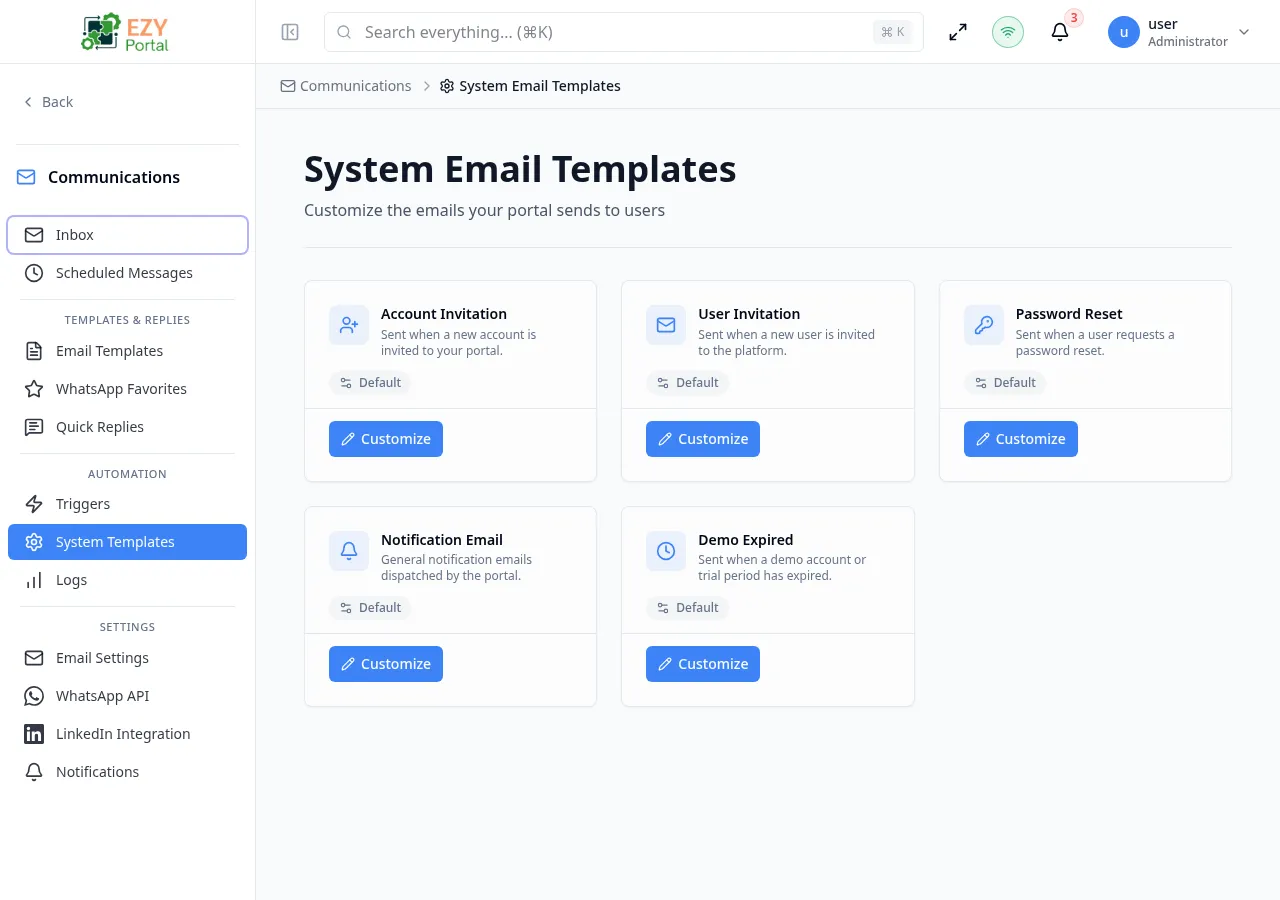
Accessing the Page
Section titled “Accessing the Page”- Route:
/communications/automation/system-templates - Menu Path: Communications → Automation → System Templates
- Primary audience: Tenant administrators.
What you can do here
Section titled “What you can do here”- View the five system email types and their current state (Default or Customized).
- Create a custom override for any system template by clicking Customize.
- Edit an existing custom override and activate or keep it as a draft.
- Reset a customized template back to the platform default.
System Template Types
Section titled “System Template Types”| System Key | Display Name | Description |
|---|---|---|
ACCOUNT_INVITATION | Account Invitation | Sent when a new account is invited to your portal |
PENDING_INVITATION | User Invitation | Sent when a new user is invited to the platform |
PASSWORD_RESET | Password Reset | Sent when a user requests a password reset |
NOTIFICATION | Notification Email | General notification emails dispatched by the portal |
DEMO_EXPIRED | Demo Expired | Sent when a demo account or trial period has expired |
Template Card States
Section titled “Template Card States”| State | Badge | Description |
|---|---|---|
| Default | Default (grey) | The platform built-in template is in use; no custom override exists |
| Customized / Active | Customized + Active (green) | A custom override exists and is live |
| Customized / Draft | Customized + Draft (amber) | A custom override exists but is not yet active |
Common tasks
Section titled “Common tasks”- Open Communications → Automation → System Templates.
- Find the template type you want to customize (for example, Password Reset).
- Click Customize. The portal fetches the built-in default content and opens the template editor pre-filled with it.
- Edit the subject and body, then toggle Active on.
- Click Create Template (or Save Changes if editing). The card shows a Customized / Active badge.
- To verify, send a test from the template editor using the Send Test button.
- When a custom override is Active, it replaces the built-in default for all outbound sends of that type.
- When a custom override is Draft (inactive), the portal continues to use its built-in default. This lets you edit and review a template before publishing it.
- System template content is initialized from the platform defaults — the portal fetches the current built-in subject and body so your customization starts from a complete baseline.
- Variable placeholders in system templates (for example,
{{name}},{{link}}) are required for the email to function correctly. Do not remove them.
Customizing a System Template
Section titled “Customizing a System Template”Click Customize on any card with a Default badge.
Screenshot pending: Template editor opened for the Password Reset system template, pre-filled with default subject and body
The template editor opens with the platform default content pre-loaded. Edit the subject and body, choose whether to activate the override immediately, then save.
Steps:
- Click Customize on the template card.
- The template editor opens with the default subject and body.
- Edit the Subject and Body as needed. Variable placeholders are shown in the variable browser on the right.
- Toggle Active on to make this override live immediately.
- Click Create Template to save.
Editing a Custom Override
Section titled “Editing a Custom Override”Click Edit on any card with a Customized badge.
Screenshot pending: Template editor for a customized system template showing the edit form
The template editor opens pre-filled with the existing custom content. Make changes, adjust the Active toggle, and click Save Changes.
Resetting to Default
Section titled “Resetting to Default”Click Reset to Default on any Customized card.
Screenshot pending: Reset to Default confirmation dialog for a customized system template
- Click Reset to Default on the template card.
- A confirmation dialog warns: “Your custom [name] template will be deleted. The portal will fall back to the built-in default template.”
- Click Reset to Default to confirm. The custom override is permanently deleted and the Default badge reappears.
Related Pages
Section titled “Related Pages”- Automation — manage event-driven automation triggers that use separate template types
- Email Templates — manage reusable tenant templates for outbound email composition