Edit an existing business partner using a tabbed form that separates information into four categories. All fields on the current tab are pre-populated with the partner’s existing data.
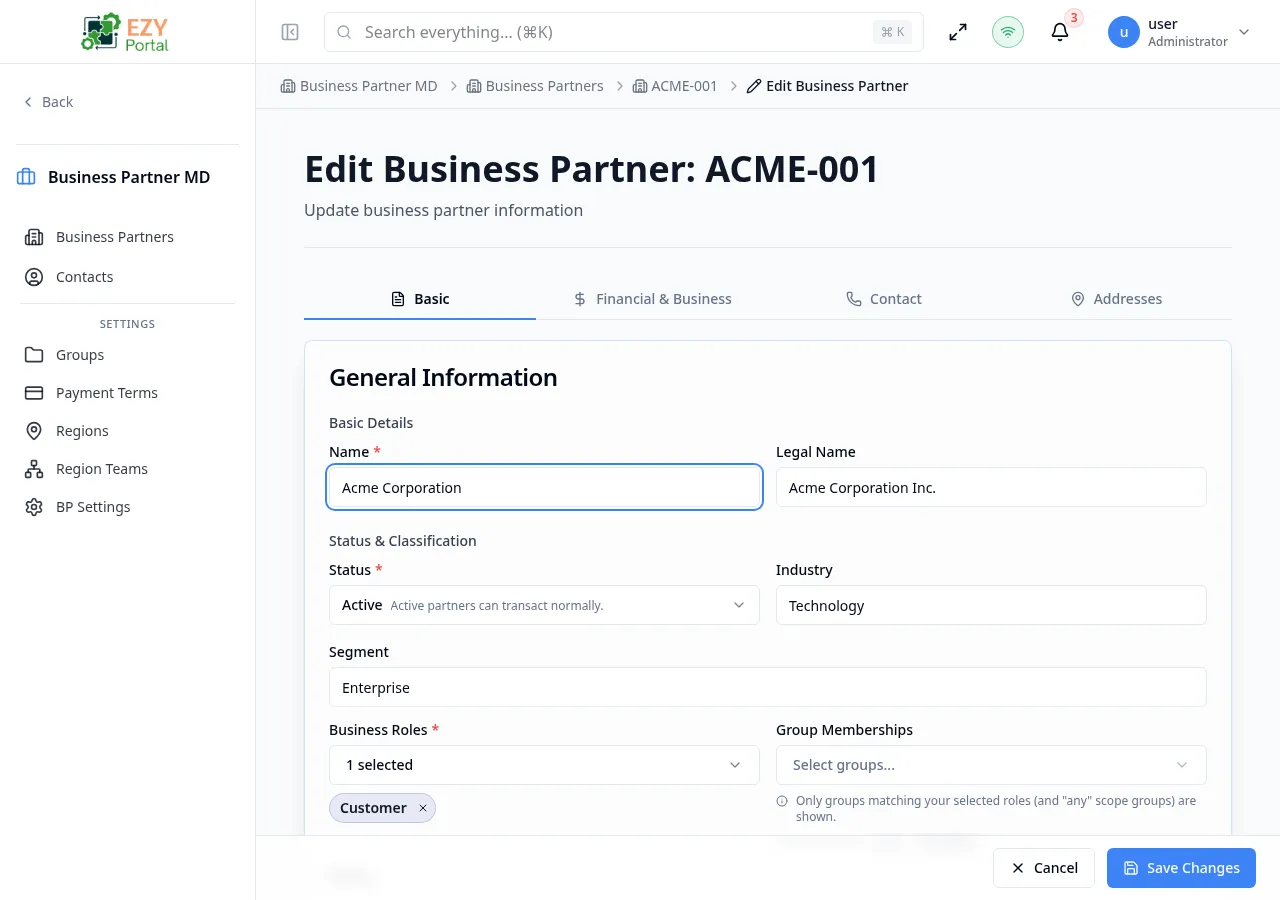
From the Business Partners list, click on a row to open the detail page, then click Edit. You can also navigate directly to /business-partners/:id/edit.
- Route:
/business-partners/:id/edit
The Code field is read-only after creation and cannot be changed in the edit form. It is displayed as a non-editable label at the top of the Basic tab.
The edit form is organized into four tabs:
| Tab | Description |
|---|
| Basic | General information, classification, and group memberships |
| Financial & Business | Tax information and commercial settings |
| Contact | Communication details and primary contact |
| Addresses | Default contact and address assignments |
The Basic tab contains the partner’s general information under the General Information card.
| Field | Required | Type | Description | Default | Validation |
|---|
| Code | — | Text (read-only) | Unique business partner code — cannot be changed after creation | — | Read-only |
| Name | Yes | Text | Business partner display name | — | Max 200 chars |
| Legal Name | No | Text | Registered legal company name | — | Max 200 chars |
| Field | Required | Type | Description | Default | Validation |
|---|
| Status | Yes | Select | Active, Inactive, Prospect, or Blocked | Active | — |
| Industry | No | Combobox | Industry classification | — | Max 100 chars |
| Segment | No | Combobox | Market segment (e.g., Enterprise, SMB) | — | Max 100 chars |
| Field | Required | Type | Description | Default | Validation |
|---|
| Business Roles | Yes | Multi-select | Partner type roles (Customer, Vendor, Lead, Partner) | — | At least one role required |
| Group Memberships | No | Multi-select | Assign the partner to groups; filtered by selected roles | — | Groups must match selected role scope or have “Any” scope |
| Owner | No | User select | User responsible for this partner | — | — |
| Field | Required | Type | Description | Default | Validation |
|---|
| Tax ID | No | Text | Tax identification number | — | Max 50 chars |
| Tax Scheme | No | Text | Tax scheme (e.g., VAT, GST) | — | Max 50 chars |
| Withholding Code | No | Text | Withholding tax code | — | Max 20 chars |
| Tax Exempt | No | Toggle | Mark the partner as exempt from taxes | false | — |
Country-specific fiscal fields are rendered dynamically based on the tenant’s country. For example, Colombia shows:
| Field | Required | Type | Description |
|---|
| DV | No | Text | Verification digit |
| Tax ID Type | No | Select | Natural Person, Juridical Person, or Foreign |
| Fiscal Customer Type | No | Select | Taxpayer, End Consumer, Government, or Foreign |
| Field | Required | Type | Description | Default | Validation |
|---|
| Currency | No | Select | Default transaction currency | USD | 3-letter ISO code if provided |
| Credit Limit | No | Number | Maximum credit allowed | — | Min 0 |
| Payment Terms | No | Entity select | Payment terms from Payment Terms setup | Tenant default | — |
| Price List | No | Entity select | Default price list | Tenant default | — |
| Region | No | Entity select | Assigned region from Regions setup | — | — |
| On Hold | No | Toggle | Place partner on hold (blocks transactions) | false | — |
| Field | Required | Type | Description | Default | Validation |
|---|
| Employees Count | No | Number | Number of employees | — | Min 0 |
| Annual Revenue | No | Number | Annual revenue amount | — | Min 0 |
| Field | Required | Type | Description | Default | Validation |
|---|
| Email | No | Email | Primary email address | — | Valid email format if provided |
| Phone | No | Text | Primary phone number | — | Max 30 chars |
| Mobile | No | Text | Mobile phone number | — | Max 30 chars |
| WhatsApp | No | Text | WhatsApp number | — | Max 30 chars |
| Website | No | URL | Company website URL | — | Valid URL if provided |
| Preferred Channel | No | Select | Preferred communication channel (Email, Phone, WhatsApp, SMS, Postal Mail) | — | — |
| Language Preference | No | Select | Communication language (en, es, fr, de, pt) | — | Max 5 chars |
The Addresses tab in edit mode manages the partner’s default contact and address assignments. Individual addresses and contacts are managed from the Business Partner Detail page tabs — not from this edit form.
| Field | Required | Type | Description | Default | Validation |
|---|
| Default Contact | No | Entity select | Select the primary default contact from existing contacts | — | Only contacts linked to this BP are shown |
| Default Billing Address | No | Entity select | Select the default billing address from existing billing addresses | — | Filtered to billing-type addresses |
| Default Shipping Address | No | Entity select | Select the default shipping address from existing shipping addresses | — | Filtered to shipping-type addresses |
These fields are only enabled when editing an existing partner. In create mode, a note is displayed that defaults are managed after creation.
When custom fields are configured for your tenant, additional fields are shown in the edit experience and validated by field definition.
- Unsupported or invalid values are rejected during save.
- Nullable custom values can be cleared without affecting other saved fields.
- Open a business partner from the list to view its detail page
- Click Edit
- Modify fields across the relevant tabs
- Click Save Changes to apply updates, or Cancel to discard changes
| Button | Behavior |
|---|
| Cancel | Discard any changes and return to the detail page |
| Save Changes | Persist all modifications across tabs |
| Rule | Behavior |
|---|
| Name required | Cannot save without a value |
| Business Roles required | At least one role must be selected |
| Email format | Validated against standard format if provided |
| Event | Message |
|---|
| Update success | ”Business partner updated successfully” |
| Update error | ”Failed to update business partner” |
- Viewing this page requires access to the corresponding module.
- Create/edit/delete actions are visible only to users with matching permissions.
- After a successful action, the page updates list/detail data to reflect the change.