Tenant Onboarding
A tenant is an isolated workspace inside EZY Integrations. All connection profiles, jobs, mapping configurations, API keys, and user memberships belong to exactly one tenant. You work within a tenant every time you use the platform — the tenant name appears in the header after you log in.
First Login
Section titled “First Login”When EZY Integrations is provisioned for your organization, a Platform Admin account is created for the initial administrator. On first login you will be asked to select a tenant from the tenant switcher screen. Click your tenant name to enter the workspace.
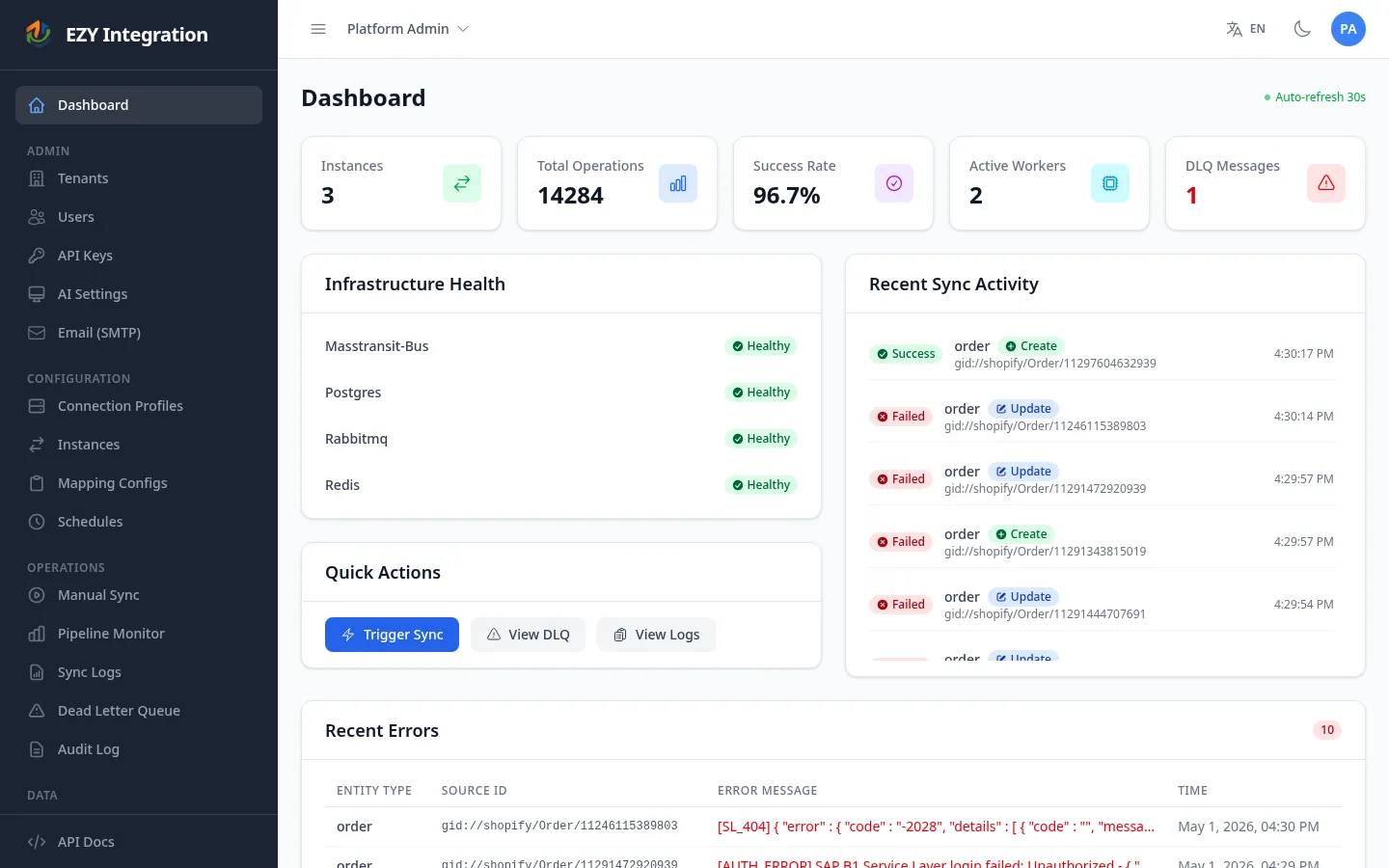
If your account is a regular User, you can only select tenants to which you have been assigned. Contact your Platform Admin if you do not see the correct tenant.
Tenant Switcher
Section titled “Tenant Switcher”If your account has access to more than one tenant, the tenant selection screen appears automatically after login. You can return to it at any time by clicking the tenant name in the navigation header and choosing Switch tenant.
Each session is scoped to a single tenant. Switching tenants reloads the workspace with the data for the selected tenant.
Initial Setup Checklist
Section titled “Initial Setup Checklist”Complete these steps in order when setting up a tenant for the first time.
graph LR
    A[1 User Accounts] --> B[2 Connection Profiles]
    B --> C[3 Mapping Configurations]
    C --> D[4 Jobs]
    D --> E[5 Schedules]
-
Create user accounts — Add team members who will manage integrations and assign them to this tenant. See User Accounts.
-
Create connection profiles — A connection profile stores the credentials and settings for one external system (source or target). Create one profile per system. See Credentials and Secrets.
-
Create mapping configurations — A mapping configuration tells the pipeline how to read data from the source and write it to the target. One mapping config covers one entity type (for example, item or customer). See Mapping Configuration.
-
Create a job — A job (also called an instance) links a source connection profile to a target connection profile and references one or more mapping configurations. See Jobs Overview.
-
Run the job manually — Trigger a manual sync from the Sync Trigger page to verify the end-to-end setup before enabling scheduled runs. See Manual Runs.
-
Create a schedule — Once the manual run succeeds, add a schedule to automate recurring syncs. See Schedules.
-
Create an API key (optional) — If an external system needs to push data into EZY Integrations or trigger runs programmatically, create an API key. See API Keys.
Permissions and Roles
Section titled “Permissions and Roles”EZY Integrations has two user roles.
| Role | Access |
|---|---|
| Platform Admin | Full access across all tenants. Can manage users, tenants, connection profiles, jobs, schedules, API keys, and all configuration. |
| User | Access limited to the tenants they are assigned to. Can create and manage connection profiles, jobs, mapping configurations, and schedules within those tenants. Cannot manage users or other tenants. |
A Platform Admin account is required to complete the initial setup steps (creating users and assigning them to tenants). After the first user accounts are created, day-to-day operations can be performed by Users.
Related Pages
Section titled “Related Pages”- Credentials and Secrets — Create and manage connection profiles.
- User Accounts — Add users and assign tenant memberships.
- API Keys — Create keys for machine-to-machine access.
- Mapping Configuration — Understand and author mapping configs.
- Connectors — Browse available source and target connectors.