System Templates
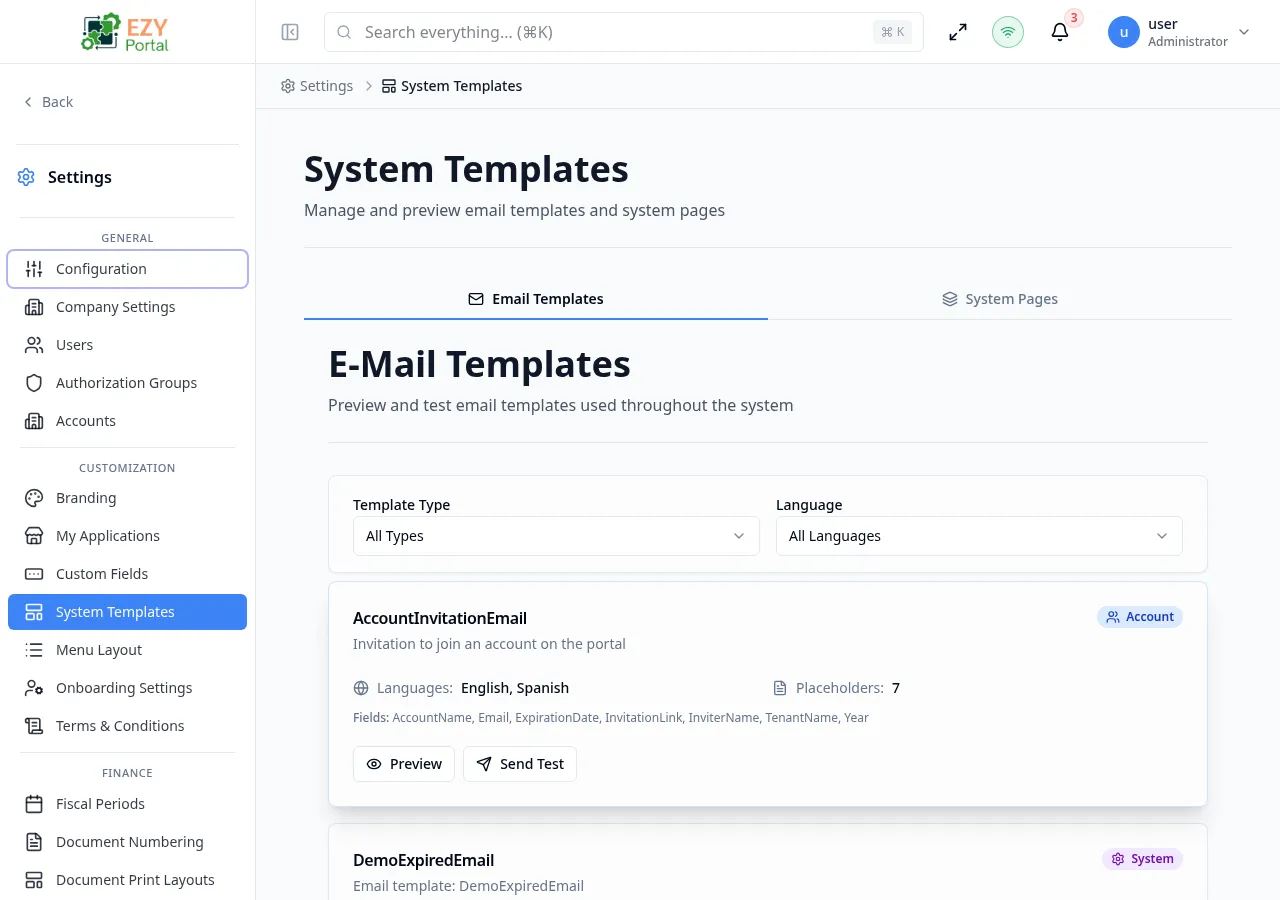
System Templates provides a tabbed workspace where administrators maintain the email notifications sent by the portal and customize the content of built-in authentication pages such as Login and Forgot Password. Changes take effect immediately without any code deployment.
Accessing the Page
Section titled “Accessing the Page”- Route:
/system-templates - Menu Path: Settings → Customization → System Templates
- Primary audience: Tenant administrators and other users with the required admin role.
What you can do here
Section titled “What you can do here”- Browse all system email templates on the Email Templates tab and preview how they render.
- Send a test email from any template using the Send Test action to verify delivery and appearance.
- Configure content zones (header title, subtitle, card title, description, and optional content blocks) for each authentication page on the System Pages tab.
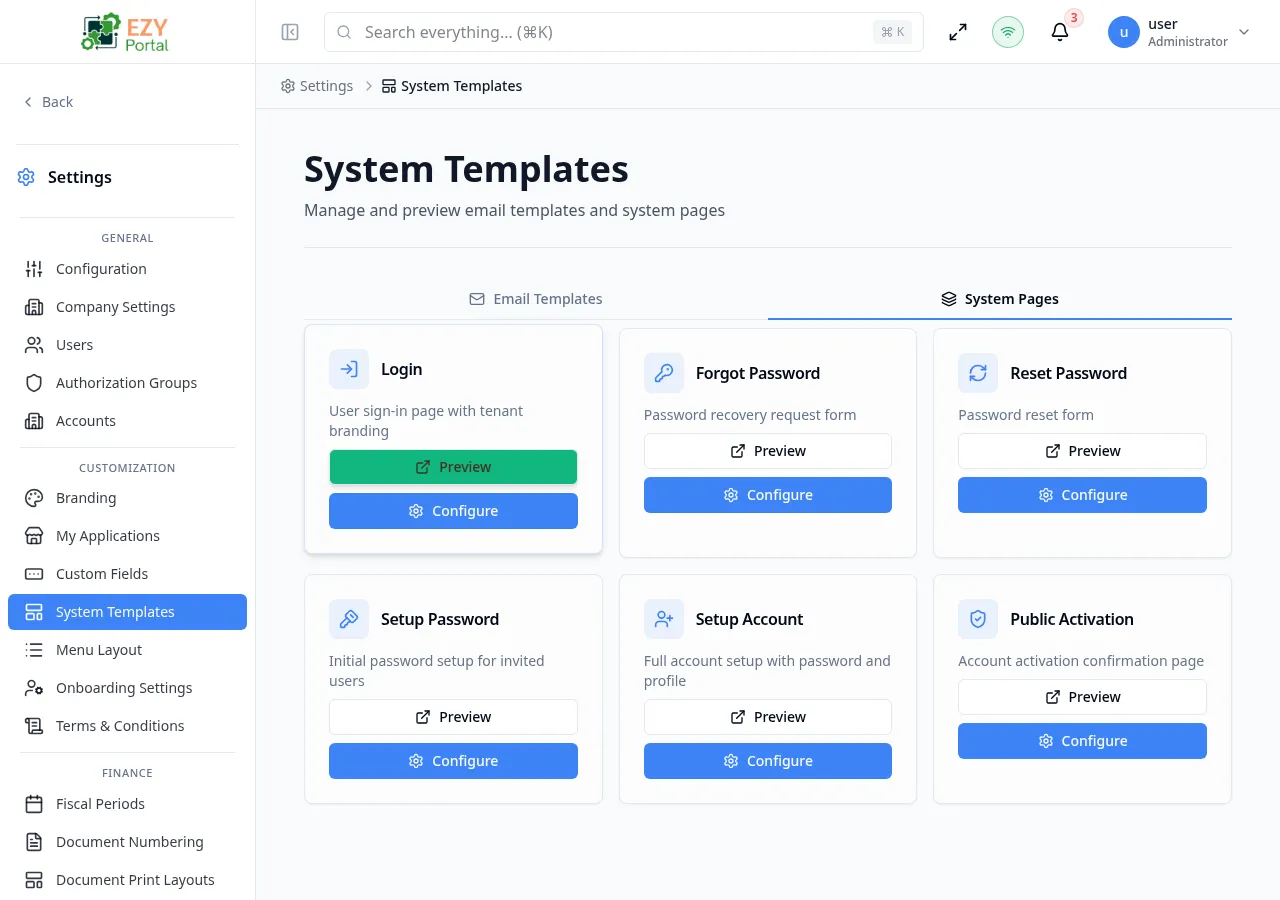
- Preview any system page in a new browser tab with form submissions disabled.
- Set custom text per language for tenant-branded authentication pages.
Common tasks
Section titled “Common tasks”- Open Settings → Customization → System Templates.
- To review email templates, stay on the Email Templates tab and click Preview on a template card.
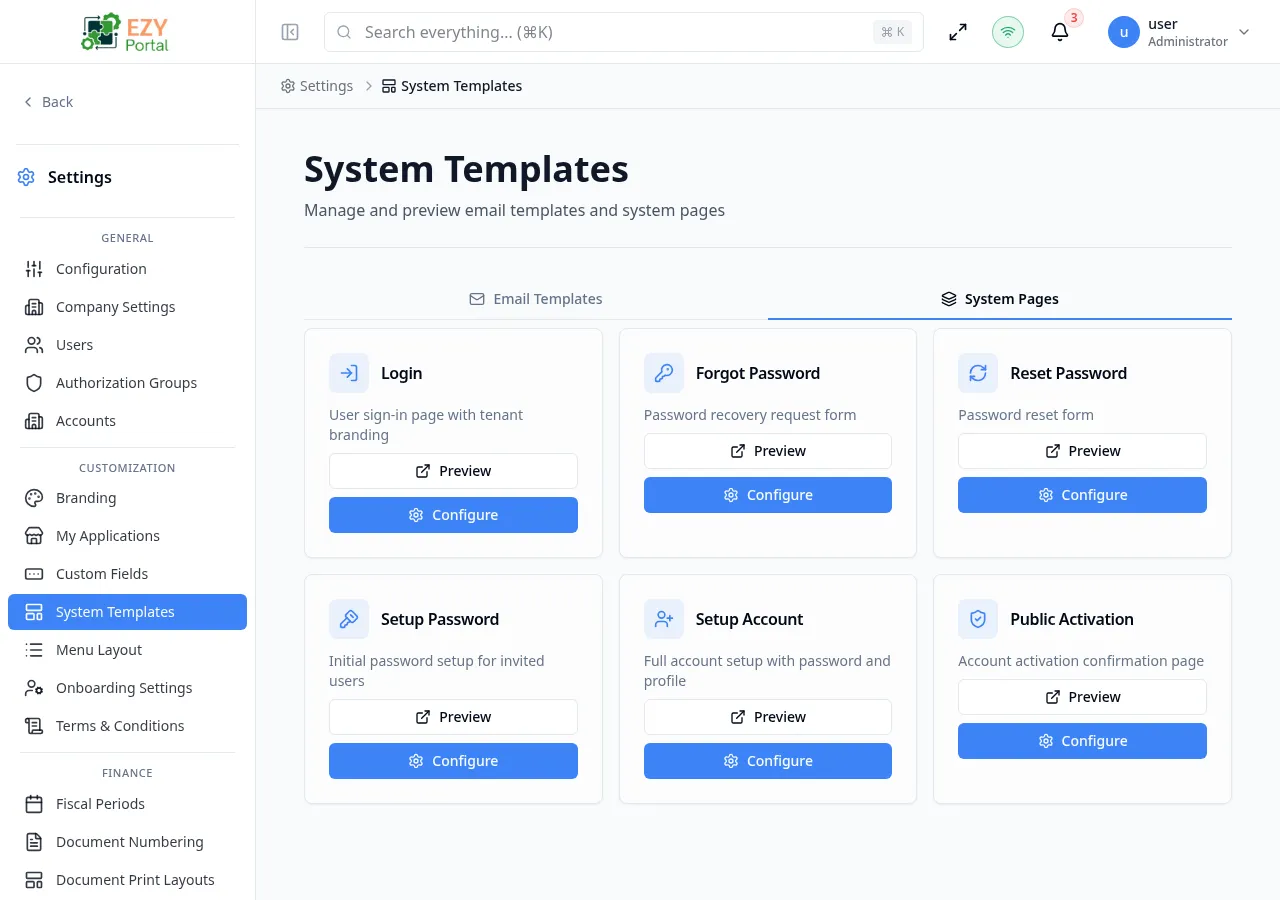
- To customize an authentication page, click the System Pages tab.
- Locate the page to configure (for example, Login or Forgot Password) and click Configure.
- In the configuration panel, select the language tab, then update the text zones and content blocks.
- Click Save to apply the changes.
- Click Preview on the page card to confirm the result in a new tab.
- Email template content is read-only in the portal — templates are defined in the application and can only be previewed and tested here. Edits to template body copy require a code-level change.
- System page text zones support three modes: Default (uses the built-in text), Custom (uses administrator-supplied text), and Hidden (removes the zone from the page).
- The Setup Account page has an extra option — Hide Prefilled Fields — that hides fields already populated by the invitation to show users a shorter form.
- Variable placeholders inside email templates (for example,
{{name}}) are replaced with real data at send time. Do not remove required placeholders. - Text zone configuration is language-specific. Switch between language tabs in the configuration panel to set EN and ES text independently.
Creating a Template
Section titled “Creating a Template”Email templates in System Templates are system-defined and cannot be created or deleted from the portal. To add a new email template, work with your development team.
Editing a System Page
Section titled “Editing a System Page”Click Configure on a system page card to open the configuration side panel.
| Field | Required | Type | Description | Default | Validation |
|---|---|---|---|---|---|
| Header Title | No | Text | Main heading displayed at the top of the authentication page | Default | — |
| Header Subtitle | No | Text | Secondary line below the header title | Default | — |
| Card Title | No | Text | Heading inside the login/form card | Default | — |
| Card Description | No | Text | Descriptive text inside the card, above the form | Default | — |
| Above Form (content block) | No | Content block | Free content area above the form fields | — | — |
| Below Form (content block) | No | Content block | Free content area below the form fields | — | — |
| Footer (Login page only) | No | Content block | Footer content below the card | — | — |
| Hide Prefilled Fields (Setup Account only) | — | Toggle | Hides pre-populated invitation fields from the user | Off | — |
Steps:
- On the System Pages tab, find the page to customize.
- Click Configure. The configuration side panel opens on the right.
- Select the language tab (EN or ES) to target the correct locale.
- Under Text Zones, click a zone to switch it from Default to Custom and enter the replacement text.
- Under Content Blocks, add heading, paragraph, or link blocks as needed.
- Click Save. A Configured badge appears on the page card to indicate custom content is active.
Deleting / Deactivating a Template
Section titled “Deleting / Deactivating a Template”Email templates cannot be deleted from the portal UI. To reset a system page to its default appearance, open Configure, switch all zones back to Default mode, remove all content blocks, and click Save.
Previews
Section titled “Previews”The Email Templates and System Pages tabs each provide preview capabilities to verify appearance before users see the content.
Email template preview
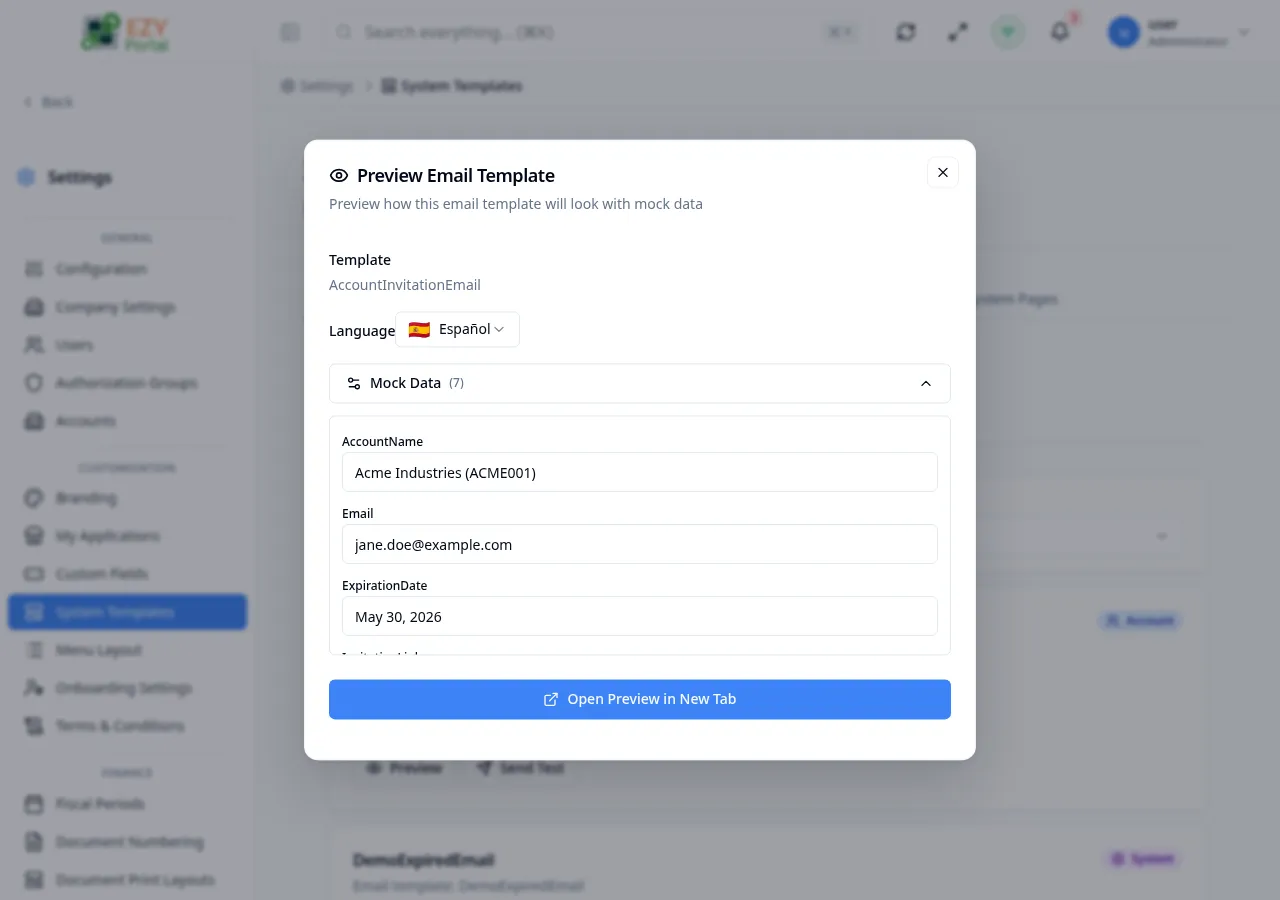
Section titled “Email template preview”Click Preview on an email template card to open a rendered preview dialog showing how the email will appear with sample data substituted for placeholders.
System page preview
Section titled “System page preview”Click Preview on a system page card to open that page in a new browser tab. Form submissions are disabled in preview mode so the page can be reviewed without creating accounts or triggering password flows.
System pages tab
Section titled “System pages tab”The System Pages tab displays six authentication pages as cards, each showing the page name, a description, and a Configured badge when custom content is active.
Related Pages
Section titled “Related Pages”- Terms & Conditions — manage versioned legal terms for user acceptance
- Custom Fields — define tenant-specific fields for portal entities