Create Deal
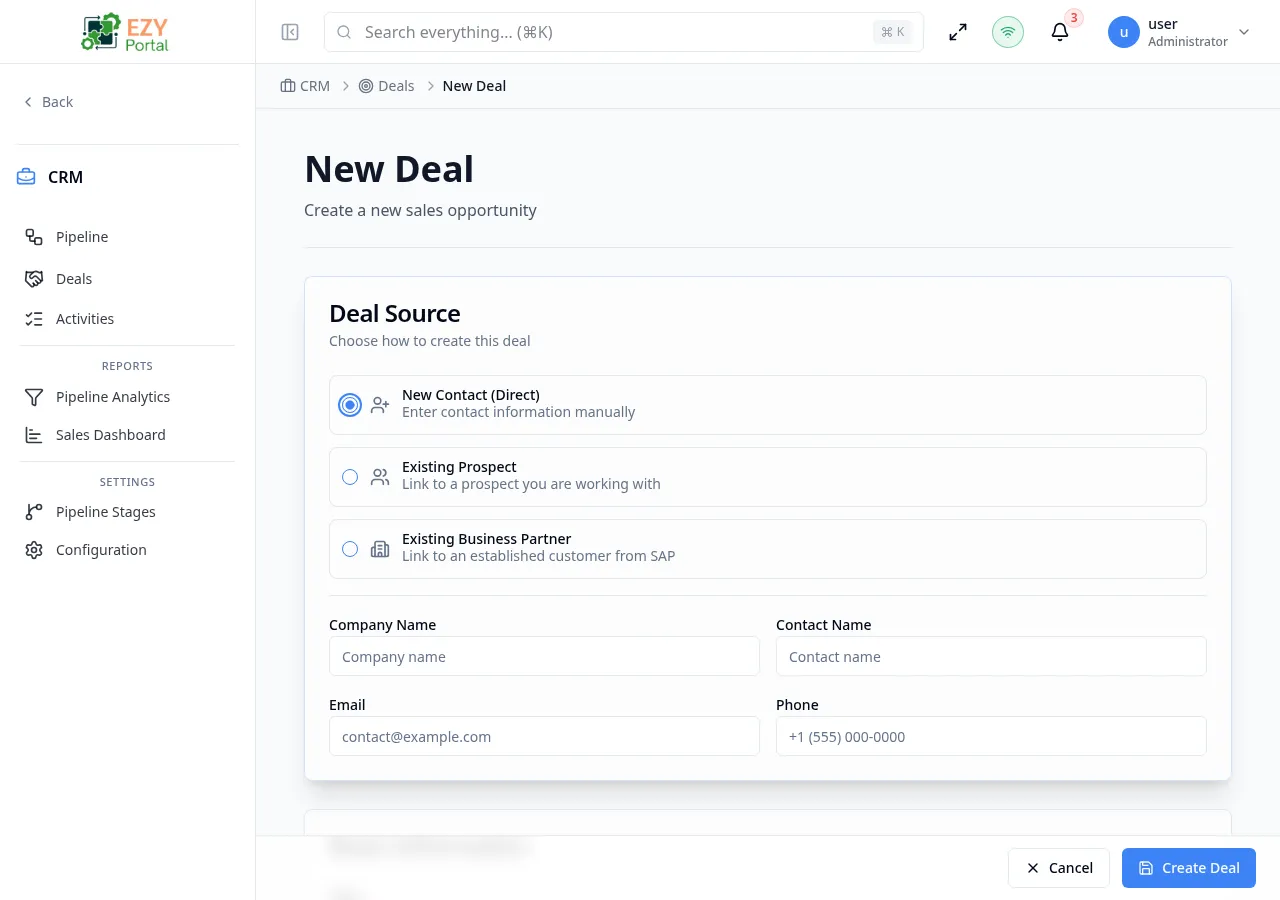
Create a new deal record to track a sales opportunity through the pipeline. The form is organized into sections: deal source selection (new contact, prospect, or business partner), basic deal information, and additional details such as source attribution and notes. After saving, the deal is assigned a system code and you are taken to the Deal Detail page.
Accessing the Page
Section titled “Accessing the Page”From the Deal List or the Pipeline, click New Deal, or navigate directly to /deals/new.
Form Sections
Section titled “Form Sections”Deal Source
Section titled “Deal Source”This section only appears when creating a new deal (not in edit mode). Choose how the deal is linked:
| Option | Description |
|---|---|
| New Contact (Direct) | Enter contact information manually with no system link. Hidden if the tenant requires a BP or prospect. |
| Existing Prospect | Link the deal to a prospect already in the system. Contact fields are auto-populated from the selected prospect. |
| Existing Business Partner | Link the deal to a business partner record. Company name and contact fields are auto-populated from the selected BP. |
When Existing Prospect is selected, a prospect search box appears below the radio buttons. When Existing Business Partner is selected, a business partner search box appears.
Region enforcement: If the tenant has Require Region Assignment enabled in CRM Configuration, deals linked to a prospect or business partner that has no region assigned will show a warning and the form cannot be submitted until the linked entity has a region.
Direct contact fields (shown when Direct is selected and region assignment is required):
| Field | Required | Type | Description | Default | Validation |
|---|---|---|---|---|---|
| Company Name | No | Text | Company or organization name | — | — |
| Contact Name | No | Text | Primary contact person’s name | — | — |
| No | Contact email address | — | Valid email if provided | ||
| Phone | No | Text | Contact phone number | — | — |
| Region | Yes (conditional) | Entity select | Region assignment; required when enforce-region is on | — | Required if tenant setting is enabled |
Basic Information
Section titled “Basic Information”| Field | Required | Type | Description | Default | Validation |
|---|---|---|---|---|---|
| Title | Yes | Text | Deal name displayed everywhere | — | Max 200 chars |
| Stage | Yes | Select | Pipeline stage with color indicator and icon | First stage in sort order | Must select a non-closed stage |
| Amount | Yes | Number | Deal value | 0 | Must be 0 or greater |
| Probability | No | Slider + Number | Estimated close probability as a percentage | 50 | 0–100 |
| Expected Close Date | No | Date | Target date for closing the deal | — | — |
| Description | No | Textarea | Free-text deal description | — | — |
The Probability field uses a combined slider and numeric input. Both controls stay in sync.
Additional Information
Section titled “Additional Information”| Field | Required | Type | Description | Default | Validation |
|---|---|---|---|---|---|
| Source | No | Text | Lead source (e.g., “Website”, “Referral”) | — | — |
| Campaign | No | Text | Marketing campaign name | — | — |
| Tags | No | Text | Comma-separated tags | — | Split on commas, whitespace trimmed |
| Notes | No | Textarea | Internal notes about the deal | — | — |
Contact Information (edit mode only)
Section titled “Contact Information (edit mode only)”When editing an existing deal, a Contact Information section appears with these fields:
| Field | Required | Type | Description |
|---|---|---|---|
| Company Name | No | Text | Company name on the deal |
| Contact Name | No | Text | Contact person’s name |
| No | Contact email | ||
| Phone | No | Text | Contact phone |
Validation Rules
Section titled “Validation Rules”| Rule | Behavior |
|---|---|
| Title required | Cannot submit without a title |
| Title max length | Title must be 200 characters or fewer |
| Stage required | Cannot submit without selecting a stage |
| Amount must be non-negative | Amount must be 0 or greater |
| Probability range | Must be between 0 and 100 |
| Email format | Must be a valid email if provided |
| Region required (conditional) | If tenant enforce-region setting is on and Direct type is selected, a region must be picked |
| Prospect/BP region (conditional) | If the linked prospect or BP has no region and enforce-region is on, form submission is blocked with a warning |
| BP/Prospect required (conditional) | If tenant requires BP or Prospect, the Direct option is hidden and a prospect or BP link is mandatory |
Post-save behavior
Section titled “Post-save behavior”After successful creation:
- The deal is assigned an auto-generated code (format configured in CRM Configuration, default:
DEAL-00001). - The deal owner is set to the currently logged-in user.
- You are redirected to the Deal Detail page for the new deal.
An Unsaved Changes guard is active after you begin entering data. Navigating away shows a browser confirmation dialog.
Permissions and system behavior
Section titled “Permissions and system behavior”- Requires Create Deal permission.
- Users without this permission see an Access Denied message when they reach the page.
Common tasks
Section titled “Common tasks”- Click New Deal from the Deal List or Pipeline.
- Select the deal source and fill in the title, stage, and amount.
- Click Create Deal to save and open the detail page.
Related Pages
Section titled “Related Pages”- Deal List — Return to the full deal list
- Pipeline — Kanban board view
- Deal Detail — View the newly created deal
- CRM Configuration — Configure deal creation rules and code format