Stock Transfer Detail
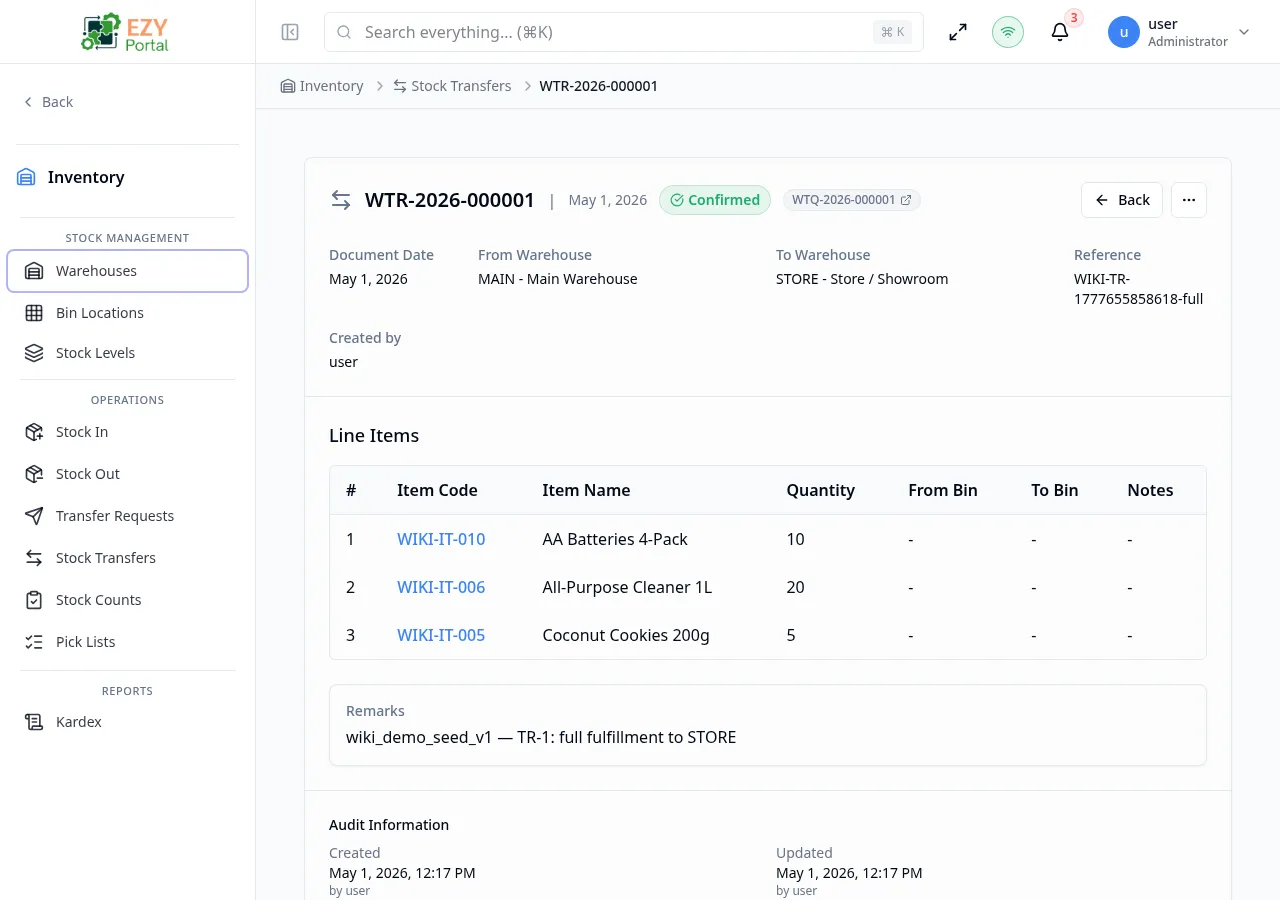
The Stock Transfer Detail page shows the full record for a single stock transfer. It displays the source and destination warehouses, all line items with bin locations (if applicable), the source Transfer Request link, and action buttons for confirming, cancelling, duplicating, and deleting the document.
Accessing the Page
Section titled “Accessing the Page”From the Stock Transfers list, click any row, or navigate directly to /inventory/operations/transfers/:id.
Header / Action Bar
Section titled “Header / Action Bar”| Button | Description | Availability |
|---|---|---|
| Back | Return to the Stock Transfers list | Always |
| History | Open the document change history dialog | Always |
| Actions menu | Expand additional actions | Always |
| — Edit | Open the Edit Stock Transfer form | Draft only |
| — Confirm | Execute the transfer and update stock | Draft only; Write permission |
| — Cancel | Reverse a confirmed transfer; requires reason | Confirmed only; Write permission |
| — Duplicate | Create a new Draft copied from this document | Always; Write permission |
| — Delete | Delete this document | Draft only; Admin permission |
Summary Card
Section titled “Summary Card”| Field | Description |
|---|---|
| Document # | System-generated document number |
| Status | Current status badge (Draft, Confirmed, or Cancelled) |
| From Warehouse | Source warehouse code and name |
| To Warehouse | Destination warehouse code and name |
| Document Date | Date of the transfer |
| Source Document | Linked Transfer Request number (if applicable); click to open the request |
| Reference | Optional external reference |
| Remarks | Document-level notes |
| Created | Creation timestamp and user |
| Updated | Last update timestamp and user |
Line Items
Section titled “Line Items”| Column | Description |
|---|---|
| # | Line number |
| Item Code | Item identifier |
| Item Name | Item display name |
| Quantity | Quantity transferred |
| UOM | Unit of measure |
| From Bin | Source bin location (Bin-Managed warehouses only) |
| To Bin | Destination bin location (Bin-Managed warehouses only) |
| Notes | Line-level notes |
Document History
Section titled “Document History”Click History to view all changes to the document: header field changes, line additions, removals, and edits, all with user attribution and timestamps.
Workflow Actions
Section titled “Workflow Actions”Confirming a Transfer
Section titled “Confirming a Transfer”Click Confirm (Draft documents). Confirming:
- Reduces stock in the source warehouse (and source bin, if applicable)
- Increases stock in the destination warehouse (and destination bin, if applicable)
- Changes the document status to Confirmed
- Updates the Fulfilled quantities on the parent Transfer Request (if linked), which may change the request’s fulfillment status to Partial or Fulfilled
- Locks all fields from editing
The Transfer Request’s query cache is automatically invalidated so Transfer Request detail pages reflect the updated fulfillment state immediately.
Cancelling a Transfer
Section titled “Cancelling a Transfer”Click Cancel (Confirmed documents). A dialog requests a reason. Cancelling:
- Reverses the stock movement in both warehouses
- Reduces the Fulfilled quantities on the parent Transfer Request
- Changes the status to Cancelled
Deleting a Document
Section titled “Deleting a Document”- Click Actions → Delete (Draft only)
- Confirm in the dialog
- You are redirected to the Stock Transfers list
Business Rule Notes
Section titled “Business Rule Notes”- Confirming a Stock Transfer is the only action that moves stock. Draft documents have no stock impact.
- The link between a Stock Transfer and a Transfer Request is shown in the Source Document field and is read-only after creation.
- When all lines on a Transfer Request reach Fulfilled status, the request is automatically closed.
Common tasks
Section titled “Common tasks”- Open a Draft Stock Transfer from the Stock Transfers list.
- Review the line items and bin assignments.
- Click Confirm to execute the movement and update stock.
Related Pages
Section titled “Related Pages”- Stock Transfers — List all transfer documents
- Create Stock Transfer — Create a new transfer
- Edit Stock Transfer — Edit a Draft transfer
- Transfer Request Detail — View fulfillment status on the parent request