Schedules
A schedule links an instance to a recurring cadence so that the instance runs automatically without manual intervention. Each schedule targets one instance and one entity type. You can create multiple schedules for the same instance — one per entity type — to stagger or customize each entity’s run frequency.
When a schedule fires, it triggers a standard incremental pipeline run for the configured entity type. The sync cursor advances after each successful run, so the next scheduled run picks up only new or changed records.
Accessing the Schedules page
Section titled “Accessing the Schedules page”In the left navigation, select Schedules. The list shows all schedules for your tenant.
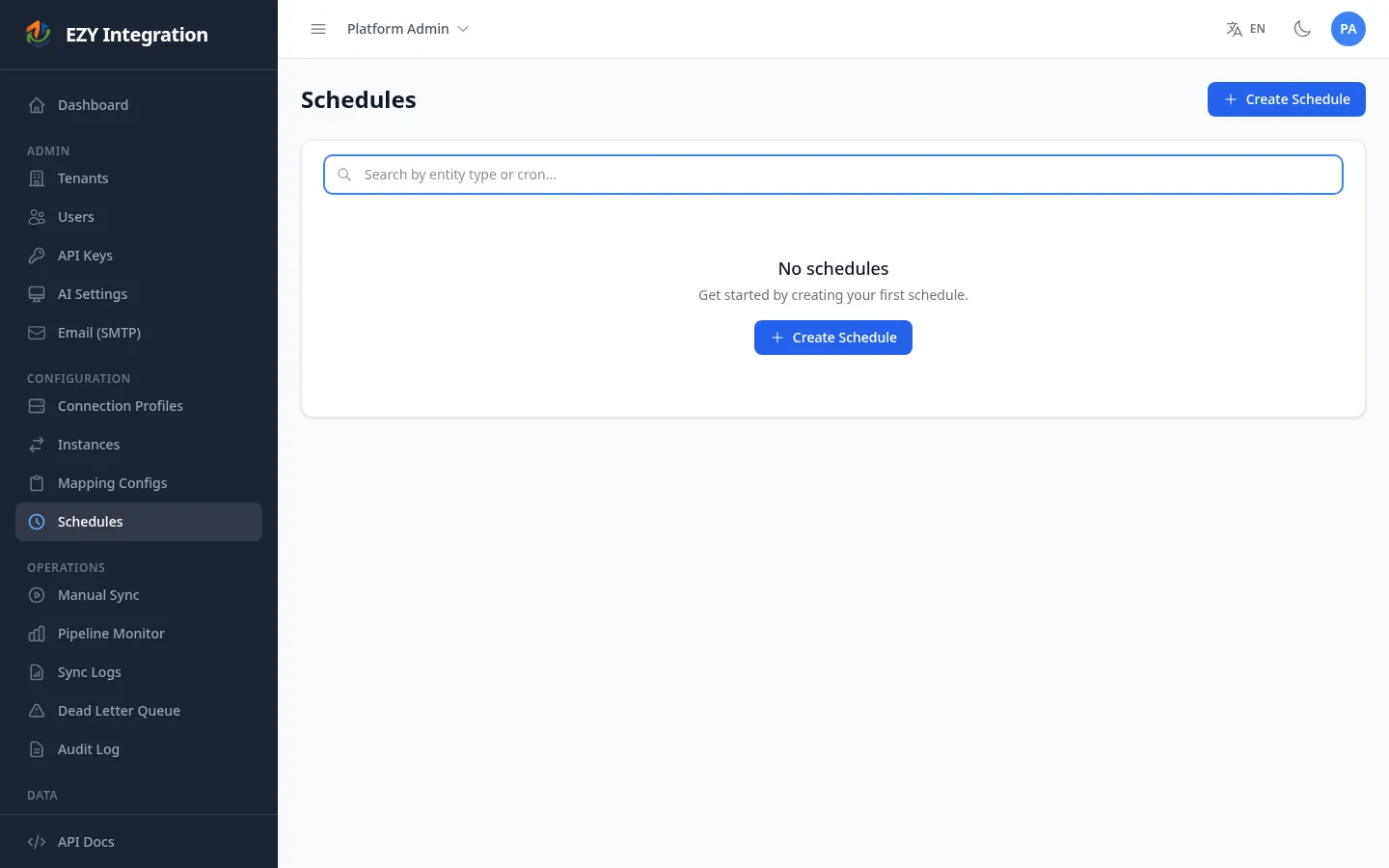
The Schedules list
Section titled “The Schedules list”The list displays the following columns:
| Column | Description |
|---|---|
| Instance | The instance this schedule belongs to. |
| Entity Type | The entity type this schedule syncs (e.g., item, bp, order). |
| Cron Expression | The schedule’s recurrence pattern in cron notation. |
| Status | Enabled (green) or Disabled (red). A schedule is also shown as Dependency Inactive (yellow) if its parent instance is inactive. |
| Last Run | Date and time of the most recent run triggered by this schedule. |
| Next Run | Calculated next fire time based on the cron expression. |
You can search across instance name, entity type, and cron expression using the search bar above the list.
Creating a schedule
Section titled “Creating a schedule”- On the Schedules page, click Create Schedule.
- Select the Instance to attach this schedule to (required).
- Select the Entity Type to sync on this schedule (required). The list is filtered to entity types configured in the selected instance’s mapping configs.
- Choose a Frequency using the schedule builder (see Cadence options below).
- Click Create Schedule.
Cadence options
Section titled “Cadence options”The schedule builder offers the following frequency modes. All modes generate a standard cron expression that is stored with the schedule.
| Mode | What it does | Example |
|---|---|---|
| Every X minutes | Runs every N minutes (1–59). | Every 15 minutes |
| Every X hours | Runs every N hours at a chosen minute offset (1–23). | Every 6 hours at :00 |
| Daily | Runs once per day at a chosen hour and minute. | Every day at 8:00 AM |
| Weekly | Runs on selected days of the week at a chosen time. | Every Monday and Wednesday at 9:00 AM |
| Monthly | Runs on a chosen day of the month (1–28) at a chosen time. | 1st of each month at 8:00 AM |
| Advanced (raw cron) | Enter a cron expression directly. The UI validates the expression and shows the next five scheduled occurrences. | 0 2 * * * (2:00 AM daily) |
When using the guided modes (all except Advanced), the UI displays a plain-language summary of the schedule and a preview of the next run times after the expression is built.
Schedule fields
Section titled “Schedule fields”| Field | Required | Description | Default |
|---|---|---|---|
| Instance | Yes | The instance this schedule triggers. | — |
| Entity Type | Yes | The entity type to sync when this schedule fires. | — |
| Frequency / Cron Expression | Yes | The recurrence pattern. Set using the schedule builder or entered directly in Advanced mode. | — |
| Active | No | Toggle to enable or disable the schedule. | Enabled |
Editing a schedule
Section titled “Editing a schedule”- On the Schedules list, click Edit next to the schedule.
- Update the Entity Type, Cron Expression, or Active state.
- Click Save.
The instance that owns the schedule cannot be changed on the edit page. To assign a schedule to a different instance, delete this schedule and create a new one.
Disabling vs. deleting a schedule
Section titled “Disabling vs. deleting a schedule”- Disabling (setting Active to off) pauses all future runs without removing the schedule. The schedule remains in the list and can be re-enabled at any time. The last run and next run fields are preserved.
- Deleting removes the schedule permanently. This does not affect the instance or any past run history.
Triggering a schedule manually
Section titled “Triggering a schedule manually”On the Schedules list, click the Trigger button next to a schedule to fire it immediately, regardless of its next scheduled time. This is equivalent to a manual run for that instance and entity type. The schedule’s next automatic run time is not affected.
Related pages
Section titled “Related pages”- Jobs Overview — manage instances.
- Manual Runs — trigger a run immediately from the Sync Trigger page.
- Run History — view completed run results.