DLQ and Message Replay
When a record fails at any pipeline stage and all automatic retries are exhausted, it is moved to the Dead Letter Queue (DLQ). Records in the DLQ are not lost — they are preserved with their full payload and error details. Once you have identified and fixed the underlying cause, you can replay the records to send them through the pipeline again.
What sends a record to the DLQ
Section titled “What sends a record to the DLQ”A record reaches the DLQ when it fails every automatic retry attempt. Common causes include:
- Permanent errors — the target system rejected the record (for example: a validation error, a missing required field in the mapping, or a conflict with an existing record). These cannot be resolved by retrying without a mapping change.
- Transient errors — a temporary condition such as a target system timeout or a network interruption. These are retried automatically; if retries are exhausted before the system recovers, the record lands in the DLQ.
- Unknown errors — unexpected failures that do not fit a known pattern. Inspect the error message to determine the next step.
Accessing the DLQ page
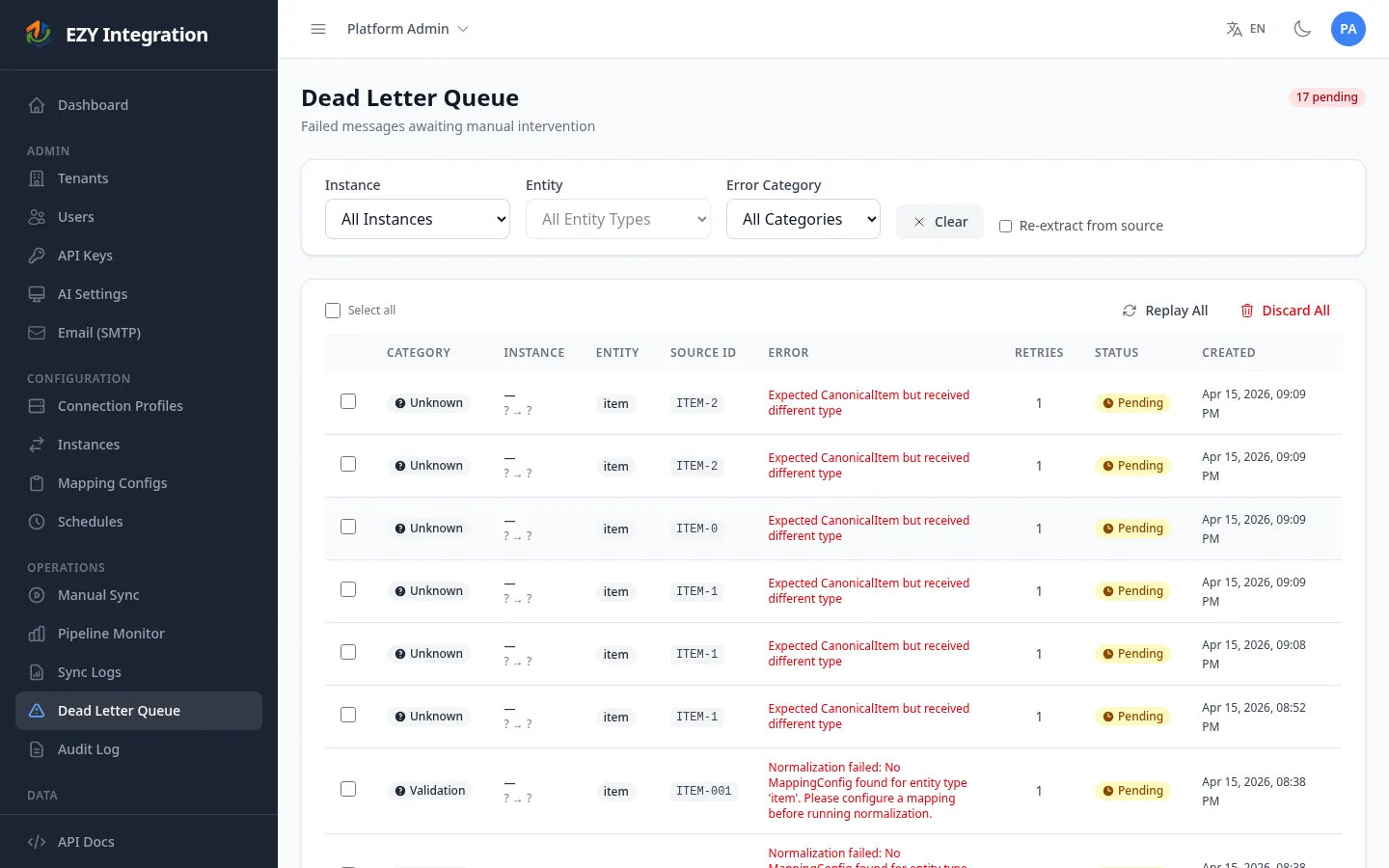
Section titled “Accessing the DLQ page”In the left navigation, select Dead Letter Queue. The page shows all pending failed records across all instances for your tenant, with a badge count showing how many are waiting.
The DLQ list
Section titled “The DLQ list”The list displays the following columns:
| Column | Description |
|---|---|
| Category | The error category: Transient (retryable), Permanent (requires a fix before replay), or Unknown. |
| Instance | The instance the failed record belongs to, with the source → target system labels. |
| Entity | The entity type of the failed record (e.g., item, order). |
| Source ID | The identifier of the record in the source system. |
| Error | A short excerpt of the error message. Click the row to see the full message. |
| Retries | How many times the record was retried before being placed in the DLQ. Values of 3 or more are highlighted in amber; 5 or more in red. |
| Status | Pending (not yet replayed), Replayed (replay was submitted), or Discarded (permanently removed). |
| Created | How long ago the record entered the DLQ. |
Filtering the DLQ
Section titled “Filtering the DLQ”Use the filter controls above the table to narrow the list:
| Filter | Description |
|---|---|
| Instance | Show records from a specific instance only. |
| Entity Type | Show records for a specific entity type (available after selecting an instance). |
| Error Category | Filter by Transient, Permanent, or Unknown. |
Click Clear Filters to reset all filters at once.
Inspecting a failed record
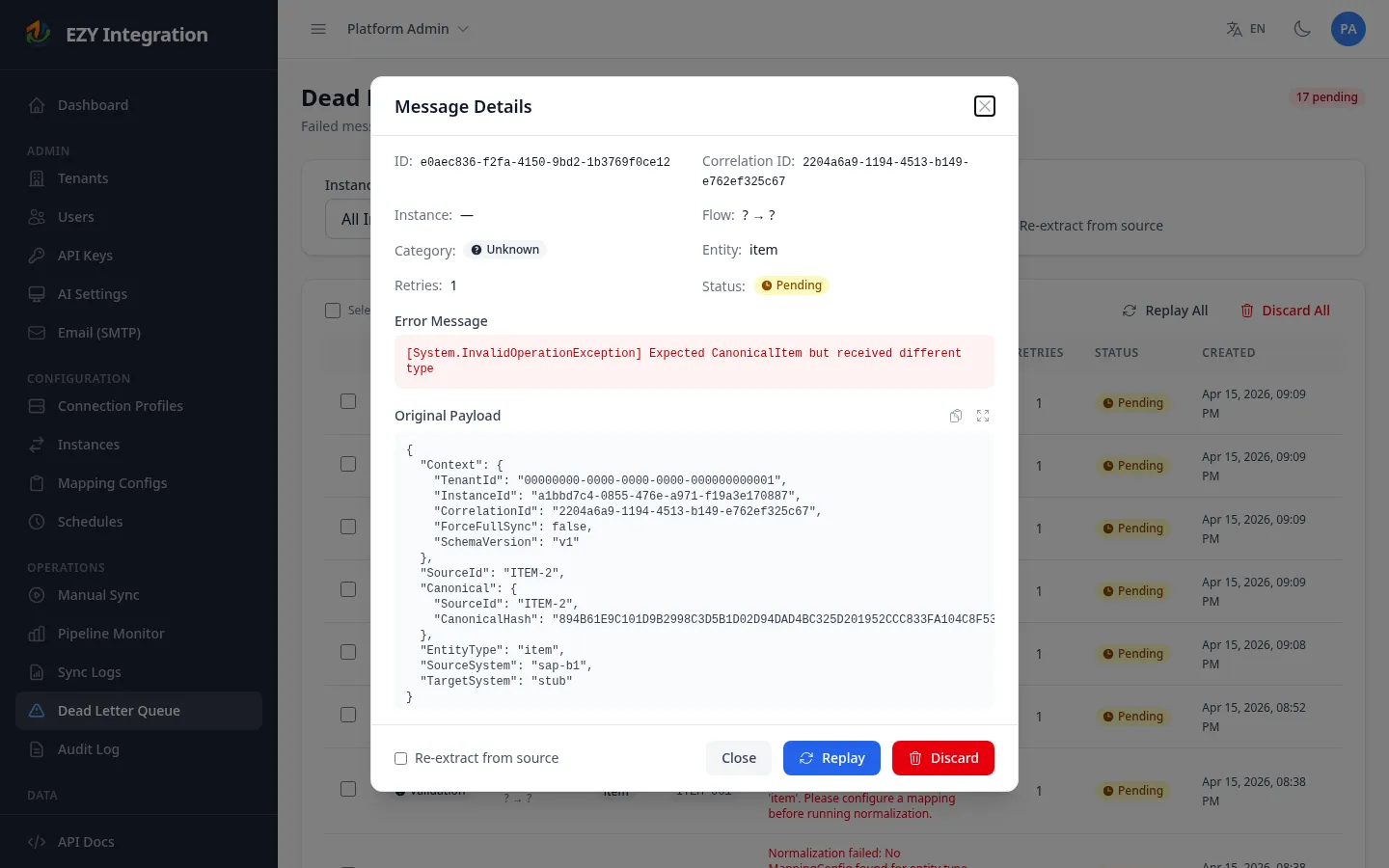
Section titled “Inspecting a failed record”Click any row to open the detail panel for that record. The panel shows:
- Instance and source → target flow
- Entity type and Source ID
- Error category and retry count
- Full error message — the exact error returned by the target system or by the pipeline stage
- Original payload — the full message payload at the point of failure, displayed as formatted JSON. Use the copy button to copy the full payload or just the target payload section to your clipboard. Use the expand button to view the payload full-screen.
Replaying a failed record
Section titled “Replaying a failed record”Replay sends the failed record back through the pipeline from the beginning (Ingest stage). Before replaying, fix the underlying cause — for example, correct the field mapping, re-activate the target system, or resolve the authentication issue.
To replay a single record:
- Click the record row to open the detail panel.
- Review the error message and confirm the cause has been resolved.
- Optionally enable Re-extract from source to fetch a fresh copy of the record from the source system before sending it through the pipeline. Use this option when the source record may have changed since the failure.
- Click Replay. The record’s status changes to Replayed.
To replay selected records:
- Check the boxes next to the records you want to replay.
- The toolbar above the table activates with Replay Selected (N).
- Optionally enable the Re-extract from source toggle in the filter bar.
- Click Replay Selected. A confirmation is not required for batch replay.
To replay all records (with optional filters):
- Apply any filters to narrow the scope if needed.
- Click Replay All (or Replay All Filtered when filters are active).
- Confirm the action in the dialog.
- All matching pending records are queued for replay.
When not to replay
Section titled “When not to replay”- Do not replay Permanent category errors without first fixing the root cause. The record will fail again immediately and return to the DLQ.
- Do not replay records if the target system has received the data through another means — replaying will attempt to write the record again and may cause duplicates depending on the connector’s duplicate handling.
Discarding records
Section titled “Discarding records”If a record is no longer relevant (for example, the order was cancelled or the data was manually entered in the target system), you can discard it instead of replaying.
- Discard single — click the row and click Discard in the detail panel.
- Discard selected — check multiple rows, then click Discard Selected (N) in the toolbar.
- Discard all (or all filtered) — click Discard All in the table header. This action requires confirmation and is permanent.
Discarded records are removed from the pending list and their status is set to Discarded. This action cannot be undone.
What users can resolve vs. escalate
Section titled “What users can resolve vs. escalate”| Situation | User action |
|---|---|
| Mapping field missing or incorrect | Fix the mapping configuration, then replay. |
| Target system was temporarily unavailable | Wait for the system to recover, then replay. |
| Authentication credentials changed | Update the connection profile credentials, then replay. |
| Record rejected due to data validation | Correct the source data or mapping, then replay with re-extract. |
| Unknown error with no clear cause | Inspect the full payload; if unresolvable, contact support with the Correlation ID. |
| Record volume is very large and replay is slow | Use instance and entity type filters to replay in smaller batches. |
Related pages
Section titled “Related pages”- Run History — view the full history of completed runs and their per-entity results.
- Common Errors — a reference of known error patterns and fixes.
- Debugging Runs — step-by-step guidance for diagnosing a failed run.