Debugging Runs
When a run produces errors or missing records, use this guide to work through the problem systematically. The process follows the pipeline from the outside in: start with the run summary, drill down to the failing stage, inspect the error detail, and then decide whether to fix configuration, fix source data, or replay DLQ messages.
Debugging workflow
Section titled “Debugging workflow”flowchart TD
A[Run failed or partial success?] --> B[Open Sync Logs\nfind the run]
B --> C{Which stage\nfailed?}
C -->|Ingest| D[Check connection profile\nand extraction config]
C -->|Normalize| E[Check normalization block\nin mapping config]
C -->|Transform| F[Check field mappings\nand transformers]
C -->|Execute| G[Check target connection\nand rejection message]
C -->|Finalize| H[Contact support\nif persistent]
D --> I{Fixed?}
E --> I
F --> I
G --> I
I -->|Yes| J[Replay DLQ messages\nif any, or re-run job]
I -->|No| K[Gather info and\ncontact support]
Step 1 — Open Sync Logs and find the run
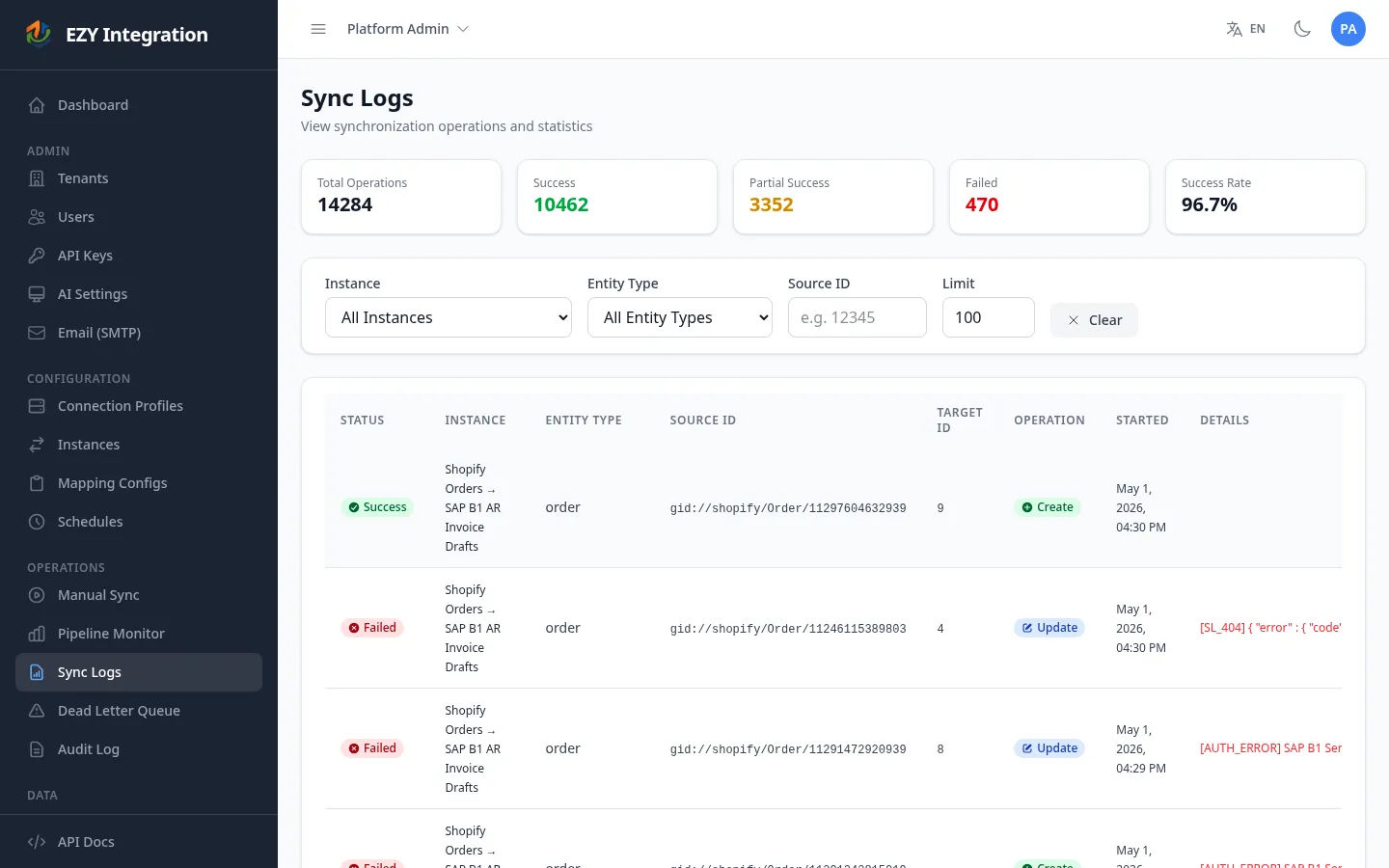
Section titled “Step 1 — Open Sync Logs and find the run”- In the left navigation, go to Monitoring > Sync Logs (Run History).
- Locate the run by instance name, date, or status. Runs with failures show a Failed or Partial Success status.
- Click the run row to open the run detail view.
Step 2 — Identify the failing stage
Section titled “Step 2 — Identify the failing stage”The run detail view shows a breakdown by stage and entity type. Look for:
- Which stage has a non-zero error count.
- The error message text for one of the failing entities.
- The total counts: extracted, normalized, transformed, executed, finalized, failed.
The stage with the first non-zero error count is where the problem started. All downstream stages will also show zero success for those records.
Step 3 — Diagnose by error category
Section titled “Step 3 — Diagnose by error category”The error detail for each failed record includes an error category alongside the message. Use these categories to guide your next step.
| Error category | What it means | Immediate action |
|---|---|---|
| Auth | Credentials in a connection profile are wrong or expired. | Open the connection profile, update credentials, run the connection test. |
| Validation | A field value or mapping rule failed validation. | Review the mapping configuration for the affected entity type. |
| Transient | A temporary network or service interruption. | Wait a few minutes, then replay from the DLQ. |
| Rate limit | The target system rejected the request because the job exceeded its API quota. | Reduce run frequency or contact the target system’s administrator. Replay from the DLQ after the quota window resets. |
| Dependency not ready | A dependent entity (for example, a business partner group) has not yet been synced to the target. | Run the dependent job first, then replay. |
Step 4 — Cross-reference recent config changes
Section titled “Step 4 — Cross-reference recent config changes”If the run was working previously and suddenly fails, check whether a recent configuration change caused the problem:
- Open Monitoring > Audit Log.
- Filter by the affected instance or connection profile.
- Look for changes made shortly before the failure started — such as an updated mapping configuration or rotated credentials.
Step 5 — Check the DLQ for stuck messages
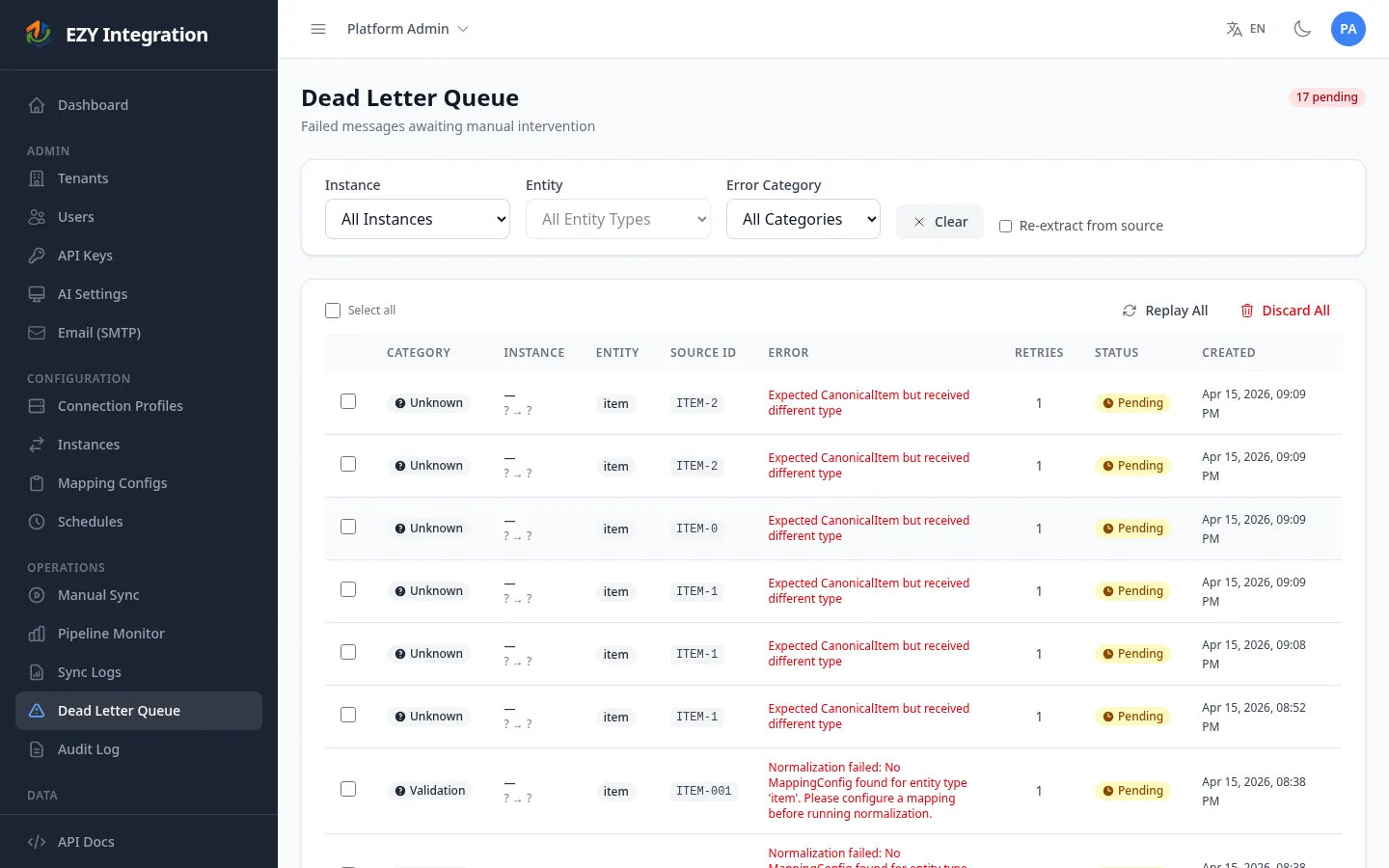
Section titled “Step 5 — Check the DLQ for stuck messages”- Go to Jobs > DLQ in the left navigation.
- Filter by the instance name to see only messages from this job.
- Note the error category and the error message for each stuck message.
- If the root cause is fixed, select the messages and click Replay.
See DLQ and Replay for full replay instructions.
Step 6 — Decide: replay vs. fix mapping vs. escalate
Section titled “Step 6 — Decide: replay vs. fix mapping vs. escalate”| Situation | Action |
|---|---|
| Error is Auth | Update credentials in the connection profile, re-test, then replay DLQ messages. |
| Error is Validation or Transform | Fix the mapping configuration, save it, then replay DLQ messages. |
| Error is Transient or Rate limit | Replay DLQ messages without any config change; the issue was temporary. |
| Error is not in the DLQ but records are missing | Check the source system — the records may not have been extracted in the first place. Reset the sync cursor if needed (see Mapping Configuration). |
| Error persists after all the above | See Contacting Support for what to gather before escalating. |
Related pages
Section titled “Related pages”- Common Errors — Reference table of error symptoms and fixes.
- Run History — How to read run status and detail views.
- DLQ and Replay — Full replay instructions.
- Contacting Support — What to prepare before escalating to engineering.