Image Sources
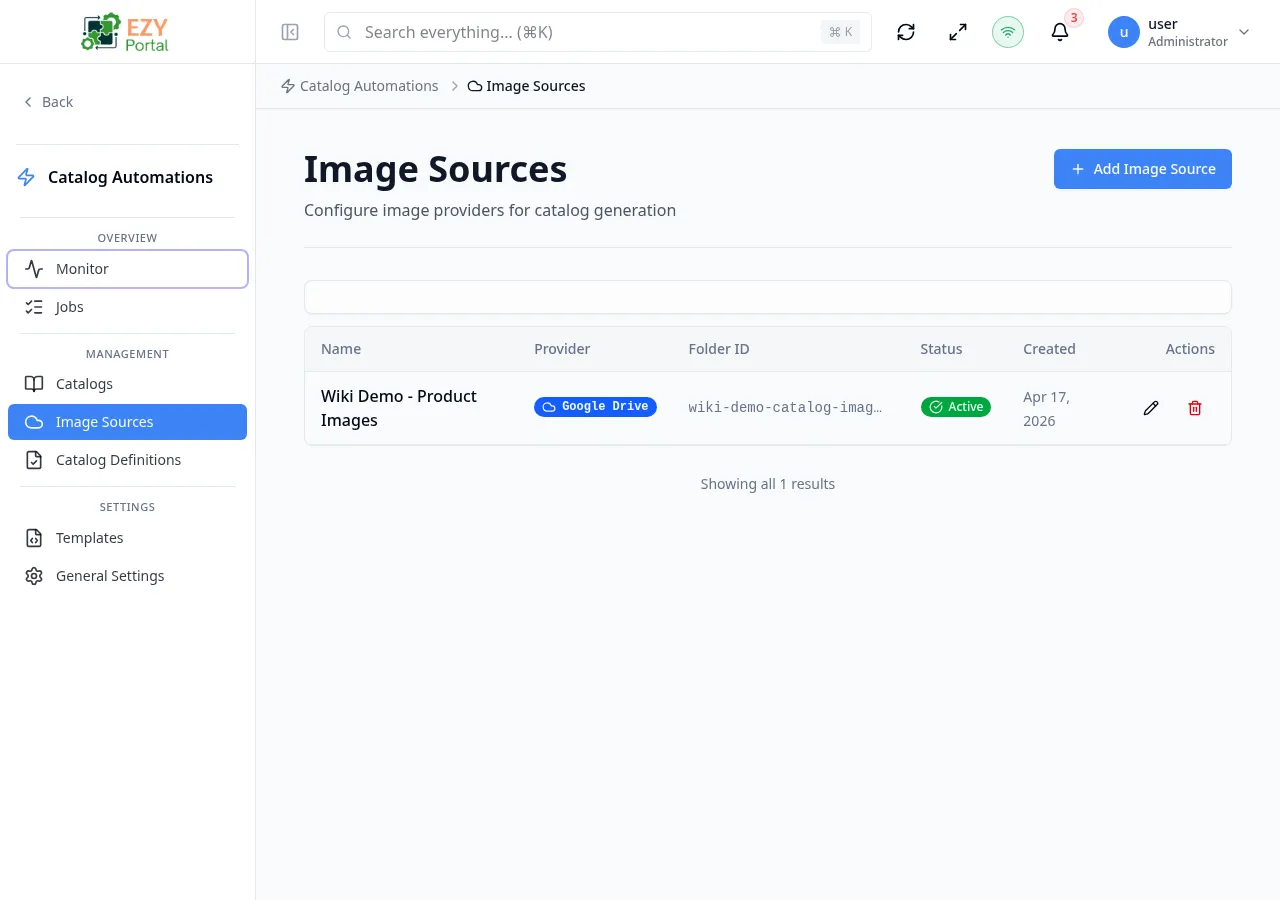
The Image Sources page lists all cloud storage connections configured for catalog image retrieval. Each image source links a provider account and folder to the module so that catalog definitions can locate product images by SKU during job execution.
Accessing the Page
Section titled “Accessing the Page”Navigate to Catalog Automation → Image Sources in the sidebar, or go to /catalog-automation/image-sources.
List Columns
Section titled “List Columns”| Column | Default Visible | Sortable | Description |
|---|---|---|---|
| Name | Yes | No | Display name for the image source |
| Provider | Yes | No | Cloud storage provider badge (e.g., Google Drive) |
| Folder ID | Yes | No | Provider folder identifier where product images are stored |
| Status | Yes | No | Active or Inactive badge |
| Created | Yes | No | Date the image source was added |
Status Values
Section titled “Status Values”| Status | Description |
|---|---|
| Active | Source is available for selection in Definitions |
| Inactive | Source is excluded from Definition selection; existing definitions that reference it will not be able to resolve images |
Filtering
Section titled “Filtering”The Image Sources list does not include a filter panel. All sources are displayed together.
Sorting
Section titled “Sorting”The list does not support column-level sorting. Records are returned in reverse-chronological order (newest first).
Pagination
Section titled “Pagination”The list uses a Load More pattern with infinite scroll:
- Page size: 20 records per load
- Scrolling near the bottom of the list automatically loads the next batch
- A message displays the total count when all results are shown
Actions
Section titled “Actions”Page Actions
Section titled “Page Actions”| Action | Description | Permission |
|---|---|---|
| Add Image Source | Opens the Create Image Source dialog | catalog-automation.image-sources (Write) |
| Refresh | Reloads the list from the server | — |
Row Actions
Section titled “Row Actions”| Action | Description | Permission |
|---|---|---|
| Edit | Opens the Edit Image Source dialog for the selected row | catalog-automation.image-sources (Write) |
| Delete | Removes the image source after confirmation | catalog-automation.image-sources (Admin) |
Creating an Image Source
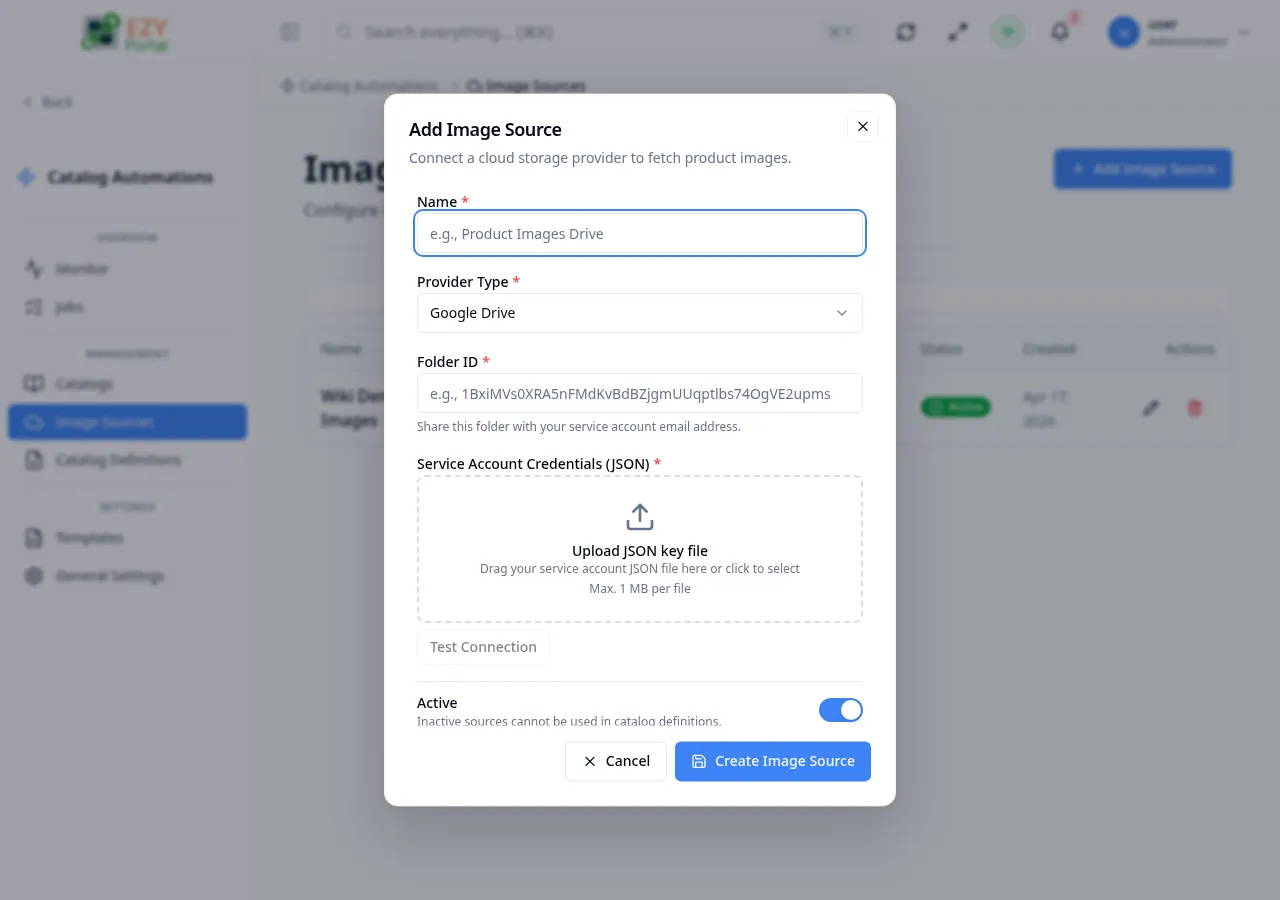
Section titled “Creating an Image Source”Click Add Image Source in the page header to open the dialog.
Fields
Section titled “Fields”| Field | Required | Type | Description | Default | Validation |
|---|---|---|---|---|---|
| Name | Yes | Text | Display name for this source | — | Cannot be empty |
| Provider Type | Yes | Select | Cloud storage provider to connect to | Google Drive | Read-only after creation |
| Folder ID | Yes (Google Drive) | Text | Folder identifier in the provider; required when provider is Google Drive | — | Cannot be empty for Google Drive |
| Service Account Credentials (JSON) | Yes | File upload | Google service account key file in JSON format; upload a .json file or paste the content | — | Must be valid JSON; required on create |
| Active | — | Toggle | Makes the source available to Definitions | On | — |
To create an image source:
- Click Add Image Source.
- Enter a Name.
- Select the Provider Type (currently Google Drive; Dropbox, Box, and OneDrive are coming soon).
- Enter the Folder ID — the folder must be shared with the service account email.
- Upload the Service Account Credentials JSON file.
- Optionally click Test Connection to validate the credentials and folder access before saving.
- Keep Active toggled on.
- Click Create Image Source.
After saving, the dialog closes and the new source appears in the list.
Note: The folder identified by the Folder ID must be shared with the service account email address contained in the credentials file. If the folder is not shared, the Test Connection check will fail and jobs will be unable to resolve images.
Editing an Image Source
Section titled “Editing an Image Source”Click the Edit (pencil) icon on a row to open the Edit dialog. The same fields apply with the following differences:
- Provider Type is read-only after creation.
- The credentials field is hidden by default. Enable the Update Credentials toggle to replace the stored credentials with a new JSON file.
After saving, the dialog closes and the updated source is available immediately.
Deleting an Image Source
Section titled “Deleting an Image Source”- Click the Delete (trash) icon on the target row.
- A confirmation dialog warns that the action cannot be undone.
- Click Delete to confirm.
Note: Deleting an image source that is referenced by active Definitions will not delete those definitions, but those definitions will no longer be able to resolve images. Migrate dependent definitions to a different source before deleting.
Common tasks
Section titled “Common tasks”- Open the page from the sidebar under Catalog Automation.
- Click Add Image Source, fill in the credentials, and click Test Connection to confirm access.
- After confirming connectivity, save the source and assign it to one or more Definitions.
Related Pages
Section titled “Related Pages”- Definitions — Assign an image source to a catalog generation rule
- Jobs — Run catalog generation jobs that use these image sources
- Settings — Module-level configuration including default provider