Deal Detail
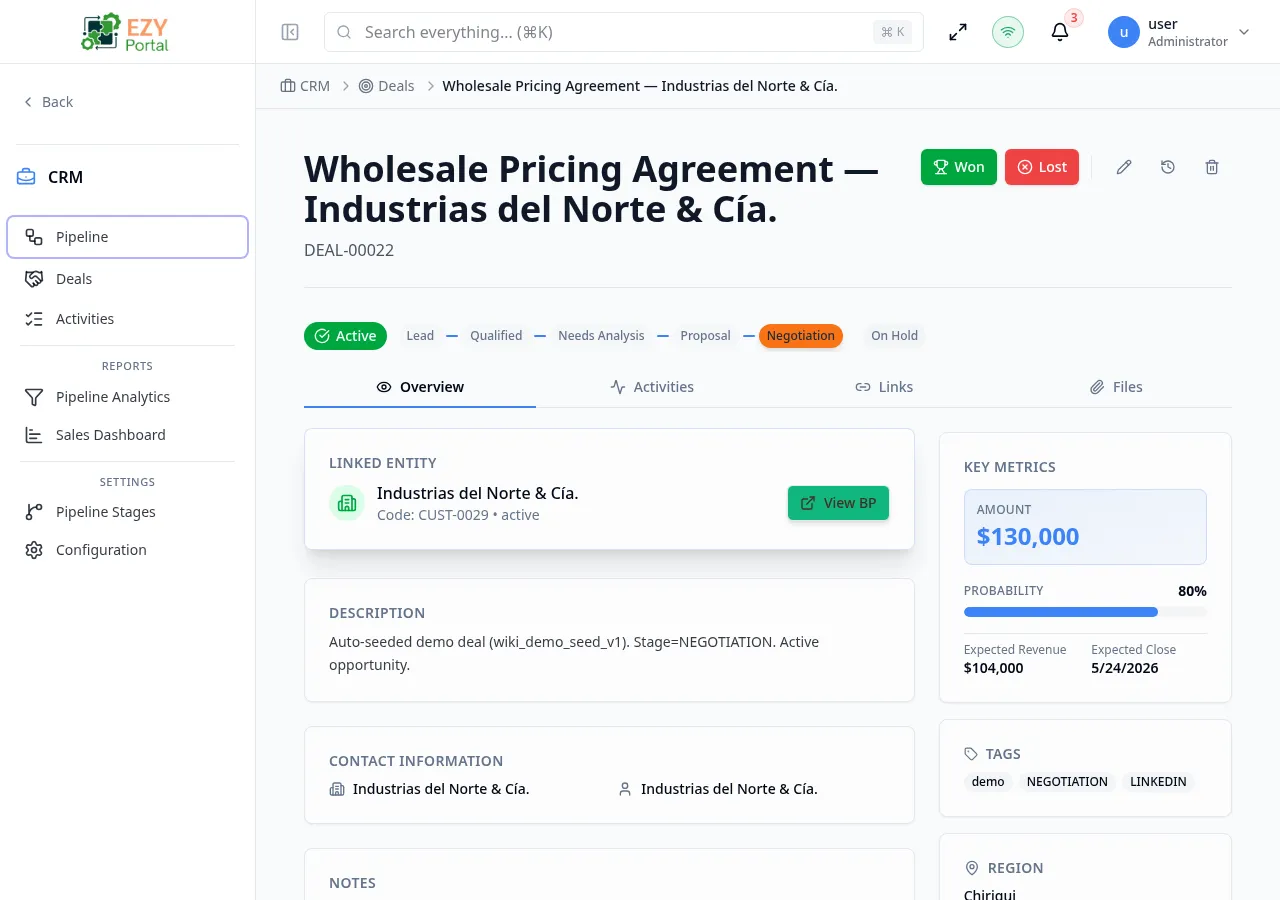
The Deal Detail page is the central record for a single deal. It shows the deal’s current stage in a visual progress bar, key financial metrics in a sidebar, linked prospect or business partner, contact information, and four tabs for overview, activities, links, and file attachments. From this page you can advance the deal through the pipeline, mark it as Won or Lost, reopen a closed deal, or delete it.
Accessing the Page
Section titled “Accessing the Page”From the Deal List, click any row, or from the Pipeline, click any deal card. Direct URL: /deals/:id.
Header / Action Bar
Section titled “Header / Action Bar”The page title shows the deal name. The deal code appears as a subtitle.
| Button | Condition | Description |
|---|---|---|
| Won (green) | Deal is Active and user has write access | Mark the deal as Won — opens win reason dialog |
| Lost (red) | Deal is Active and user has write access | Mark the deal as Lost — opens loss reason dialog |
| Reopen | Deal is Won or Lost | Return the deal to Active status |
| Edit (pencil icon) | User has write access | Open the Edit Deal form |
| History (clock icon) | Always | Open the field-change history dialog |
| Delete (trash icon) | User has delete access | Delete the deal after confirmation |
When the user is outside the deal’s scope (region-restricted), a Scope Warning Banner appears and the Won, Lost, and Edit buttons are disabled.
Mark as Won dialog
Section titled “Mark as Won dialog”When you click Won:
- A dialog titled Mark Deal as Won opens.
- Enter an optional win reason.
- Click Mark as Won to confirm.
Mark as Lost dialog
Section titled “Mark as Lost dialog”When you click Lost:
- A dialog titled Mark Deal as Lost opens.
- Enter a required loss reason.
- Click Mark as Lost to confirm.
If the deal is linked to a prospect and this is the last active deal for that prospect, the prospect’s status may be updated automatically.
Stage Progress Bar
Section titled “Stage Progress Bar”For active deals, a horizontal stage selector shows all non-closed pipeline stages as clickable buttons. The current stage is highlighted with the stage’s color. Click any other stage to move the deal there immediately (requires write access).
The page has four tabs. Tab selection does not sync with the URL hash.
Overview Tab
Section titled “Overview Tab”The overview is a two-column layout with a main content area and a sidebar.
Main content area
Section titled “Main content area”Linked Entity — shown only when the deal is linked to a prospect or business partner:
| Field | Description |
|---|---|
| Prospect name + code | Links to the prospect detail; shown when deal has a prospect link |
| Business Partner name + code | Links to the BP detail; shown when deal has a BP link |
Description — shown when the deal has a description.
Contact Information:
| Field | Description |
|---|---|
| Company Name | Contact company (click to copy) |
| Contact Name | Contact person |
| Contact email (click to copy) | |
| Phone | Contact phone (click to copy) |
Notes — shown when the deal has internal notes.
Sidebar
Section titled “Sidebar”Key Metrics:
| Field | Description |
|---|---|
| Amount | Deal value in a highlighted box |
| Probability | Percentage with a colored progress bar |
| Expected Revenue | Amount × probability |
| Expected Close Date | Target close date |
Tags — tag badges shown when the deal has tags.
Region — assigned region name, shown when set.
Lead Source — source and campaign fields, shown when set.
Activities Tab
Section titled “Activities Tab”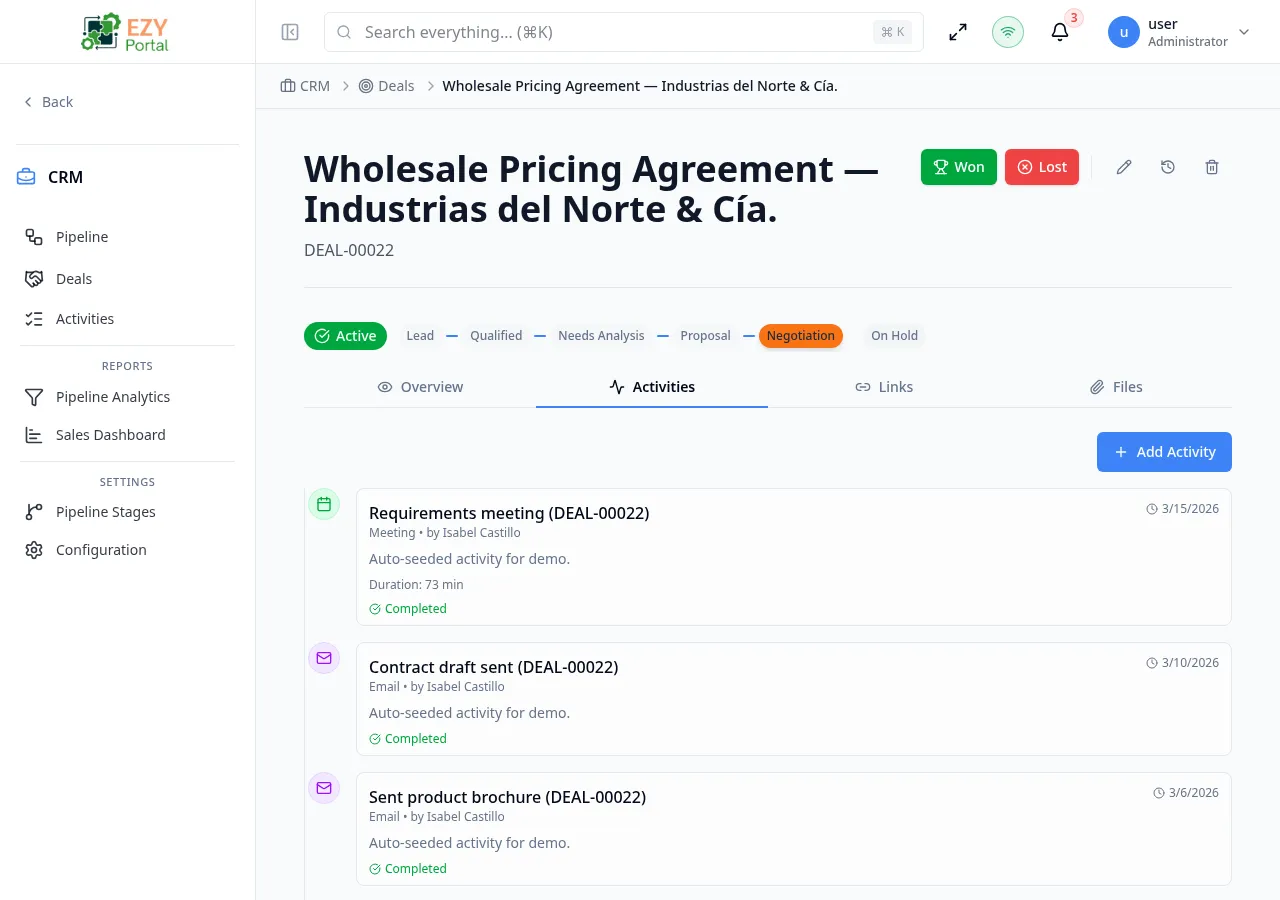
The Activities tab shows a chronological timeline of all activities logged against this deal. Up to 50 activities are loaded. Each entry shows the activity type, subject, outcome, assignee, and relative timestamp.
From this tab you can create new activities or edit and delete existing ones. See the Activities page for activity type details.
Links Tab
Section titled “Links Tab”The Links tab shows other records linked to this deal using the entity-link panel. You can add links to prospects, business partners, and other supported entity types. Links are filtered by your permission level.
Files Tab
Section titled “Files Tab”The Files tab provides file upload, download, and deletion for documents attached to this deal. Files are stored under the CRM/deals folder.
History Dialog
Section titled “History Dialog”Click the History (clock) button to open a dialog showing all field-level changes to the deal record: which field changed, the before value, the after value, the user who made the change, and the timestamp.
Deleting a Deal
Section titled “Deleting a Deal”- Click the Delete icon in the action bar.
- A confirmation dialog shows the deal title and warns the action is permanent.
- Click Delete to confirm — you are redirected to the Deal List.
Deletion requires the delete permission and write scope access.
Business rule notes
Section titled “Business rule notes”- Expected Revenue is computed as
Amount × (Probability / 100). It is a display-only value and cannot be edited directly. - Reopen returns the deal to its most recent active stage.
- If the linked prospect has other active deals when this deal is marked Lost, an informational toast will note the count of remaining active deals.
Common tasks
Section titled “Common tasks”- Open the deal from the Deal List or Pipeline.
- Review the stage progress bar and click a stage to advance the deal.
- When ready to close, click Won or Lost and provide the required reason.
Related Pages
Section titled “Related Pages”- Deal List — Back to the full deal list
- Edit Deal — Update deal fields
- Pipeline — Kanban board view
- Activities — All activities across deals