Templates
The Templates page is the registry for all catalog layout templates in the system. Each template contains the HTML used to render the output catalog and optional WhatsApp delivery message customizations. Templates are referenced by definitions and are applied when jobs generate catalogs.
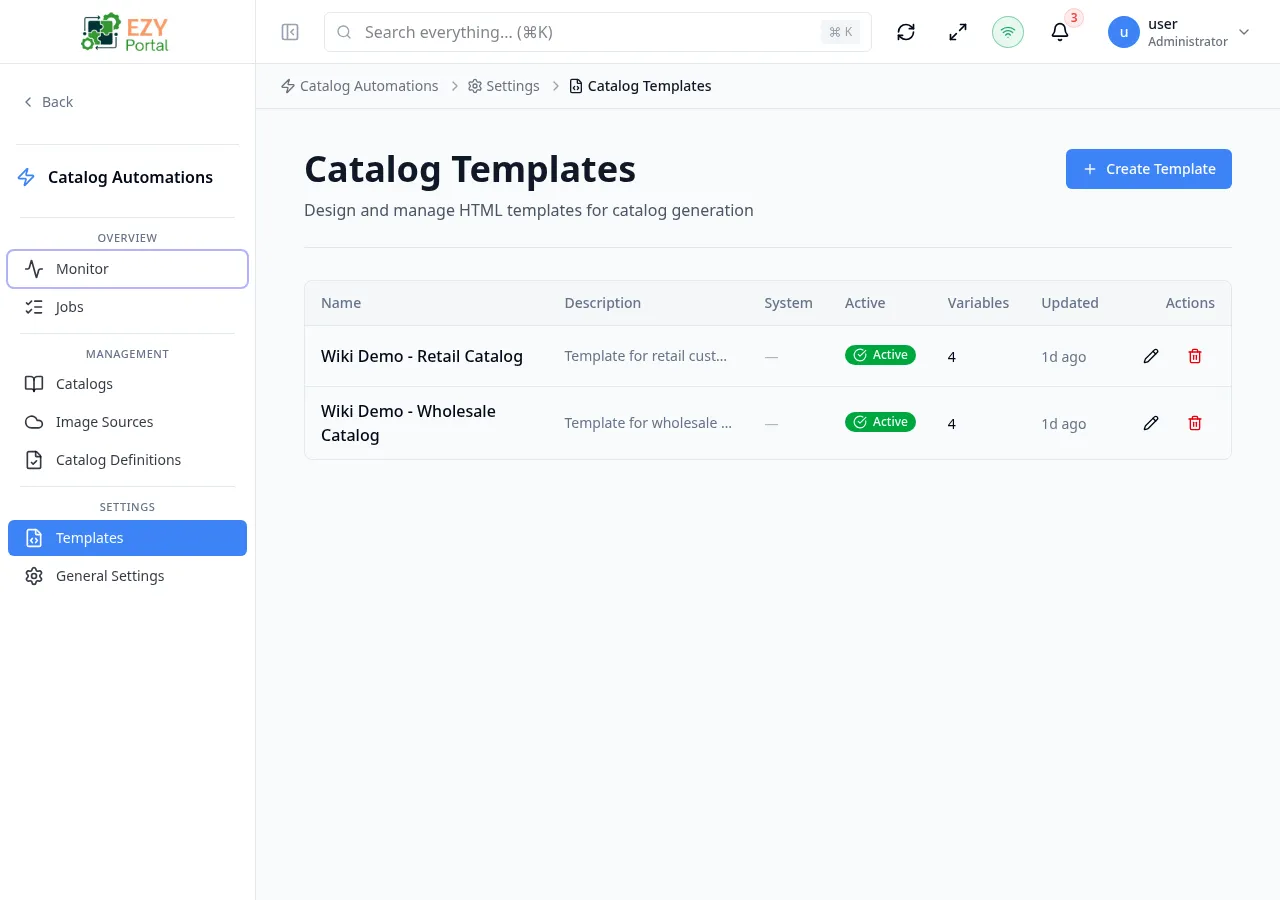
Accessing the Page
Section titled “Accessing the Page”Navigate to Catalog Automation → Settings → Templates in the sidebar, or go to /catalog-automation/settings/templates.
What you can do here
Section titled “What you can do here”- View all catalog templates, including system-provided templates.
- Create a new custom template using the template editor.
- Open an existing non-system template in the full-screen editor to modify it.
- Review the number of template variables used by each template.
- Delete non-system templates that are no longer needed.
Common tasks
Section titled “Common tasks”- Open the page from the sidebar under Catalog Automation → Settings.
- Click Create Template to open the editor and author a new HTML layout.
- To modify an existing template, click the Edit icon on its row to reopen the editor.
- After saving, the template is immediately available for selection in Definitions.
- System templates are protected: they cannot be edited or deleted. They are marked with a System badge and a lock icon in the Name column.
- Deleting a custom template that is referenced by an active Definition will not break existing catalogs, but new jobs using that definition will fall back to the default built-in template.
- Templates use Handlebars-style variables. Available catalog variables include
{{catalog.title}},{{catalog.customerName}},{{catalog.customerEmail}}, and item-level variables accessed inside{{#each catalog.items}}.
List Columns
Section titled “List Columns”| Column | Default Visible | Sortable | Description |
|---|---|---|---|
| Name | Yes | No | Template name; system templates show a lock icon before the name |
| Description | Yes | No | Optional description text |
| System | Yes | No | System badge if the template is a protected system template |
| Active | Yes | No | Active or Inactive status badge |
| Variables | Yes | No | Count of distinct template variables detected in the HTML body |
| Updated | Yes | No | Relative time since last modification; hover for full timestamp |
Status Values
Section titled “Status Values”| Status | Description |
|---|---|
| Active | Template is available for use in Definitions |
| Inactive | Template is excluded from Definition selection |
Filtering
Section titled “Filtering”The Templates list does not include a filter panel. All templates are displayed together. System templates appear alongside custom templates.
Sorting
Section titled “Sorting”The templates list does not support column-level sorting. Records are returned in the order they were created.
Pagination
Section titled “Pagination”All templates are shown on a single page. There is no Load More or page-based pagination.
Actions
Section titled “Actions”Page Actions
Section titled “Page Actions”| Action | Description | Permission |
|---|---|---|
| Create Template | Navigates to the full-screen template editor to create a new template | catalog-automation.templates (Write) |
| Refresh | Reloads the template list | — |
Row Actions
Section titled “Row Actions”Each row provides icon buttons:
| Action | Description | Permission |
|---|---|---|
| Edit | Navigates to the template editor for the selected template — disabled for system templates | catalog-automation.templates (Write) |
| Delete | Removes the template after confirmation — disabled for system templates | catalog-automation.templates (Admin) |
Creating a Template
Section titled “Creating a Template”Click Create Template to open the full-screen template editor at /catalog-automation/settings/templates/new.
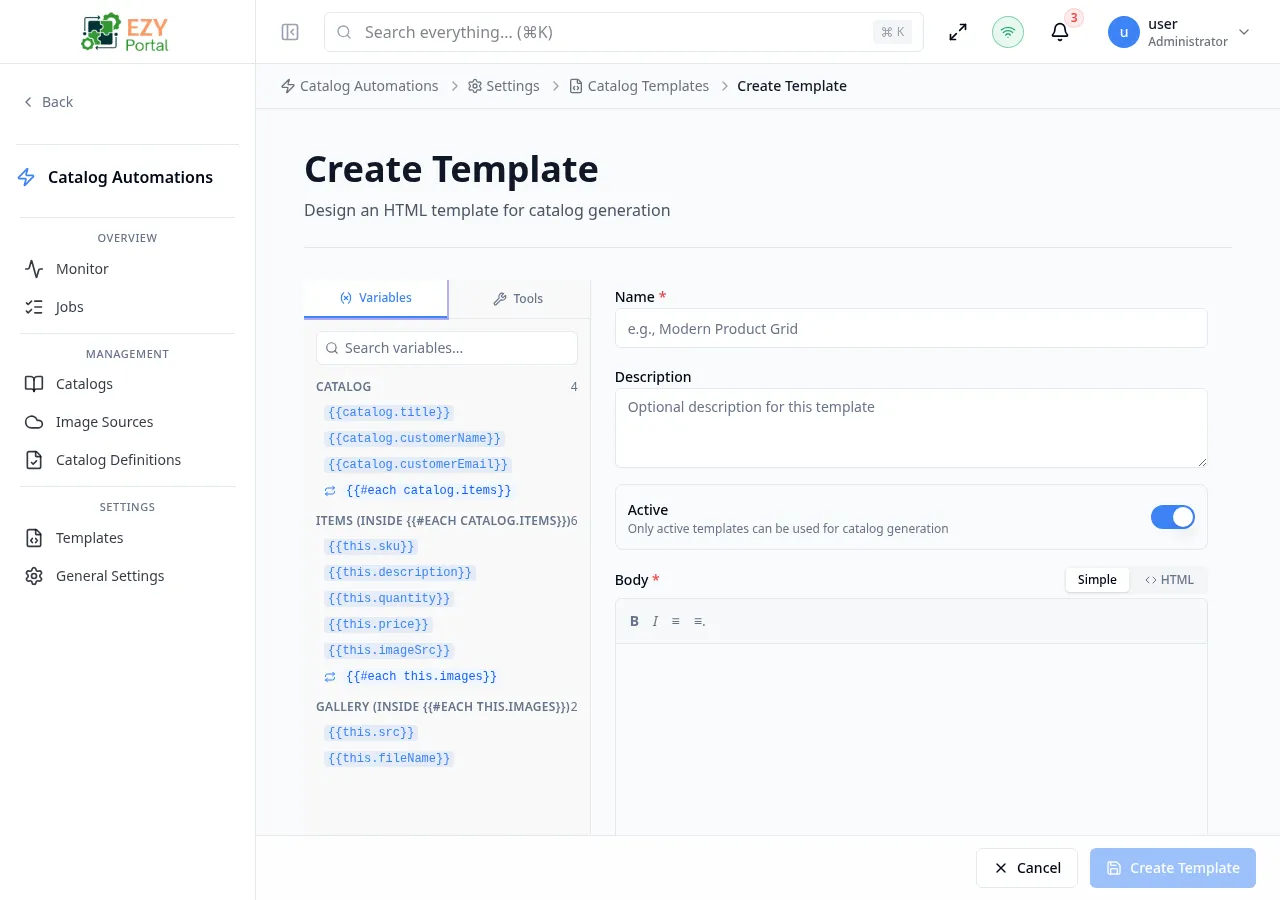
The editor provides the following fields:
| Field | Required | Type | Description | Default | Validation |
|---|---|---|---|---|---|
| Name | Yes | Text | Display name for the template | — | Cannot be empty |
| Description | No | Text | Optional short description | — | — |
| HTML Body | Yes | Code editor | Full HTML content with Handlebars-style variable interpolation | — | Cannot be empty |
| Active | No | Toggle | Whether this template can be selected in Definitions | On | — |
| WhatsApp Image Caption | No | Text | Custom caption text sent with each image over WhatsApp — supports {sku}, {imageNumber}, {imageTotal} variables | System default | — |
| WhatsApp Completion Message | No | Text | Message sent after all images are delivered — supports {imageCount} variable | System default | — |
To create a template:
- Click Create Template.
- Enter a Name.
- Author the HTML Body using the code editor. Use the variable picker to insert catalog and item variables.
- Optionally customize WhatsApp Image Caption and WhatsApp Completion Message for WhatsApp delivery.
- Keep Active toggled on.
- Click Save.
After saving, the editor navigates back to the Templates list and the new template appears immediately.
Editing a Template
Section titled “Editing a Template”Click the Edit (pencil) icon on a non-system row. The editor opens at /catalog-automation/settings/templates/{id} pre-populated with the current template content. The same fields apply. Click Save to apply changes.
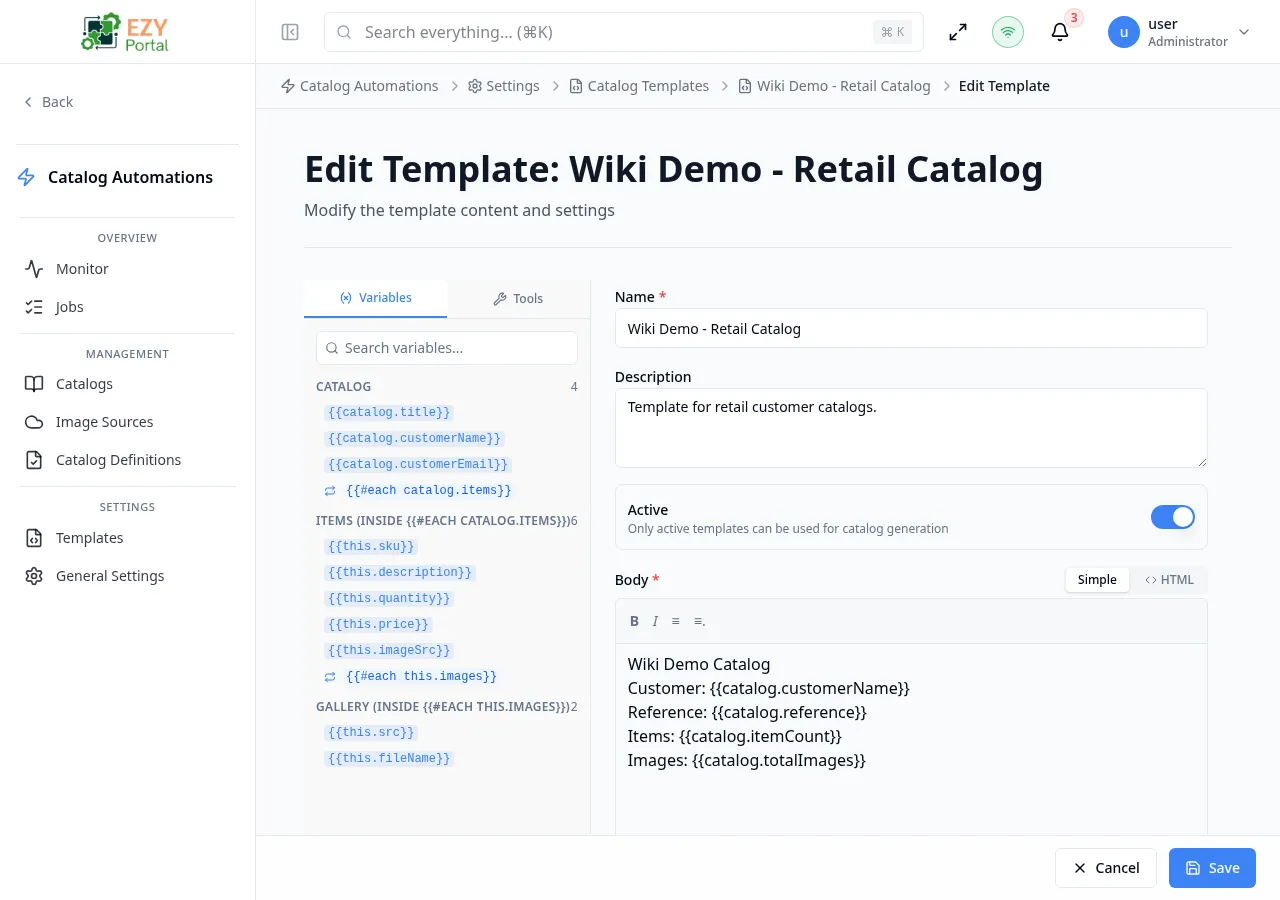
System templates show the edit icon as disabled. Hovering over the disabled button shows a tooltip: “System templates cannot be modified”.
Deleting a Template
Section titled “Deleting a Template”- Click the Delete (trash) icon on a non-system row.
- A confirmation dialog warns that the action cannot be undone.
- Click Delete to confirm.
System templates show the delete icon as disabled.
Related Pages
Section titled “Related Pages”- Definitions — Assign templates to catalog generation rules
- Settings — Module-level configuration including expiration and concurrency settings