Menu Layout
Menu Layout is the menu customization workspace. It builds a tree from static settings entries and active micro-frontend services, then lets administrators adjust visibility and ordering for the tenant.
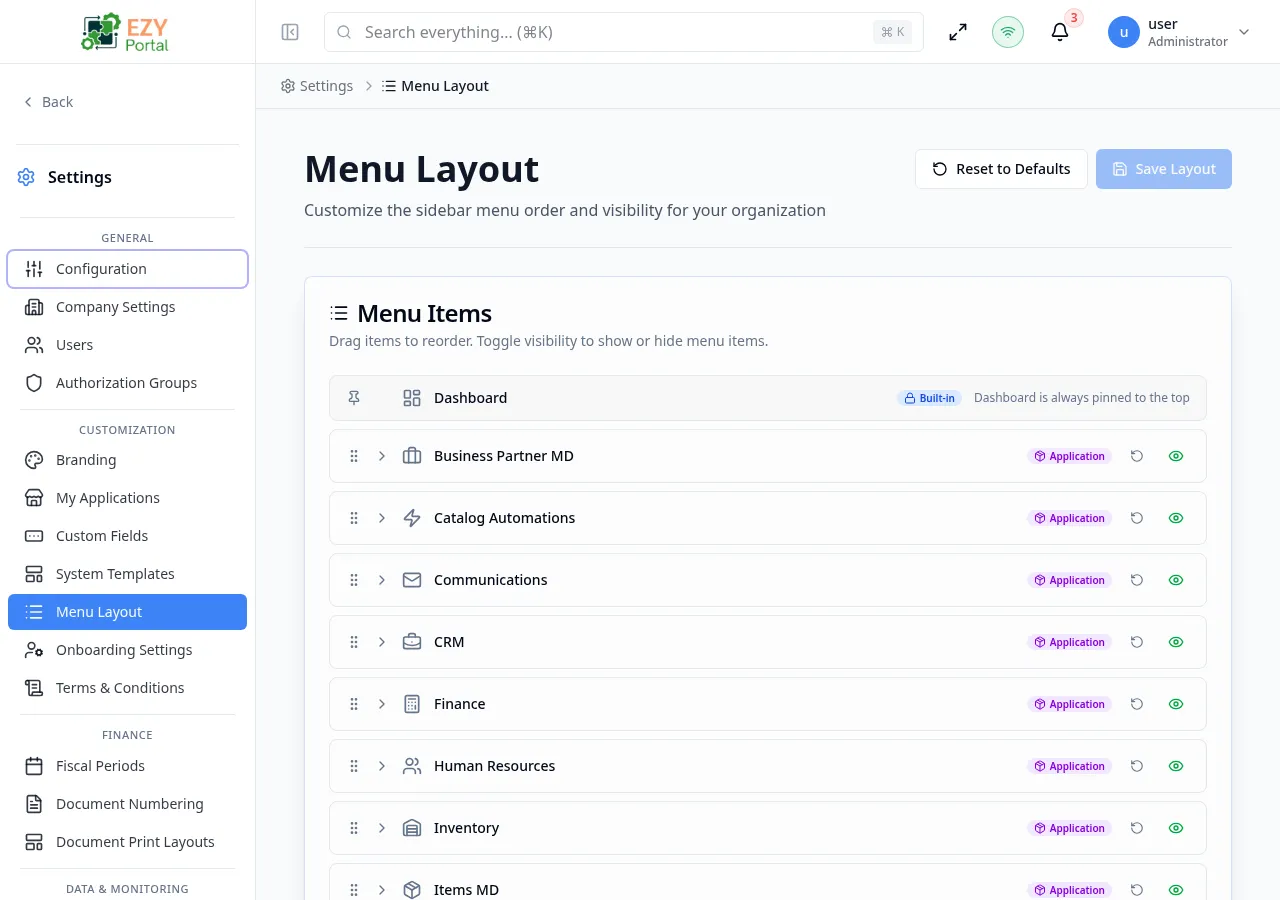
Accessing the Page
Section titled “Accessing the Page”- Route:
/menu-customization - Menu Path: Settings → Customization → Menu Layout
- Primary audience: Tenant administrators and other users with the required admin role.
What you can do here
Section titled “What you can do here”- Review the current navigation tree.
- Show or hide menu items without deleting application access.
- Reorder top-level and child items.
- Reset the full menu or reset a service section back to defaults.
- Save changes and validate the resulting sidebar.
Common tasks
Section titled “Common tasks”- Open Settings → Customization → Menu Layout.
- Expand the tree and review the affected service or settings section.
- Adjust ordering or visibility.
- Use reset only when you want to discard custom menu changes.
- Save and refresh the portal to verify the sidebar.
- Menu visibility does not grant permissions. Users still need the required role or authorization group for each page.
- The page operates in one of two modes set by the system administrator under System Settings → Menu Customization Mode:
- Per tenant (default) — each tenant administrator can reorder/hide menu items independently; changes persist as a per-tenant override.
- System tenant default — the menu layout is managed centrally from the system tenant and applied to every tenant. Tenant administrators see the Menu Layout page in read-only mode; only system administrators can save changes (which propagate to all tenants).
- Items disabled platform-wide via System Settings → Feature Access (Custom Fields, System Templates, Tenant API Keys) are removed from the tree entirely and do not appear in Menu Layout for hiding/ordering.
- Sections corresponding to Core Settings that are not yet configured (document numbering, fiscal periods, document print layout, allowed reports) are also hidden from the tree until the underlying setting is configured.