Catalogs
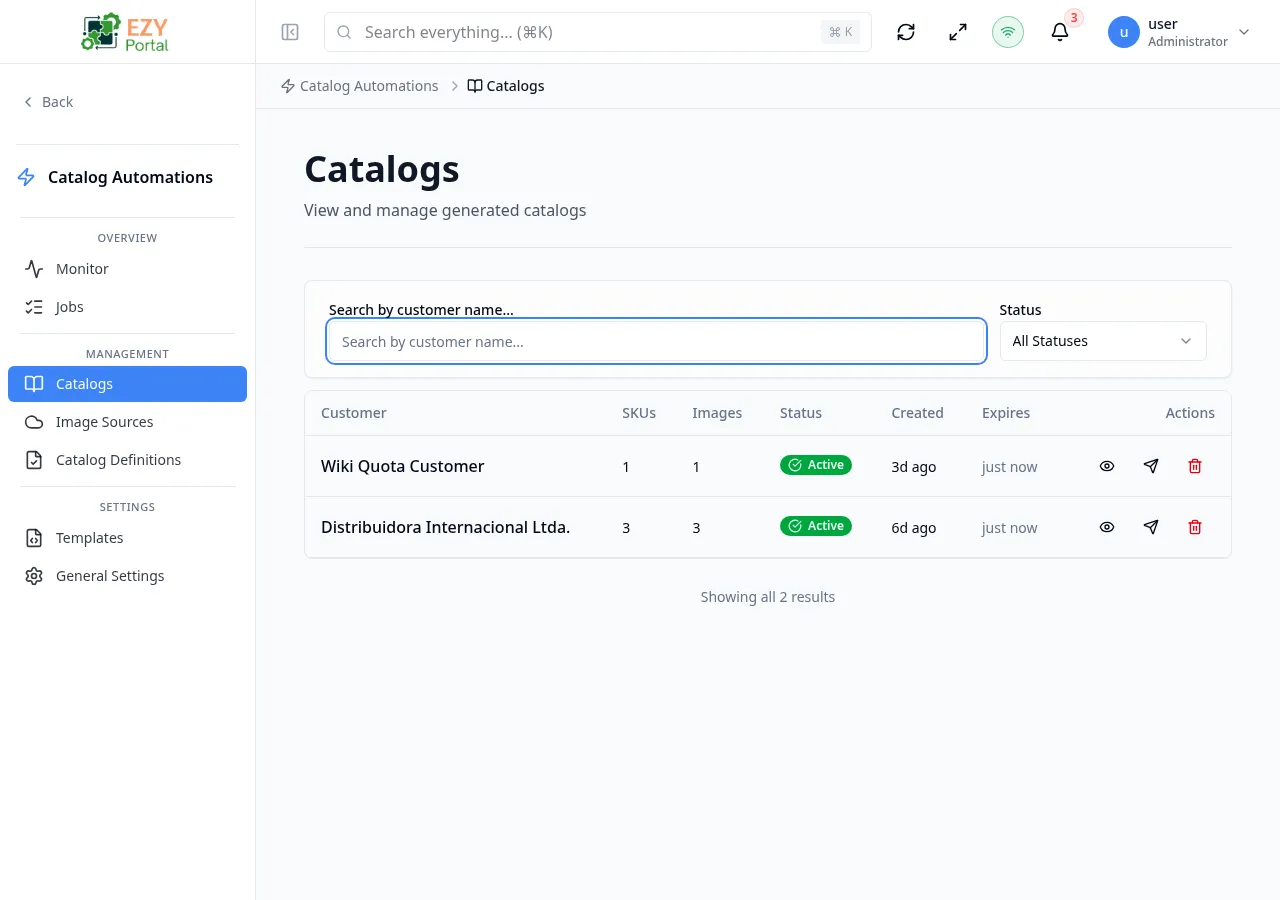
The Catalogs page lists all catalogs that have been generated by automation jobs. Each row shows the customer the catalog was created for, the number of SKUs and images it contains, its current status, and when it expires. Teams use this page to validate published outputs and trigger re-deliveries when needed.
Accessing the Page
Section titled “Accessing the Page”Navigate to Catalog Automation → Catalogs in the sidebar, or go to /catalog-automation/catalogs.
What you can do here
Section titled “What you can do here”- Search and filter the catalog list by customer name or status.
- Open a catalog detail drawer to inspect metadata, download the ZIP archive, or view the HTML output.
- Resend an active catalog to its recipient via WhatsApp or email.
- Delete obsolete catalogs after confirmation.
Common tasks
Section titled “Common tasks”- Open the page from the sidebar under Catalog Automation.
- Use the search box to find a catalog by customer name, or filter by Status.
- Click a row to open the detail drawer and inspect the catalog.
- Use Resend Catalog in the drawer or row actions to retry delivery.
- Use Delete to permanently remove catalogs that are no longer needed.
- The Resend action is only available for catalogs with status Active. Expired and deleted catalogs cannot be resent.
- Deleting a catalog is permanent and cannot be undone.
- Catalogs are created automatically when a Job completes successfully — there is no manual create form on this page.
List Columns
Section titled “List Columns”| Column | Default Visible | Sortable | Description |
|---|---|---|---|
| Customer | Yes | No | Customer name the catalog was generated for |
| SKUs | Yes | No | Number of product SKUs included in the catalog |
| Images | Yes | No | Total number of images resolved and included |
| Status | Yes | No | Current catalog status — Active, Expired, or Deleted |
| Created | Yes | No | Relative time since creation; hover for full date |
| Expires | Yes | No | Relative time until or since expiry; shown in red when past due |
Status Values
Section titled “Status Values”| Status | Description |
|---|---|
| Active | Catalog is within its expiration window and can be resent |
| Expired | Catalog has passed its expiration date; resend is not available |
| Deleted | Catalog has been removed; row may still appear briefly before page refresh |
Filtering
Section titled “Filtering”| Filter | Type | Description |
|---|---|---|
| Search | Free text | Search by customer name |
| Status | Dropdown | Filter by Active, Expired, or Deleted; default shows all |
Sorting
Section titled “Sorting”The catalog list does not support column-level sorting. Records are returned in reverse-chronological order (newest first) from the server.
Pagination
Section titled “Pagination”The list uses a Load More pattern with infinite scroll:
- Page size: 20 records per load
- Scrolling near the bottom of the list automatically loads the next batch
- A message displays when all results are shown
Actions
Section titled “Actions”Page Actions
Section titled “Page Actions”| Action | Description |
|---|---|
| Refresh | Reload the catalog list from the server |
Row Actions
Section titled “Row Actions”Each row provides icon buttons:
| Action | Description | Permission |
|---|---|---|
| View Details | Opens the catalog detail drawer | catalog-automation.catalogs (Read) |
| Resend Catalog | Re-delivers the catalog to the recipient — only visible for Active catalogs | catalog-automation.catalogs (Write) |
| Delete | Removes the catalog after confirmation — not shown for already-deleted catalogs | catalog-automation.catalogs (Admin) |
Clicking anywhere on a row also opens the detail drawer.
Deleting a Catalog
Section titled “Deleting a Catalog”Catalogs are read-only outputs — they cannot be edited. To remove one:
- Click the Delete (trash) icon on the row, or open the detail drawer and click Delete Catalog.
- A confirmation dialog warns that the action is permanent.
- Click Delete Catalog to confirm.
The catalog is removed from the list immediately after confirmation.
Related Pages
Section titled “Related Pages”- Jobs — Create and monitor catalog generation jobs
- Definitions — Configure the rules that determine how catalogs are built
- Templates — Manage the HTML layouts used in catalog output