AI Usage History
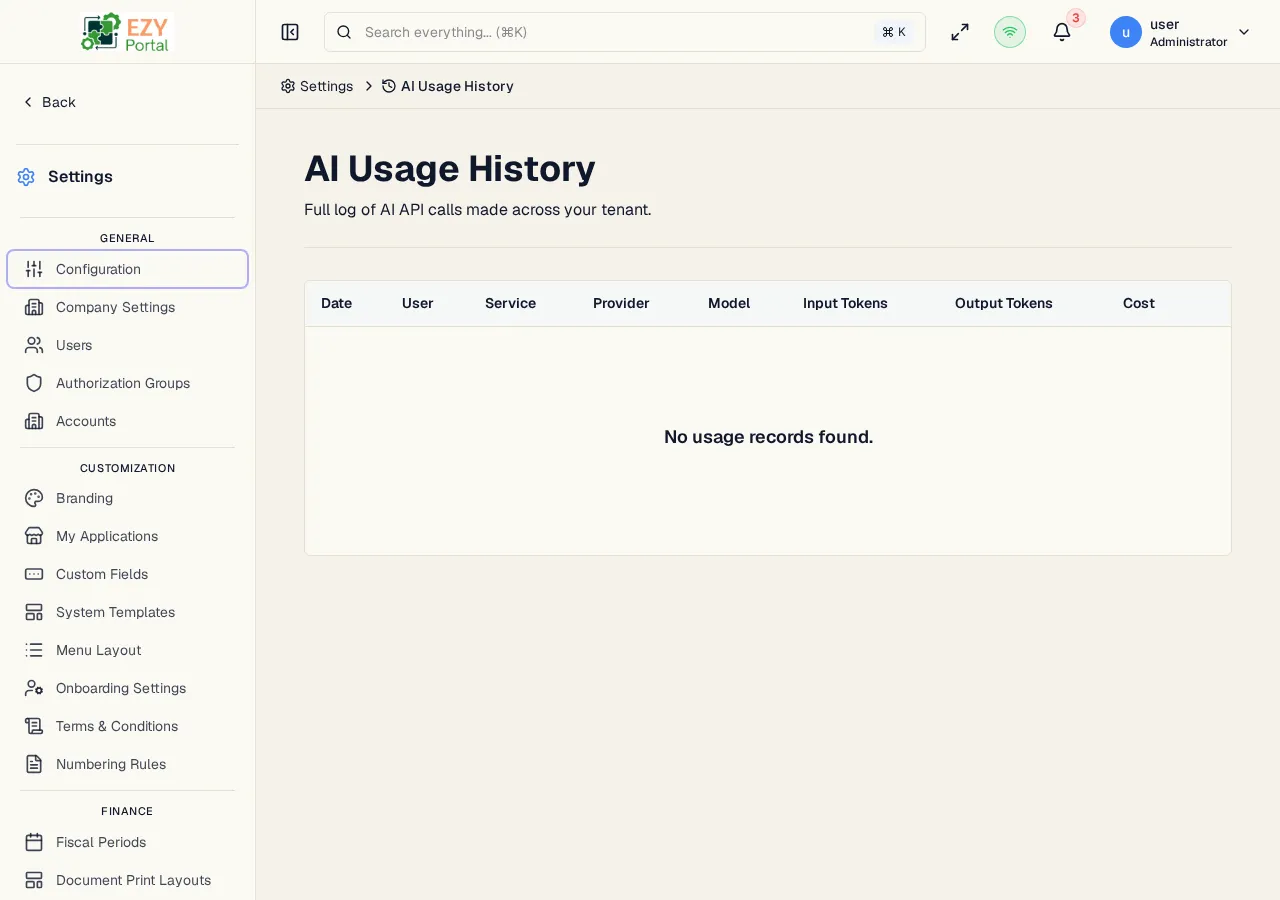
AI Usage History is a read-only log of every AI API call made within the tenant. Tenant Super Users use it to investigate costs, identify high-token requests, review usage by user or service, and verify that AI budget controls are working as expected. Each row represents one AI API call and records the provider, model, token consumption, and both the raw provider cost and the amount charged to the tenant.
Accessing the Page
Section titled “Accessing the Page”- Route:
/ai-usage - Menu Path: Settings → AI → AI Usage History
- Primary audience: Tenant Super Users and tenant administrators.
What you can do here
Section titled “What you can do here”- Browse the full history of AI API calls made by all users and automated processes in the tenant.
- See each call’s provider, model, input token count, output token count, provider cost, and charged amount.
- Identify calls made by system processes (shown with a System Call badge) rather than named users.
- Paginate through the history using traditional page controls or adjust the page size.
- Compare provider costs against charged amounts to understand margin or markup applied via AI model pricing settings.
Common tasks
Section titled “Common tasks”- Open Settings → AI → AI Usage History.
- Review the table to identify the most recent AI calls.
- Look at the Charged column to see the total cost impact per call.
- If a specific call looks unexpectedly expensive, note the Model and Input / Output Tokens columns to understand why.
- Sort or paginate through the list to find calls from a specific time window.
- Cross-reference high-cost models against the AI Model Pricing page to confirm per-token rates.
- AI Usage History records are immutable. There is no create, edit, delete, or export action on this page.
- An empty list means the tenant has made no AI API calls. The demo environment shows “No usage records found” because no AI calls have been initiated against it.
- The list uses traditional page-based pagination (not Load More). You can choose page sizes of 10, 20, or 50 rows.
- The total count of records matching the current page state is shown above the table.
- System-originated calls (triggered by background jobs or automation rather than a named user) display a blue System Call badge and a server icon in the User column instead of a user name.
- Costs are displayed in USD with four decimal places of precision (e.g.,
$0.0042). - Provider Cost reflects what the AI provider charges. Charged reflects the amount applied to the tenant billing, which may differ if markup or custom pricing is configured in AI Model Pricing.
List Columns
Section titled “List Columns”| Column | Sortable | Description |
|---|---|---|
| Date | No | Timestamp of the AI call in MMM D, HH:mm format |
| User | No | Name of the user who triggered the call; system-originated calls show a server icon and “System” |
| Service | No | Name of the portal service or module that made the call (e.g., core, a registered microservice name) |
| Provider | No | AI provider name (e.g., OpenAI, Anthropic) |
| Model | No | Model identifier in monospace font (e.g., gpt-4o, claude-3-5-sonnet) |
| Input Tokens | No | Number of input (prompt) tokens consumed, formatted with thousands separators |
| Output Tokens | No | Number of output (completion) tokens consumed, formatted with thousands separators |
| Cost | No | Raw provider cost in USD with four decimal places |
| Charged | No | Amount charged to the tenant in USD with four decimal places |
| System Call | No | Blue badge with server icon shown when the call was made by an automated system process rather than a named user |
Pagination
Section titled “Pagination”The page uses traditional pagination with configurable page size. Available page sizes are 10, 20, and 50 rows. The total count of records is displayed above the table. Navigate using the Previous / Next controls or jump to a specific page number.
Related Pages
Section titled “Related Pages”- AI Budget Settings — configure spending limits and usage thresholds
- AI Model Pricing — per-model pricing rates used to calculate the Charged amount
- AI Credentials — configure the AI provider API keys used for these calls