Transfer Request Detail
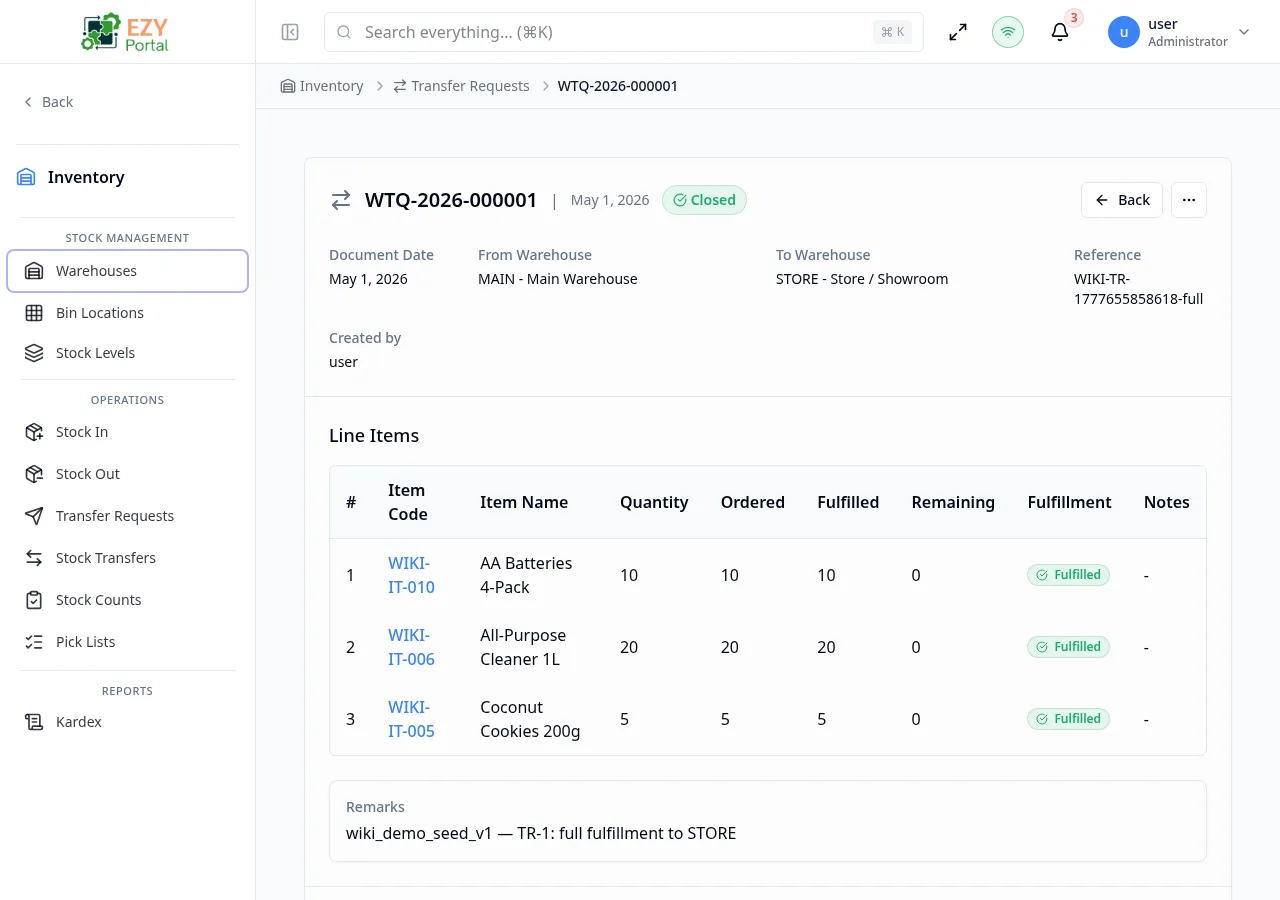
The Transfer Request Detail page shows the complete record for a single transfer request. It displays the source and destination warehouses, all line items with their fulfillment quantities, and provides action buttons for approving, editing, duplicating, cancelling, or launching a Stock Transfer.
Accessing the Page
Section titled “Accessing the Page”From the Transfer Requests list, click any row, or navigate directly to /inventory/operations/transfer-requests/:id.
Header / Action Bar
Section titled “Header / Action Bar”| Button | Description | Availability |
|---|---|---|
| Back | Return to the Transfer Requests list | Always |
| History | Open the document change history dialog | Always |
| Actions menu | Expand additional actions | Always |
| — Edit | Open the Edit Transfer Request form | Draft only |
| — Approve | Transition from Draft to Approved | Draft only; Admin permission |
| — Cancel | Cancel the request; requires a reason | Draft or Approved; Write permission |
| — Duplicate | Create a new Draft copied from this document | Always; Write permission |
| — Delete | Delete this document | Draft only; Admin permission |
Next Steps Strip
Section titled “Next Steps Strip”When the document status is Approved and unfulfilled lines remain, a banner displays below the action bar:
Next steps: [Create Transfer]
Clicking Create Transfer opens the Create Stock Transfer form pre-populated with the approved request’s warehouses and remaining line quantities.
Summary Card
Section titled “Summary Card”| Field | Description |
|---|---|
| Document # | System-generated document number |
| Status | Current status badge |
| From Warehouse | Source warehouse code and name |
| To Warehouse | Destination warehouse code and name |
| Document Date | Date of the request |
| Requested Date | Requested fulfillment date |
| Reference | Optional external reference |
| Remarks | Document-level notes |
| Created | Creation timestamp and user |
| Updated | Last update timestamp and user |
Line Items
Section titled “Line Items”| Column | Description |
|---|---|
| # | Line number |
| Item Code | Item identifier |
| Item Name | Item display name |
| Ordered Qty | Quantity originally requested |
| Fulfilled Qty | Quantity already transferred via Stock Transfers |
| Remaining Qty | Ordered minus Fulfilled |
| UOM | Unit of measure |
| Fulfillment Status | Open, Partial, or Fulfilled per line |
| Notes | Line-level notes |
Fulfillment columns update in real time as Stock Transfers against this request are confirmed.
Document History
Section titled “Document History”Click History to open the change history dialog. Changes to header fields (date, warehouses, reference) and line modifications (lines added, removed, or edited) are all logged.
Workflow Actions
Section titled “Workflow Actions”Approving a Request
Section titled “Approving a Request”Click Approve (Draft documents, Admin permission). Approving:
- Changes the document status to Approved
- Makes the request available for Stock Transfer creation
- Locks fields from direct editing (a new document must be duplicated for corrections)
Cancelling a Request
Section titled “Cancelling a Request”Click Cancel (Draft or Approved documents). A dialog requests a reason. Cancelling a request:
- Closes it to further Stock Transfer execution
- If Approved and partially fulfilled, existing confirmed Stock Transfers are not reversed
- Status changes to Cancelled
Creating a Stock Transfer from this Request
Section titled “Creating a Stock Transfer from this Request”From an Approved document with remaining lines, click Create Transfer in the Next Steps strip. The Stock Transfer form opens with:
- From and To warehouses pre-set from the request
- A line picker dialog showing remaining quantities per item
- The option to transfer all remaining quantities or select specific amounts per line
Deleting a Document
Section titled “Deleting a Document”- Click Actions → Delete (Draft only)
- Confirm in the dialog
- You are redirected to the Transfer Requests list
Business Rule Notes
Section titled “Business Rule Notes”- Only Approved requests can generate Stock Transfers.
- A request automatically moves to Closed status when all lines reach Fulfilled fulfillment status.
- Partial fulfillment is supported: a request can remain Approved and open while multiple Stock Transfers fulfill it incrementally.
Common tasks
Section titled “Common tasks”- Open a Draft Transfer Request and click Approve to authorize the move.
- Click Create Transfer in the Next Steps strip to execute the movement.
- Monitor the Fulfilled and Remaining quantities as Stock Transfers are confirmed.
Related Pages
Section titled “Related Pages”- Transfer Requests — List all transfer requests
- Create Transfer Request — Create a new request
- Edit Transfer Request — Edit a Draft request
- Stock Transfers — List all stock transfers
- Create Stock Transfer — Execute a transfer from this request