Items List
The Items List page is the main entry point for managing your product and service catalog. It provides a searchable, filterable table of all items with quick access to create, view, edit, and delete actions.
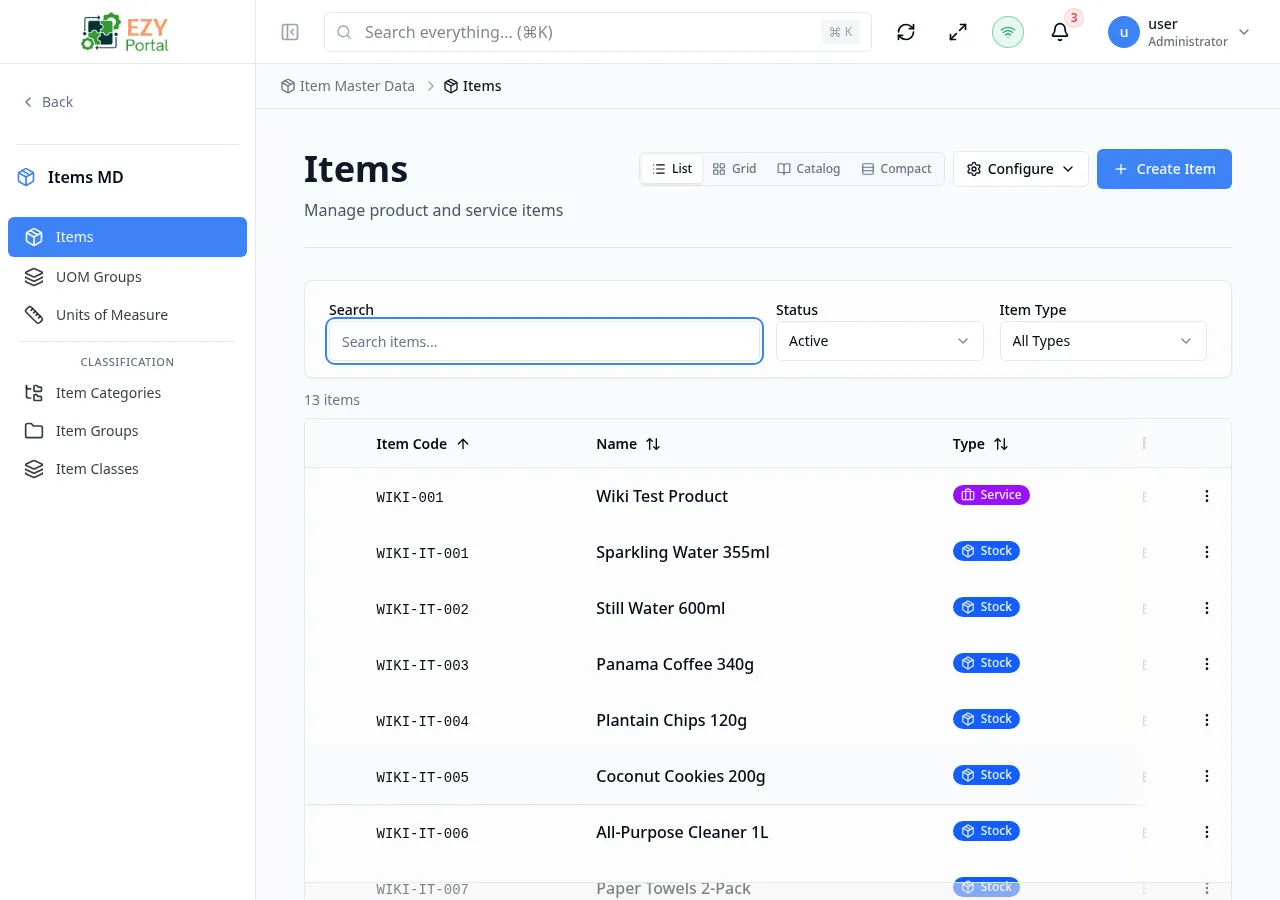
Accessing the Page
Section titled “Accessing the Page”- Route:
/items - Menu Path: Item Master Data → Items
List Columns
Section titled “List Columns”| Column | Default Visible | Sortable | Description |
|---|---|---|---|
| Image | Yes | No | Primary item image thumbnail |
| Item Code | Yes | Yes | Unique item identifier |
| Name | Yes | Yes | Item display name |
| Type | Yes | Yes | Stock, Non-Stock, Service, Bundle, or Virtual |
| Base UOM | Yes | Yes | Base unit of measure |
| Stock | Yes | Yes | Total stock quantity |
| Active | Yes | No | Active/Inactive status badge |
| Group | No | Yes | Assigned item group |
| Class | No | Yes | Assigned item class |
| Price | No | Yes | Default price |
Filtering
Section titled “Filtering”| Filter | Type | Description |
|---|---|---|
| Search | Free text | Search by item code or name |
| Status | Select | Filter by active status: All / Active / Inactive |
| Item Type | Select | Filter by item type: All / Stock / Non-Stock / Service / Bundle / Virtual |
| Item Group | Entity select | Filter by item group |
| Item Class | Entity select | Filter by item class |
| Stock Item | Toggle | Show only stock items |
| Purchasable | Toggle | Show only purchasable items |
| Sellable | Toggle | Show only sellable items |
| Tags | Free text | Filter by tags (comma-separated) |
| SKU | Free text | Filter by SKU |
| Show Inactive | Toggle | Include inactive items in results |
If tenant custom fields are configured for items, additional custom-field filters may be available and can be combined with standard filters.
Sorting
Section titled “Sorting”Click any sortable column header to sort:
- First click — Ascending (A→Z, 0→9)
- Second click — Descending (Z→A, 9→0)
- Third click — Remove sort
Default sort: Item Code ascending.
Pagination
Section titled “Pagination”The list uses a Load More pattern:
- Page size: 50 records per load
- Load More button at the bottom loads the next batch
- Total count displays above the table
Actions
Section titled “Actions”Page Actions
Section titled “Page Actions”| Action | Description |
|---|---|
| Create Item | Opens the Create Item page (requires Create Item permission) |
Row Actions
Section titled “Row Actions”Each item row provides the following actions:
| Action | Permission | Description |
|---|---|---|
| View | Any authenticated user | Navigate to item detail page |
| Edit | Edit Item permission | Navigate to edit form |
| Delete | Delete Item permission | Soft-delete (deactivates) the item |
Item Types
Section titled “Item Types”| Type | Description | Stock Tracking | Purchasable | Sellable |
|---|---|---|---|---|
| Stock | Physical inventory items | Yes (locked on) | Yes | Yes |
| Non-Stock | Non-inventory items | No (locked off) | Yes | Yes |
| Service | Service items | No (locked off) | Yes | Yes |
| Bundle | Composite items | No (locked off) | No (locked off) | Yes |
| Virtual | Virtual/abstract items | No (locked off) | Yes | Yes |
Deleting an Item
Section titled “Deleting an Item”- Click the dropdown menu on the item row and select Delete
- A confirmation dialog warns that the action will deactivate and remove the item from normal views
- Click Delete to confirm — the list reloads without the deleted item
Administrators can restore a deleted item if needed. Deletion requires the Delete Item permission.