AI Budget
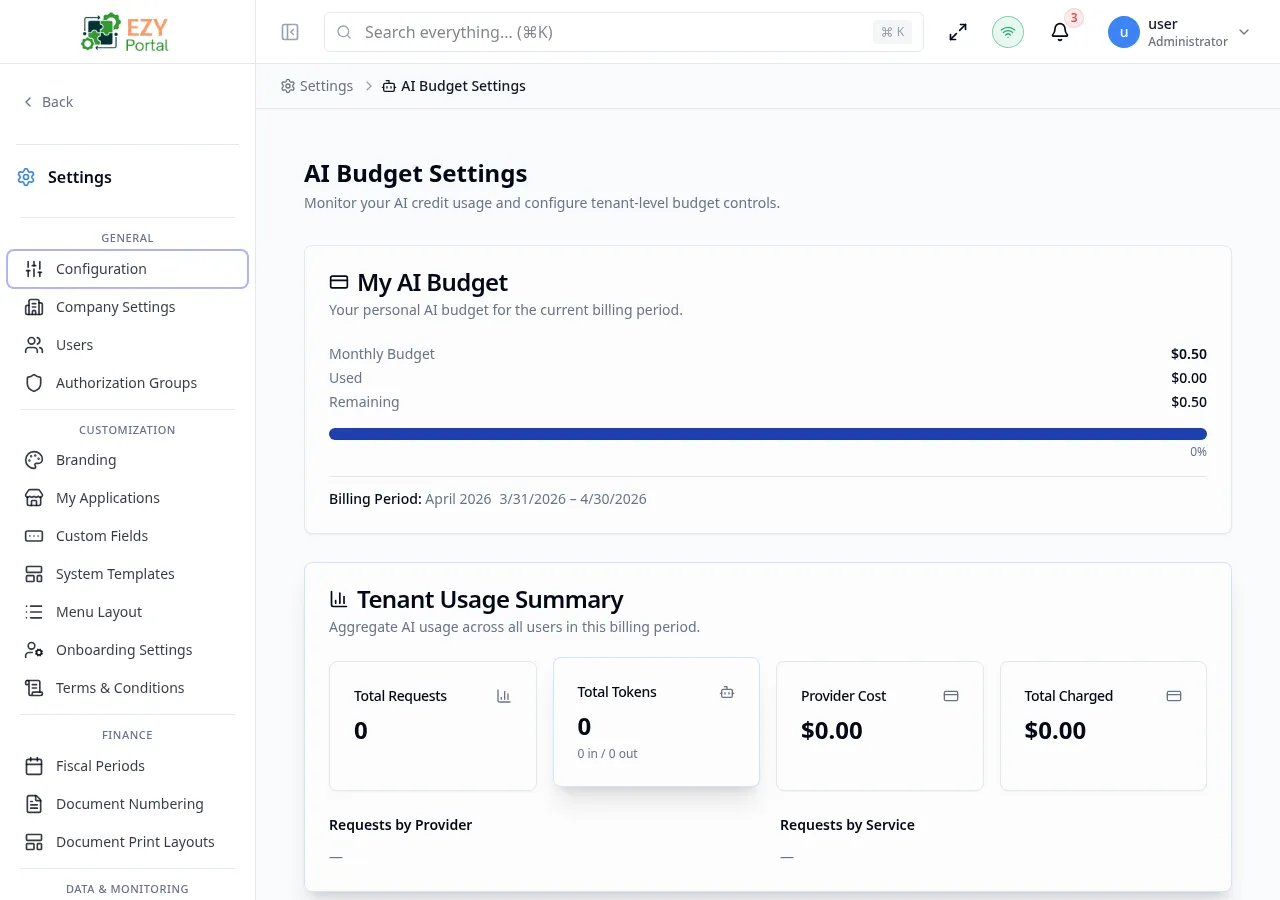
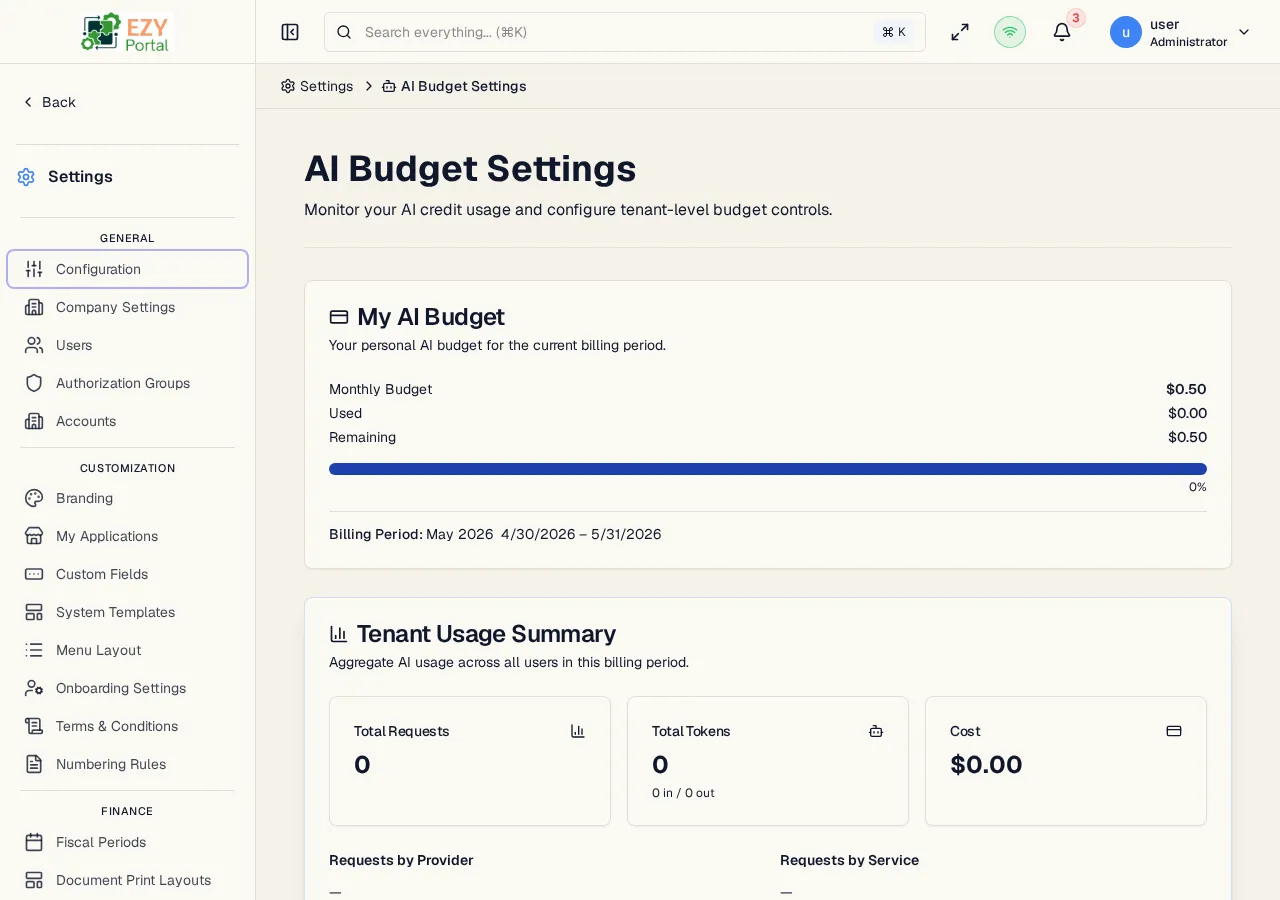
AI Budget gives tenant administrators a complete view of AI consumption for the current billing period and provides controls to limit spending. The page combines a personal usage summary, a tenant-wide aggregate, a full usage history log, and a configuration panel — all in one place.
Accessing the Page
Section titled “Accessing the Page”- Route:
/ai-budget - Menu Path: Settings → AI → AI Budget
- Primary audience: Tenant administrators and Super Users.
What you can do here
Section titled “What you can do here”- Review your personal AI credit allocation, consumed credits, and remaining credits for the current billing period.
- View tenant-wide totals: total requests, tokens, provider cost, and charges for the period.
- Browse the full AI usage history with per-request details (user, service, model, tokens, cost).
- Set or update the monthly spend cap (USD) to prevent unexpected provider charges.
- Override the monthly credit allocation for the tenant independent of the subscription tier.
- Allow or block users from supplying their own AI provider API keys.
- See a breakdown of requests by provider and by calling service.
Common tasks
Section titled “Common tasks”- Open Settings → AI → AI Budget.
- Review the My AI Budget card to check personal credit consumption for the period.
- Review the Tenant Usage Summary section for aggregate cost and token data.
- Scroll to Budget Configuration and set the Monthly Spend Cap and Monthly Credits Override as needed.
- Toggle Allow Own Credentials on or off depending on your organization’s policy.
- Click Save Configuration — changes take effect for the next AI request.
- Credits reset at the start of each billing period. The period dates are shown in the My AI Budget card.
- The monthly spend cap is expressed in USD. When a tenant’s charges for the period reach the cap, further AI requests are blocked until the next billing period.
- Leaving Monthly Spend Cap empty removes the spending limit for the tenant.
- Leaving Monthly Credits Override empty causes the tenant to use the default credit allocation for its subscription tier.
- The usage history table shows both user-initiated and system-initiated AI calls. System calls are marked with a System Call badge.
Configuring Budget Limits
Section titled “Configuring Budget Limits”The Budget Configuration section is the only writable part of this page. It is a single configuration record per tenant — there is no separate create or delete flow.
Fields
Section titled “Fields”| Field | Required | Type | Description | Default | Validation |
|---|---|---|---|---|---|
| Monthly Spend Cap (USD) | No | Number | Maximum USD amount the tenant may be charged in a billing period. Leave empty for no cap | — | Must be a positive number if provided |
| Monthly Credits Override | No | Number | Custom credit allocation for the tenant, overriding the subscription tier default. Leave empty to use the tier default | — | Must be a positive integer if provided |
| Allow Own Credentials | — | Toggle | When on, users may provide their own AI provider API keys for personal use. When off, only tenant-configured credentials are used | Off | — |
Steps:
- Scroll to the Budget Configuration section on the AI Budget page.
- Enter a Monthly Spend Cap in USD, or clear the field to remove the cap.
- Enter a Monthly Credits Override to allocate a custom credit amount, or clear the field to use the tier default.
- Toggle Allow Own Credentials to control whether users can supply personal provider keys.
- Click Save Configuration. A success notification confirms the change.
Related Pages
Section titled “Related Pages”- AI Credentials — configure tenant AI provider API keys