Employees
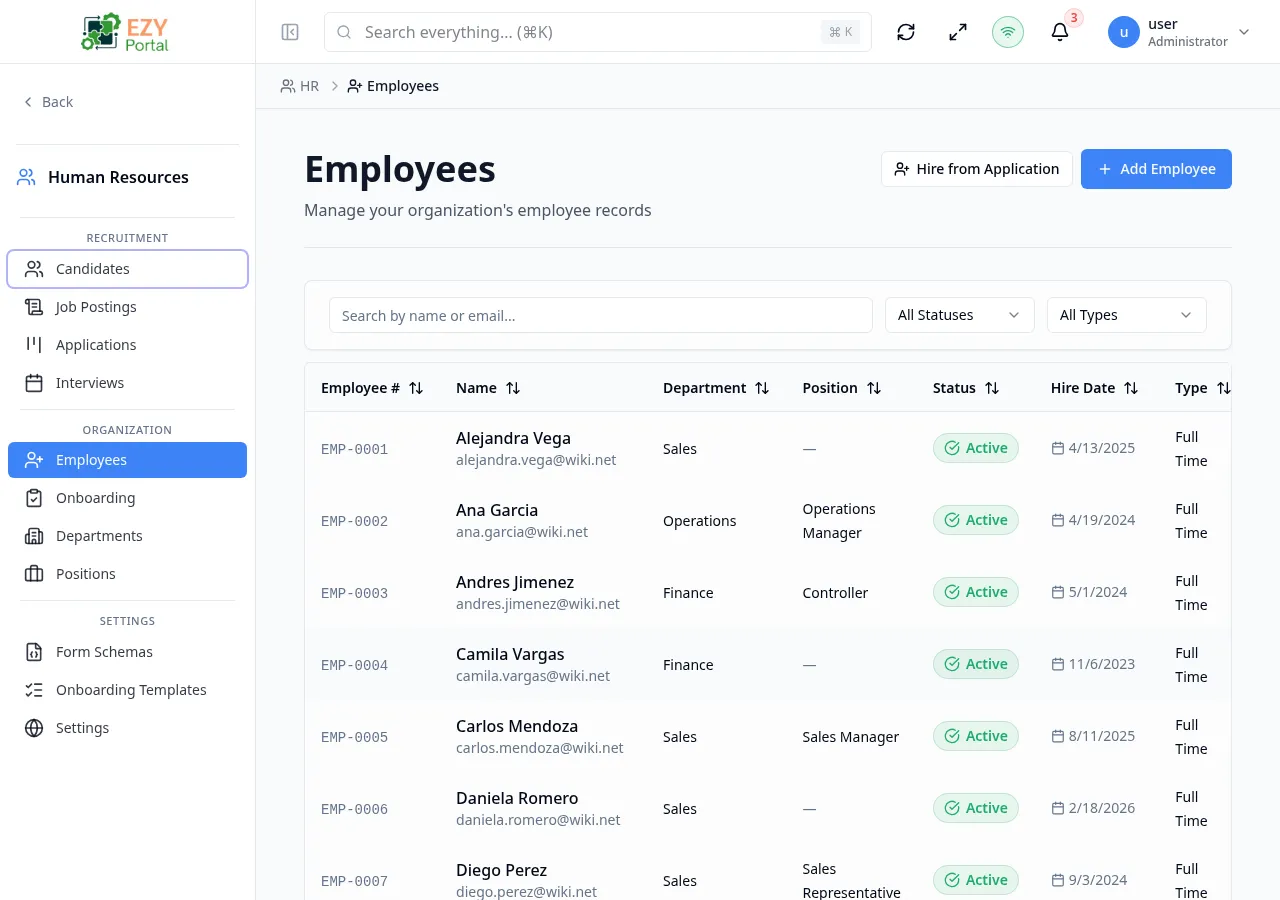
The Employees page lists all employee records in the organization with filtering by status and employment type. Employees represent active or past staff members and are distinct from candidates. A new employee can be created directly or converted from an accepted job application using the Hire from Application flow.
Accessing the Page
Section titled “Accessing the Page”- Route:
/employees - Menu Path: HR → Organization → Employees
List Columns
Section titled “List Columns”| Column | Default Visible | Sortable | Description |
|---|---|---|---|
| Employee # | Yes | Yes | Unique employee number (e.g., EMP-001) |
| Name | Yes | Yes | Full name; work email shown below the name |
| Department | Yes | Yes | Assigned department name |
| Position | Yes | Yes | Assigned position name |
| Status | Yes | Yes | Current employment status badge |
| Hire Date | Yes | Yes | Date the employee was hired |
| Type | Yes | Yes | Employment type |
Status Values
Section titled “Status Values”graph LR
ONBOARDING --> ACTIVE
ACTIVE --> ON_LEAVE
ACTIVE --> SUSPENDED
ACTIVE --> TERMINATED
ON_LEAVE --> ACTIVE
SUSPENDED --> ACTIVE
| Status | Description |
|---|---|
| Active | Currently employed and working |
| Onboarding | Newly hired; onboarding checklist in progress |
| On Leave | Temporarily away (medical, parental, etc.) |
| Suspended | Employment temporarily suspended |
| Terminated | Employment has ended |
Employment Type Values
Section titled “Employment Type Values”| Type | Description |
|---|---|
| Full-Time | Standard full-time employment |
| Part-Time | Reduced hours arrangement |
| Contractor | Independent contractor |
| Intern | Internship or temporary placement |
Filtering
Section titled “Filtering”| Filter | Type | Description |
|---|---|---|
| Search | Free text | Searches by name or work email |
| Status | Select | Filter by employment status |
| Type | Select | Filter by employment type |
Sorting
Section titled “Sorting”Click any sortable column header to sort ascending; click again for descending; third click removes the sort. Default sort: creation date descending (newest first).
Pagination
Section titled “Pagination”The list uses server-side pagination. Default page size is 20 records. Use the page-size selector and navigation controls at the bottom of the table.
Actions
Section titled “Actions”Page Actions
Section titled “Page Actions”| Action | Description |
|---|---|
| Add Employee | Opens the Create Employee dialog |
| Hire from Application | Opens the Hire from Application dialog to convert an accepted application into an employee record |
Row Actions
Section titled “Row Actions”| Action | Permission | Description |
|---|---|---|
| Edit | canWriteEmployees | Opens the Edit Employee dialog |
| Delete | canWriteEmployees | Opens the Delete confirmation dialog |
Clicking a row name opens the Employee Detail side panel showing full employee information and the onboarding checklist tab.
Creating an Employee
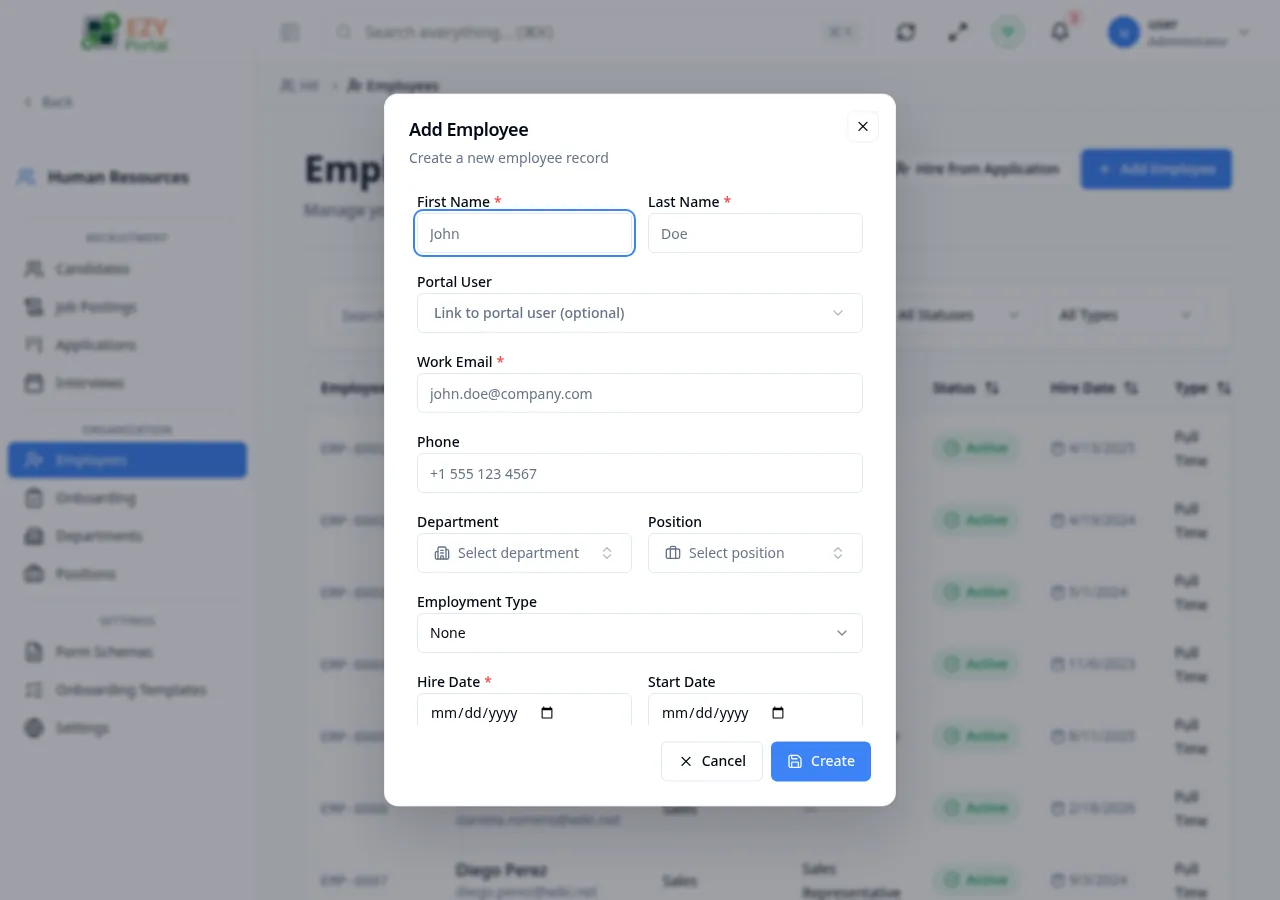
Section titled “Creating an Employee”Click Add Employee to open the Create Employee dialog.
Fields
Section titled “Fields”| Field | Required | Type | Description | Default | Validation |
|---|---|---|---|---|---|
| First Name | Yes | Text | Employee’s first name | — | Required |
| Last Name | Yes | Text | Employee’s last name | — | Required |
| Work Email | Yes | Corporate email address | — | Valid email; must be unique | |
| Phone | No | Text | Contact phone number | — | — |
| Employee Number | No | Text | Unique identifier (e.g., EMP-001) | Auto-generated if blank | — |
| Department | Yes | Entity select | Assigned department | — | Required |
| Position | Yes | Entity select | Assigned position | — | Required |
| Manager | No | Entity select | Direct manager (another employee) | — | — |
| Hire Date | Yes | Date | Date employment started | — | Required |
| Employment Type | No | Select | Full-Time, Part-Time, Contractor, or Intern | — | — |
| Status | Yes | Select | Current employment status | — | Required |
| Termination Reason | No | Text | Reason for termination (Terminated status only) | — | — |
| Roles | No | Multi-select | Functional roles for this employee | — | — |
| Portal User | No | Entity select | Link to an existing portal user account | — | — |
Steps:
- Click Add Employee in the page header.
- Enter the employee’s name, work email, department, and position.
- Set the hire date and status.
- Optionally assign a manager, portal user link, and employment type.
- Click Create.
After creation the list refreshes and the new employee appears. If the employee’s status is set to Onboarding, the system checks for a default onboarding template and can automatically assign the checklist.
Hiring from an Application
Section titled “Hiring from an Application”Click Hire from Application to promote an accepted application directly to an employee record. This is an alternative to manual creation.
| Field | Required | Type | Description |
|---|---|---|---|
| Application | Yes | Entity select | An accepted (Offer stage) application |
| Start Date | Yes | Date | Employee’s start date |
| Position | No | Entity select | Override the position from the application |
| Department | No | Entity select | Override the department |
| Manager | No | Entity select | Direct manager |
| Employment Type | No | Select | Employment type |
| Salary | No | Number | Starting salary |
After the hire is submitted, the application stage advances to Hired and a new employee record is created with the fields populated from the application.
Employee Detail Panel
Section titled “Employee Detail Panel”Clicking a name in the list opens the Employee Detail side panel. It has two tabs:
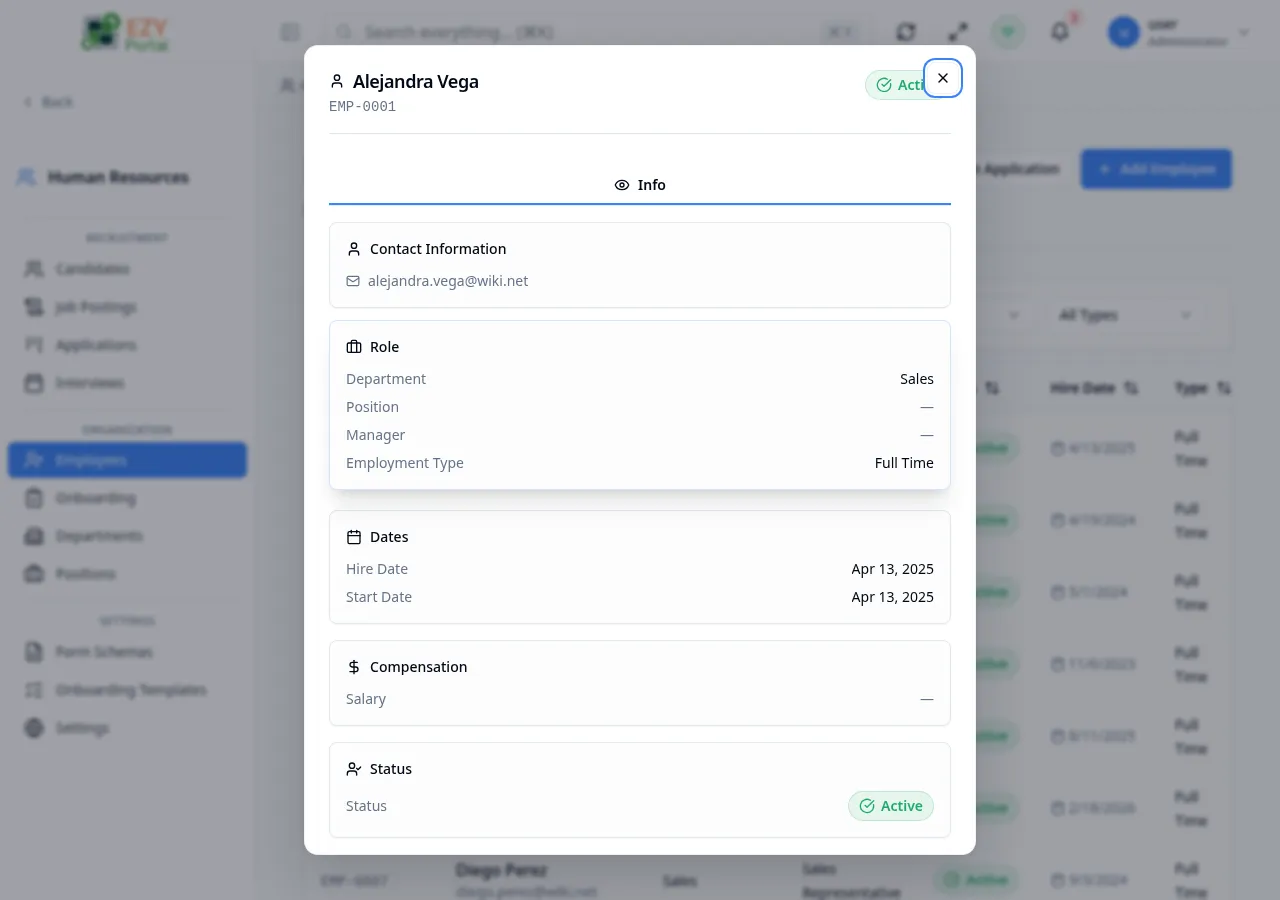
Info tab
Section titled “Info tab”| Section | Fields shown |
|---|---|
| Contact Information | Work email, phone |
| Organization | Department, position, manager |
| Role | Employment type, assigned roles |
| Dates | Hire date, termination date (if applicable) |
| Compensation | Salary if set |
| Status | Current status badge and termination reason |
Onboarding tab
Section titled “Onboarding tab”Shows the onboarding checklist progress for employees with Onboarding status. See Onboarding Employee for full details.
Deleting an Employee
Section titled “Deleting an Employee”- Open row actions on the employee row and select Delete.
- Confirm in the dialog — the action cannot be undone.
Note: Deleting permanently removes the record. Set the status to Terminated to preserve historical data instead.
Common tasks
Section titled “Common tasks”- Open HR → Organization → Employees from the sidebar.
- Use the search box or status/type filters to locate the employee.
- Click the employee name to open the detail panel, or use row actions to edit or delete.
Related Pages
Section titled “Related Pages”- Departments — Manage organizational departments
- Positions — Manage job positions
- Onboarding Employee — Per-employee onboarding checklist detail
- Applications — Job applications that can be converted to employee records