Definitions
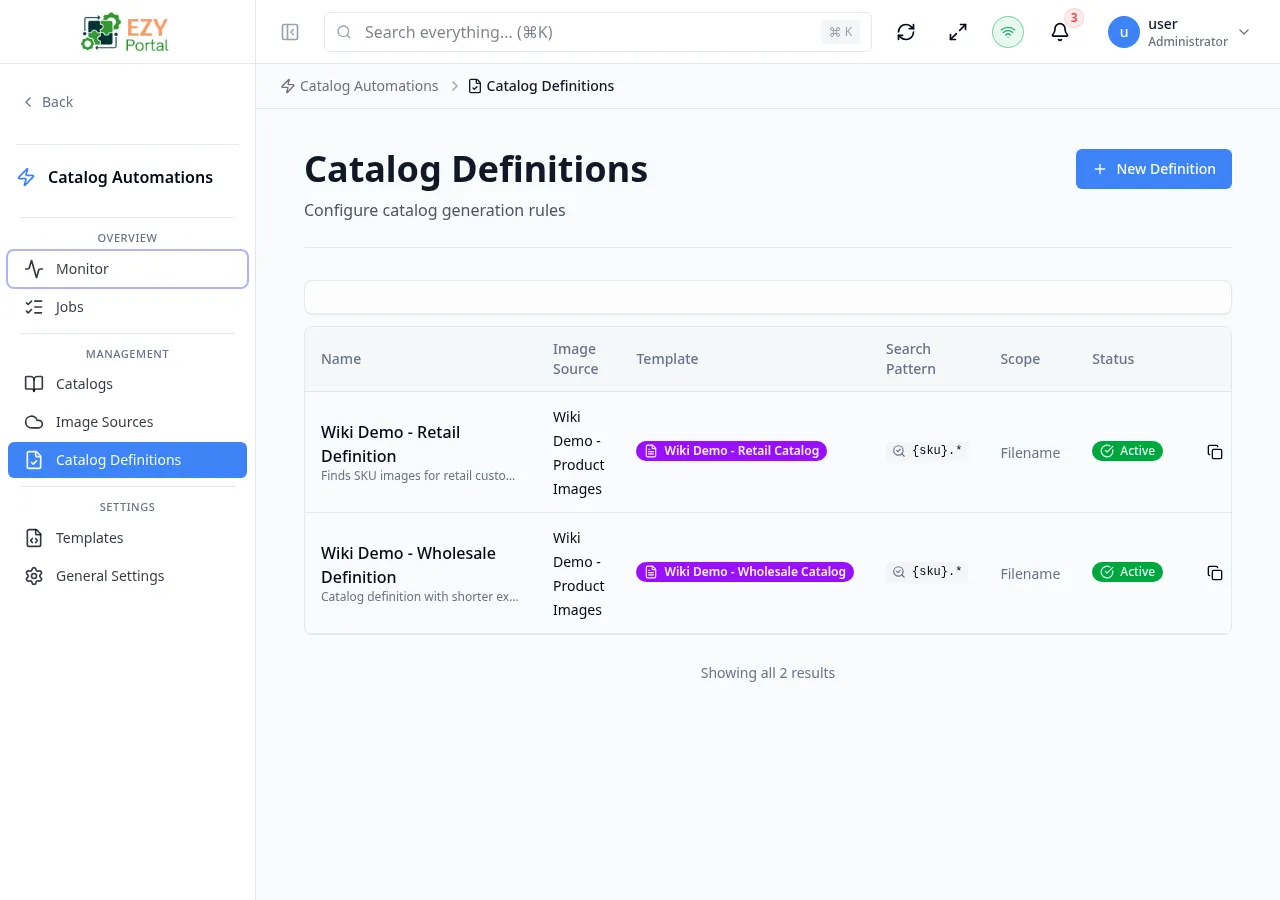
The Definitions page lists all catalog generation rule sets in the system. A definition tells the automation engine where to look for product images (the image source), which HTML layout to use (the template), and how to match images to SKUs (the search pattern and scope). Jobs reference definitions at creation time, so definitions must be configured before any catalog can be generated.
Accessing the Page
Section titled “Accessing the Page”Navigate to Catalog Automation → Definitions in the sidebar, or go to /catalog-automation/definitions.
What you can do here
Section titled “What you can do here”- View all catalog definitions and their configuration at a glance.
- Create a new definition that links an image source to a template and search pattern.
- Edit an existing definition to update any of its fields.
- Test a search pattern against a live image source to validate SKU matching before running jobs.
- Copy a definition ID to the clipboard for use in support requests or API calls.
- Delete unused definitions.
Common tasks
Section titled “Common tasks”- Open the page from the sidebar under Catalog Automation.
- Click New Definition to open the create dialog and configure a new rule set.
- After saving, the definition appears in the list and can immediately be selected when creating a job.
- To validate that the search pattern matches the right images, click the search pattern value in the row to open the Test Search Pattern dialog.
- Definitions with Active status are listed in the Create Job dialog. Setting a definition to Inactive prevents it from being used in new jobs.
- The search pattern uses regex with a
{sku}placeholder (e.g.,{sku}.*\.jpg). Leave it empty for exact SKU filename matching. - Search scope controls what part of the file path is matched — Filename, Folder, or Full Path.
- If no template is selected, the system falls back to the default built-in template.
- Deleting a definition does not affect already-completed jobs or their catalogs.
List Columns
Section titled “List Columns”| Column | Default Visible | Sortable | Description |
|---|---|---|---|
| Name | Yes | No | Definition name and optional description |
| Image Source | Yes | No | Name of the connected image source provider |
| Template | Yes | No | Template assigned to this definition, or “Default (built-in)” if none |
| Search Pattern | Yes | No | Regex pattern used to locate images; click to open the Test Search Pattern dialog |
| Scope | Yes | No | Part of the file path matched by the pattern — Filename, Folder, or Full Path |
| Status | Yes | No | Active or Inactive badge |
Status Values
Section titled “Status Values”| Status | Description |
|---|---|
| Active | Definition is available for selection when creating jobs |
| Inactive | Definition is excluded from job creation |
Filtering
Section titled “Filtering”The Definitions list does not include a filter panel. All definitions are shown on a single paginated list. Use the browser’s search (Ctrl+F) or scroll to locate a specific definition.
Sorting
Section titled “Sorting”The definitions list does not support column-level sorting. Records are returned in the order they were created.
Pagination
Section titled “Pagination”The list uses a Load More pattern with infinite scroll:
- Page size: 20 records per load
- Scrolling near the bottom automatically loads the next batch
- A message displays when all results are shown
Actions
Section titled “Actions”Page Actions
Section titled “Page Actions”| Action | Description | Permission |
|---|---|---|
| New Definition | Opens the create dialog | catalog-automation.definitions (Write) |
| Refresh | Reloads the definition list | — |
Row Actions
Section titled “Row Actions”Each row provides icon buttons:
| Action | Description | Permission |
|---|---|---|
| Copy ID | Copies the definition’s internal ID to the clipboard | — |
| Edit | Opens the edit dialog pre-populated with current values | catalog-automation.definitions (Write) |
| Delete | Removes the definition after confirmation | catalog-automation.definitions (Admin) |
Clicking the search pattern cell in any row opens the Test Search Pattern dialog for that definition.
Creating a Definition
Section titled “Creating a Definition”Click New Definition in the page header to open the definition dialog.
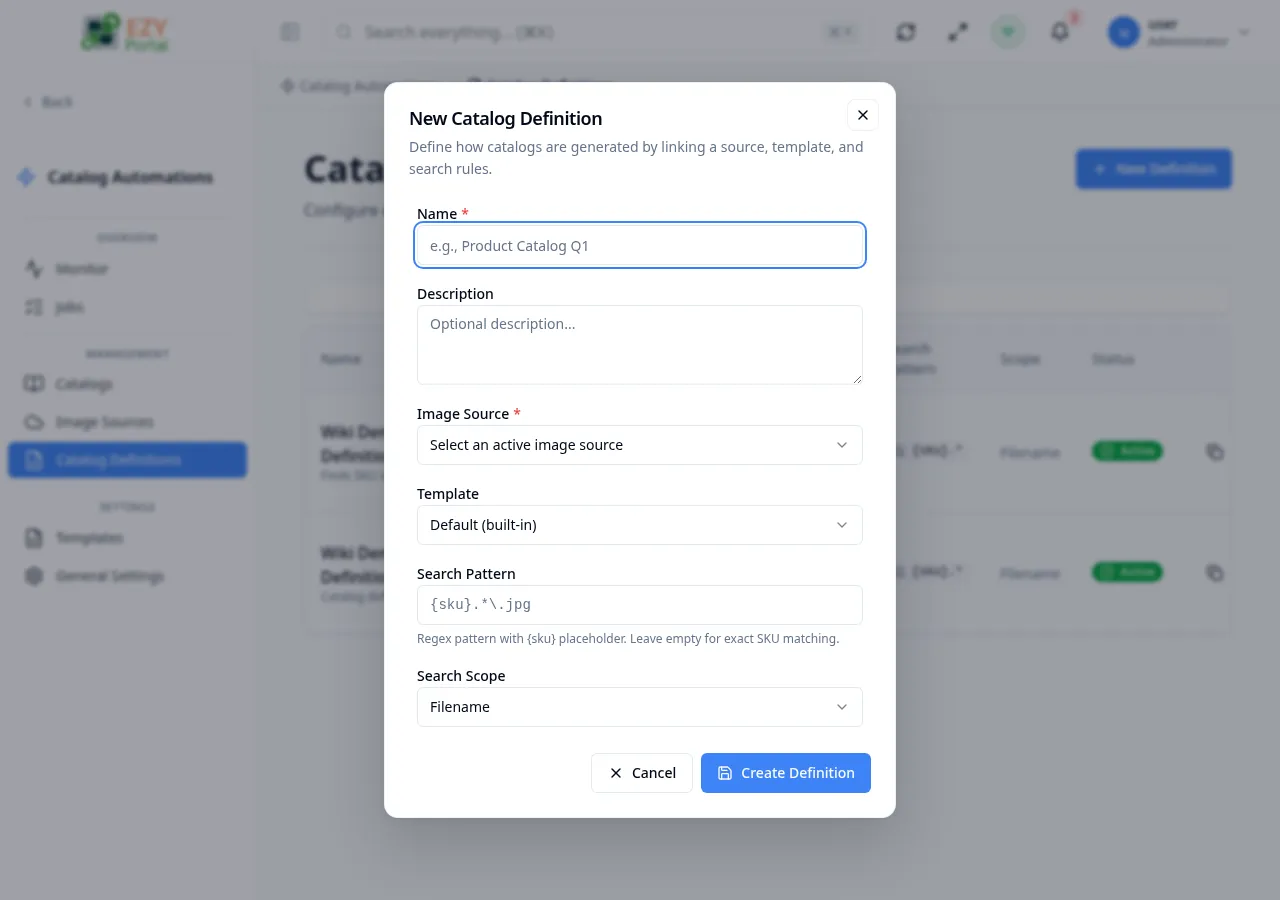
| Field | Required | Type | Description | Default | Validation |
|---|---|---|---|---|---|
| Name | Yes | Text | Display name for the definition | — | Cannot be empty |
| Description | No | Textarea | Optional description shown below the name in the list | — | — |
| Image Source | Yes | Dropdown | Active image source to search for product images — only active sources are listed | — | Must select a source |
| Template | No | Dropdown | HTML template for catalog layout; defaults to the built-in template if left unset | Default (built-in) | — |
| Search Pattern | No | Text (monospace) | Regex pattern with {sku} placeholder — e.g., {sku}.*\.jpg. Leave empty for exact SKU matching | — | — |
| Search Scope | No | Dropdown | Part of the file path the pattern is matched against — Filename, Folder, or Full Path | Filename | — |
| Expiration Days Override | No | Number | Overrides the tenant-level expiration setting for catalogs generated with this definition | Tenant default | Must be a positive integer if provided |
| Active | No | Toggle | Whether this definition is available for job creation | On | — |
To create a definition:
- Click New Definition.
- Enter a Name.
- Select an Image Source.
- Optionally select a Template, enter a Search Pattern, choose a Search Scope, and set Expiration Days Override.
- Leave Active toggled on to make the definition immediately available.
- Click Create Definition.
Editing a Definition
Section titled “Editing a Definition”Click the Edit (pencil) icon on a row to reopen the dialog with all current values pre-filled. The same form fields apply. Click Save to apply changes.
Changes take effect on subsequent jobs — already-running or completed jobs are not affected.
Deleting a Definition
Section titled “Deleting a Definition”- Click the Delete (trash) icon on the row.
- A confirmation dialog shows the definition name and warns that the action cannot be undone.
- Click Delete to confirm.
Do not delete definitions that are still referenced by scheduled or recurring jobs.