Onboarding Settings
Onboarding Settings controls the information new users provide during setup and where they go afterward. It includes base profile fields, gender options, terms acceptance, a post-registration redirect URL, and overrides for user custom fields.
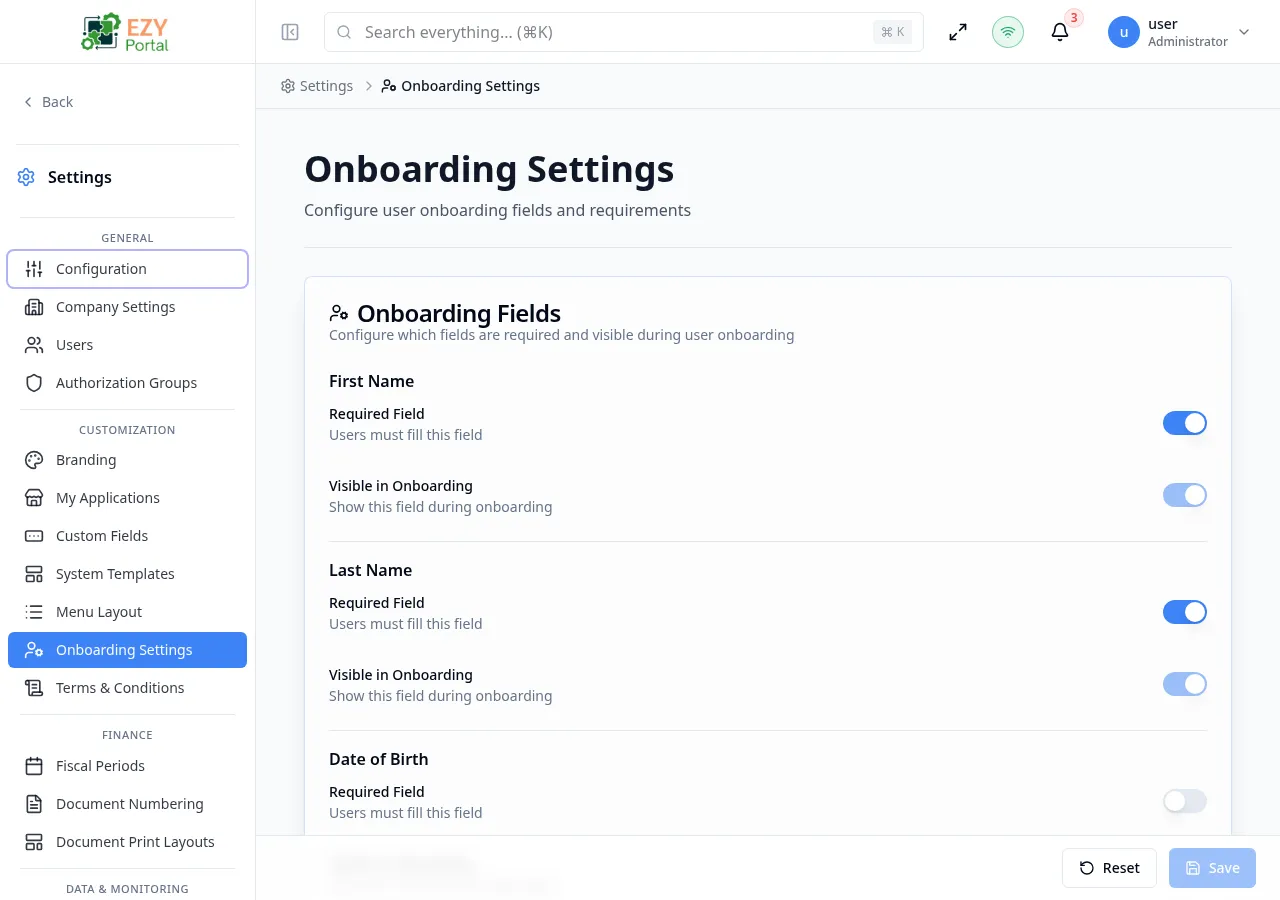
Accessing the Page
Section titled “Accessing the Page”- Route:
/onboarding-settings - Menu Path: Settings → Customization → Onboarding Settings
- Primary audience: Tenant administrators and other users with the required admin role.
What you can do here
Section titled “What you can do here”- Mark onboarding fields as visible or mandatory.
- Choose which gender options are available when the gender field is shown.
- Require users to accept active terms during onboarding.
- Set a relative post-registration redirect URL.
- Configure visibility and mandatory overrides for user custom fields.
Common tasks
Section titled “Common tasks”- Open Settings → Customization → Onboarding Settings.
- Review each field and turn visibility or mandatory switches on or off.
- Configure gender options and the terms acceptance requirement.
- Enter a relative redirect path if users should land outside the default dashboard.
- Save changes and test with a new or reset user account.
- Redirect URLs must be relative paths that start with
/; leave the field empty to use the default dashboard. - This page is only visible (in the sidebar and via direct navigation) when the tenant has External Accounts (B2B Portal) enabled. The toggle is found on the tenant settings page managed by the system administrator. When external accounts are disabled, the sidebar entry is hidden and the underlying endpoints return a not-found response.