Terms & Conditions
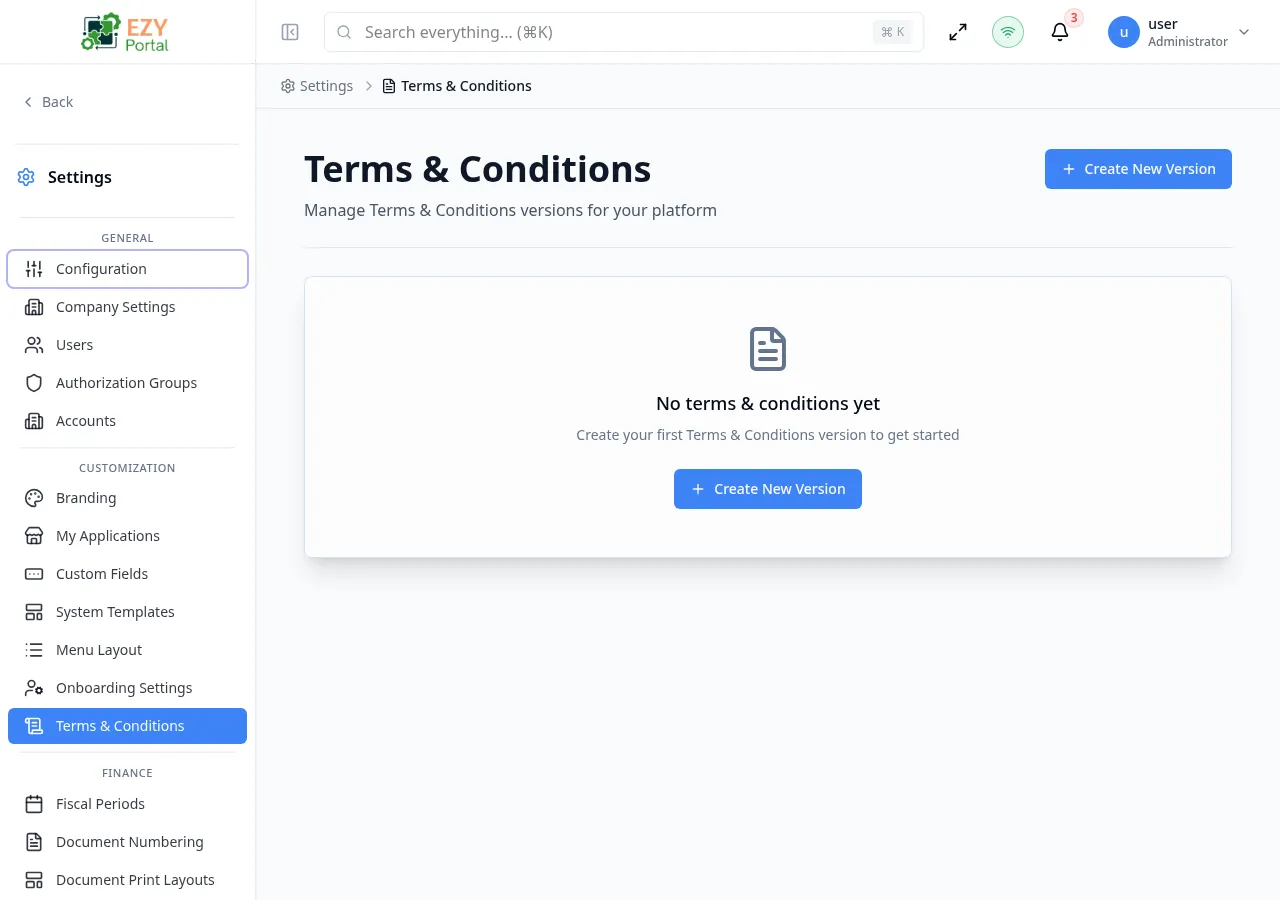
Terms & Conditions manages the legal text that portal users may need to accept before accessing the platform. Administrators maintain numbered versions and activate the version that should be enforced at any given time.
Accessing the Page
Section titled “Accessing the Page”- Route:
/terms-conditions - Menu Path: Settings → Customization → Terms & Conditions
- Primary audience: Tenant administrators and other users with the required admin role.
What you can do here
Section titled “What you can do here”- View all existing terms versions as cards, each showing version number, status, title, and creation date.
- Create a new draft version using the Create New Version button.
- View the full content of any version without editing it.
- Edit any draft version to update its title or content.
- Activate a draft version to make it the current enforced terms.
Common tasks
Section titled “Common tasks”- Open Settings → Customization → Terms & Conditions.
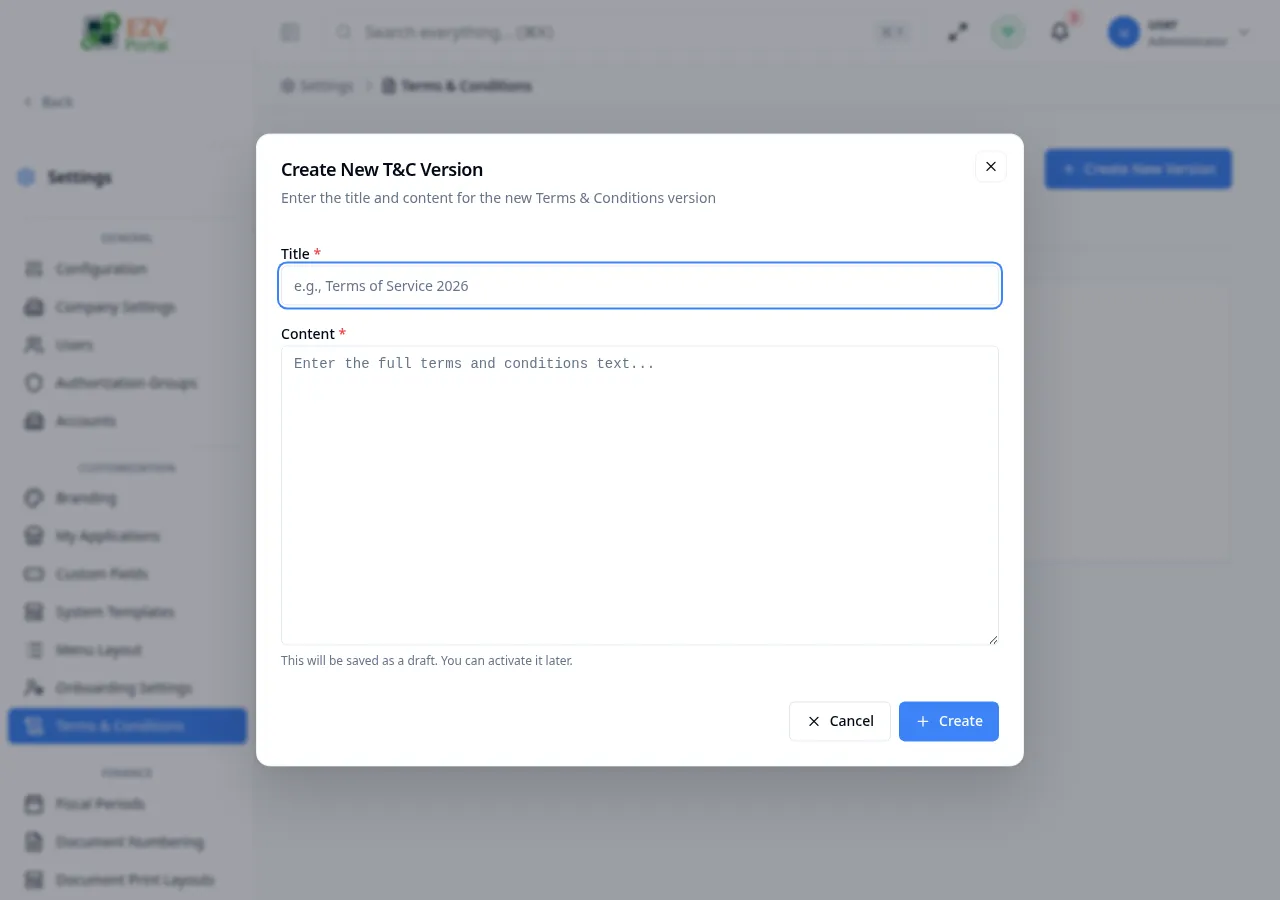
- Click Create New Version to open the creation dialog.
- Enter a descriptive Title (for example, “Terms of Service 2026”) and the full legal Content.
- Click Create. The new version is saved as a Draft.
- Review the content using the View button on the version card.
- When ready to enforce the new terms, click Activate on the draft card and confirm.
- Only one version can be Active at a time. Activating a new version automatically deactivates the previous active version.
- When onboarding requires terms acceptance, users are prompted to accept the currently active version.
- Activating a new version requires re-acceptance from users if the portal’s onboarding configuration enforces it.
- The active version cannot be edited. To update it, create a new draft version, revise it, then activate the new version.
- This page is only visible (in the sidebar and via direct navigation) when the tenant has External Accounts (B2B Portal) enabled. The toggle is found on the tenant settings page managed by the system administrator. When external accounts are disabled, the sidebar entry is hidden and the underlying endpoints return a not-found response.
Creating a Terms Version
Section titled “Creating a Terms Version”Click Create New Version in the page header. A dialog opens where you enter the title and content for the new version.
Fields
Section titled “Fields”| Field | Required | Type | Description | Default | Validation |
|---|---|---|---|---|---|
| Title | Yes | Text | Short display name for this version, such as “Terms of Service 2026” | — | Required |
| Content | Yes | Textarea | Full text of the terms and conditions | — | Required |
Steps:
- Click Create New Version in the page header.
- Enter a unique Title that identifies this version.
- Paste or type the complete terms text in the Content field.
- Click Create. The version is saved as a Draft and appears as a new card on the list.
The create form also supports a drill-down view:
Note: New versions are always saved as Draft. They do not affect users until explicitly activated.
Editing a Terms Version
Section titled “Editing a Terms Version”Open row actions on a draft version card and click Edit to update the title or content.
Same fields as Creating. Only Draft versions can be edited. The Active version is read-only.
Deleting / Deactivating a Terms Version
Section titled “Deleting / Deactivating a Terms Version”There is no permanent delete action exposed on version cards. To stop enforcing a version, activate a newer version — the previously active version automatically becomes inactive. Draft versions that are no longer needed can be left as Draft or replaced by creating and activating an updated version.
Note: The Active version cannot be deleted while it is enforced. Create and activate a replacement version first.
Related Pages
Section titled “Related Pages”- Custom Fields — define tenant-specific fields for portal entities
- System Templates — manage email templates and system page content