Cash Invoice
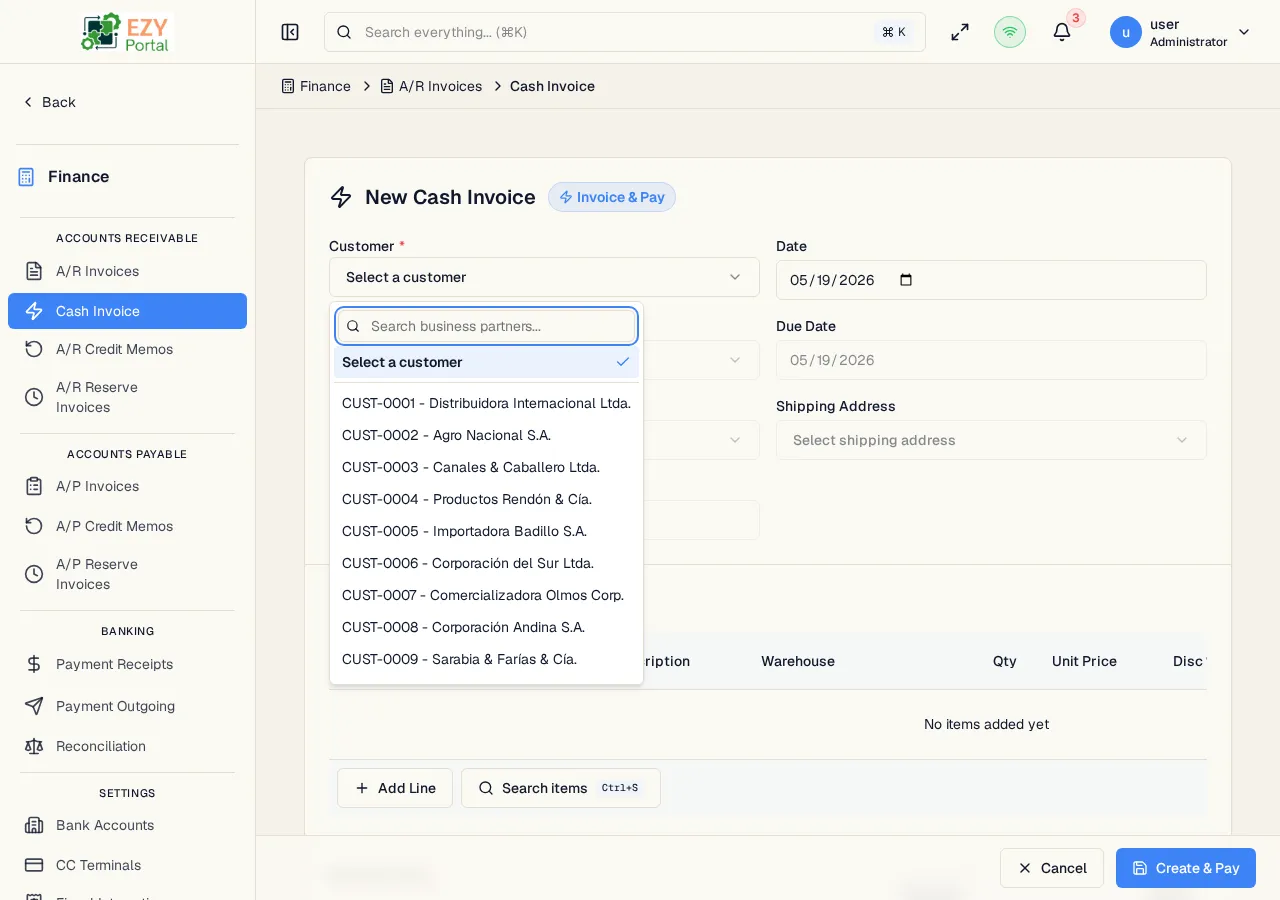
The Cash Invoice form creates an A/R Invoice and a corresponding Payment Receipt simultaneously in a single transaction. Use this flow for point-of-sale or cash-on-delivery scenarios where payment is collected at the time of invoicing.
Accessing the Page
Section titled “Accessing the Page”Navigate to Finance → Accounts Receivable → Cash Invoice in the sidebar, or go to /finance/ar/cash-invoice/new.
Form Overview
Section titled “Form Overview”| Area | Description |
|---|---|
| Document Header | Customer, date, contact, addresses, currency, reference |
| Line Items | Editable table of items, quantities, prices, discounts, taxes, and warehouses |
| Document Footer | Payment terms, price list, sales person, remarks, and totals |
| Payment Details | One or more payment lines specifying how the customer pays |
| Fiscal Data (conditional) | Customer type and fiscal customer name for countries with fiscal integration |
| Button | Behavior |
|---|---|
| Create & Pay | Validate and submit; creates both invoice and receipt |
| Cancel | Discard and return to A/R Invoices |
Document Header Fields
Section titled “Document Header Fields”| Field | Required | Type | Description | Default | Validation |
|---|---|---|---|---|---|
| Customer | Yes | Entity select | Active customer business partner | — | Warning shown if partner is on hold |
| Document Date | Yes | Date | Invoice and receipt date | Today | — |
| Due Date | No | Date | Payment due date | — | Cannot be before document date |
| Contact | No | Entity select | Contact person from the selected customer | — | — |
| Billing Address | No | Entity select | Billing address | — | — |
| Shipping Address | No | Entity select | Shipping address | — | — |
| Currency | Yes | Select | Transaction currency | Customer default | Only enabled currencies |
| Reference | No | Text | External reference number | — | — |
Line Items
Section titled “Line Items”Same structure as Create A/R Invoice — Line Items. Each line requires: Item, Quantity (> 0), Unit Price, Tax Category, and Warehouse.
Document Footer Fields
Section titled “Document Footer Fields”| Field | Required | Type | Description | Default | Validation |
|---|---|---|---|---|---|
| Payment Terms | Yes | Entity select | Payment terms | Customer default | — |
| Price List | Yes | Entity select | Price list | Customer default | — |
| Sales Person | No | Entity select | Assigned sales agent | — | — |
| Remarks | No | Textarea | Free-text notes | — | — |
Payment Details
Section titled “Payment Details”At least one payment line is required. Multiple lines can be added to split payment across methods.
| Field | Required | Type | Description | Default | Validation |
|---|---|---|---|---|---|
| Payment Method | Yes | Select | How the customer is paying | Cash | Required per line |
| Amount | Yes | Number | Amount for this payment method | — | Must be > 0 |
| Bank Account | Yes (for Bank Transfer) | Entity select | Bank account receiving the transfer | — | Required when method is Bank Transfer |
| CC Terminal | Yes (for Credit Card) | Entity select | Credit card terminal used | — | Required when method is Credit Card |
| Check Number | No (for Check) | Text | Check number | — | — |
| CC Last Four | No (for Credit Card) | Text | Last four digits of the card | — | — |
| CC Auth Code | No (for Credit Card) | Text | Authorization code | — | — |
Payment Method options:
| Method | Description |
|---|---|
| Cash | Physical cash payment |
| Bank Transfer | Electronic bank transfer to a configured bank account |
| Check | Payment by check |
| Credit Card | Card payment through a configured CC terminal |
Fiscal Data (Conditional)
Section titled “Fiscal Data (Conditional)”When fiscal integration is enabled for the tenant’s country, a Fiscal Data section appears after the payment details.
| Field | Required | Type | Description | Default | Validation |
|---|---|---|---|---|---|
| Customer Type | Yes | Select | Fiscal classification of the customer | End Consumer | Required when fiscal is enabled |
| Customer Name | No | Text | Fiscal customer name (pre-filled from BP name) | BP name | — |
Customer Type options:
| Value | Description |
|---|---|
| End Consumer | Individual consumer without a tax ID |
| Taxpayer | Business or individual with a registered tax ID |
| Government | Government entity |
| Foreign | Foreign (non-resident) customer |
Validation Rules
Section titled “Validation Rules”| Rule | Behavior |
|---|---|
| Customer required | Cannot submit without a customer |
| Payment Terms required | Cannot submit without payment terms |
| Price List required | Cannot submit without a price list |
| At least one line required | Cannot submit with an empty lines table |
| Quantity > 0 | All line quantities must be positive |
| Tax Category required | Each line must have a tax category |
| Warehouse required | Each line must have a warehouse |
| Stocked-item lines require a Sales Delivery source | Invoices with stocked lines must originate from a Sales Delivery before they can be posted |
| At least one payment line | Cannot submit without payment details |
| Payment Method required | Each payment line must have a method |
| Bank Account required | Required when method is Bank Transfer |
| CC Terminal required | Required when method is Credit Card |
Post-save behavior
Section titled “Post-save behavior”After successful submission:
- An A/R Invoice is created in Posted status with the invoice document number
- A Payment Receipt is created in Posted status with the receipt document number
- The receipt is automatically applied to the invoice
- A success notification shows both document numbers
- You are redirected to the A/R Invoice Detail page
Common tasks
Section titled “Common tasks”- Open the Cash Invoice page from the sidebar.
- Select the customer, add line items, and select payment terms and price list.
- Add payment line(s) in the Payment Details section, then click Create & Pay.
Permissions & system behavior
Section titled “Permissions & system behavior”- Creating cash invoices requires the
canCreateARInvoicepermission. - Both the invoice and receipt are created atomically — if either fails, neither is saved.
Related Pages
Section titled “Related Pages”- A/R Invoices — All invoices including those created via cash invoice
- A/R Invoice Detail — Where you land after creation
- Payment Receipts — The receipt created alongside the invoice
- Fiscal Integration — Configure fiscal document generation