A/R Invoice Detail
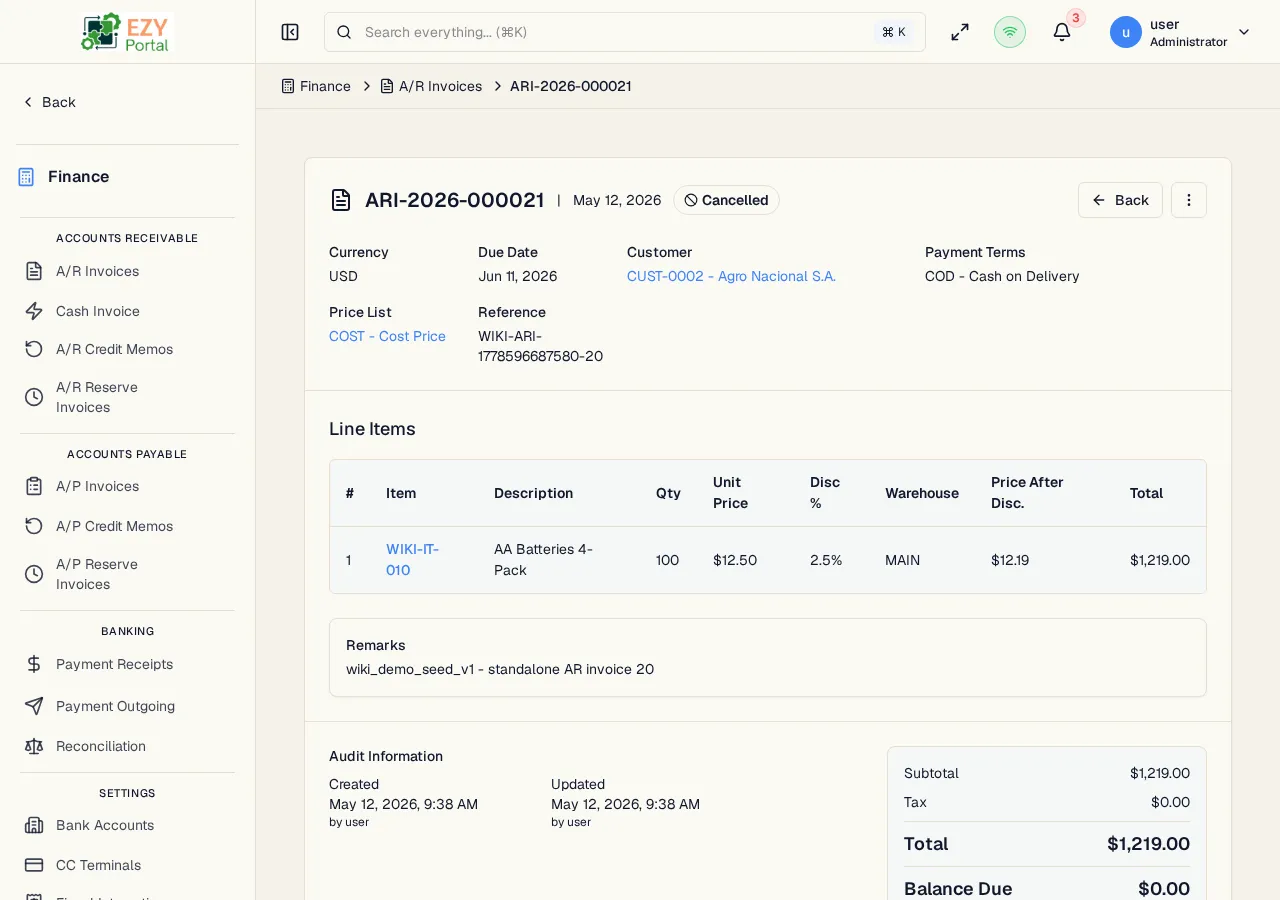
View comprehensive information about an A/R Invoice including header data, line items, payment and pricing details, fiscal document identifiers, and available workflow actions.
Accessing the Page
Section titled “Accessing the Page”From the A/R Invoices list, click any row, or navigate directly to /finance/ar/invoices/:id.
Header / Action Bar
Section titled “Header / Action Bar”The top of the page displays the document number, status badge, and action buttons.
| Button | Description | Permission |
|---|---|---|
| Back | Return to the A/R Invoices list | Any |
| History | Open the entity history dialog showing field-level changes | Any |
| Edit | Open the Edit A/R Invoice form (Draft only) | canEditARInvoice |
| Delete | Delete the invoice (Draft only) | canDeleteARInvoice |
| Post | Transition from Draft to Posted | canPostARInvoice |
| Cancel | Cancel the invoice; requires a reason if posted | canPostARInvoice |
| Duplicate | Create a new Draft copy of this invoice | canCreateARInvoice |
| Create Credit Memo | Navigate to the credit memo form pre-filled from this invoice (visible on Posted/Partially Paid invoices with creditable lines) | canCreateARCreditMemo |
| Export PDF | Download the invoice as a PDF | Any |
Summary Card
Section titled “Summary Card”Displayed below the header:
| Field | Description |
|---|---|
| Document Number | System-assigned invoice number |
| Status | Current lifecycle status |
| Customer | Business partner name and code |
| Document Date | Invoice date |
| Due Date | Payment due date |
| Currency | Transaction currency |
| Reference | External reference (e.g., customer PO number) |
| Contact | Assigned contact person |
| Billing Address | Invoice billing address |
| Shipping Address | Shipping address |
| Payment Terms | Assigned payment terms |
| Price List | Price list used for pricing |
| Sales Person | Assigned sales agent |
| Remarks | Free-text notes |
Line Items
Section titled “Line Items”A table showing all invoice lines:
| Column | Description |
|---|---|
| # | Line number |
| Item | Item code and name |
| Description | Line description |
| Qty | Quantity |
| Unit Price | Price per unit |
| Disc % | Line discount percentage |
| Tax Category | Tax category code |
| Tax Amount | Computed tax for the line |
| Warehouse | Warehouse assigned to the line |
| Total | Line total after discount and tax |
Totals
Section titled “Totals”| Field | Description |
|---|---|
| Subtotal | Sum of all line amounts before discount |
| Discount | Total discount amount |
| Tax Total | Total tax amount |
| Grand Total | Final invoice total |
| Balance Due | Remaining amount not yet paid or credited |
If the price list is masked (restricted), amounts are hidden and replaced with a mask indicator.
Fiscal Information
Section titled “Fiscal Information”When fiscal integration is enabled and a fiscal document number (CUFE) has been assigned, a fiscal section shows:
| Field | Description |
|---|---|
| Fiscal ID (CUFE) | Government-assigned fiscal document identifier |
| Download PDF | Download the fiscal PDF |
| Download XML | Download the fiscal XML |
Audit Log
Section titled “Audit Log”Accessible from the History button. Shows field-level change history with timestamps and user information for each version of the invoice.
Deleting an A/R Invoice
Section titled “Deleting an A/R Invoice”- Click Delete in the action bar (visible only for Draft invoices)
- A confirmation dialog warns the action is permanent
- Click Delete to confirm — you are redirected to the list
Only Draft invoices can be deleted. Cancellation must be used for Posted invoices.
Business rule notes
Section titled “Business rule notes”- The Post action transitions the invoice to Posted status. Once posted, the document cannot be edited — it must be cancelled or credited.
- The Create Credit Memo button appears only when the invoice is in Posted, Partially Paid, or Partially Credited status, and at least one line has a remaining creditable quantity.
- Cancelling a Posted invoice requires a written reason. The reason is stored in the audit log.
- A Credit Limit / Exposure banner is shown on Draft invoices when the customer’s credit limit would be exceeded.
- Stocked-item lines on an invoice must come from a Sales Delivery before the document can be posted.
Common tasks
Section titled “Common tasks”- Open an invoice from the list by clicking any row.
- Review the summary card and line items.
- Click Post to post the invoice, or Edit to make changes while in Draft.
Related Pages
Section titled “Related Pages”- A/R Invoices — List all invoices
- Create A/R Invoice — Create a new invoice
- Edit A/R Invoice — Edit a Draft invoice
- A/R Credit Memos — Apply credit adjustments
- Payment Receipts — Record payments applied to this invoice
- Reconciliation — Match receipts to invoices