Create A/R Invoice
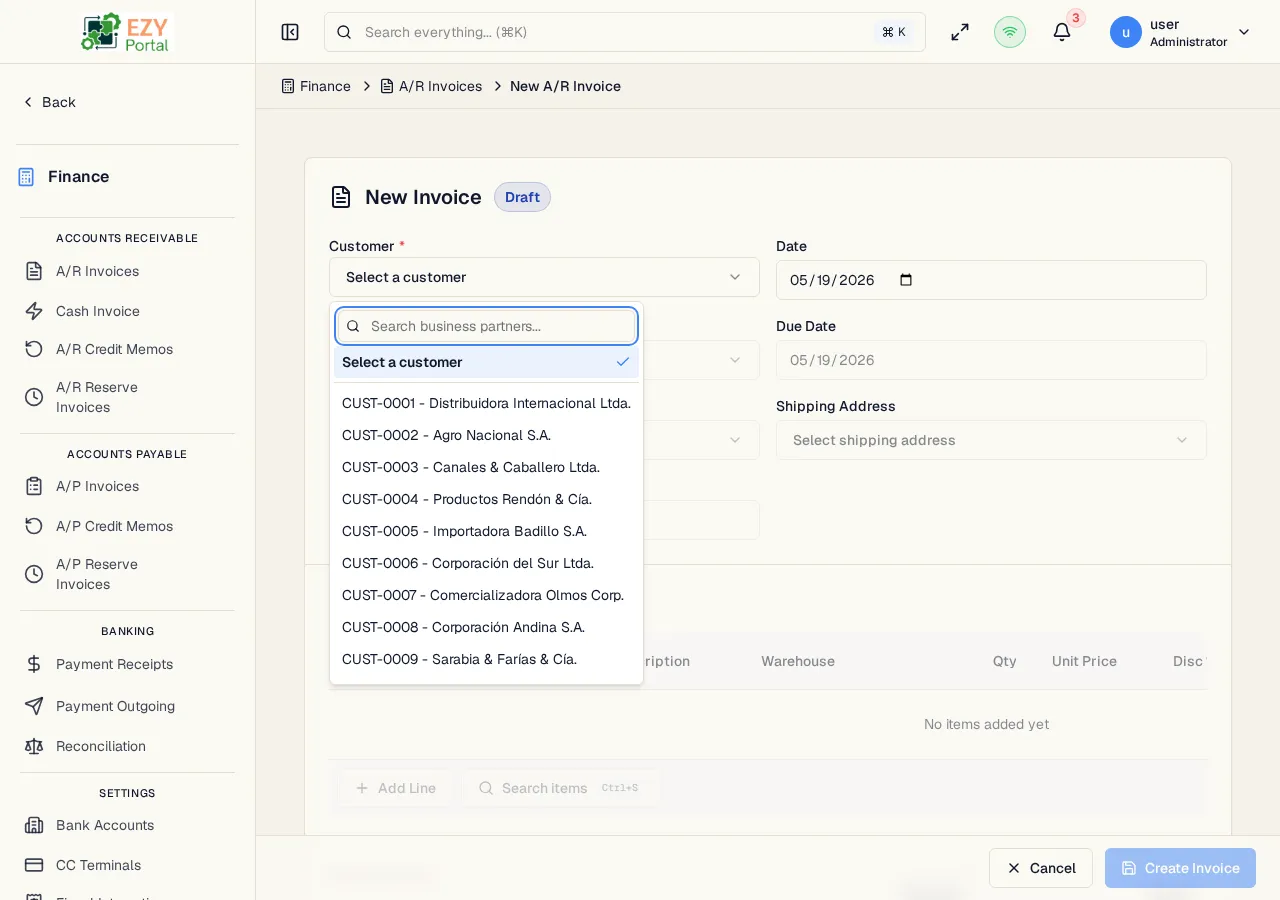
Create a new A/R Invoice by entering header information, adding line items, and setting payment and pricing details. The form supports both manual creation and copying from Commerce documents such as sales quotations, sales orders, and sales deliveries.
Accessing the Page
Section titled “Accessing the Page”From the A/R Invoices list, click New Invoice, or navigate directly to /finance/ar/invoices/new.
To create from a Commerce document, click New from Quotation, New from Order, or New from Delivery on the list page, then select the source document from the search dialog.
Form Overview
Section titled “Form Overview”The form is organized into three areas:
| Area | Description |
|---|---|
| Document Header | Customer, date, due date, contact, addresses, currency, reference |
| Line Items | Editable table of items, quantities, prices, discounts, taxes, and warehouses |
| Document Footer | Payment terms, price list, sales person, remarks, and totals summary |
| Button | Behavior |
|---|---|
| Create Invoice | Validate and submit the form |
| Cancel | Discard and return to the list |
Document Header Fields
Section titled “Document Header Fields”| Field | Required | Type | Description | Default | Validation |
|---|---|---|---|---|---|
| Customer | Yes | Entity select | Business partner with Customer role and Active status | — | Must be an active customer; warning shown if partner is on hold |
| Document Date | Yes | Date | Invoice date | Today | — |
| Due Date | No | Date | Payment due date | Derived from payment terms | Cannot be before the document date |
| Contact | No | Entity select | Contact person from the selected customer | — | Filtered to active contacts for the selected BP |
| Billing Address | No | Entity select | Billing address from the selected customer | — | Filtered to billing-type addresses for the selected BP |
| Shipping Address | No | Entity select | Shipping address from the selected customer | — | Filtered to shipping-type addresses for the selected BP |
| Currency | Yes | Select | Transaction currency | Customer default or tenant default | Only currencies enabled for the tenant |
| Reference | No | Text | External reference number (purchase order number, etc.) | — | — |
When a customer is selected, the form automatically populates the currency, payment terms, price list, and contact from the business partner’s defaults. If the customer’s fiscal information is incomplete, a warning banner appears with a link to complete the fiscal fields inline.
Line Items
Section titled “Line Items”Each line item represents a product or service included in the invoice.
| Field | Required | Type | Description | Default | Validation |
|---|---|---|---|---|---|
| Item | Yes | Entity select | Item from the product catalog | — | Must be a valid item code |
| Description | No | Text | Override or additional line description | Item name | — |
| Quantity | Yes | Number | Number of units | 1 | Must be greater than 0 |
| Unit Price | Yes | Number | Price per unit | From price list | Min 0 |
| Disc % | No | Number | Line-level discount percentage | 0 | 0–100 |
| Tax Category | Yes | Entity select | Tax category for the line | — | Required; determines the tax rate |
| Warehouse | Yes | Entity select | Warehouse associated with this line | — | Required |
| Notes | No | Text | Line-level notes | — | — |
Computed columns shown in the table: Tax Amount, Price After Discount, Line Total.
Click Add Line to append a new row. When a price list is changed and existing lines have prices, a confirmation dialog asks whether to update all line prices from the new price list.
Document Footer Fields
Section titled “Document Footer Fields”| Field | Required | Type | Description | Default | Validation |
|---|---|---|---|---|---|
| Payment Terms | Yes | Entity select | Payment terms defining due date calculation | Customer default or tenant default | — |
| Price List | Yes | Entity select | Price list used for line item pricing | Customer default or tenant default | — |
| Sales Person | No | Entity select | Employee assigned as the sales agent | — | Filtered to employees with the sales-agent role |
| Remarks | No | Textarea | Free-text notes on the document | — | — |
The totals panel shows: Subtotal, Discount Amount, Tax Total, and Grand Total.
Validation Rules
Section titled “Validation Rules”| Rule | Behavior |
|---|---|
| Customer required | Cannot submit without a customer |
| Payment Terms required | Cannot submit without payment terms |
| Price List required | Cannot submit without a price list |
| At least one line required | Cannot submit with an empty lines table |
| Quantity > 0 | All lines must have a positive quantity |
| Tax Category required per line | Each line must have a tax category |
| Warehouse required per line | Each line must have a warehouse |
| Stocked-item lines require a Sales Delivery source | Invoices with stocked lines must originate from a Sales Delivery before they can be posted |
| Due date ≥ document date | Due date cannot precede the document date |
| BP on hold warning | A warning is shown if the customer is on hold; the form can still be submitted |
| BP fiscal incomplete | A warning is shown if fiscal fields are missing; a link allows inline editing |
| Price list masked | If the user does not have access to the selected price list, amounts are masked |
Post-save behavior
Section titled “Post-save behavior”After successful creation the invoice is assigned a document number with Draft status and you are redirected to the A/R Invoice Detail page. From there you can post, edit, or apply credit memos.
Commerce Copy-From Flow
Section titled “Commerce Copy-From Flow”When creating from a Commerce document:
- Click New from Quotation, New from Order, or New from Delivery on the list page
- A search dialog opens — search by document number or customer name
- After selecting a document, a Line Picker dialog opens showing lines with remaining invoiceable quantities
- Select lines and quantities to invoice, then confirm
- The invoice is created immediately and you are redirected to the detail page
If all lines have already been fully invoiced, a warning is displayed and the flow is cancelled.
Common tasks
Section titled “Common tasks”- Open the A/R Invoices list from the sidebar.
- Click New Invoice and fill in the customer, date, and line details.
- Click Create Invoice — the system saves the draft and navigates to the detail page.
Permissions & system behavior
Section titled “Permissions & system behavior”- Creating invoices requires the
canCreateARInvoicepermission. - If the selected price list is restricted from the current user, line prices are masked.
- Customer defaults (currency, payment terms, price list) are fetched automatically when a customer is selected.
Related Pages
Section titled “Related Pages”- A/R Invoices — List all invoices
- A/R Invoice Detail — View, post, or manage an invoice
- Edit A/R Invoice — Edit a Draft invoice
- Cash Invoice — Create an invoice and receipt together
- A/R Credit Memos — Apply credits after posting