API Keys
API keys give external systems permission to interact with EZY Integrations without a user session. Use them when another application needs to trigger a job run or deliver data through an inbound webhook. Each key is scoped to a tenant and must be treated as a sensitive secret.
Key Format
Section titled “Key Format”Every API key follows this format:
ezy_{tenantId}_{64hex}For example: ezy_<tenantId>_<64-character hex string>
The full key is shown only once, immediately after creation. Copy it to a secure secrets store before closing the dialog — it cannot be retrieved again.
In the list view, the key is shown only as a short prefix (for example, ezy_abc1…) so you can identify which key is which without exposing the secret.
Accessing the API Keys Page
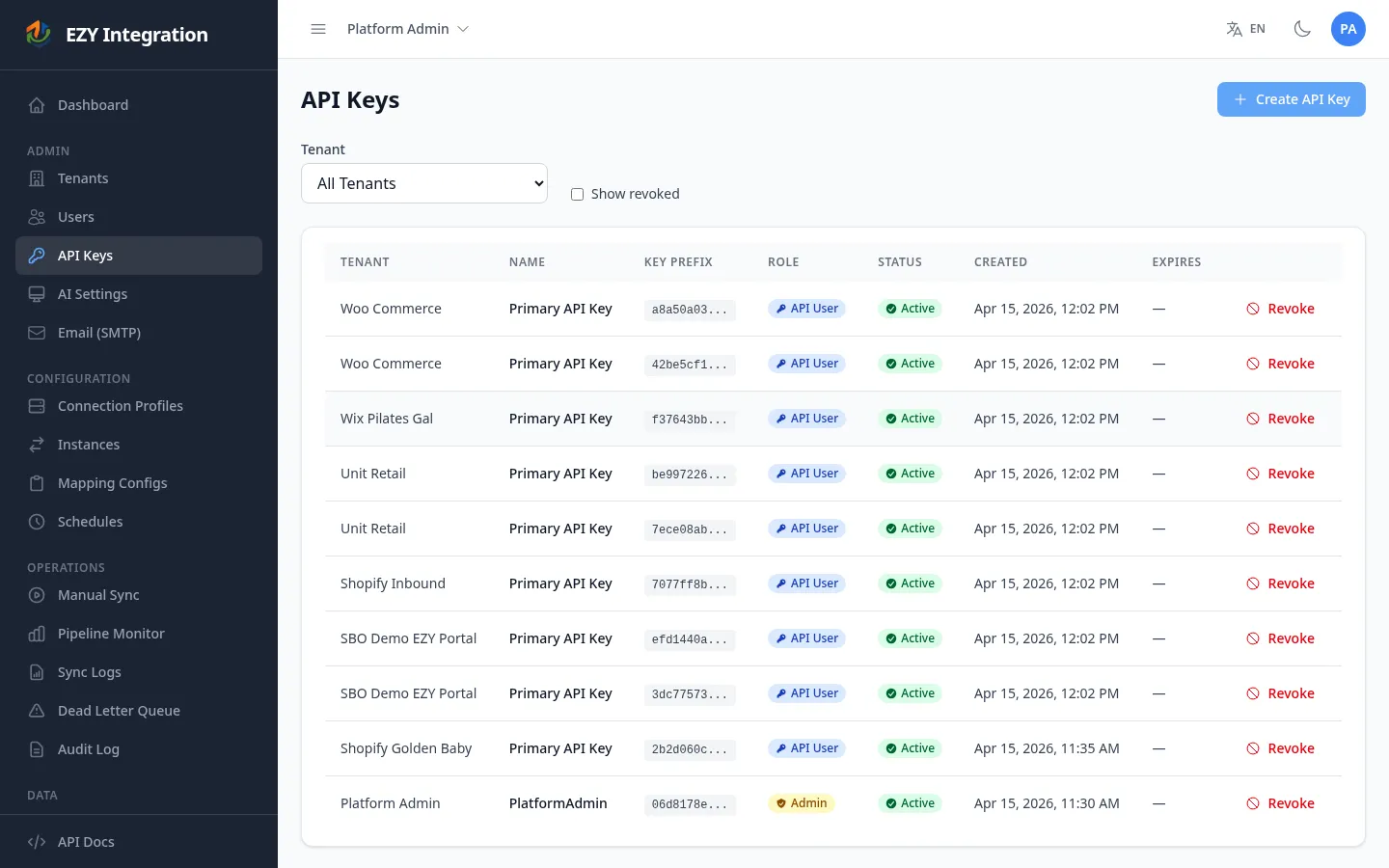
Section titled “Accessing the API Keys Page”Navigate to API Keys in the left sidebar. If your account is a Platform Admin you can view keys for all tenants using the tenant selector at the top of the page. Regular Users see keys for their assigned tenant only.
Creating an API Key
Section titled “Creating an API Key”- Select the target tenant from the tenant selector (Platform Admins only — regular Users skip this step).
- Click Create Key.
- Enter a Key Name that describes its purpose (for example, ERP nightly sync or Webhook receiver).
- Select the Role for the key:
- API User — Standard access for triggering jobs and delivering data. This is the default for tenant-scoped keys.
- Admin — Elevated access. Available only for the system tenant; tenant keys are always created with the API User role.
- Click Create.
- Copy the full key from the dialog that appears. This is the only time the full value is displayed.
Listing API Keys
Section titled “Listing API Keys”The list table shows the following columns:
| Column | Description |
|---|---|
| Name | The label you gave the key. |
| Key prefix | The first few characters of the key, for identification. |
| Role | API User or Admin. |
| Status | Active or Revoked. |
| Created | Date the key was created. |
| Expires | Expiry date if one was set, or blank for no expiry. |
To see revoked keys alongside active ones, check the Show revoked checkbox above the table.
Revoking an API Key
Section titled “Revoking an API Key”- In the API Keys list, click Revoke on the row you want to disable.
- Confirm the action in the dialog.
Revocation is immediate and permanent. A revoked key cannot be reinstated — create a new key if you need to restore access.
Using an API Key in Requests
Section titled “Using an API Key in Requests”Pass the API key in the X-Api-Key request header:
X-Api-Key: ezy_<tenantId>_<64hex>For full authentication details and available endpoints, see the API Reference.
Security Guidance
Section titled “Security Guidance”- Store API keys in a secrets manager (for example, AWS Secrets Manager, Azure Key Vault, or HashiCorp Vault). Never commit keys to source code or configuration files.
- Create one key per integration or external system. Using separate keys makes it easier to revoke access for one consumer without affecting others.
- Revoke any key immediately if it may have been exposed or compromised.
- Review the key list periodically and revoke keys that are no longer in use.
Related Pages
Section titled “Related Pages”- Tenant Onboarding — When to create API keys in the setup sequence.
- Credentials and Secrets — Connection profile secrets (separate from API keys).
- API Reference — Full endpoint and authentication reference.