Storage
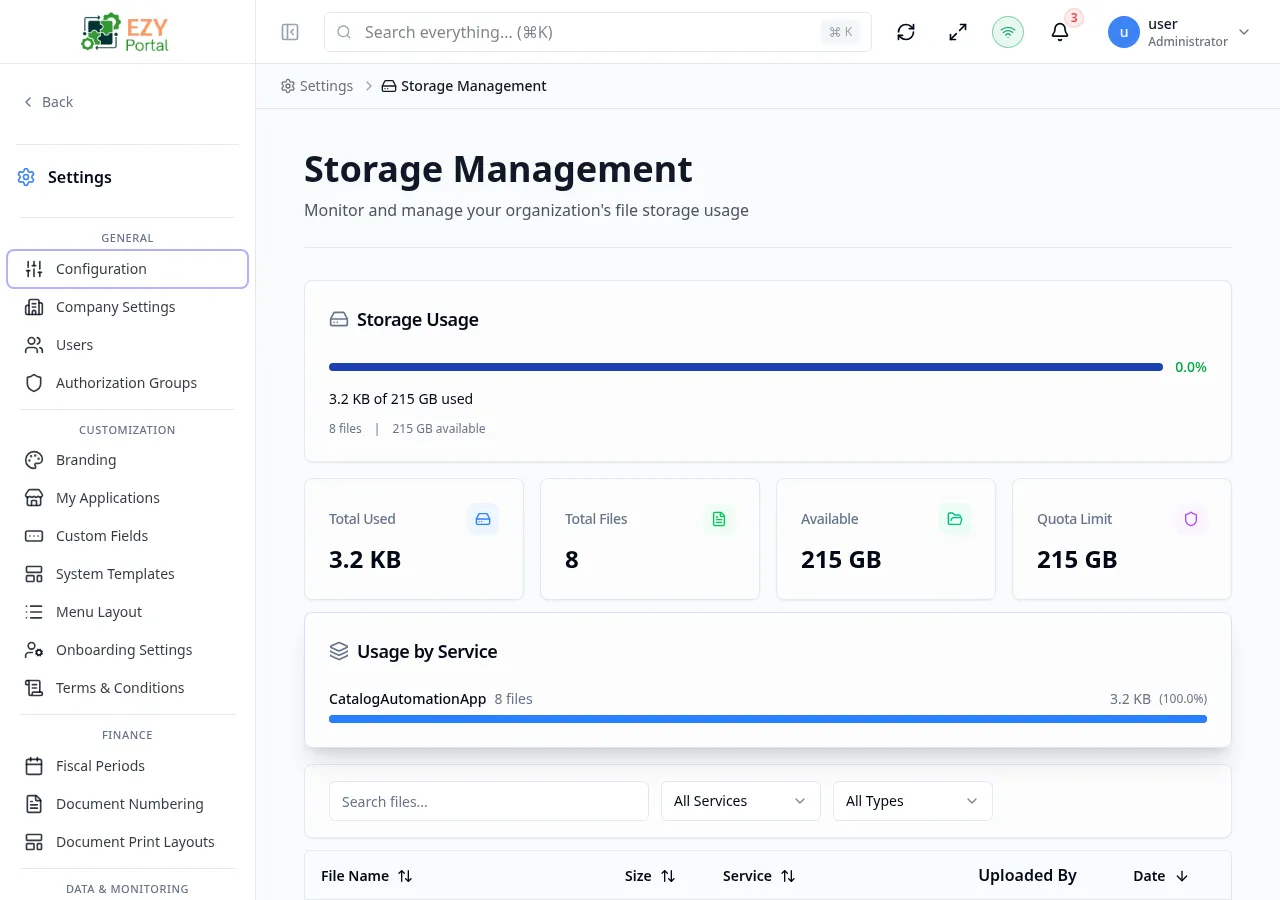
Storage gives tenant administrators a real-time view of how much file storage the tenant is consuming, how the usage is distributed across services, and a full inventory of individual files. Use it to understand storage costs, identify large or unexpected files, and plan retention or cleanup actions.
Accessing the Page
Section titled “Accessing the Page”- Route:
/storage-management - Menu Path: Settings → Data & Monitoring → Storage
- Primary audience: Tenant Super Users. Non-superusers see an access-denied message.
What you can do here
Section titled “What you can do here”- View total storage used, available capacity, file count, and quota in four summary cards.
- See a usage progress bar and percentage against your tenant’s storage quota.
- Review a per-service breakdown showing how much each registered module contributes to total storage.
- Browse the full file inventory with file name, size, service source, uploader, and upload date.
- Filter files by source service and content type (Images, Documents, Spreadsheets, Other).
- Search files by name across all services.
- Sort the file list by file name, size, service, or upload date.
Common tasks
Section titled “Common tasks”- Open Settings → Data & Monitoring → Storage.
- Check the Usage progress bar and the four metric cards at the top for a snapshot of quota consumption.
- Review the Service Breakdown section to identify which service is contributing the most storage.
- Use the Source Service and Content Type filters to narrow the file inventory to a specific module or file category.
- Sort by Size descending to surface the largest files.
- Coordinate with the owning business process before removing files, since files are linked to entity records in their source service.
- Access is restricted to tenant Super Users. Users without the superuser role see an access-denied card.
- The page uses a Load More pattern — the file list loads 20 rows at a time. Scroll to the bottom and click Load More to load additional entries.
- Quota is calculated as base storage plus per-seat storage across all active user tiers. The exact quota breakdown (base storage tier, seat count, per-seat allocation) is available from the platform administration view.
- If the tenant has an Unlimited license, the Available and Quota metric cards show “Unlimited” and the usage progress bar is suppressed.
- Files that were uploaded by an automated process rather than a named user show “System” in the Uploaded By column.
- Deleting files through this page is not available. File deletion must be performed from the record it belongs to within the owning module (for example, deleting an attachment from a business partner detail page).
Usage Summary
Section titled “Usage Summary”The top section of the page shows three components before the file list.
Usage Widget
Section titled “Usage Widget”A card showing the tenant’s overall storage health:
| Element | Description |
|---|---|
| Progress bar | Visual indicator of used vs. quota bytes; turns yellow at 80 % and red at 100 % |
| Used / Total | Human-readable bytes used out of the total quota (e.g., 3.2 GB of 10 GB) |
| File count | Total number of stored files |
| Available | Remaining capacity in human-readable bytes |
Metric Cards
Section titled “Metric Cards”Four KPI cards displayed in a responsive grid:
| Card | Description |
|---|---|
| Total Used | Total bytes consumed across all files |
| Files | Total file count |
| Available | Remaining quota in human-readable bytes |
| Quota | Total allocated quota in human-readable bytes |
Service Breakdown
Section titled “Service Breakdown”A card listing each registered service that has stored files, sorted by contribution:
| Element | Description |
|---|---|
| Service name | Name of the source service (e.g., core, inventory) |
| File count | Number of files stored by this service |
| Total size | Human-readable total bytes for this service |
| Percentage | Proportion of total storage, shown as a horizontal bar |
List Columns
Section titled “List Columns”| Column | Sortable | Description |
|---|---|---|
| File Name | Yes | Original file name with a content-type icon (image, document, spreadsheet, or generic file) |
| Size | Yes | File size in human-readable bytes |
| Service | Yes | Source service badge (e.g., core, inventory) |
| Uploaded By | No | Name of the user who uploaded the file, or “System” for automated uploads |
| Date | Yes | Upload date displayed as relative time (e.g., “3 days ago”) |
Filtering
Section titled “Filtering”| Filter | Type | Description |
|---|---|---|
| Search | Free text | Searches by file name across all services |
| Source Service | Select | Filters to files from a specific registered service; options are populated dynamically from the service breakdown |
| Content Type | Select | Filters by category: Images, Documents, Spreadsheets, or Other |
Active filters appear as removable chip tags. Each chip can be dismissed individually, or all filters cleared at once.
Sorting
Section titled “Sorting”Click any sortable column header to sort ascending. Click again to sort descending. A third click removes the sort. Default sort is Date descending (newest first).
Pagination
Section titled “Pagination”The file list uses a Load More pattern. The total count of matching files is shown above the list. Additional rows load on demand at the bottom of the list. The page size is fixed at 20 files per load.
Related Pages
Section titled “Related Pages”- Trash — restore or permanently delete soft-deleted records
- Audit Logs — full change history for all tenant entities