Audit Logs
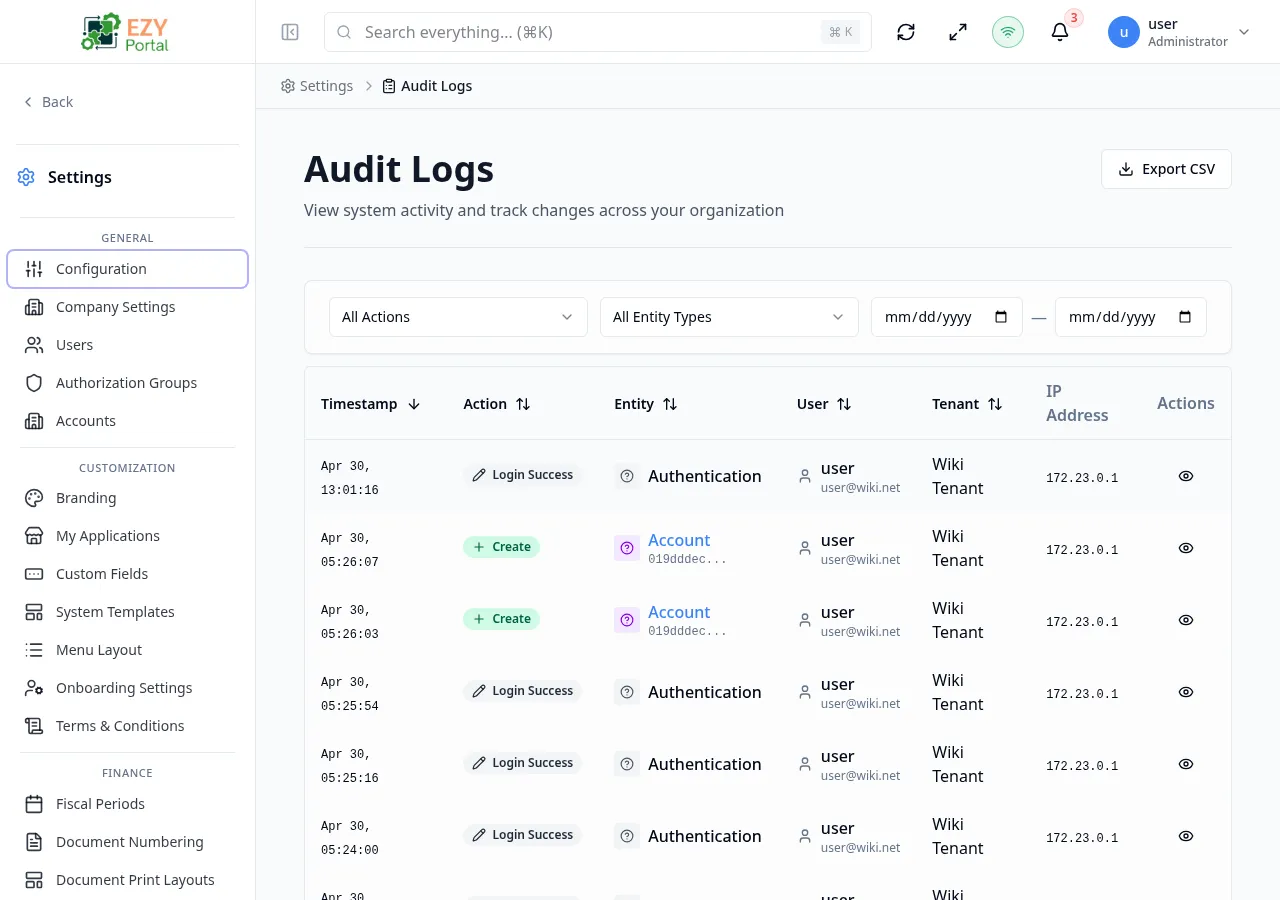
Audit Logs is the compliance and investigation page that records every action performed in the portal. Each entry captures who acted, what entity was affected, when the action occurred, and the exact field values that changed. Tenant administrators use it for change tracking, compliance evidence, and incident investigation; account administrators see only the records within their account scope.
Accessing the Page
Section titled “Accessing the Page”- Route:
/audit-logs - Menu Path: Settings → Data & Monitoring → Audit Logs
- Primary audience: Tenant administrators and account administrators. Superusers see tenant-wide logs; account administrators see account-scoped logs only.
What you can do here
Section titled “What you can do here”- Browse all audit events with filtering by action type, entity type, and date range.
- Sort the list by any column to find events quickly.
- Open a detail dialog for any row to see the full event — actor, tenant, IP address, user agent, and field-level before/after diff.
- Click an entity type badge in a row to navigate directly to that record.
- Export the current filtered view to CSV (Superuser only).
Common tasks
Section titled “Common tasks”- Open Settings → Data & Monitoring → Audit Logs.
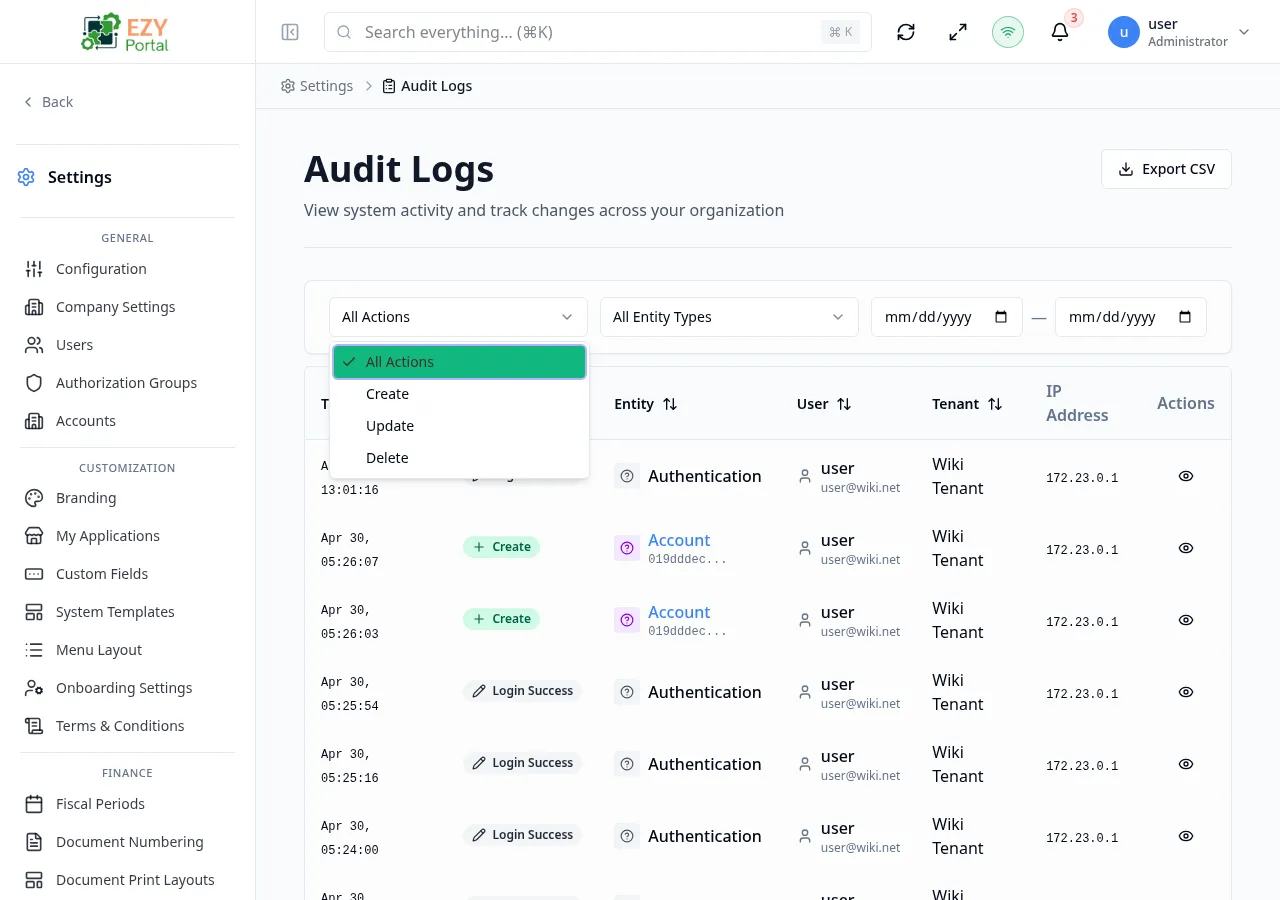
- Use the Action filter to narrow to a specific type (Create, Update, Delete) and the Entity Type filter to scope to a specific record type.
- Set From and To dates to constrain the time window.
- Scroll or load more entries until you find the event in question.
- Click the View icon on the row to open the detail dialog and review the full before/after diff.
- If you need to share results, click Export CSV to download the filtered list.
- Audit logs are immutable. There is no create, edit, or delete action available on this page.
- The list defaults to newest-first sort on the Timestamp column.
- The page size is 20 rows per page and uses a Load More pattern — total count is shown, and additional pages load on demand.
- The Export CSV button is available to Superusers only. It exports the current filter state, not the full unfiltered history.
- Entity type badges in rows are clickable links when the entity has a registered navigation pattern — clicking one navigates to that record’s detail page.
- Logs generated by API key access show the API key name and a key icon instead of a user name. Two API key kinds are distinguished in the actor column:
- Tenant API key — a key issued by a tenant administrator via Settings → Data & Monitoring → API Keys. The actor cell shows the key’s display name.
- Service API key — a platform-level key used for service-to-service authentication and managed under Settings → System → Service API Keys (system admin). The actor cell shows the service key name and is distinguishable from tenant keys so investigators can tell whether an action came from a tenant user, a tenant-issued key, or another platform service.
List Columns
Section titled “List Columns”| Column | Sortable | Description |
|---|---|---|
| Timestamp | Yes | Date and time of the action in MMM D, HH:mm:ss format |
| Action | Yes | Color-coded action badge: Create (green), Update (blue), Delete (red), Login, Logout, Export, Import, Transition, etc. |
| Entity | Yes | Entity type with icon and color badge; truncated record ID shown below the type; clickable when the entity has a navigation pattern |
| User | Yes | User name and email (or API key name with key icon for API key access) |
| Tenant | Yes | Tenant name; account name shown below when the action was scoped to an account (hidden on smaller screens) |
| IP Address | No | IPv4 or IPv6 address of the request origin (hidden on screens narrower than XL) |
| Actions | No | View icon button — opens the Audit Log detail dialog |
Filtering
Section titled “Filtering”| Filter | Type | Description |
|---|---|---|
| Action | Select | Filter to a specific action type: All Actions, Create, Update, or Delete |
| Entity Type | Select | Filter to a specific entity type; the list is populated dynamically from all entity types present in the log |
| From Date | Date | Earliest date (inclusive) for log entries |
| To Date | Date | Latest date (inclusive) for log entries |
Active filters appear as removable chip tags above the list. Each chip can be dismissed individually, or all filters cleared at once.
Sorting
Section titled “Sorting”Click any column header marked as sortable to sort ascending. Click again to sort descending. The default sort is Timestamp descending (newest first).
Pagination
Section titled “Pagination”The page uses a Load More pattern. The total count of matching records is displayed at the top of the list. Scroll to the bottom to load the next 20 entries. The page size is fixed at 20 rows.
Viewing Audit Log Details
Section titled “Viewing Audit Log Details”Click the View icon button on any row to open the detail dialog for that log entry.
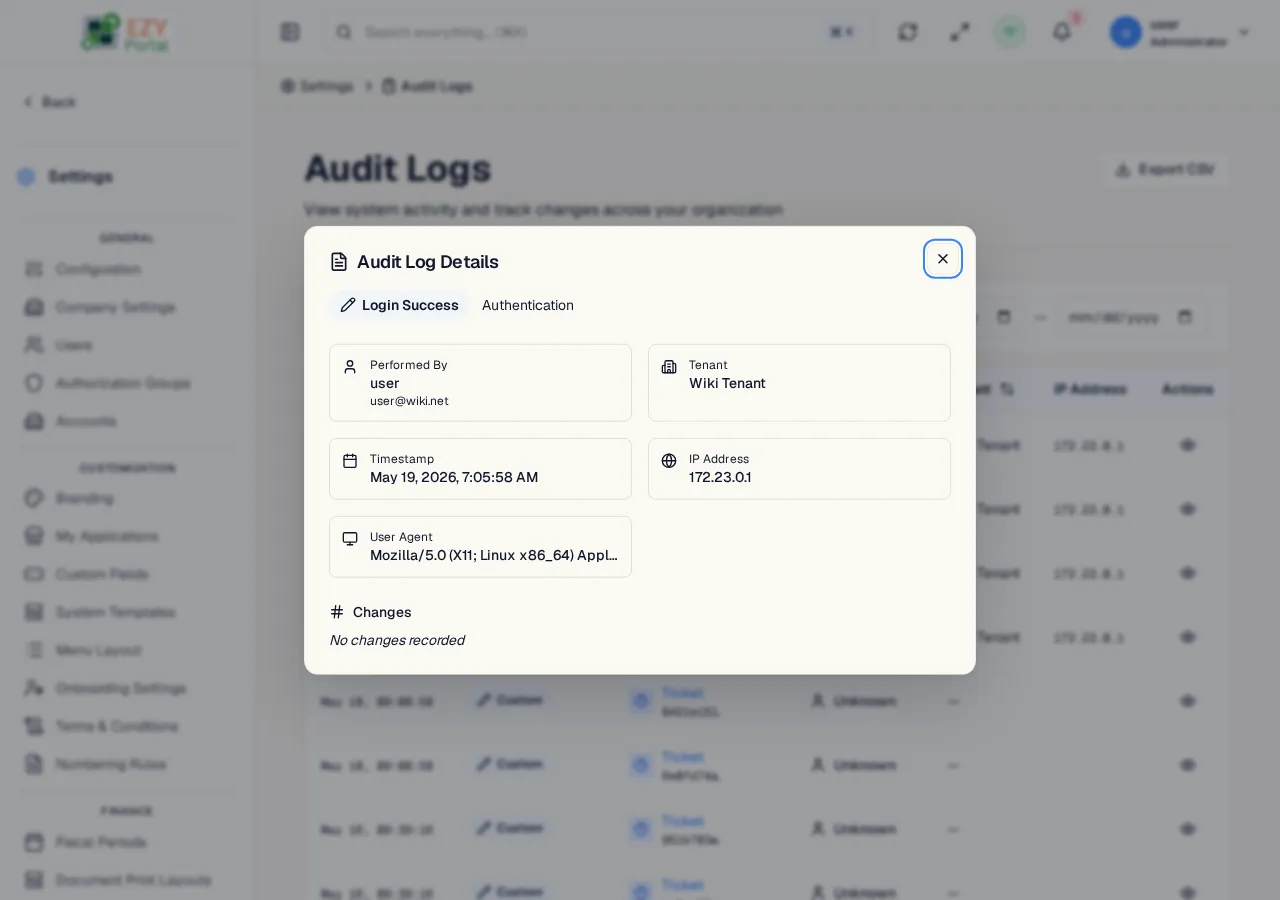
The detail dialog contains two sections:
Actor and Context
Section titled “Actor and Context”| Field | What it shows |
|---|---|
| Performed By | User name and email, or API key name with a key icon for API key access |
| Tenant | The user’s home tenant and, if different, the target tenant the action was performed against |
| Account | Account name and code when the action was scoped to an account |
| Timestamp | Full date and time in locale-formatted long format |
| IP Address | IPv4 or IPv6 address of the originating request |
| User Agent | Browser or client string, truncated on smaller viewports |
Changes Diff
Section titled “Changes Diff”Shows the field-level before and after values for the action. For Create actions, only the new values are shown. For Update actions, a diff view highlights each changed property with its old value and new value side by side. For Delete actions, the payload at time of deletion is shown.
Related Pages
Section titled “Related Pages”- Activity — real-time dashboard with KPI cards, activity chart, and timeline