Interviews
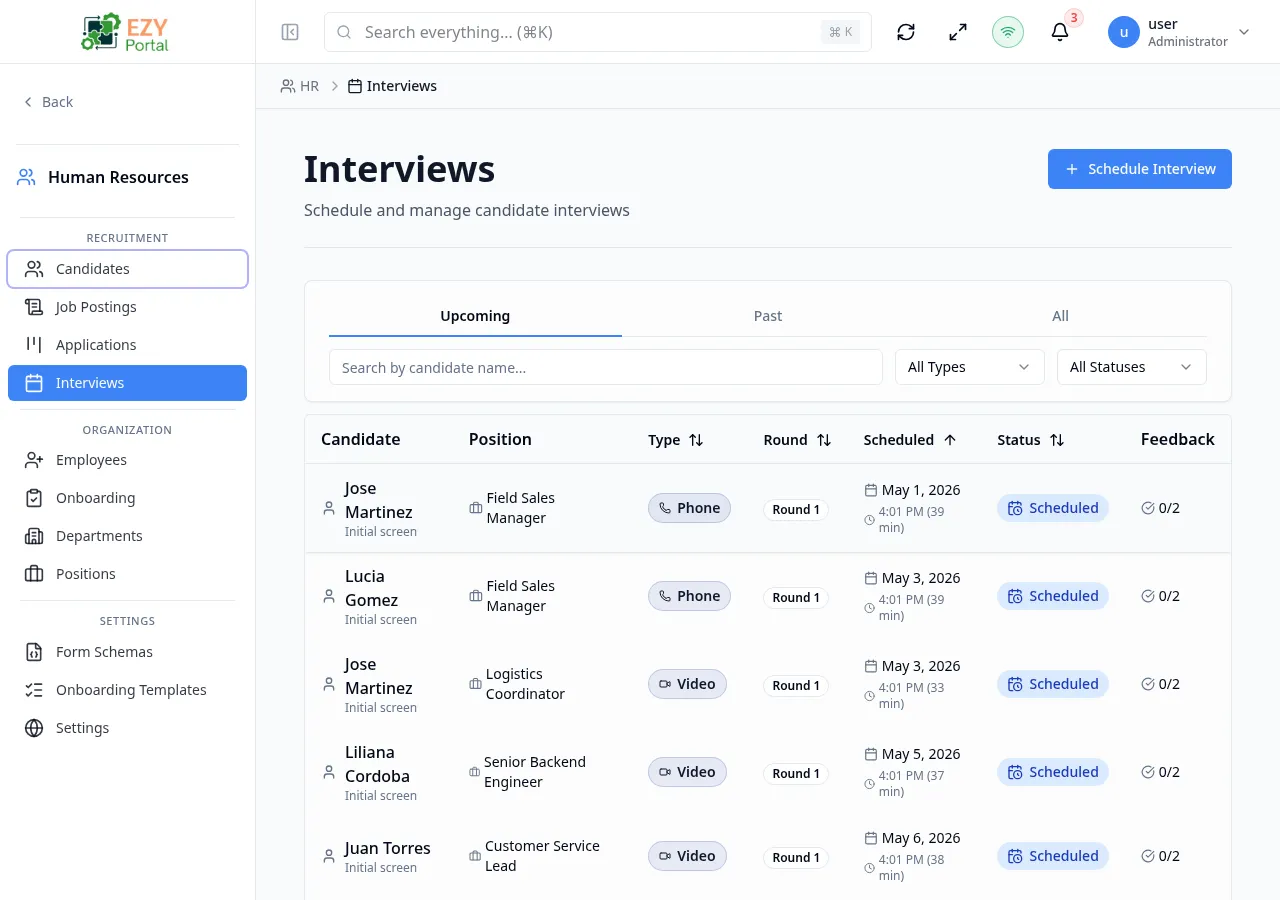
The Interviews page provides a cross-application view of all scheduled interviews. Interviews are created from an application record or directly from this page, and each is linked to a specific application. The page offers three tab views — Upcoming, Past, and All — to focus on what is relevant. Interviewers can submit structured feedback including scores, a hiring recommendation, strengths, and concerns.
Accessing the Page
Section titled “Accessing the Page”- Route:
/interviews - Menu Path: HR → Recruitment → Interviews
List Columns
Section titled “List Columns”| Column | Default Visible | Sortable | Description |
|---|---|---|---|
| Candidate | Yes | Yes | Candidate name and associated job posting |
| Position | Yes | No | Job posting title |
| Type | Yes | No | Interview type badge |
| Round | Yes | No | Interview round number |
| Scheduled | Yes | Yes | Date and time of the interview |
| Status | Yes | No | Current interview status |
| Feedback | Yes | No | Feedback submission indicator |
| Tab | Description |
|---|---|
| Upcoming | Interviews scheduled in the future |
| Past | Interviews that have already occurred |
| All | All interviews regardless of date |
Status Values
Section titled “Status Values”| Status | Description |
|---|---|
| Scheduled | Interview is planned |
| Confirmed | Candidate and interviewers have confirmed attendance |
| In Progress | Interview is currently happening |
| Completed | Interview has concluded |
| Cancelled | Interview was cancelled |
| No Show | Candidate or interviewers did not attend |
| Rescheduled | Interview was moved to a new time |
Interview Type Values
Section titled “Interview Type Values”| Type | Description |
|---|---|
| Phone | Phone screen call |
| Video | Video conference call |
| In Person | Face-to-face at an office location |
| Technical | Technical skills assessment |
| Panel | Multi-interviewer panel session |
| Final | Final round interview |
| Culture Fit | Cultural alignment conversation |
Filtering
Section titled “Filtering”| Filter | Type | Description |
|---|---|---|
| Search | Free text | Searches by candidate name |
| Type | Select | Filter by interview type |
| Status | Select | Filter by interview status |
Sorting
Section titled “Sorting”Click any sortable column header to sort ascending; click again for descending; third click removes the sort.
Pagination
Section titled “Pagination”Server-side pagination with configurable page size.
Actions
Section titled “Actions”Page Actions
Section titled “Page Actions”| Action | Description |
|---|---|
| Schedule Interview | Opens the Schedule Interview dialog |
Row / Detail Actions
Section titled “Row / Detail Actions”| Action | Availability | Description |
|---|---|---|
| Complete | Scheduled or Confirmed | Marks the interview as Completed |
| Reschedule | Scheduled or Confirmed | Opens the edit dialog to change date/time |
| Cancel | Scheduled or Confirmed | Cancels with a reason prompt |
Scheduling an Interview
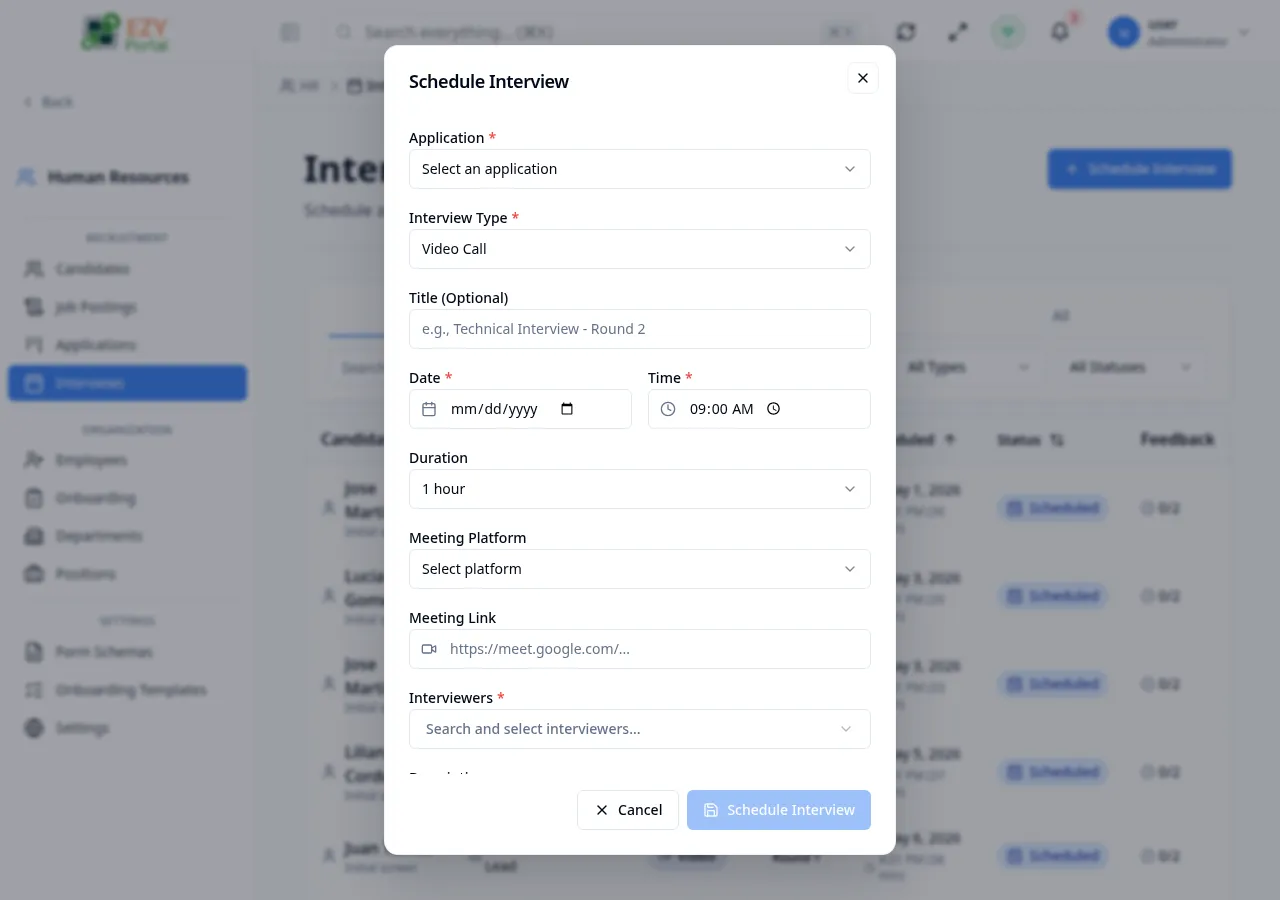
Section titled “Scheduling an Interview”Click Schedule Interview in the page header, or use the Schedule Interview action from an application detail panel.
Fields
Section titled “Fields”| Field | Required | Type | Description | Default | Validation |
|---|---|---|---|---|---|
| Application | Yes | Entity select | The application this interview belongs to | — | Required |
| Interview Type | Yes | Select | Phone, Video, In Person, Technical, Panel, Final, Culture Fit | — | Required |
| Title | No | Text | Optional custom title (e.g., “Technical Interview – Round 2”) | — | — |
| Date | Yes | Date | Interview date | — | Required |
| Time | Yes | Time | Interview start time | — | Required |
| Duration | No | Select | Length in minutes | — | — |
| Location | No | Text | Office address or meeting room | — | — |
| Meeting Platform | No | Select | Google Meet, Zoom, Microsoft Teams, or Other | — | — |
| Meeting Link | No | URL | Link to the video meeting | — | — |
| Interviewers | No | Multi-select | Portal users participating as interviewers | — | — |
| Description | No | Textarea | Agenda, topics to cover, or preparation notes | — | — |
Steps:
- Click Schedule Interview.
- Select the application and interview type.
- Set the date, time, and optionally the duration.
- Add interviewers.
- Click Schedule Interview to confirm.
After scheduling, the interview appears in both the Interviews list and the Interviews tab of the associated application detail panel.
Interview Detail Panel
Section titled “Interview Detail Panel”Clicking an interview row opens the Interview Detail side panel with three tabs:
Details tab
Section titled “Details tab”| Section | Fields |
|---|---|
| Schedule | Date, time, duration, timezone |
| Location | Office address or room |
| Meeting | Platform name, meeting link (joinable button) |
| Interviewers | List of assigned interviewers with avatars |
Feedback tab
Section titled “Feedback tab”Lists all feedback submissions from interviewers. Each feedback entry shows:
- Interviewer name
- Score by category (1–5 scale)
- Hiring recommendation (Strong Yes, Yes, Neutral, No, Strong No)
- Strengths noted
- Concerns noted
- Overall notes
- Private flag (visible to hiring managers only)
A Feedback Summary section at the top shows the average score and recommendation breakdown across all submissions.
Interviewers can submit feedback by clicking Add Feedback in this tab.
Notes tab
Section titled “Notes tab”Shows the interview description (agenda/notes) and completion timestamp.
Submitting Feedback
Section titled “Submitting Feedback”Interviewers can submit feedback from the Interview Detail panel’s Feedback tab.
| Field | Required | Type | Description |
|---|---|---|---|
| Score by Category | No | Rating (1–5) | Score across multiple evaluation categories |
| Recommendation | No | Select | Strong Yes, Yes, Neutral, No, Strong No |
| Strengths | No | Textarea | Candidate strengths observed |
| Concerns | No | Textarea | Concerns about the candidate |
| Overall Notes | No | Textarea | General observations |
| Private | No | Toggle | When on, feedback is only visible to hiring managers |
Common tasks
Section titled “Common tasks”- Open HR → Recruitment → Interviews from the sidebar.
- Select the Upcoming tab to see interviews requiring action.
- Click an interview row to open the detail panel and review or submit feedback.
- Use Complete, Reschedule, or Cancel actions as appropriate.
Related Pages
Section titled “Related Pages”- Applications — Applications linked to each interview
- Candidates — Candidate profiles