AI Settings Overview
AI Settings centralizes controls for AI-powered features in the tenant. Administrators can provide provider credentials, enforce budget limits, and review usage so AI adoption stays secure, observable, and cost-controlled. This sub-module is used by tenant administrators.
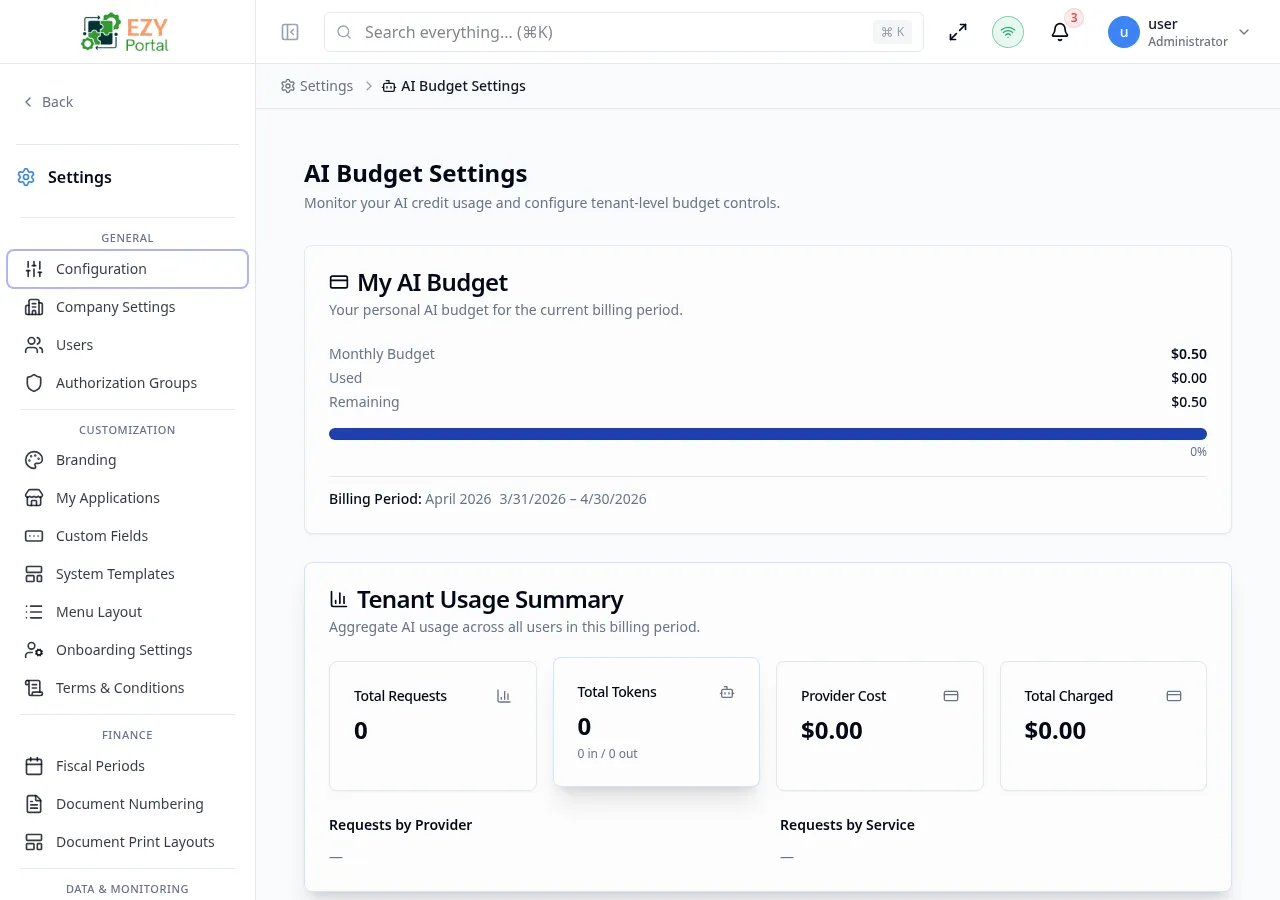
Accessing the Page
Section titled “Accessing the Page”- Menu Path: Settings → AI
- Primary audience: Tenant administrators (Super Users).
What you can do here
Section titled “What you can do here”- Register AI provider API keys that tenant AI features use to authenticate with external services.
- Set personal and tenant-wide spend caps, credit overrides, and budget period limits.
- Review a detailed log of AI calls broken down by user, service, provider, model, tokens consumed, and cost.
- Compare actual usage against configured model pricing to track cost governance.
Pages in this group
Section titled “Pages in this group”| Page | Purpose |
|---|---|
| AI Credentials | Configure the AI provider API keys used by tenant AI features. |
| AI Budget | Set personal and tenant budget limits and credit overrides. |
| AI Usage History | Review AI call history by user, service, provider, model, tokens, and cost. |
Common tasks
Section titled “Common tasks”- Open Settings and expand the AI group in the sidebar.
- Go to AI Credentials and add provider keys before enabling any AI feature that requires external access.
- Open AI Budget and set spend caps or credit limits before rolling out AI features to a broader user group.
- Review AI Usage History regularly to monitor costs, identify heavy users, and spot unexpected usage patterns.
- Visible to tenant Super Users when AI functionality is enabled for the tenant.
- AI Settings pages are hidden in the system tenant — system administrators manage global AI configuration from System Settings.
- Budget limits set here apply only to the current tenant; system-level pricing and global caps are managed in System Settings.