Departments
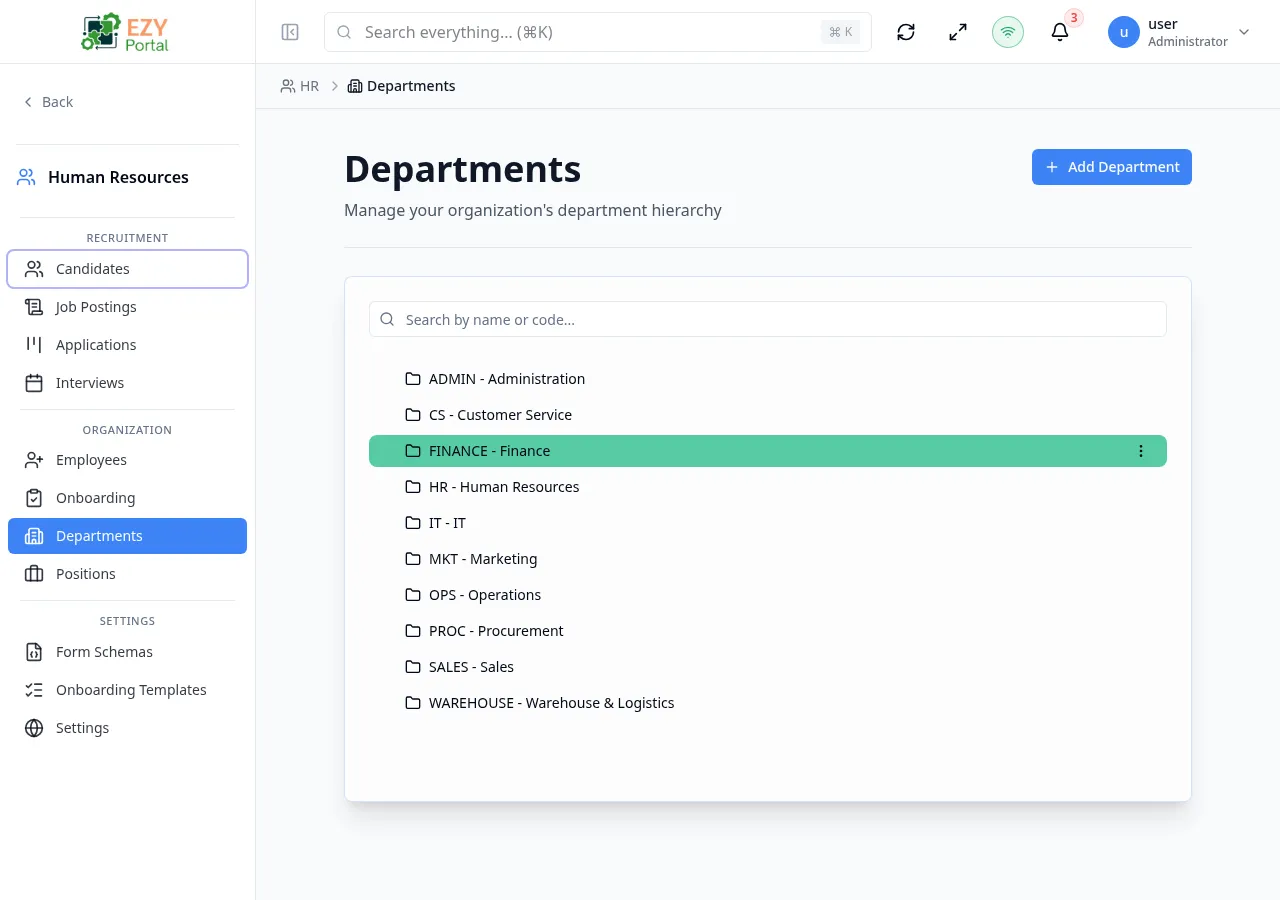
The Departments page displays all departments in a collapsible tree view, reflecting the parent–child hierarchy of your organization. Each department can have a parent department, creating multi-level structures. All CRUD operations are performed through dialogs without leaving the page.
Accessing the Page
Section titled “Accessing the Page”- Route:
/departments - Menu Path: HR → Organization → Departments
- Primary audience: HR administrators and managers with the
canWriteDepartmentspermission.
What you can do here
Section titled “What you can do here”- Browse the full department hierarchy in an expandable tree.
- Search departments by name or code — matching nodes and their ancestors are preserved in the results.
- Create a new top-level department or a child department nested under an existing one.
- Edit any department’s name, code, description, parent, and active status.
- Delete departments that no longer exist in the organization.
Tree View
Section titled “Tree View”Departments are displayed as a tree. Each node shows the department name and its code (if set). The tree expands automatically when a search query is active.
Row actions on each node:
| Action | Description |
|---|---|
| Edit | Opens the Edit Department dialog for that node |
| Add Child | Opens the Create Department dialog pre-filled with this department as the parent |
| Delete | Opens the Delete confirmation dialog |
Search
Section titled “Search”Type in the search box at the top of the card to filter departments by name or code. The tree retains ancestor nodes of matching departments so the hierarchy context is preserved. When the search input is cleared, all nodes are shown.
Creating a Department
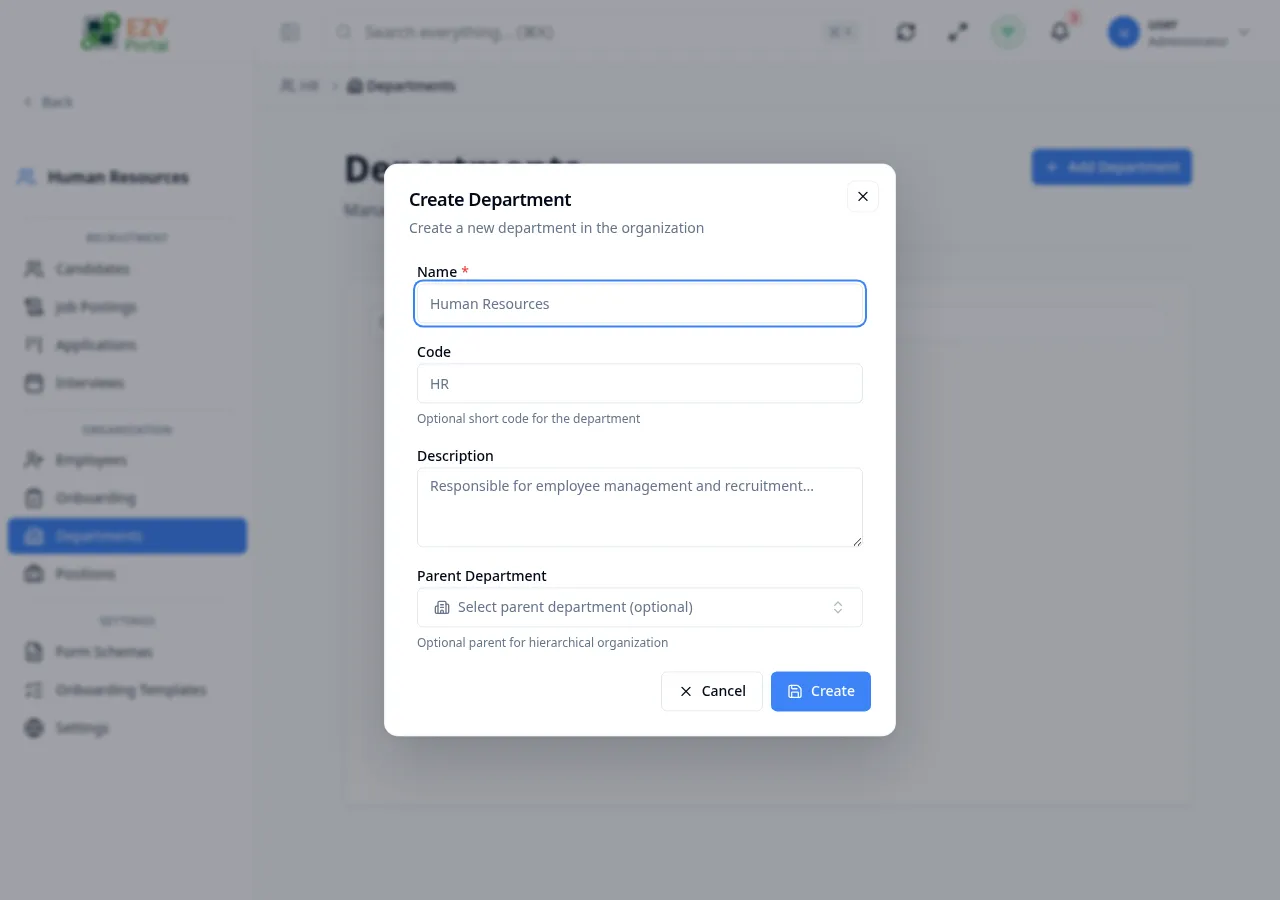
Section titled “Creating a Department”Click Add Department in the page header, or use the Add Child action on a node to open the Create Department dialog.
Fields
Section titled “Fields”| Field | Required | Type | Description | Default | Validation |
|---|---|---|---|---|---|
| Name | Yes | Text | Display name of the department | — | Max 255 chars; uniqueness validated in real time |
| Code | No | Text | Short identifier (e.g., HR, ENG) | — | Max 50 chars; uniqueness validated in real time |
| Description | No | Textarea | Purpose or scope of the department | — | Max 1000 chars |
| Parent Department | No | Entity select | Places this department under another | — | Circular references are automatically prevented |
| Active | — | Toggle | Controls whether the department is selectable elsewhere in the system | On | — |
Steps:
- Click Add Department (or Add Child on a tree node).
- Enter the department Name and optionally a Code.
- Select a Parent Department if this should be a sub-department.
- Click Create.
After creation the tree refreshes to show the new node in the correct position.
Editing a Department
Section titled “Editing a Department”Click the Edit action on any tree node to open the Edit Department dialog.
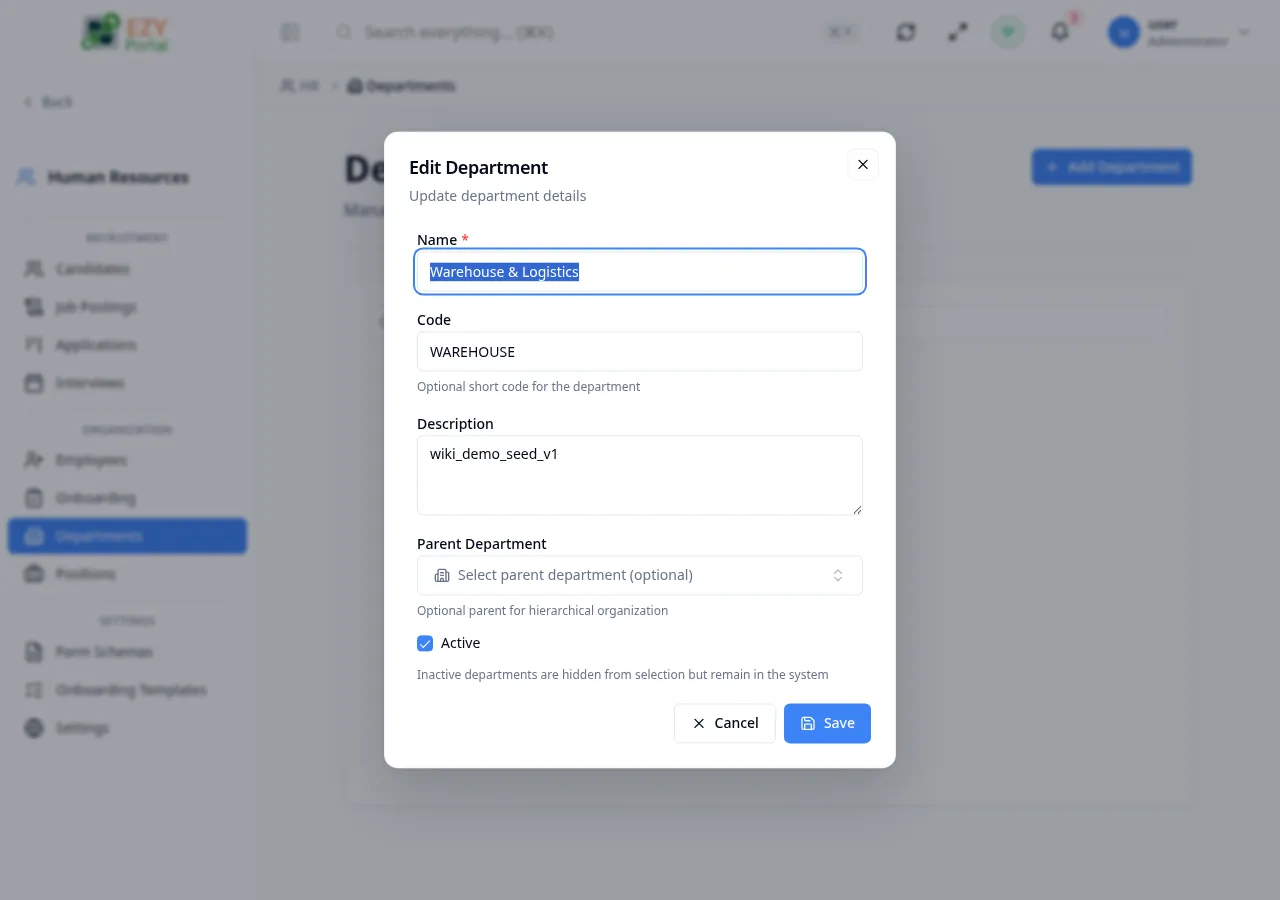
Same fields as Creating. All fields are editable in edit mode. Changing the Parent Department moves the department and all its children in the hierarchy; a warning message is displayed before you save.
Note: Inactive departments are hidden from department-selection dropdowns throughout the portal, but they remain in the system and can be re-activated.
Deleting a Department
Section titled “Deleting a Department”- Click the Delete action on a tree node.
- The confirmation dialog shows the department name.
- If the department has child departments, a warning states that they will be orphaned (become top-level departments).
- Click Delete to confirm. The tree refreshes.
Note: Deletion cannot be undone. Consider deactivating (setting Active to Off) instead of deleting if you need to retain historical records.
Common tasks
Section titled “Common tasks”- Open HR → Organization → Departments from the sidebar.
- Use the search box or expand the tree to find the target department.
- Use row actions to create, edit, or delete as needed and verify the tree updates.