Credentials and Secrets
A connection profile stores the credentials and settings needed to connect to one external system. Every job in EZY Integrations links a source profile to a target profile, so you must create at least two profiles before you can run a sync.
Connection profiles are scoped to a tenant. Credentials are encrypted at rest and are never displayed in full after saving — the edit form shows a masked placeholder (••••••••) wherever a secret was previously stored.
The Connection Profiles List
Section titled “The Connection Profiles List”Navigate to Connection Profiles in the left sidebar to see all profiles for the current tenant.
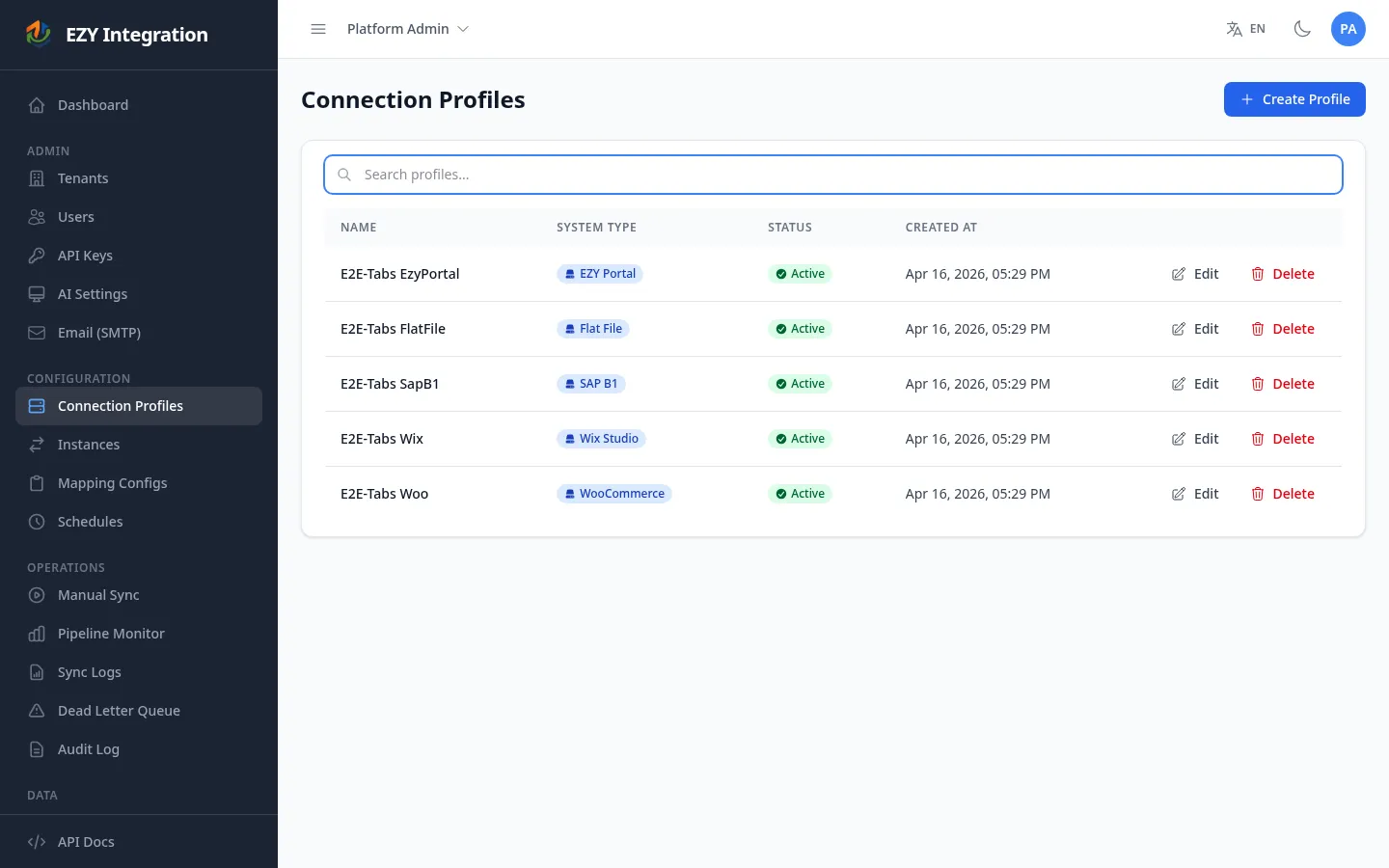
The list shows:
| Column | Description |
|---|---|
| Name | The label you gave the profile. |
| System Type | The connector type (for example, SAP Business One or Shopify). |
| Status | Active or inactive. Inactive profiles cannot be used in jobs. |
| Created | Date the profile was created. |
Use the search bar to filter by profile name. The list is paginated in groups of 25.
Creating a Connection Profile
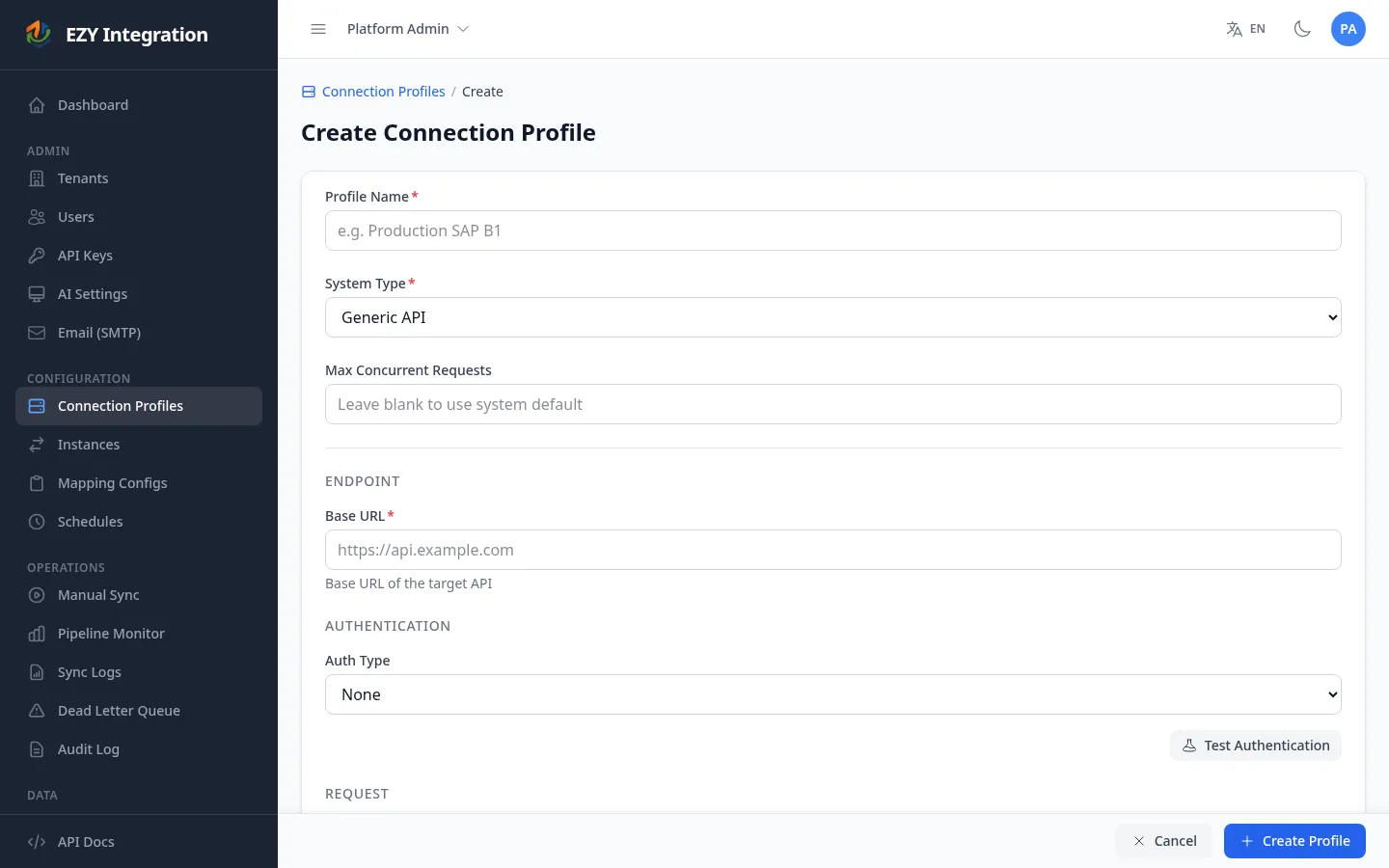
Section titled “Creating a Connection Profile”- From the Connection Profiles list, click Create Profile.
- Enter a Profile Name. Choose a descriptive name that identifies the system and environment (for example, SAP B1 – Production or Shopify – Main Store).
- Select the System Type for the connector you want to configure.
- Optionally set Max Concurrent to limit how many parallel pipeline workers this profile can use at once (1–100). Leave blank to use the system default.
- Fill in the credential fields for the selected system type (see the section below for a summary by type).
- Click Test Connection to verify the credentials before saving.
- Click Create Profile to save.
System Types and Credential Fields
Section titled “System Types and Credential Fields”Each system type has its own set of credential fields. The table below summarizes the available types and links to the full credential reference for each connector.
| System type | Direction | Credential sections | Full reference |
|---|---|---|---|
| SAP Business One | Source + Target | Database connection, Service Layer (optional), File paths (optional) | SAP Business One |
| EZY Portal | Source + Target | Portal URL, API key | EZY Portal |
| Shopify | Source + Target | Shop domain, Auth mode (OAuth or Legacy token), Advanced settings | Shopify |
| WooCommerce | Source | Store URL, REST API credentials, WordPress Auth (optional) | WooCommerce |
| Wix | Source | API key, Site ID | Wix |
| Flat File | Target | Output directory, Format (CSV or XML), Filename pattern | Flat File |
| Generic API | Target | Base URL, Auth type, Auth fields, Content type | Generic API |
Each connector page listed above contains the authoritative table of credential fields, required/optional status, and example values.
Testing a Connection
Section titled “Testing a Connection”The Test Connection button appears at the bottom of each credential section on the create and edit forms. Click it at any time to verify that EZY Integrations can reach the external system using the current credentials.
- A green banner with a latency reading indicates a successful connection.
- A red banner with an error message indicates a failure. The message will describe the problem (for example, authentication error, host unreachable, or invalid URL).
For multi-section connectors (SAP Business One has three separate test buttons for the database connection, Service Layer, and file paths), each section can be tested independently.
Testing uses the values currently entered in the form. If you have not changed any credential fields on the edit form, the test uses the previously saved encrypted credentials.
Editing a Connection Profile
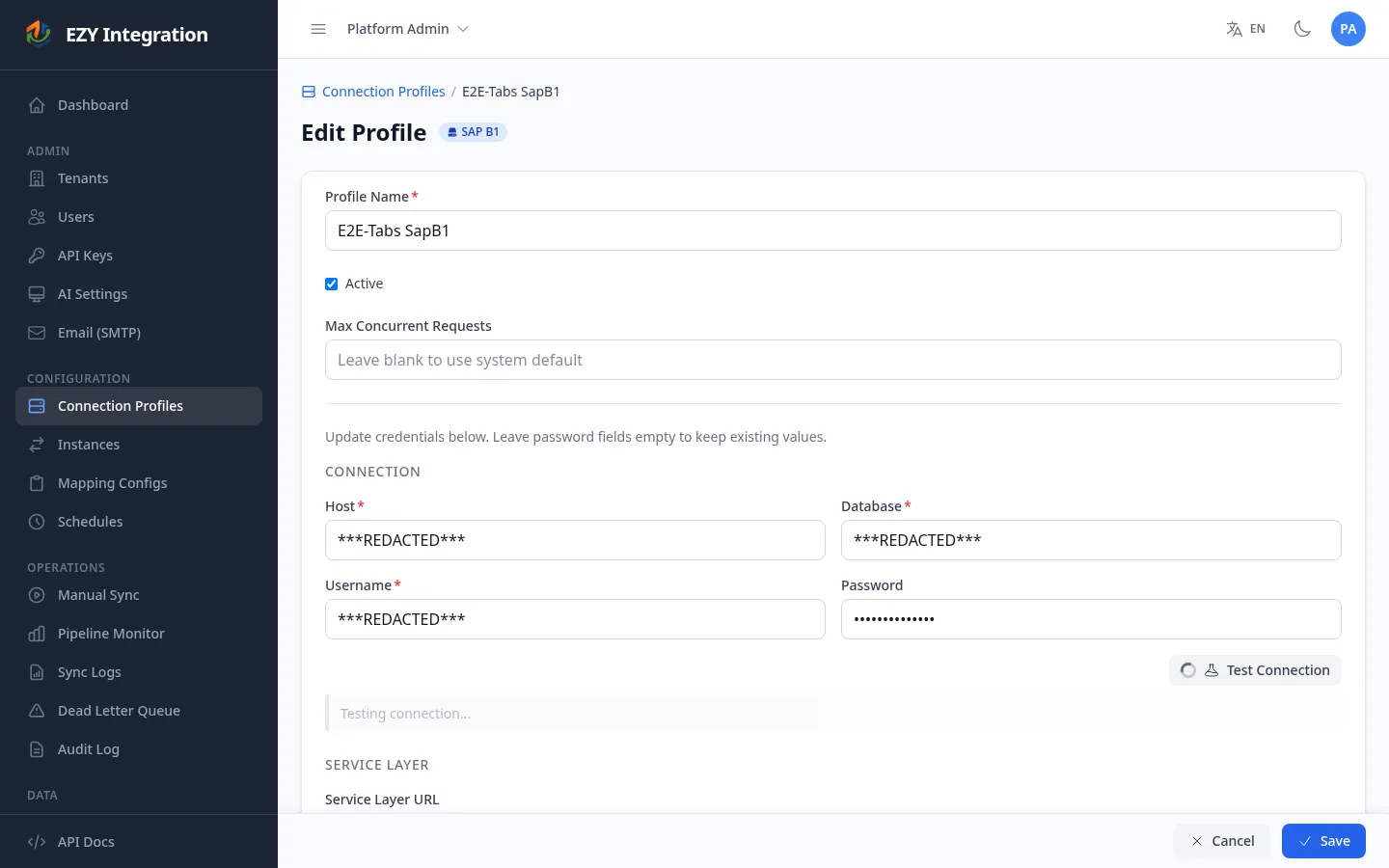
Section titled “Editing a Connection Profile”- In the Connection Profiles list, click Edit on the row you want to change.
- Update the Profile Name, Active status, or Max Concurrent value as needed.
- To update credentials, type the new value into the relevant field. Fields that already contain a saved secret show
••••••••. You only need to re-enter fields whose values have changed — leaving a field blank preserves the previously stored value. - Click Test Connection to verify the updated credentials.
- Click Save.
Rotating Secrets Without Disrupting Running Schedules
Section titled “Rotating Secrets Without Disrupting Running Schedules”When a credential needs to be rotated (for example, after an API key is regenerated in the source system):
- Open the edit form for the affected connection profile.
- Enter the new value only in the field that changed. Leave all other credential fields blank to preserve their stored values.
- Test the connection to confirm the new value is valid.
- Save the profile.
Scheduled jobs continue to pick up the updated credentials on their next execution. If a job is currently running, it uses the credentials that were active when that run started; the new credentials take effect on the following run.
Security Best Practices
Section titled “Security Best Practices”- Use a dedicated service account or integration-specific credential for each connection profile. Avoid reusing personal credentials.
- Grant the minimum permissions needed for the integration in the source or target system.
- Rotate credentials periodically, or immediately if you suspect a compromise.
- Do not share the same API key or password across multiple environments (for example, do not use production credentials in a test profile).
Deactivating a Profile
Section titled “Deactivating a Profile”To prevent a profile from being used without deleting it:
- Open the edit form for the profile.
- Uncheck the Active checkbox.
- Save.
Inactive profiles remain visible in the list but cannot be selected when creating or editing a job.
Deleting a Profile
Section titled “Deleting a Profile”In the Connection Profiles list, click Delete on the row you want to remove. A confirmation dialog appears. Deletion is permanent.
Permissions
Section titled “Permissions”| Action | Platform Admin | User |
|---|---|---|
| View connection profiles | Yes | Yes (own tenant only) |
| Create connection profile | Yes | Yes |
| Edit connection profile | Yes | Yes |
| Test connection | Yes | Yes |
| Delete connection profile | Yes | Yes |
Related Pages
Section titled “Related Pages”- Tenant Onboarding — Overall first-time setup sequence.
- SAP Business One — Full SAP B1 credential reference.
- EZY Portal — Full EZY Portal credential reference.
- Shopify — Full Shopify credential reference.
- Jobs Overview — How jobs use connection profiles.