Pipeline
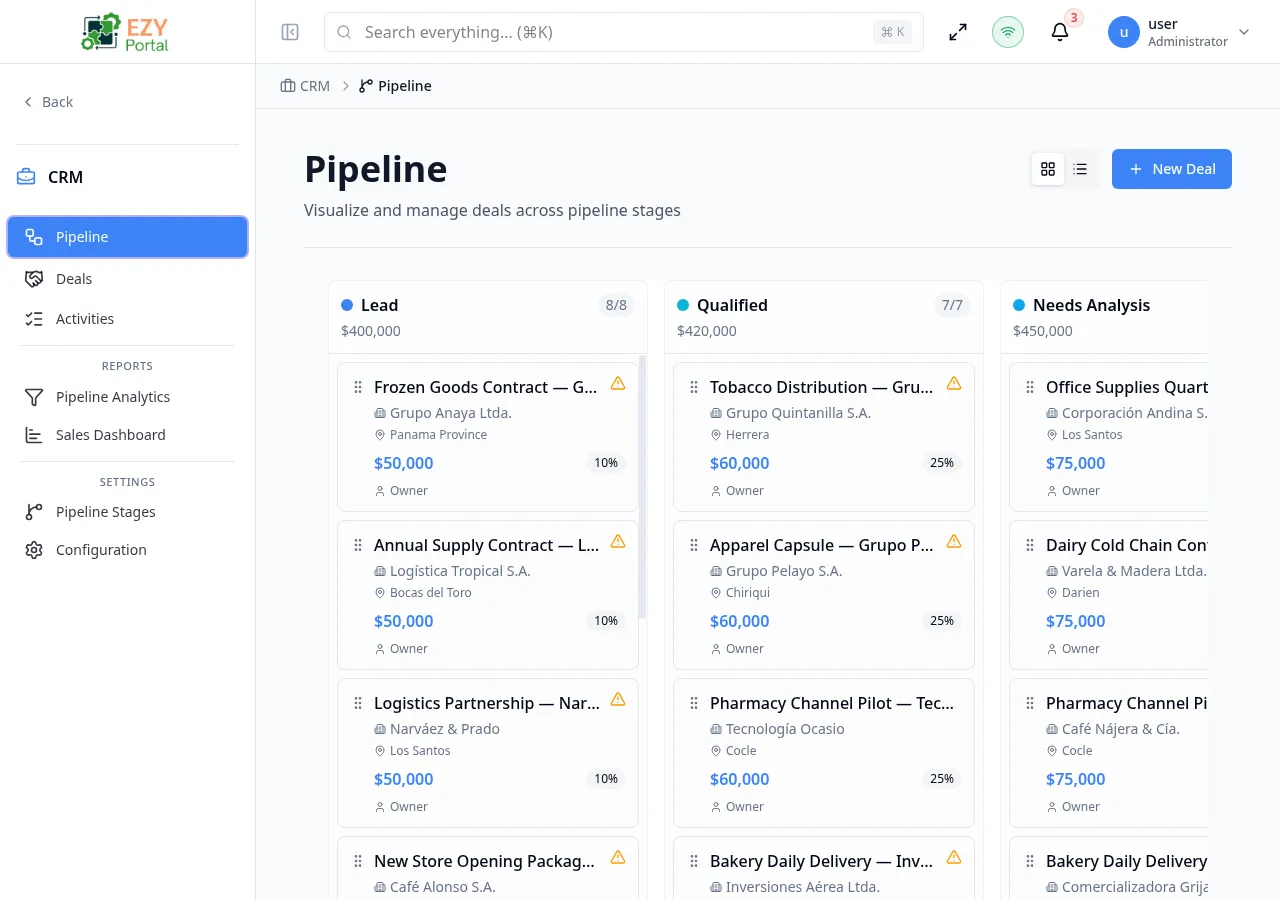
The Pipeline page is the visual kanban workspace for active deals. Each column represents a pipeline stage. Deals appear as cards inside their current stage and can be dragged across columns to advance them. A dedicated Closure column on the right provides drop zones for marking deals as Won, Lost, or On Hold. The pipeline loads the first 10 deals per stage and adds more on demand.
Accessing the Page
Section titled “Accessing the Page”- Route:
/pipeline - Menu Path: CRM → Pipeline
- Switch from the Deal List page using the board-view toggle (grid icon) in the toolbar.
Toolbar
Section titled “Toolbar”| Control | Description |
|---|---|
| View toggle (grid / list icons) | Switch between Pipeline (board) and Deal List (table) |
| New Deal button | Open the Create Deal form |
Stage Columns
Section titled “Stage Columns”Each active (non-closed, non-on-hold) pipeline stage appears as a scrollable column. The column header shows:
| Element | Description |
|---|---|
| Stage color dot | The stage’s configured color |
| Stage icon | The icon chosen in Stage Settings |
| Stage name | Display name of the stage |
| Card count badge | loaded / total — e.g., 3/12 |
| Pipeline value | Total deal amount for all deals in this stage |
Columns scroll independently. When more deals exist than are loaded, a Load More button appears at the bottom of the column.
Deal Cards
Section titled “Deal Cards”Each deal card shows:
| Field | Description |
|---|---|
| Deal title | The deal’s name |
| Amount | Deal value formatted as currency |
| Probability bar | Visual progress bar showing the deal’s close probability |
| Company name | Contact company, if set |
| Expected close date | Target close date, if set |
| Tags | Tags assigned to the deal |
Click any card to open the Deal Detail page.
Kanban Interactions
Section titled “Kanban Interactions”Moving a deal to a new stage
Section titled “Moving a deal to a new stage”Drag a card from one column and drop it onto another column. The card snaps to the position where you drop it. The move is saved immediately and the column counts and values update.
Dragging a card within the same column reorders it within that stage. The new position is persisted.
Closure column
Section titled “Closure column”The rightmost Closure column contains drop zones for terminal stages. Depending on your Stage Settings configuration, the available zones may include:
| Zone | Icon | Behavior |
|---|---|---|
| Won | Trophy | Opens a confirmation dialog requesting an optional win reason. After confirmation the deal is marked Won and removed from the board. |
| Lost | X mark | Opens a confirmation dialog requiring a loss reason (mandatory). After confirmation the deal is marked Lost and removed from the board. |
| On Hold | Pause | Moves the deal to On Hold immediately without a confirmation dialog. |
Won and Lost drops require confirmation. Dropping a card on these zones freezes the card in place until you confirm or cancel.
Cancelling a terminal drop returns the card to its original column and position.
Win reason dialog
Section titled “Win reason dialog”When dropping a card on the Won zone:
- A dialog titled Mark Deal as Won appears.
- Enter an optional win reason (e.g., “Competitive pricing, strong relationship”).
- Click Mark as Won to confirm.
- The deal disappears from the board and its status changes to Won.
Lost reason dialog
Section titled “Lost reason dialog”When dropping a card on the Lost zone:
- A dialog titled Mark Deal as Lost appears.
- Enter a required loss reason (e.g., “Price too high, went with competitor”).
- Click Mark as Lost to confirm.
- The deal disappears from the board. If the deal was linked to a prospect, the prospect’s status may also update.
Load More
Section titled “Load More”Each column initially loads 10 deals. The header badge shows loaded/total. When more deals exist, click Load More at the bottom of the column to load the next 10.
Empty Pipeline
Section titled “Empty Pipeline”If no active pipeline stages are configured, the page shows an empty state with a link to Configure Stages (requires stage management permission). Stages are managed in Stage Settings.
Permissions and read-only behavior
Section titled “Permissions and read-only behavior”| Permission | Behavior |
|---|---|
| Create Deal | New Deal button is visible |
| Edit Deal (own scope) | Can drag and drop cards, confirm won/lost |
| Edit Deal (outside scope) | Scope warning appears on the card; drag-and-drop is blocked |
| No write access | Board is fully visible for planning but all mutations are disabled |
| Manage Stages | Configure Stages link appears in the empty state |
Common tasks
Section titled “Common tasks”- Open CRM → Pipeline from the sidebar.
- Find the deal card to progress and drag it to the next stage column.
- To close a deal, drag it to the Won or Lost zone in the Closure column and confirm.
Related Pages
Section titled “Related Pages”- Deal List — Tabular list view of all deals with filtering
- Deal Detail — Full detail page for a single deal
- Stage Settings — Configure and reorder pipeline stages