Create Sales Quotation
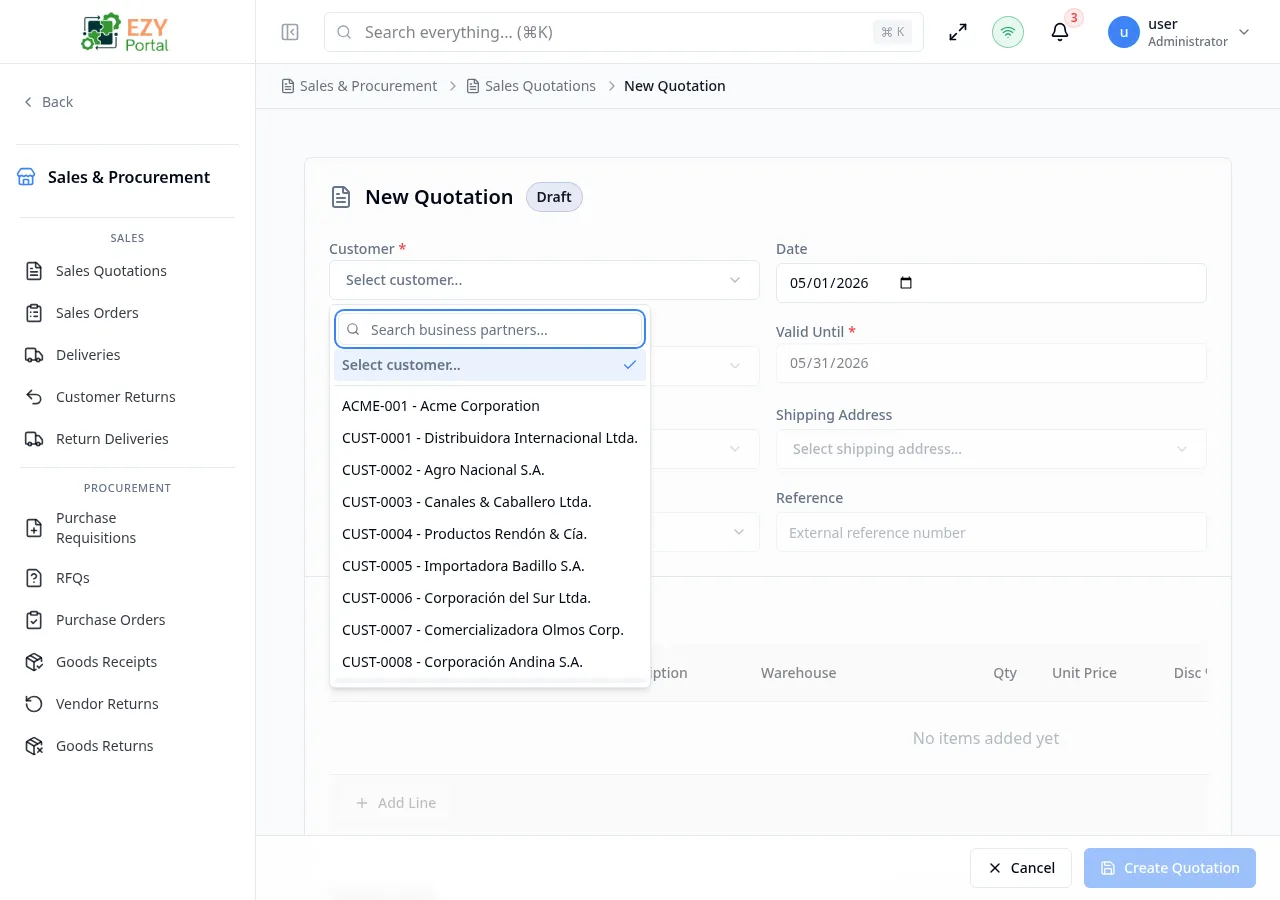
Create a new sales quotation by entering a customer, document details, and one or more line items. The form opens as a full-page document editor with a header section for document-level fields and an editable line items table. All quotations start in Draft status.
Accessing the Page
Section titled “Accessing the Page”From the Sales Quotations list, click New Quotation, or navigate directly to /commerce/sales/quotations/new.
Form Overview
Section titled “Form Overview”The create form is a single-page document layout with two areas:
| Section | Description |
|---|---|
| Document Header | Customer, dates, addresses, payment terms, pricing, and reference fields |
| Line Items | Editable table of products, quantities, prices, and tax categories |
A footer bar at the bottom of the page contains the Create Quotation and Cancel buttons.
Document Header Fields
Section titled “Document Header Fields”| Field | Required | Type | Description | Default | Validation |
|---|---|---|---|---|---|
| Customer | Yes | Entity select | Business partner to quote | — | Must select a customer; partner on hold blocks submission |
| Date | Yes | Date | Document date | Today | — |
| Valid Until | No | Date | Expiry date for the quotation | Today + 30 days | — |
| Currency | Yes | Select | Document currency | Company default currency | 3-letter ISO code |
| Payment Terms | Yes | Entity select | Payment terms for this quotation | Customer default | — |
| Price List | Yes | Entity select | Price list applied to line items | Customer default | — |
| Contact | No | Entity select | Customer contact person | Customer primary contact | — |
| Billing Address | No | Entity select | Billing address from the customer | Customer default billing address | — |
| Shipping Address | No | Entity select | Shipping address from the customer | Customer default shipping address | — |
| Sales Person | No | User select | Sales person responsible for this quotation | — | Active users only |
| Reference | No | Text | External reference (e.g., customer PO number) | — | — |
| Remarks | No | Textarea | Internal or customer-facing remarks | — | — |
| Disc % | No | Number | Document-level discount percentage applied after line totals | 0 | 0–100 |
When a Customer is selected, the form auto-populates Payment Terms, Price List, Contact, Billing Address, and Shipping Address from the customer’s default settings. These can be overridden manually.
Selecting a different Price List when lines with prices already exist prompts a dialog asking whether to update existing line prices.
Line Items
Section titled “Line Items”Each row in the line items table represents one product to be quoted.
| Column | Required | Description | Validation |
|---|---|---|---|
| Item | Yes | Item code — typeahead from item master | Must select an item |
| Description | No | Line-level description (auto-populated from item) | — |
| Warehouse | Yes | Warehouse for this line | Must select a warehouse |
| Qty | Yes | Quantity to quote | Must be greater than 0 |
| Unit Price | Yes | Price per unit | Auto-populated from price list if available |
| Disc % | No | Line-level discount percentage | 0–100 |
| Tax Category | Yes | Tax category for this line | Must select a tax category |
| Tax Amount | — | Computed from unit price, quantity, discount, and tax rate | Read-only |
| Price After Disc. | — | Unit price minus line discount | Read-only computed |
| Line Total | — | (Price after discount × Qty) + Tax | Read-only computed |
| Notes | No | Line-level notes | — |
Click Add Line to add a new empty row. To remove a line, click the delete icon on the row and confirm in the confirmation dialog.
A document totals footer below the line items shows: Total Quantity, Subtotal, Discount, Tax, and Grand Total.
Validation Rules
Section titled “Validation Rules”| Rule | Behavior |
|---|---|
| Customer required | Submission blocked until a customer is selected |
| Payment Terms required | Submission blocked until payment terms are selected |
| Price List required | Submission blocked until a price list is selected |
| At least one line | Submission blocked if no line items exist |
| Quantity positive | Each line must have a quantity greater than 0 |
| Warehouse required per line | Each line must have a warehouse selected |
| Tax category required per line | Each line must have a tax category selected |
| Partner on hold | Submission blocked if the selected customer is on hold |
| Price list masked | If the price list is outside your access scope, financial fields are hidden and a mask banner is shown |
| Price list change dialog | Changing the price list when lines have prices prompts to update or keep current prices |
Post-save Behavior
Section titled “Post-save Behavior”After the quotation is created successfully:
- The new quotation is saved with status Draft.
- You are redirected to the Sales Quotation Detail page for the new document.
- A success notification confirms the creation with the document number.
Common tasks
Section titled “Common tasks”- Click New Quotation from the Sales Quotations list.
- Select the Customer — payment terms, price list, and addresses are auto-filled.
- Add line items with item code, quantity, and verify pricing.
- Click Create Quotation to save the draft.
Permissions & system behavior
Section titled “Permissions & system behavior”- Creating quotations requires the
canCreateSalesQuotationpermission. - If a price list is restricted, financial fields for that price list may be masked.
- After creation, the quotation can be advanced through the workflow from the detail page.
Related Pages
Section titled “Related Pages”- Sales Quotations — List all quotations
- Sales Quotation Detail — View and act on a quotation
- Edit Sales Quotation — Edit a draft quotation
- Sales Orders — Orders created from converted quotations