Project Roles
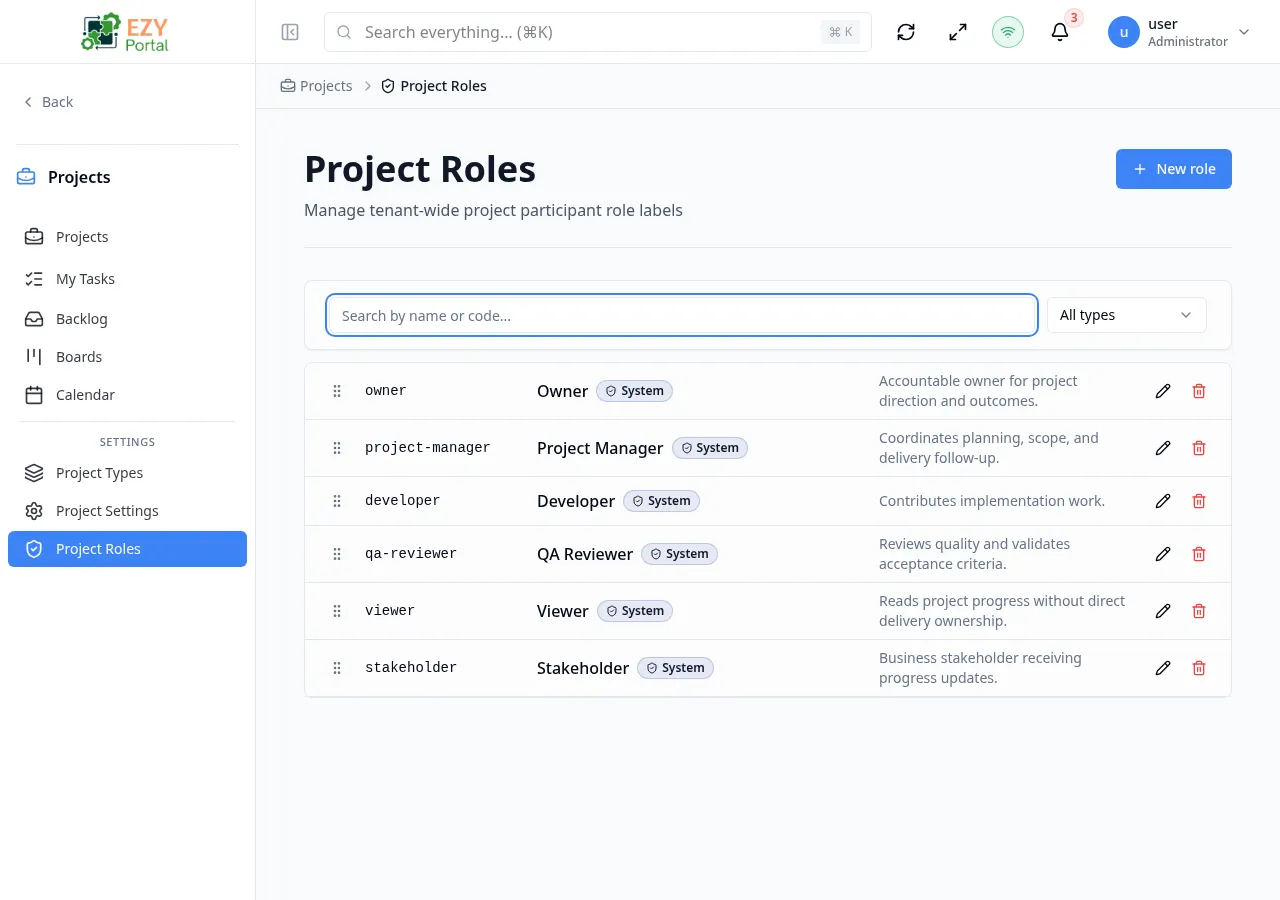
The Project Roles page lets you create and manage the role labels that are assigned to project participants. Roles are tenant-wide and shared across all projects. Each participant on a project is assigned exactly one role from this list. Roles wire directly into the project authorization model: members receive scoped permissions based on the role they hold on each project.
Accessing the Page
Section titled “Accessing the Page”Open Projects from the sidebar and navigate to Settings → Project Roles. Visibility requires at least Read-level access to the projects.project_roles permission.
What You Can Do Here
Section titled “What You Can Do Here”- View all project roles defined for the tenant.
- Search roles by name or key.
- Filter to show only system roles or only custom roles.
- Create new roles.
- Edit existing role names, keys, and descriptions.
- Reorder roles by dragging.
- Delete roles that are not in use.
- Initialize the list with a set of suggested roles in one step.
Role Fields
Section titled “Role Fields”| Field | Required | Description | Validation |
|---|---|---|---|
| Name | Yes | Display name shown in dropdowns and participant lists | Max 128 characters |
| Key | Yes | Unique machine-readable identifier (slug format recommended) | Max 64 characters; must be unique within the tenant |
| Description | No | Short explanation of the role’s purpose | — |
Suggested Roles
Section titled “Suggested Roles”When the tenant has no roles yet, the page shows a No roles yet empty state with a Use suggested roles button in the toolbar:
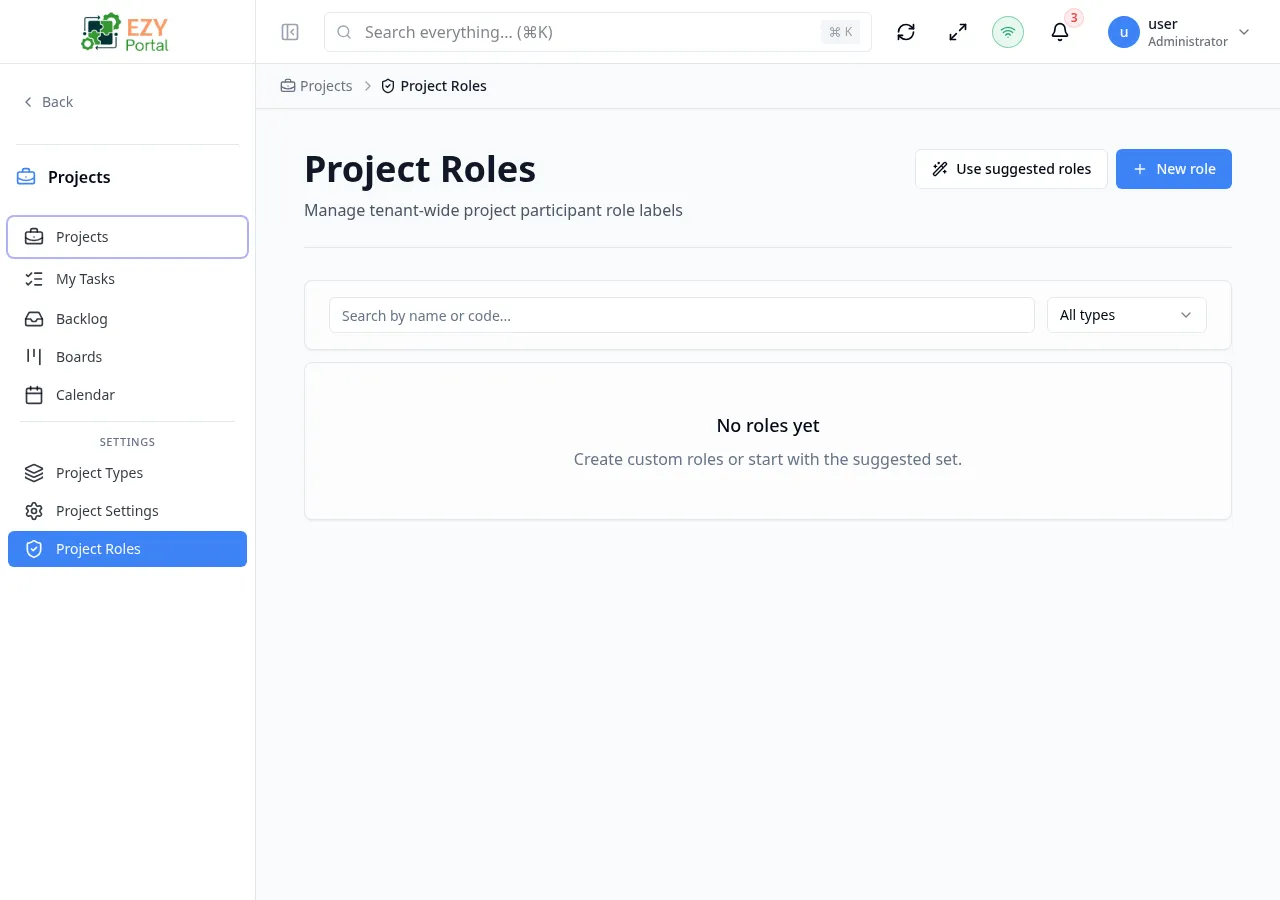
Click Use suggested roles to open the Initialize project roles dialog. It lists six suggested role templates with Select all missing roles preselected. Adjust the selection if needed, then click Add selected roles to create them in one step.
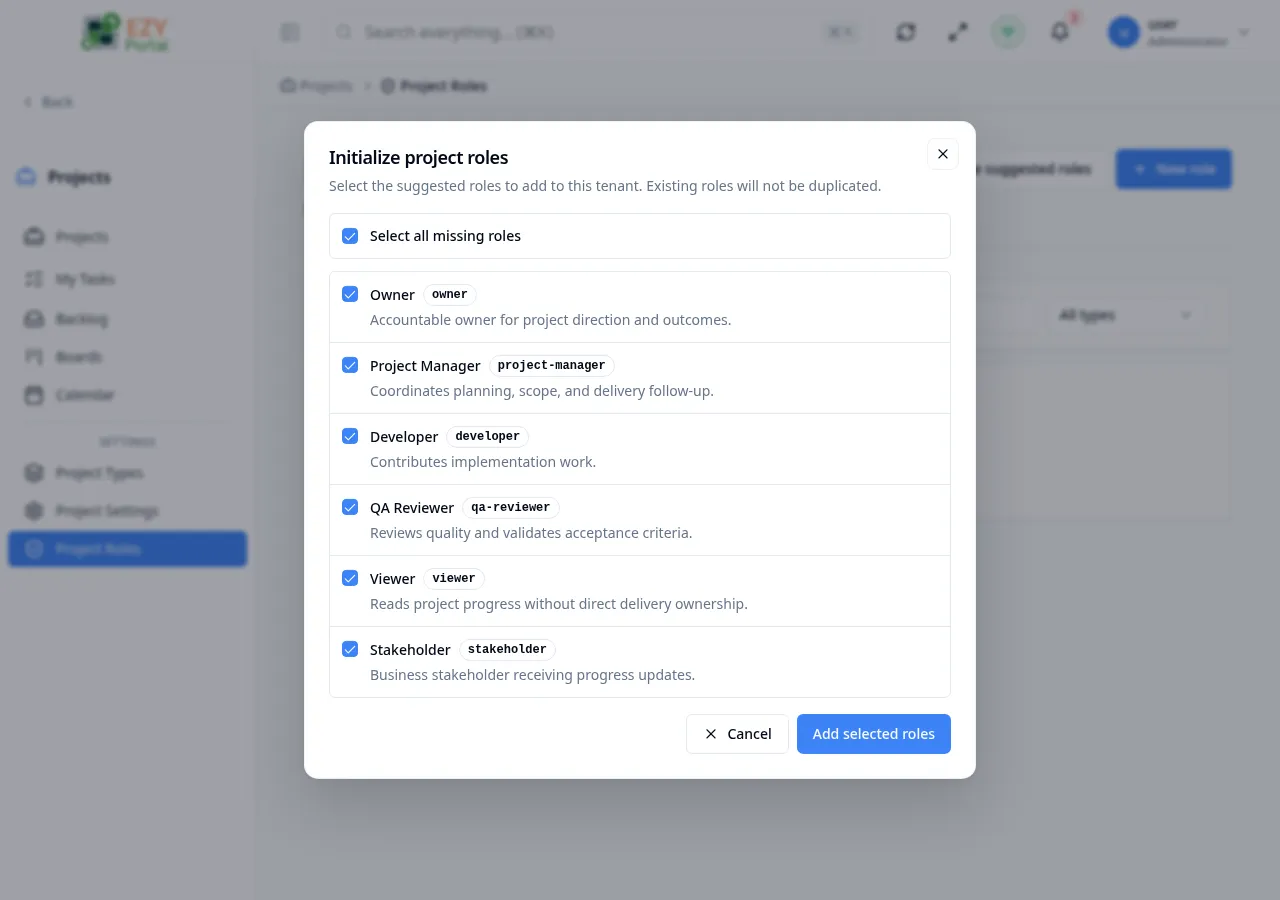
| Role | Description |
|---|---|
| Owner | Accountable owner for project direction and outcomes |
| Project Manager | Coordinates planning, scope, and delivery follow-up |
| Developer | Contributes implementation work |
| QA Reviewer | Reviews quality and validates acceptance criteria |
| Viewer | Reads project progress without direct delivery ownership |
| Stakeholder | Business stakeholder receiving progress updates |
Already-existing roles are shown disabled with an Exists badge so they cannot be re-added.
Reordering Roles
Section titled “Reordering Roles”Roles are displayed in sort order. To change the order, drag a role card by its grip handle and drop it in the new position. The order is saved automatically to the server. If the save fails, the order reverts to the previous state.
Reorder operations require Write-level permission. On desktop, role rows include a drag handle column on the left. On mobile, each role card shows its own drag handle.
System Roles
Section titled “System Roles”Roles marked with the System badge are managed by the platform. System roles cannot be deleted, but their names and descriptions can be edited.
Filters
Section titled “Filters”| Filter | Description |
|---|---|
| Search | Matches role name or key (case-insensitive) |
| Type | Show All types, System only, or Custom only |
Filters apply client-side to the loaded role list. Active filters are shown as removable chips above the results.
Actions
Section titled “Actions”| Action | Required Permission | Description |
|---|---|---|
| Create role | Write (project_roles) | Opens the Create Role dialog |
| Edit role | Write (project_roles) | Opens the Edit Role dialog |
| Delete role | Admin (project_roles) | Deletes the role after confirmation |
| Reorder roles | Write (project_roles) | Drag-and-drop reorder; saved automatically |
| Initialize roles | Write (project_roles) | Seeds selected suggested roles |
Superusers bypass permission checks and have full access.
Validation Rules
Section titled “Validation Rules”| Rule | Behavior |
|---|---|
| Name required | Save disabled while Name is empty |
| Key required | Save disabled while Key is empty |
| Key must be unique | Saving with a duplicate key returns an error |
| Role in use | Deleting a role that is assigned to one or more participants is blocked with the message “Project role is in use by active participants.” Remove or reassign all participants using this role before deleting it. |
Permissions
Section titled “Permissions”| Access level | What the user can do |
|---|---|
| Read | View and filter roles |
| Write | Create, edit, and reorder roles; initialize suggested roles |
| Admin | All Write actions plus delete roles |
Users without Read access on project_roles see an access-denied message and cannot view the list.
Relationship to Project Participants and Authorization
Section titled “Relationship to Project Participants and Authorization”Roles created here appear in the Role dropdown on the Project Participants panel. Changing a role’s name is reflected immediately on all participants already assigned that role. Roles also feed the project authorization model: when a tenant user is added as a participant with a given role, the system applies the permissions scoped to that role for the specific project.
Related Pages
Section titled “Related Pages”- Project Participants — Assign roles to specific project members
- Project Governance Settings — Enable or disable the roles feature tenant-wide