Shopify Connector
The Shopify connector links your Shopify store to EZY Integrations through the Shopify GraphQL Admin API. It can read products, customers, and orders from Shopify (source direction), and write products and inventory back to Shopify (target direction). Cursor-based pagination keeps large catalogs in sync incrementally without re-fetching data that has not changed.
When to use this connector
Section titled “When to use this connector”- Push your ERP item catalog to Shopify so the store always reflects current prices, descriptions, and variants.
- Pull Shopify orders and customer records into EZY Portal or a flat file for reporting or ERP entry.
- Keep Shopify inventory levels in sync with warehouse stock from an ERP.
- Extract product data from Shopify for downstream processing by another system.
Supported entity types
Section titled “Supported entity types”| Entity type | Direction | Description |
|---|---|---|
item | Source + Target | Shopify products, including variants, metafields, images, and inventory levels. |
itemstock | Target | Inventory-only update for an existing Shopify product. Does not touch product fields, images, or metafields. |
customer | Source | Shopify customer records. |
order | Source | Shopify order documents. |
Note:
itemstockrequires the product to already exist in Shopify from a prioritemsync. If no product mapping is found, the run reports an error for that record.
Prerequisites
Section titled “Prerequisites”Before configuring this connector, complete the following steps in your Shopify admin.
1. Create a custom app
Section titled “1. Create a custom app”- Log in to the Shopify Partners dashboard.
- Go to Apps and click Create app, then choose Create app manually.
- Enter a descriptive name (for example,
ezy-integration) and click Create.
2. Configure Admin API access scopes
Section titled “2. Configure Admin API access scopes”In the app’s Configuration page, enable at minimum the following Admin API access scopes:
| Scope | Required for |
|---|---|
read_products, write_products | Product sync |
read_publications, write_publications | Publishing products to sales channels |
read_inventory, write_inventory | Inventory level sync |
read_locations | Warehouse/location mapping |
read_customers | Customer extraction |
read_orders | Order extraction |
read_files, write_files | Product image uploads |
Click Save after selecting scopes.
3. Configure protected customer data access
Section titled “3. Configure protected customer data access”If you extract customer or order records, Shopify requires an additional approval step:
- In the app, go to API access requests and open Protected customer data access.
- Select Store management as the data use reason.
- Under Protected customer fields, select Name, Email, Phone, and Address.
- Click Save.
Without this approval, the Shopify API rejects queries that touch Customer or Order records.
4. Set the distribution method and install the app
Section titled “4. Set the distribution method and install the app”- In the app, go to Distribution, select Custom distribution, and enter the target store domain.
- Click Generate link, then open that link in a browser logged into the target store.
- Review the permissions and click Install app.
5. Retrieve credentials
Section titled “5. Retrieve credentials”After installation, go to the app Overview page to copy the Client ID and Client secret. You will enter these in the connection profile.
Optional: full order history
Section titled “Optional: full order history”By default, read_orders returns only the last 60 days. To access all orders, request the Read all orders scope in API access requests.
Connection profile fields
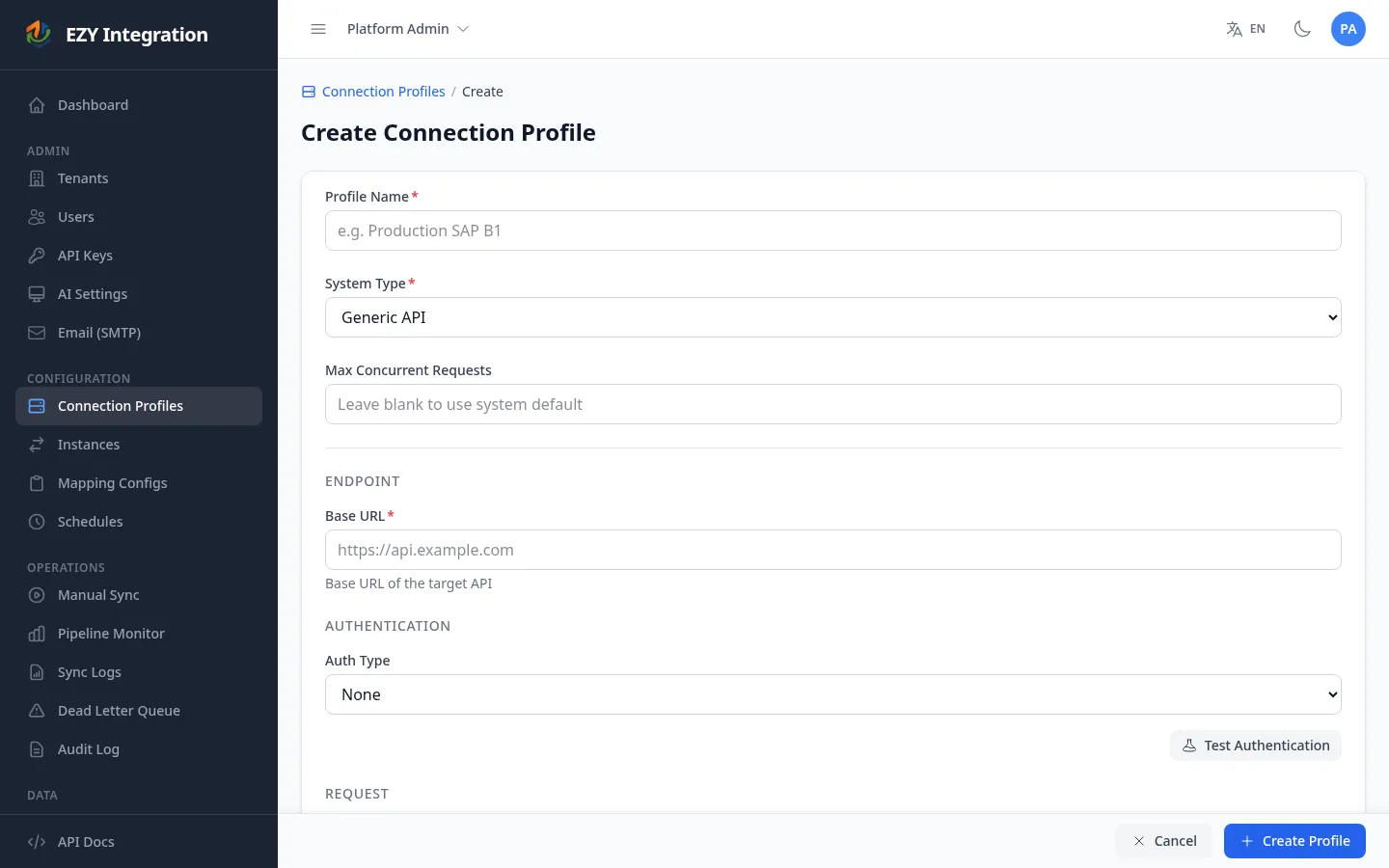
Section titled “Connection profile fields”When you create a Shopify connection profile in EZY Integrations, the form is divided into three sections.
| Field | Required | Description | Example |
|---|---|---|---|
| Shop domain | Yes | Your Shopify store URL | https://example.myshopify.com |
Authentication
Section titled “Authentication”Choose either OAuth (recommended) or Legacy token using the radio buttons.
OAuth mode:
| Field | Required | Description | Example |
|---|---|---|---|
| Client ID | Yes | App client ID from the Shopify Partners dashboard | <CLIENT_ID> |
| Client secret | Yes | App client secret (stored encrypted) | <CLIENT_SECRET> |
Legacy token mode:
| Field | Required | Description | Example |
|---|---|---|---|
| Access token | Yes | Admin API access token from a private app | <ACCESS_TOKEN> |
An inline Test button is available after filling in the authentication fields. Use it to confirm connectivity before saving.
Advanced
Section titled “Advanced”| Field | Required | Description | Example |
|---|---|---|---|
| API version | No | Shopify GraphQL API version. Defaults to the latest supported version if left blank. | 2026-01 |
| Webhook secret | No | HMAC secret used to verify inbound webhook payloads from Shopify. | <WEBHOOK_SECRET> |
Partial-success behavior for product writes
Section titled “Partial-success behavior for product writes”When EZY Integrations writes a product to Shopify, the operation consists of five chained sub-steps. Each sub-step can succeed or fail independently without blocking the others. This is called the partial-success model.
graph TD
    A[Product create / update] --> B[Variant sync]
    B --> C[Metafield sync]
    C --> D[Image sync and variant-image association]
    D --> E[Inventory sync]
    A -- smart hash check --> SKIP[Sub-step skipped\nunchanged content]
How each sub-step works:
- Product create / update — The main product record (title, description, handle, vendor, status, tags) is written first. If this step fails, the whole record is marked as failed and no sub-steps run.
- Variant sync — Product variants (SKUs, prices, barcodes, weight, options) are created or updated. SKU conflicts on individual variants are captured as warnings; other variants in the same product still complete.
- Metafield sync — Custom metafields are written after the product. This sub-step only runs when the metafield content has changed since the last run (hash-based smart sync).
- Image sync — Product images are uploaded or replaced. A separate content-hash check determines which images are new, updated, or unchanged. After upload, images are associated with the matching variant by color option name.
- Inventory sync — Stock levels are set per Shopify location. This sub-step only runs when inventory values have changed since the last run.
What you see in run history when a sub-step fails
Section titled “What you see in run history when a sub-step fails”| Outcome | What you see |
|---|---|
| All sub-steps succeed | Run record shows Success; connector summary lists counts for variants synced, images added/updated/removed, metafields written, inventory synced. |
| One or more sub-steps fail | Run record still shows Success (the main product write succeeded), but the Warnings column lists each failed sub-step and its error message. |
| The main product write fails | Run record shows Failed with the error code and message from Shopify. |
Because a failed sub-step is treated as a warning rather than a failure, the failed sub-step’s content hash is not promoted. On the next run, EZY Integrations will retry that sub-step even if the source data has not changed.
How to remediate a sub-step warning
Section titled “How to remediate a sub-step warning”- Open Run History and click the affected run to view the full detail.
- Read the warning message to identify which sub-step failed (for example, “Metafield sync failed” or “Image upload failed”).
- Correct any upstream data issue if the error points to a data problem (for example, an image URL that returned a 404).
- Trigger a manual re-run from the Sync Trigger page, or wait for the next scheduled run — the failed sub-step will automatically retry.
If the image media upload succeeds but Shopify has not finished processing the media before the variant-image association step runs, EZY Integrations waits up to approximately 15 seconds for media to reach a ready state before proceeding. If the timeout is reached, the association step is skipped and recorded as a warning for the next run to retry.
Known limitations and quirks
Section titled “Known limitations and quirks”- Smart sync (hash-based skip): If a product’s data has not changed since the last successful run, the connector skips the write entirely. This reduces Shopify API quota usage and speeds up large catalog syncs.
- Reconciliation on first run: When writing a product for the first time, the connector checks whether a product with the same handle or SKU already exists in Shopify. If found, it converts the create to an update to prevent duplicates.
- Shopify daily variant cap: Shopify enforces a daily limit on
productVariantsBulkCreatecalls. For multi-variant products, the connector uses theproductSetmutation which is not subject to this daily cap. - Location IDs required for inventory: Inventory sync writes stock levels per Shopify location. The location ID must be included in the mapping configuration; otherwise the inventory sub-step is skipped or fails.
- Read all orders scope: Without the optional Read all orders scope, extracted orders are limited to the last 60 days.
- Protected customer data: Extracting customer names, emails, phone numbers, or addresses requires the Shopify Protected Customer Data Access approval (see Prerequisites).
- API version: If the configured API version does not match the Shopify API surface (for example, field names that were renamed between versions), GraphQL errors will appear in run history.
Related
Section titled “Related”- Pipeline Stages — How records move through the Ingest, Normalize, Transform, Execute, and Finalize stages.
- Entity Types — Full list of entity types and the connectors that support them.
- Mapping Configuration — How to configure the field mapping for a Shopify source or target.
- Run History — How to read run results and interpret warnings.
- DLQ and Replay — How to replay failed messages.
- All Connectors — Compare Shopify with other available connectors.