View the complete details of a customer return including document header, line items, financial totals, and the current workflow status. From this page you can confirm the return, cancel it, or initiate a return delivery to physically receive the goods.
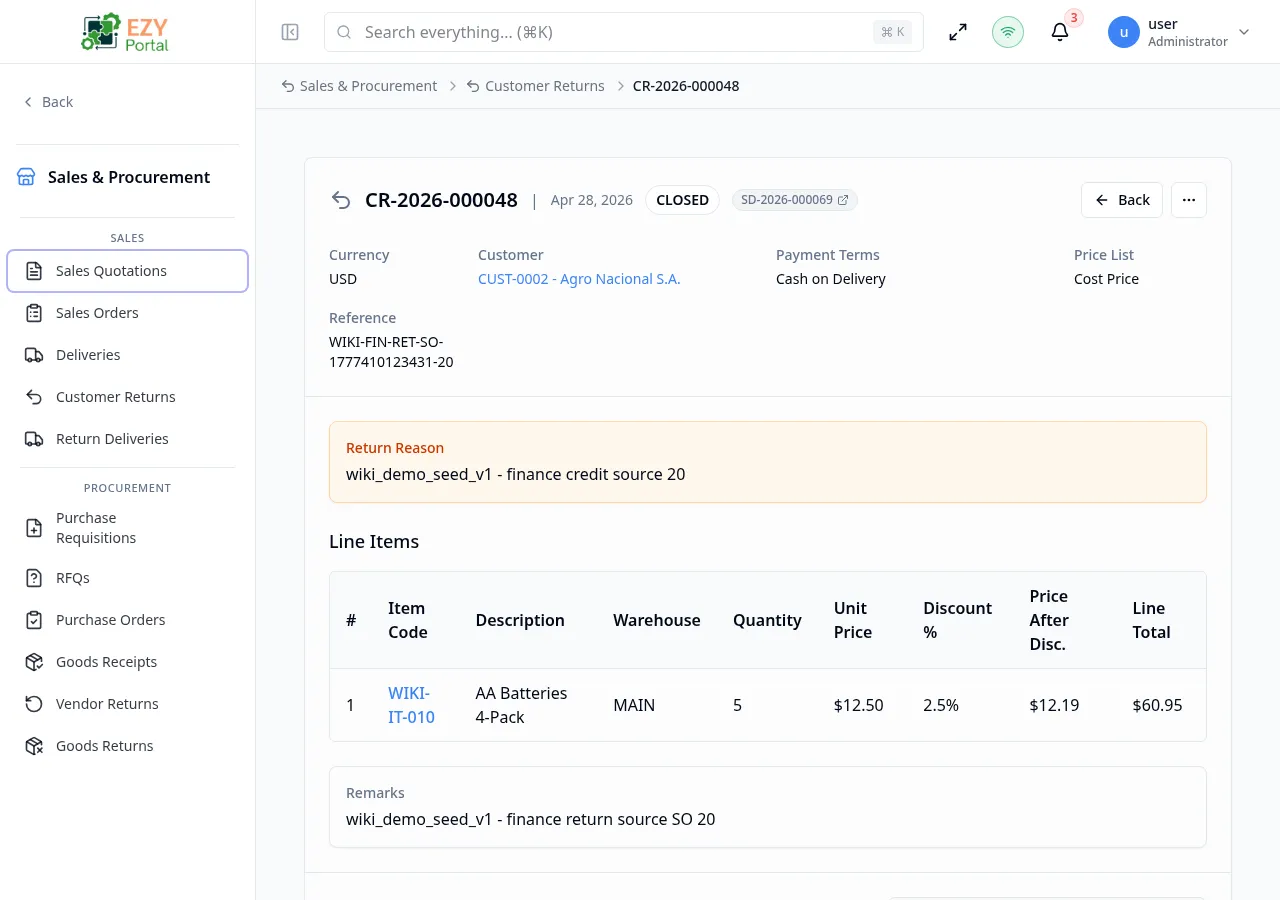
From the Customer Returns list, click any row, or navigate directly to /commerce/sales/customer-returns/:id.
| Button | Description | Available When |
|---|
| Back | Return to the Customer Returns list | Always |
| History | Open the document change history dialog | Always |
| Edit | Open the Edit Customer Return form | Draft only |
| Duplicate | Create a copy as a new Draft | Always |
| Delete | Delete the return after confirmation | Draft only |
| Confirm Return | Transition Draft → Confirmed | Draft |
| Cancel | Transition Draft → Cancelled (requires reason) | Draft |
| Create Return Delivery | Open the Create Return Delivery from Return dialog | Confirmed |
| Create Credit Memo | Shortcut to A/R credit memo creation | Confirmed |
| Export PDF | Download the return as a PDF | Always (if configured) |
| Field | Description |
|---|
| Document Number | System-generated return number |
| Status | Current status badge |
| Customer | Business partner name and code |
| Date | Document date |
| Return Reason | Reason for the return |
| Currency | Transaction currency |
| Sales Person | Assigned sales person |
| Payment Terms | Payment terms |
| Price List | Applied price list |
| Contact | Customer contact |
| Billing Address | Billing address |
| Shipping Address | Shipping address |
| Reference | External reference |
| Remarks | Return remarks |
| Column | Description |
|---|
| # | Line number |
| Item | Item code and name |
| Description | Line description |
| Warehouse | Destination warehouse for returned goods |
| Qty | Return quantity |
| Unit Price | Credit price per unit (may be masked) |
| Disc % | Line discount |
| Price After Disc. | Price after discount (may be masked) |
| Tax Category | Tax category |
| Tax Amount | Tax amount (may be masked) |
| Line Total | Line total (may be masked) |
| Field | Description |
|---|
| Total Quantity | Sum of all return quantities |
| Subtotal | Sum of line totals before discount |
| Discount | Document-level discount |
| Tax | Total tax |
| Grand Total | Final total |
graph LR
    DRAFT -->|Confirm| CONFIRMED
    DRAFT -->|Cancel| CANCELLED
    CONFIRMED -->|Return Delivery confirmed| CLOSED
- Verify the return is in Draft status.
- Click Delete in the action bar.
- Confirm the deletion.
- You are redirected to the Customer Returns list.
- Confirming the return commits it for processing and locks line quantities.
- After confirmation, use Create Return Delivery to record the physical receipt of goods.
- The return moves to Closed status when all associated return deliveries have been confirmed.
- Open the page from the Customer Returns list.
- Review line items and return reason.
- Click Confirm Return, then Create Return Delivery to process the physical goods receipt.