Edit Customer Return
Update an existing customer return that is in Draft status. The edit form uses the same full-page document layout as the create form. Once a return is confirmed, line quantities are locked and the form cannot be edited.
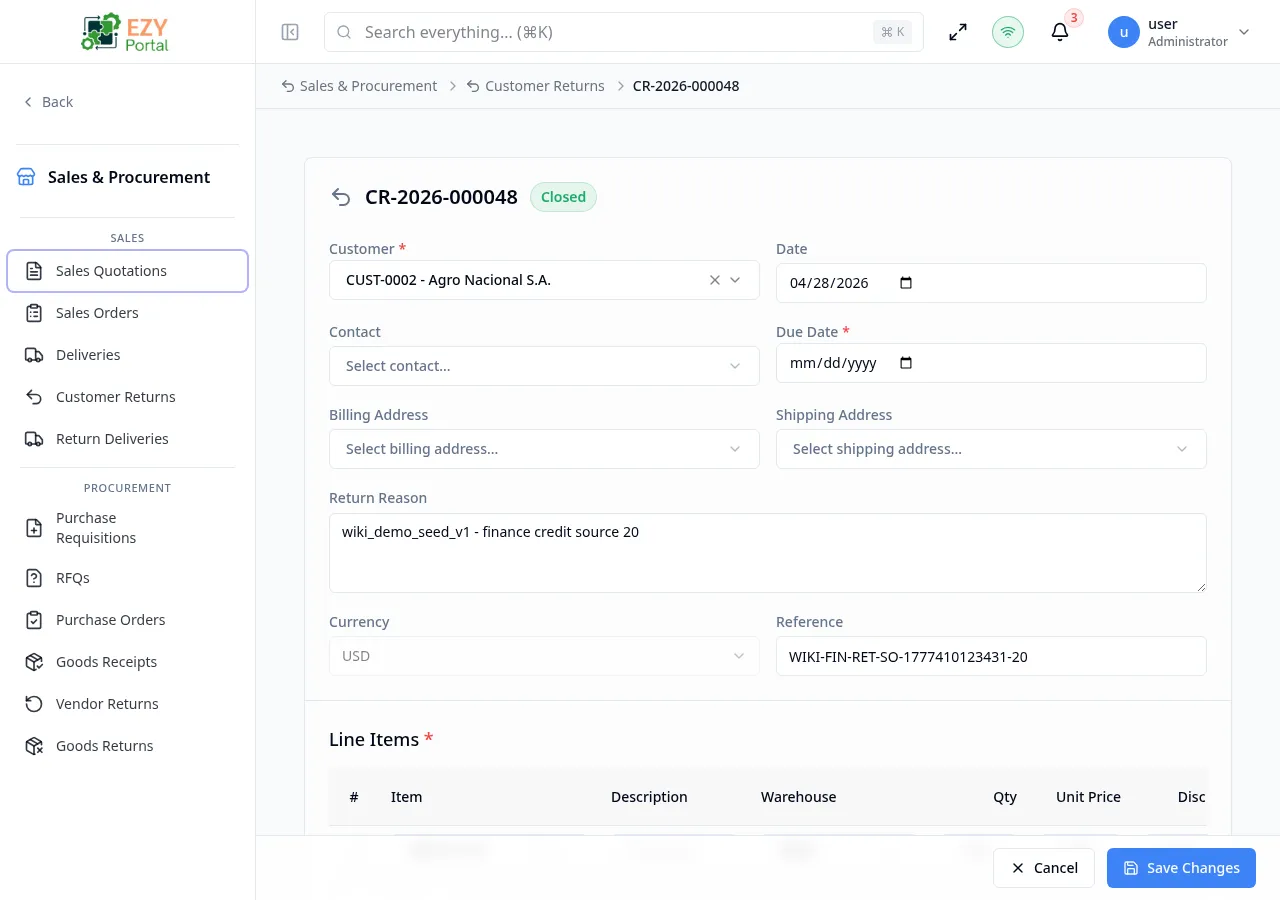
Accessing the Page
Section titled “Accessing the Page”From the Customer Return Detail page, click Edit, or navigate directly to /commerce/sales/customer-returns/:id/edit. The Edit button only appears for Draft returns.
Form Overview
Section titled “Form Overview”The edit form uses the same structure as the Create Customer Return form. All fields and line item columns are identical.
In edit mode:
- The document number is shown as a read-only reference in the header.
- The submit button is labeled Save Changes.
- Existing lines are pre-loaded; deleting a saved line marks it for removal on submit.
- Version tracking detects concurrent edits.
The Document Number is read-only after creation.
Document Header Fields
Section titled “Document Header Fields”Same fields as Create Customer Return.
Line Items
Section titled “Line Items”Same columns and behavior as Create Customer Return.
Validation Rules
Section titled “Validation Rules”Same rules as Create Customer Return. Additionally:
| Rule | Behavior |
|---|---|
| Version conflict | If another user edited the document concurrently, a conflict error is shown; refresh and retry |
| Draft-only editing | Non-Draft returns redirect to the detail page |
Post-save Behavior
Section titled “Post-save Behavior”After saving:
- The return is updated.
- You are redirected to the Customer Return Detail page.
- A success notification confirms the update.
Common tasks
Section titled “Common tasks”- Open the Customer Return Detail for a Draft return.
- Click Edit in the action bar.
- Update the return reason, line quantities, or other fields.
- Click Save Changes.
Permissions & system behavior
Section titled “Permissions & system behavior”- Editing requires Write permission on the Customer Returns module.
- Only Draft returns are editable.
Related Pages
Section titled “Related Pages”- Customer Returns — List all customer returns
- Create Customer Return — Create a new return
- Customer Return Detail — View and confirm a return